Advanced Plus WG2 Bedienungsanleitung

Camlog Smart Glasses Camera
Instruction

Mobile APP QR code
Android App Instruction -----Page 1-----Page 12
IOS App Instruction ----------Page 13----Page 18
Android App IOS App
Tips:
1: Not recommended for use in the charging process。
2: Do not use the Camlog smart glasses for illegal audiovisual collection。
3: May not be used without others’ permission to violate people's privacy。
4: Do not use the Camlog smart glasses to shoot in the shooting banned public places。
5: To protect your safety, please do not use Camlog smart glasses for voice calls while driving。
If Camlog smart glasses users use it for illegal things or cause themselves or others body/reputation
damage, users should be responsible for the law issues, regardless of the Camlog smart glasses
maker!

Product Structure
①Camera lens
②LED indicator
③Photo button/Answer call/Long press unbinding
④Power button/End call/Reject call
⑤Touch board (Finger slide backward to start recording, finger slide backward again to stop
recording, Finger slide forward to take a picture)
⑥USB port (connect to USB earphone, PC, charger)
⑦Speaker
⑧Battery compartment
⑨Glasses frame

Full kit
●Camlog Smart Glasses Camera ●Cleaning cloth
●USB cable ●Wall charger
●User manual ●Un-screw tool
Bluetooth
BT4.0/BLE
WIFI
802.11b/g/n
Battery Volume
500mAh
USB
USB 2.0
Storage
Built-in 8 GB Storage
Lens
800million Pixel
Operation System
Android/ISO
CPU
Super low-power dual-core
RAM
1002M
Language
English/Chinese
Audio Input
Digital Mic Audio Input
Buttons & Indicator LED
Buttons
Power button
1.Long press 3s to power on
2.Long press 10s to restart
3.Reject call when calling is coming
4.End call while calling
Touch board
Finger slide backward to start recording, slide backward again to stop
recording;Finger slide forward to take a picture.
Photo button
1.Take pictures
2.Answer call while calling is coming
3.Long press 3s to unbind with mobile phone
Indicator LED
Power on
Flash red while entering system,5s later off
Recording
Flash green
Charging
Solid red
Fully charged
Solid green
Low battery
Flash red slowly

Android APP Instruction
Android APP Installation & Bind & Unbind
Download and install “Camlog Glasses” APP,Android device users can directly scan the QR
code on the user manual to download or go to the application market to search “Camlog
Glasses”, download and install.
1.Open mobile “Camlog Glasses” APP, bind with the glasses camera regarding to the reminding
on the phone as below.
2.Open mobile Bluetooth, follow the picture instruction to bind and enter the Camlog Glasses
APP desk.
Power on GLASSES
CAMERA, choose Search
binding if there is no QR
code sticker on the
GLASSES CAMERA

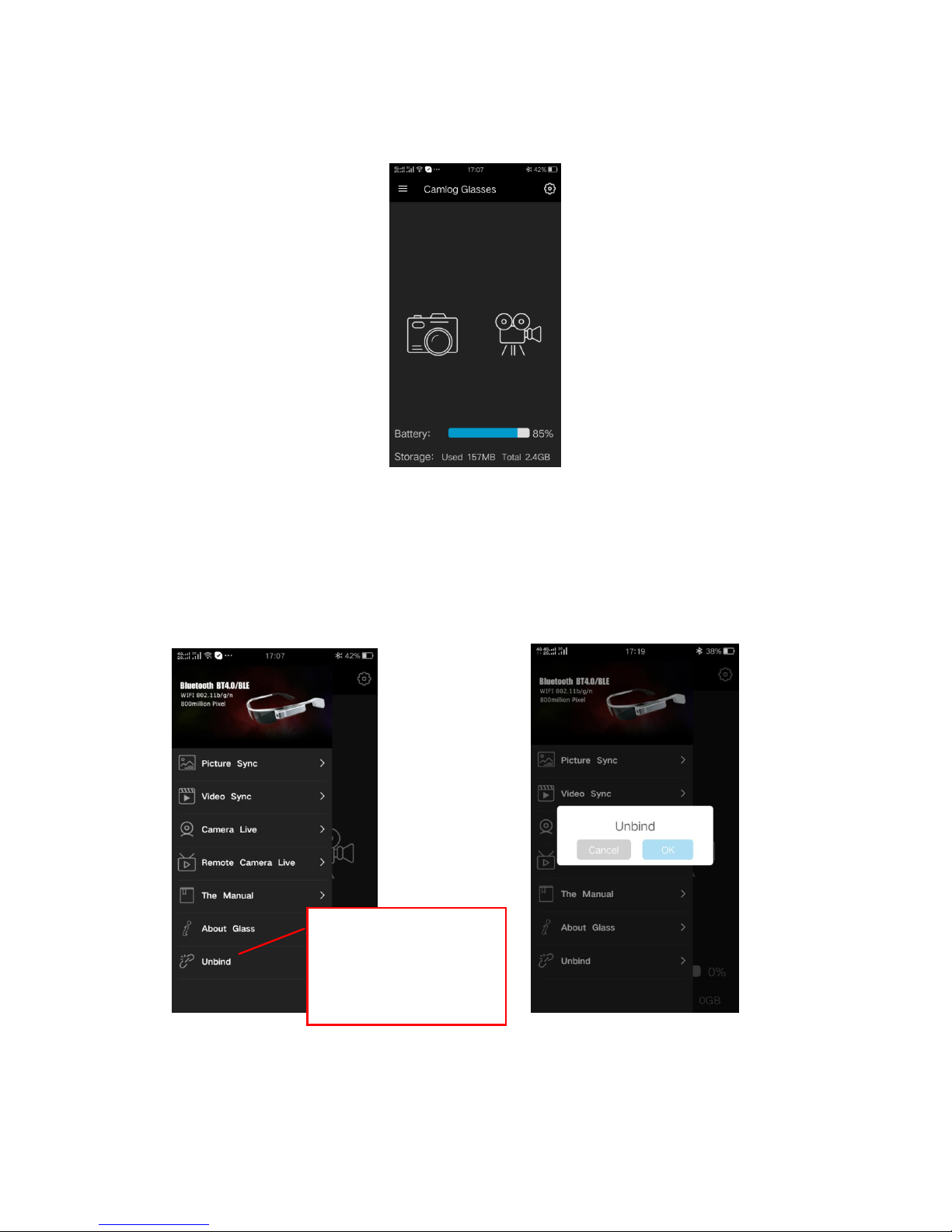
Main desk:
Main desk is divided into two parts:Photo and Video
The two buttons are for controlling the photo taking and video recording.
1.Right slide to enter menu page, shown as the below pictures. Click “Unbind” to unbind the
GLASSES CAMERA with the mobile phone, long press the “Photo button” on the camera arm
can also unbind.
Click【Unbind】→【OK】
to bind the GLASSES
CAMERA with the mobile
phone

Picture Sync
1、Click to download pictures, click the share button at the left down corner to
share them with your friends and families.
2、Click “Update”, if mobile phone hotpot is not on, it will remind you as below, choose “Ok”
to open it.
Then slide down to update to sync the photos. (This process will not cause mobile
phone net fee, don’t worry.)
3、Click “ ”, at the right down corner, there is a delete icon, click it to delete the selected
native pictures and glasses end pictures.

Video sync
1、Same operation methods as Photo sync. The difference is user should select the
video file/files to download first then sync. This will not cause mobile phone net fee
either.

Camera live
Click “camera live” to enter remote live streaming, if the mobile phone already opened the
wifi hotpot, then can directly enter live streaming, otherwise, it will remind to open that first,
click “Back” to exit the live streaming.
1 Make sure the GLASSES
CAMERA is binding with the
mobile phone.
2 Click[Camera live] to enter local
live streaming.
3 While live streaming, click
mobile phone back key to exit.

Remote camera live
Connect method 1:At place A, bind the GLASSES CAMERA with mobile phone, in
WLAN setting, choose the available wifi to connect, the GLASSES CAMERA will also
connect the selected wifi, after connected successfully, send the UID and Password
to the person who wants to remote live checking at place B. The person at Place B
open the APP desk and fill in the UID and password, select the resolution, click the
Start Live to start the remote live.(GLASSES CAMERA connect to outside wifi method)
Connect method 2:At place A, bind the GLASSES CAMERA with mobile phone, in
WLAN setting, choose the available mobile phone hotpot to connect, the GLASSES
CAMERA will also connect the selected wifi, after connected successfully, send the
UID and Password to the person who wants to remote live checking at place B. The
person at Place B open the APP desk and fill in the UID and password, select the
resolution, click the Start Live to start the remote live.(GLASSES CAMERA connect to
mobile phone hotpot method)

Inhaltsverzeichnis
Beliebte Camcorder Handbücher anderer Marken

Panasonic
Panasonic AG-HMC152EN Bedienungsanleitung

Insignia
Insignia NS-DCC5HB09 - Camcorder - 720p Bedienungsanleitung

MYDLINK
MYDLINK DCS-6100LH Bedienungsanleitung

Sony
Sony video Hi8 Handycam CCD-TR555 Bedienungsanleitung

SECURECOM
SECURECOM V-5014B Bedienungsanleitung

Panasonic
Panasonic HDC-SD100 Bedienungsanleitung