
Aircatglobal VirtualFly SOLO-A Bedienungsanleitung

SOLO A
USER'S MANUAL
Rev. .
January
FOR Cessna C172SP Skyhawk and Cessna Skylane II RG R182


3
SOLO-A USER'S MANUAL
TABLE OF
CONTENTS
1. IDENTIFICATION OF ELEMENTS
2. INSTALLATION
.. CABLE CONNECTION
.. INSTALATION OF FILES IN THE COMPUTER OF
MFS/PD
.. YOKO+ & VRNIO+ FLIGHT CONTROLS
CONFIGURATION
3. START-UP THE SOLO-A
4. SELECTION OF PANEL TYPE
5. RADIOSTACK PANEL
.. AUTOPILOT (AP) ‘KFC like’
.. COMMUNICATIONS AND NAVIGATION
.. DISTANCE METERING EQUIPMENT (DME)
.. AUTOMATIC DIRECTION FINDER (ADF)
.. TRANSPONDER (XPDR)
6. GPS GNS-530
.. KEY AND KNOB FUNTIONS
7. MULTIPLE SOLOFLIGHTPANEL OR MULTIPLE
MFS/P3D COMPUTER ON THE SAME
NETWORK
4
5
6
8
10
11
12
13
14
15
18
8. TROUBLESHOOTING
.. ANOMALY: THE INDICATOR PANEL DISPLAYS “MFS
Status: Searching...”
.. ANOMALY: CONNECTION GOES DOWN, IS
INTERMITTENT OR INDICATORS MOVES SHARPLY
9. TECHNICAL FEATURES
10. REMOTE ASSISTANCE
19
20
22
23

41. IDENTIFICATION OF ELEMENTS - SOLO-A USER'S MANUAL
1. IDENTIFICATION OF
ELEMENTS
Packaging contents:
. SOLO-A panel ( unit).
. SOLO-A Electrical power cable ( unit).
. SOLO-A Network cable ( unit).
. YOKO+ “the yoke” USB cable ( unit) (male, male A-B).
. VRNIO+ “throttle, propeller, mixture” USB cable ( unit) (male, male
A-A).
. SOLO-A Memory Stick (unit).
Content: SOLO-A_User's Manual, VF-TestCalibrate, VFConnect,
GNS-530E Network Module, GNS530_pilotsGuide, FSUIPC and
TeamViewer.
. SOLO-A Quick Start Guide ( unit).
It is important to save all parts you are not going to use, in case you need
them in the future.
5
2. INSTALLATION - SOLO-A USER'S MANUAL
2. INSTALLATION
The SOLO-A, has been technologically developed to be fully
plug&play. It connects easily to any computer running the “Microsoft
Flight Simulator” or “PreparD” hereinafter referred to as “MFS/P3D”.
Still, we’ll give you a series of steps to follow to install your panel.
The user must consider that SOLO-A has important modules::
• Thepanelitself:switches,gaugesandradiostack
• YOKO+“Theyoke”.
• V3rnio+“Throtlle,propeller,andmixture”.
• TheGPSGNS-530.
To activate all panel modules, the user must undertake operations:
• Cableconnection.
• InstalationoflesinthecomputerofMFS/P3D.
• YOKO+&V3RNIO+ightcontrolsconguration.
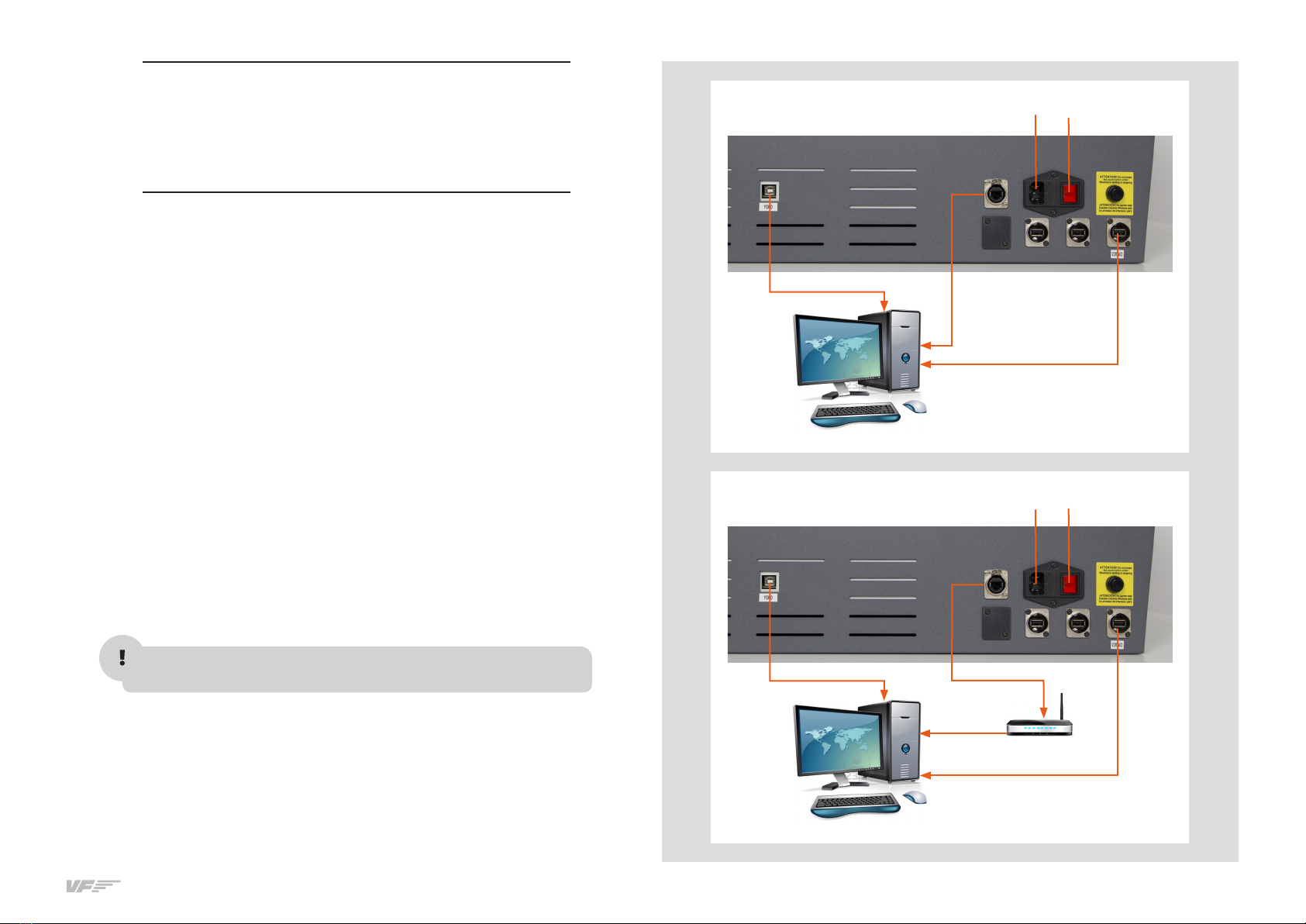
.. CABLE CONNECTION
Attention: before starting, the red back switch must be in OFF.
The user has options to connect the network cable:
• Direct(option1).
• Throughlannetwork(option2).
Once you finish, the user must connect the cable to the plug.
MFS/P3Dcomputer
MFS/P3Dcomputer
Home router
Switch OFF
Switch
OFF
OPTION 1: Direct
OPTION 2: Through LAN Network
Cable4
Cable4
Cable3
Cable3
Cable5Cable5
Not supplied
cable
Cable2
Cable2
62. INSTALLATION - SOLO-A USER'S MANUAL
2.2. INSTALLATION OF FILES TO THE COMPUTER OF MFS/P3D
FSUIPC Installation
In case you already have FSUIPC installed in your MFS/Prepar3D you
can skip this step.
• Go to the “FSUIPC” folder from the memory stick provided with
SOLO-A.
• Execute the setup program according your MFS version (FSX-
Prepar3D or FS2004).
• When the installer ask about registering, Click on “Not now”.
VFCONNECT Installation
Copy the "VFConnect.exe" file from the Memory Stick provided with
SOLO-A, in the MFS/P3D desktop computer.
As "VFConnect” communication module receives input data from MFS/
P3D and then send it to SOLO-A, Keep in mind, that "VFConnect.exe”
has to remain ON when you use the SOLO-A.
“VF-Test&Calibrate” Control Panel Installation
Copy the "VF-Test&Calibrate.exe" file from the Memory Stick provided
with SOLO-A, in the MFS/P3D desktop computer.
GNS-530 Network Module Installation
In case you have MFS/Prepar3D or others softwares running, you have
to close them before the GNS-530 Network Module installation.
• Go to the memory stick provided with SOLO-A.
• Execute the 530E_network_module.exe setup program and follow
the installation wizard.
Aircrafts Installation
Copy "VirtualFly_F1Tech_C172S" and "VirtualFly_ F1Tech_182" fol-
ders from the "Memory Stick\Aircrafts" provided with SOLO-A in the
"MFS \SimObjects\Airplanes\ or P3D \SimObjects\Airplanes\".
2.3. YOKO+ AND V3RNIO+ FLIGHT CONTROLS CONIGURATION
YOKO+
Yoko+ calibration on Windows
Calibration on windows is not necessary because the device is calibra-
ted from factory, but you can use the calibration Windows tab to test
the device.
Configuration Using VF-Test&Calibrate
1.Open Prepar3D, go to Controls menu, select YOKO+ from the de-
vices list. Delete all axis and buttons assignments. Close and open
Prepar3D again to make sure that settings have been saved.
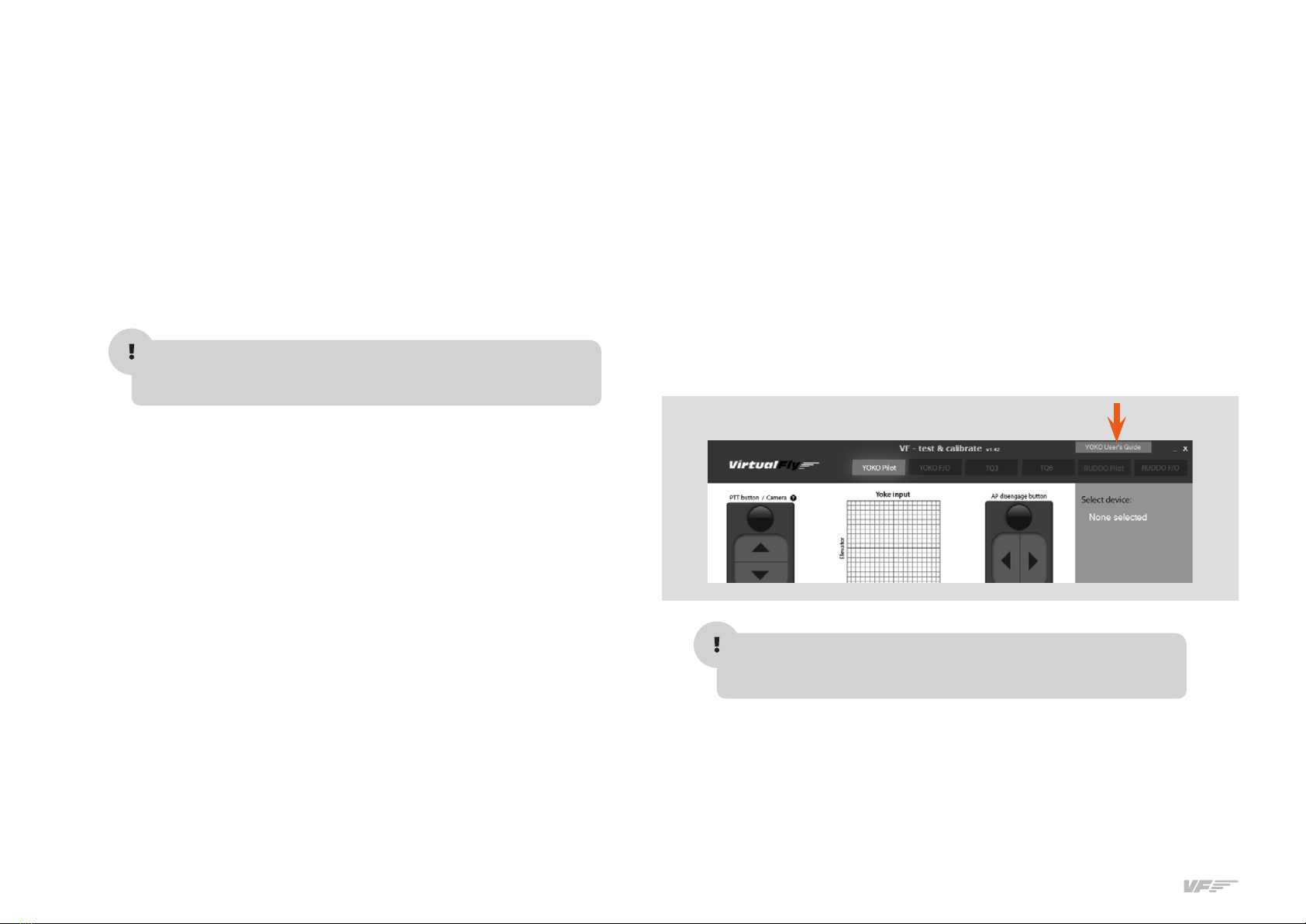
2.Open VFTest&Calibrate-S software, go to YOKO Captain tab and se-
lect the device from the devices list at right side.
3.Now, you can test all the YOKO+ buttons and axes on YOKO Captain
tab. Also you can change the sensitivity though the "actuation curves"
and save changes.
4.VFTest&Calibrate-S has to be running when using YOKO+ because
this software reads the data from the device and send it to Prepar3D
so each time you start Prepar3D, you have to run VFTest&Calibrate-S
as well. You can use Windows Scheduler to start VFTest&Calibrate-S
automatically.
As "VF-Test&Calibrate” Control Panel receive input data from Yoko and
then send it to MFS-Prepar3D, Keep in mind, that VF-Test&Calibrate
Control Panel has to remain ON when you use MFS-Prepar3D.
V3RNIO+
V3rnio+ calibration on Windows +
Calibration on windows is not necessary because the device is calibra-
ted from factory, but you can use the calibration Windows tab to test
the device.

7
2. INSTALLATION - SOLO-A USER'S MANUAL
Configuration Using VF-Test&Calibrate
1.OpenFSX-Prepar3D,gotoControlsmenu,axisassignmentssection
and select TPM VRNIO from the devices list. Delete all axis assign-
ments.CloseandopenFSX-Prepar3Dagaintomakesurethatset-
tings have been saved.
2.OpenVFTest&Calibrate-Ssoftware,gotoTPMV3RNIOtabandse-
lect the device from the devices list at right side.
3.VFTest&Calibrate-ShastoberunningwhenusingTPMV3RNIObe-
cause this software reads the data from the device and send it to
FSX-Prepar3DsoeachtimeyoustartFSX-Prepar3D,youhavetorun
VFTest&Calibrate-Saswell.YoucanuseWindowsSchedulertostart
VFTest&Calibrate-Sautomatically.
83. START UP THE SOLO-A - SOLO-A USER'S MANUAL
The SOLO-A incorporates a mini-computer that is to be connected to
the MFS/PD computer using the previously mentioned Network cable.
It is important to note that in no case should you access or manage
the SOLO-A mini-computer.
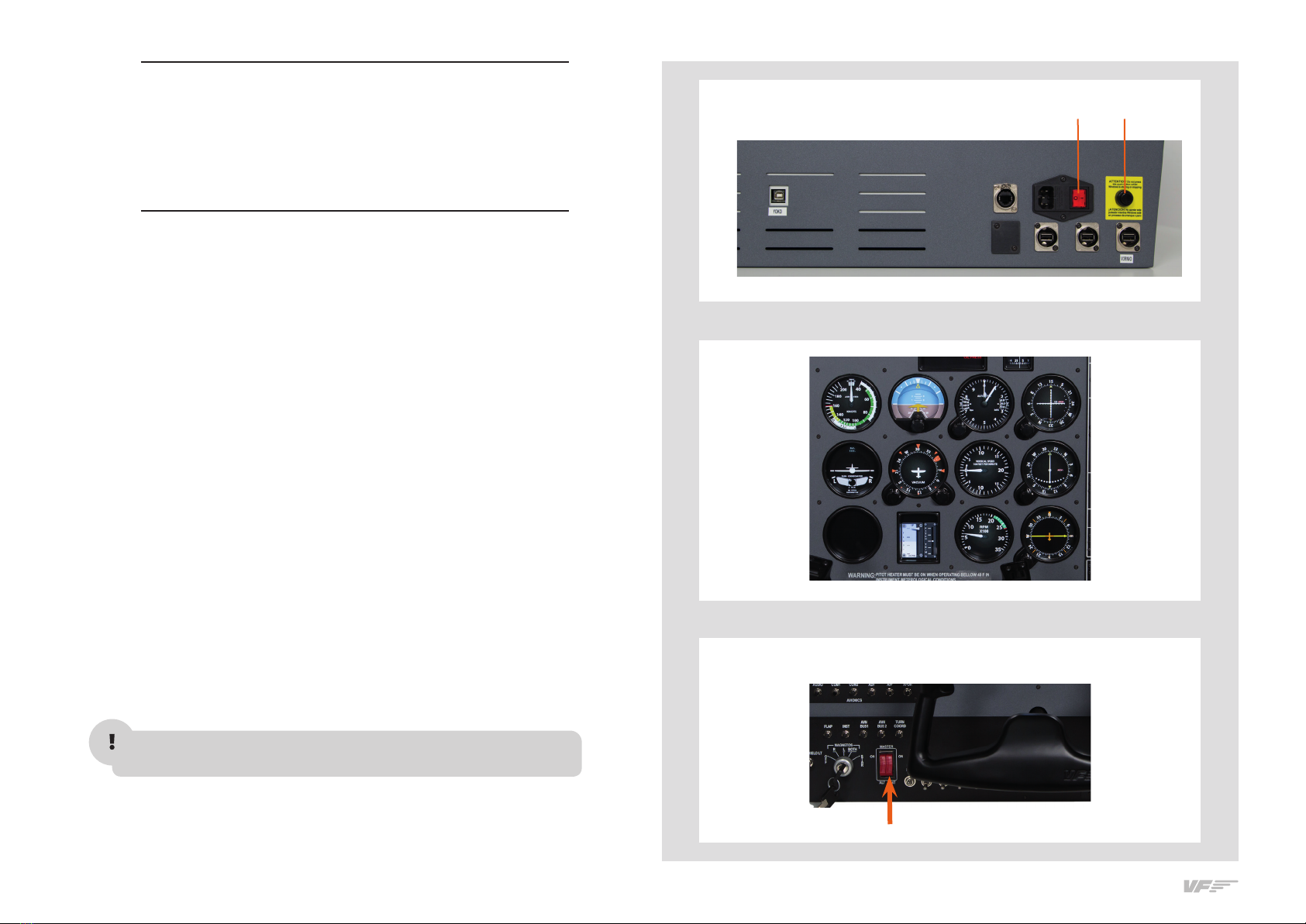
• Switch the power switch to ON. (Figure 1)
• Press the push-button to start the "Windows" operating system of the
computer from the SOLO_A. (Figure 1)
• At this time, the "Windows" operating system and all programs found
in the SOLO-A computer will start automatically. It is very important
that SOLO-A is not disconnected or "Windows" stopped while the
programs are loading. Doing so may cause problems with booting
in the future.
The SOLO-A is ready to operate after seconds, you must see the
analog gauges are shown on SOLO-A. (Figure )
• Deactivate the switch BAT on left of the SOLO-A panel.(Figure 3)
• On MFS/P3D Startup the MFS/P3D software.
• To establish the connection between the MFS/P3D computer and the
YOKO just duble click on the “VF-Test&Calibrate.exe” le to execute it.
• To establish the connection between the MFS/P3D computer and the
SOLO-A you must execute the le "VFConnect" from the MFS/P3D
desktop computer (see chapter ).
Attention, do not excute "VFConnect" before MFS/Prepar3D is comple-
tely loaded.
• If you have the Windows FireWall activated, a warning permission to
communicate with networks appears, you must click "Allow Access".
3. START UP
THE SOLO-A
Switch ON Push
FIGURE
FIGURE
FIGURE
9
3. START UP THE SOLO-A - SOLO-A USER'S MANUAL
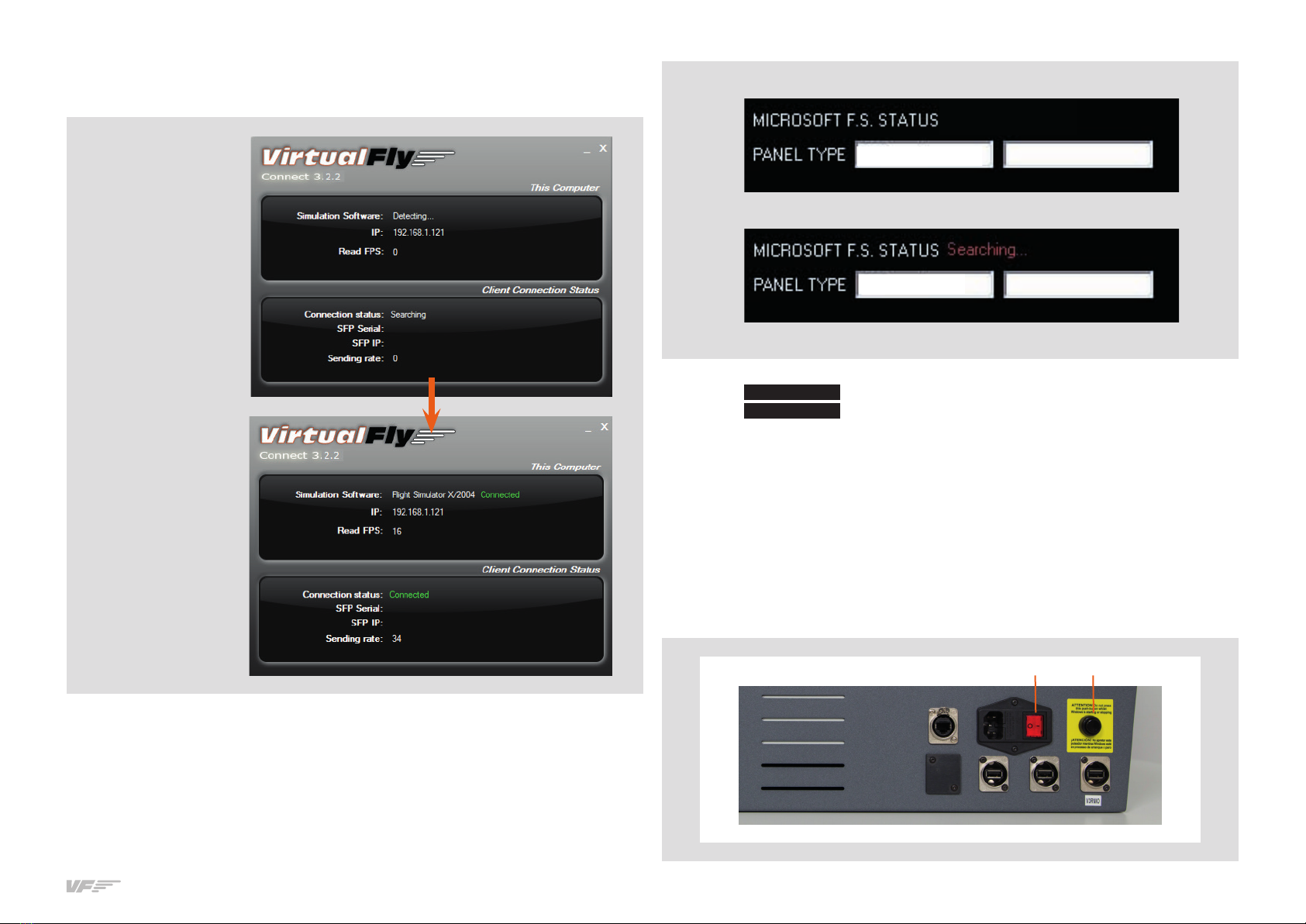
• Once the connection is established, you should see an image like the
second.
• At the top “This Computer” indicates if the software MFS/P3d is detec-
ted. Only "Connected" will appear when you have initiated MFS/P3d.
• Bellow “Client Connection Status” indicates the connection with the
SOLO-A.
From this moment, we can already appreciate if the SOLO-A and the
MFS/PD computer are communicating. In the SOLO-A annunciator you
will see one of the following (make sure you have the BAT Switch OFF):
• Connected Everything is ready, you can already begin to y.
• Searching There is a communication failure between the MFS/
P3D and the SOLO-A, look at Chapter 8 "Troubleshooting".
If you don't get the connection after reviewing Chapter , please contact
the VirtualFly Technical support: "www.virtual-y.com/en/contact".
DEACTIVATING THE SOLO-A
1. Press the push-button (F) to stop the "Windows" from the SOLO-A
computer, wait for Windows to stop totally.
2. Once "Windows" has stopped, switch the power switch to OFF-0.
In this case the
communication
module is searching
the MFS/Pd
and the SOLO-A In this case, the MFS/PDand SOLO-A are connected
In this case, the MFS/PDand SOLO-A are not connected
In this case the
communication
module is connected
to MFS/Pd
and the SOLO-A
Connected
F

10 4. SELECTION OF PANEL TYPE - SOLO-A USER'S MANUAL
4. SELECTION OF PANEL
TYPE
(ACCORDING THE FSX/P3D PLANE )
The SOLO-A can represent panel types of general aviation aircraft,
Cessna C172SP Skyhawk and Cessna Skylane II RG R182. Most of the
instruments are the same for all both aircraft, whereas other instruments
change according to the plane that will be flown.
The following instruments cahange automatically according to the type
of plane you select:
• Airspeed
• Tachometer – RPM
• Flaps / Trim indicators
• Manifold press / Fuel Press indicator appears only on C-.
Panel type selection
Panel type is selected automaticaly on SOLO-A panel according to the
aircraft selected on MFS or PD.
Note that the only aircrafts models supported by SOLO-A are VirtualFly_
FTech_CS" and "VirtualFly_FTech_" provided in the SOLO-A
Memory Stick.
Inhaltsverzeichnis
Andere Aircatglobal Schalten Handbücher


