
AmScope AF408N Bedienungsanleitung

v0.9.20221115
AF408N 4K Auto-Focus Mul-Funcon Camera

AF408N User Guide
Safety
Before using your AmScope product, please read the following safety precauons carefully to avoid causing damage to
your AmScope product, or injury to yourself or others.
Turn o power if the instrument exhibits unusual or dangerous behavior such as eming smoke or unusual odors. These
can be indicaons of electrical problems, in which case the instrument should be disconnected from any power source if
safe to do so. Other indicators can be a loud buzzing sound or crackling. Contact AmScope to report such behavior.
Do not use around ammable liquids or gases. Electric instruments can ignite ammable substances which could result
in an explosion or re.
Do not use in a wet environment. Electrical components of the instrument can discharge when exposed to water, poten-
ally resulng in damage to the instrument, or injury to yourself or others.
Only use the provided power adapter or authorized replacement. Incompable power sources can cause damage to the
instrument. If you should lose the included power adapter, please contact AmScope for informaon about a replacement.
Do not dismantle. Dismantling can result in damage to the instrument, and potenal exposure to dangerous materials or
electric current.
Noces
AmScope reserves the right to change specicaons of the hardware and soware at any me without noce. Connuous
eorts are made to improve performance and reliability, which can result in changes to design and compability. Please
contact AmScope for any concerns regarding such changes.
Proposion 65 Noce for California Residents
Cables included with the products described in this manual can expose you to chemicals including lead,
which is known by the state of California to cause cancer, birth defects or other reproducve harm. Visit
www.P65Warnings.ca.gov for more informaon.

AF408N User Guide
3
amscope.com
Contents
What’s In The Box................................................................................................................................................... 4
Setup ...................................................................................................................................................................... 5
Aaching the Camera to a Microscope ................................................................................................................ 5
Stand-Alone Mode ............................................................................................................................................... 6
Using with a PC..................................................................................................................................................... 7
Connecng with USB............................................................................................................................................ 7
Using on a Network.............................................................................................................................................. 8
WLAN ................................................................................................................................................................................. 8
AP Mode ................................................................................................................................................................................................................. 8
STA Mode................................................................................................................................................................................................................ 8
User Interface......................................................................................................................................................... 9
The Virtual Keyboard ......................................................................................................................................................... 9
The Camera Control Panel ............................................................................................................................................... 10
Image Exposure.............................................................................................................................................................. 11
Manual Exposure .................................................................................................................................................................................................. 11
Auto Exposure....................................................................................................................................................................................................... 11
Color .............................................................................................................................................................................. 11
White Balance....................................................................................................................................................................................................... 11
The Measurement Toolbar............................................................................................................................................... 12
The Camera Control Toolbar ............................................................................................................................................ 14
Overlay.................................................................................................................................................................................................................. 15
Auto Focus ............................................................................................................................................................................................................ 15
Sengs .......................................................................................................................................................................... 16
Network ................................................................................................................................................................................................................ 16
Measurement ....................................................................................................................................................................................................... 17
Magnicaon........................................................................................................................................................................................................ 18
Image Format........................................................................................................................................................................................................ 18
Video..................................................................................................................................................................................................................... 19
Storage.................................................................................................................................................................................................................. 19
Language............................................................................................................................................................................................................... 20
Miscellaneous ....................................................................................................................................................................................................... 21

AF408N User Guide AF408N User Guide
4amscope.com
HD428N Specicaons
Sensor IMX334 (color)
Sensor Type BSI CMOS
Sensor Opcal Format 1/1.8”
Acve Recording Pixels 8.3M (3840 x 2160)
Pixel Size 2µm x 2µm
Acve Sensor Area 7.68mm x 4.32mm
Shuer electronic rolling shuer
Sensivity 505mV @ 1/30s (f/5.6)
Focus Drive Modes automac, manual
Focus Drive Range 10.6mm to -5.4mm
Video Resoluons 3840x2160 @ 30fps
File Formats JPEG, TIFF (photo), MP4 (video)
Recording Media Secure Digital up to 128GB, oponal USB ash drive
I/O HDMI (video out), USB 2.0 x 2 (PC, external media, wi-), USB (mouse), SD
Wi-Fi Standard 802.11ac 2.4GHz/5GHz
Lens Mount C-Mount
Power Requirements DC 12V 1A
What’s In The Box
The AF408N standard ouits include:
• One camera
• One USB mouse
• One HDMI cable
• One power adapter
• One USB wi- dongle
• One USB ash drive
• Soware
AF408N User Guide
5
amscope.com
Setup
Aaching the Camera to a Microscope
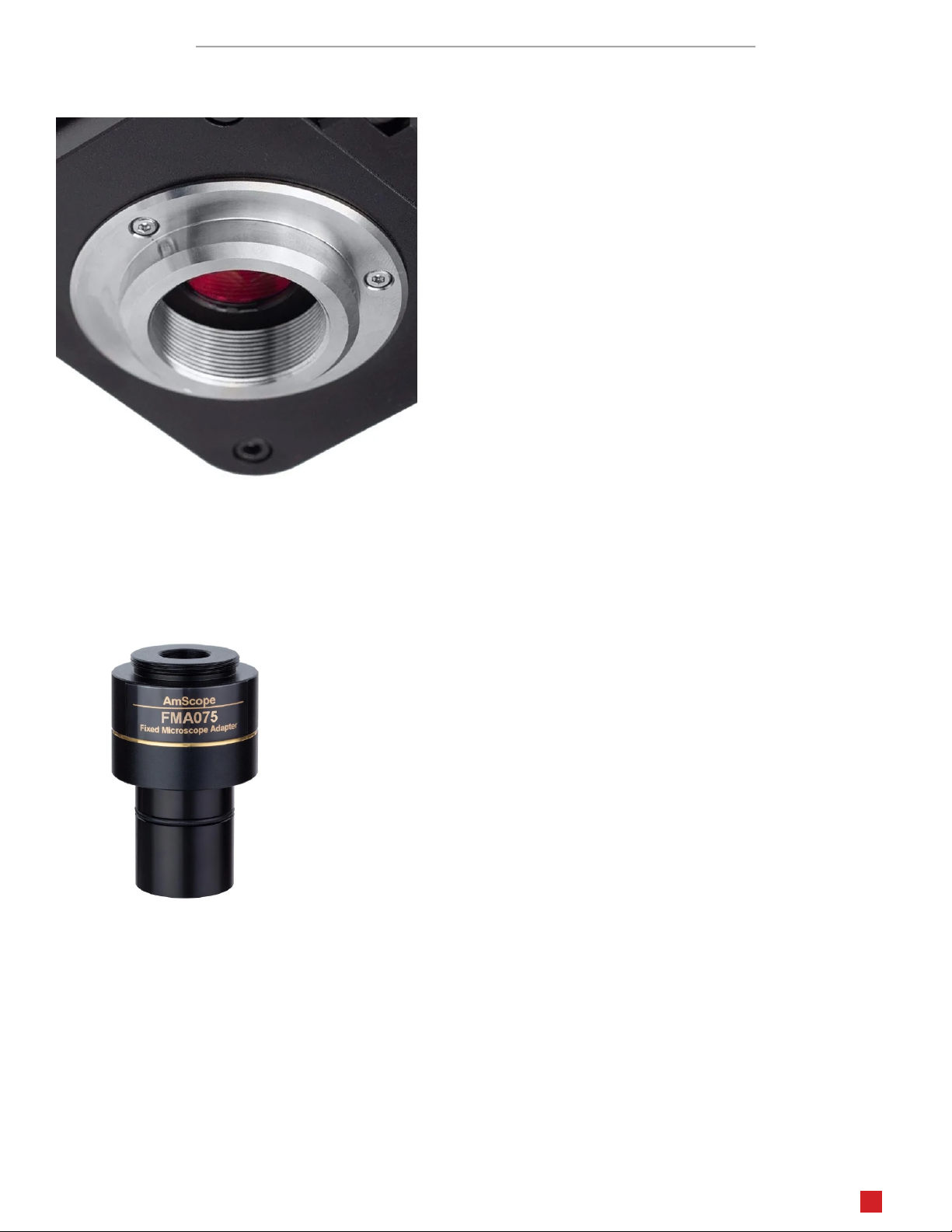
This camera uses a C-Mount standard lens mount. The camera can
be mounted directly to a microscope which provides a C-Mount
photo port, or it can be mounted to an ocular or photo port by
using an oponal compensang lens. The C-Mount standard uses a
1” (25.4mm) diameter with 32TPI (0.794mm pitch).
Noce: Because this camera uses a mechanical focus drive which
can move the image-sensor closer to the C-Mount interface, some
older reducon lenses with extended threads may interfere with
the motor’s range of moon. If the camera detects an obstrucon,
it will display a message on-screen.
To mount the camera to a C-Mount port, simply remove the camera’s lens-port dust-cap, then align the microscope’s
port with the lens port. Rotate the camera in a clockwise manner unl it is rmly aached. The photo port on some
microscopes will have a rotang interface which can be locked and unlocked to change the orientaon of the camera. If
so, you can use this to properly align the camera to produce upright images. If not, you may need to unscrew the camera
slightly to achieve the proper orientaon.
To use a compensang lens, the correct lens must be used. A compable compen-
sang lens would have a C-Mount thread which would allow it to screw onto the
camera’s lens mount. The other end would be cylindrical, and would slide into one
of the microscope’s ocular ports or photo port. The compensang lens will have a
magnicaon such as 0.5X or 0.37X. When the lens has a magnicaon below 1X,
it is referred to as a reducon lens since it reduces the size of the image projected
onto the camera’s sensor. The magnicaon should roughly match the opcal for-
mat of the camera’s image sensor (see Sensor Opcal Format in the specicaon
tables). For example, if the camera’s sensor format is 1/2”, then a 0.5X compensat-
ing lens would be appropriate.
Aach the lens to the camera by aligning the threads with the camera’s lens port. Gently screw the lens into the port in
a clockwise manner unl it is rmly aached. Next, slide the lens into an appropriate port. Because of the camera’s size
and weight, it is beer to use a port on the microscope intended specically for cameras, such as a vercal trinocular
port. This will avoid pping the microscope, and can prevent the camera from rotang. Addionally, a sizing adapter
may be needed if the diameter of the lens’ tube does not match the diameter of the port. Some lenses will include sizing
adapters such as a 23mm to 30mm adapter.

AF408N User Guide AF408N User Guide
6amscope.com
Stand-Alone Mode
This AF series camera can be used in stand-alone mode when connected to a compable video display such as a monitor
or television. The camera’s controls and sengs are accessed using the supplied USB mouse.
Begin by aaching one end of the supplied HDMI cable to the camera’s HDMI port. Connect the other end of the cable to
the monitor’s or television’s HDMI input. The video display may need to be manually congured to use the correct input.
If so, consult the video display’s manual. Connect the supplied USB mouse to the camera by aaching its USB plug to the
camera’s USB port labeled “USB Mouse”. Next, connect the supplied power adapter by inserng its barrel connector to
the camera’s power port labeled “DC 12V”. The power indicator located above the power port should be red which indi-
cates the camera is receiving power. Press the camera’s power buon to inialize the camera. The power indicator will
change to blue. It will take several seconds for the camera’s soware to boot, during which a cursor will appear on the
screen. Once the camera is fully booted, you can move the cursor around the screen to acvate the on-screen controls.
A USB keyboard can be used with the camera to enter text or numeric values when needed. Aach the keyborad to the
upper USB port labelled “USB 2.0”.

AF408N User Guide
7
amscope.com
Using with a PC
The camera can be used with a Windows, Mac, or Linux computer by installing AmScope imaging soware which is
included in the camera’s packaging or can be downloaded from the AmScope website: hps://amscope.com/pages/so-
ware-downloads.
Soware is available for current versions of Windows, Mac OS, and Linux operang systems, but availability or compat-
ibility is subject to change. Before connecng the camera to a computer, install the soware to ensure the device will
be recognized by the operang system. More informaon regarding the soware is available in the soware’s help le
which can be accessed from the soware’s menu under “Help.”
The camera can be accessed from the computer using a USB connecon or wi-. When the proper connecon is made,
the camera will be displayed in the soware’s list of available devices.
Connecng with USB
The camera can be connected to a computer using the provided USB cable. The cable has a type-A USB connector on
either end. Plug one type-A connector into the camera’s USB port labeled “USB Video”. Plug the other type-A connector
into one of the computer’s available USB 2.0 or USB 3.0 ports. If the camera is not already powered on, press the power
buon and wait for the power indicator LED to turn solid blue. If the AmScope soware has been installed on the com-
puter, the camera will be recognized as an imaging device, and can be accessed using the soware.

AF408N User Guide AF408N User Guide
8amscope.com
Using on a Network
This camera model can be used in a network, allowing it to be accessed by network users. The camera includes a wi-
dongle which aaches to the camera’s USB 2.0 port to provide connecvity over a wireless local-area network (WLAN).
WLAN
Camera models which support WLAN (Wireless Local Area Network) connecvity can be used with wi- compable com-
puters and mobile devices. The camera will include a USB wi- dongle (adapter) which must be connected to the USB 2.0
port on the camera. There are two wi- modes which can be used: AP (access point) and STA (staon).
AP mode allows the camera to create an ad hoc wireless network to which other devices can connect. This mode
allows devices to connect directly to the camera without the need for a router or network switch.
STA mode is used to connect the camera to an exisng wireless network. The camera’s accessibility on the net-
work is managed by the network’s hardware, not the camera.
Before using the camera with wi- devices, the WLAN sengs must be congured while the camera is aached to an
HDMI display. Ensure the wi- dongle is aached to the USB 2.0 port, and the camera is powered on. Aer the camera’s
soware has booted and the wi- dongle has been detected, the current wi- mode will be displayed on the top le cor-
ner of the screen. Move the cursor over the boom of the screen to display the Camera Control Toolbar. Click on the
icon to open the Sengs menu. Select Network from the list, then click on the WLAN tab. The wi- mode can be selected
from a drop-down selector.
AP Mode
When AP mode is selected, sengs specic to this mode will be available. The Frequency seng allows you to select
either 2.4GHz or 5GHz to match the wireless devices you will be using. The Channel opon allows you to switch through
dierent frequencies in the selected band. This seng is only needed in the case that interference is encountered
while connecng to wireless devices such as frequent drop-outs. The Password seng allows you to change the default
password to be used by devices connecng to the camera’s network. The default password is 12345678. Use your own
password to beer secure the encrypted connecon.
STA Mode
When STA mode is selected, you must enter the SSID and password for the wireless network to which you will connect.
Aer the informaon has been entered, click the Apply buon on the boom right corner of the screen. If the camera
successfully connects to the network, “AP Mode” will be displayed on the top le corner of the screen. If the connecon
fails, “AP Mode Failed” will be displayed. Should the connecon fail, verify the SSID and password. If the SSID and pass-
word are correct, there may be a seng in the network’s hardware or rewall prevenng the camera from connecng.

AF408N User Guide
9
amscope.com
User Interface
This HDMI model uses an on-screen UI to operate. The camera controls are located in the panel on the le side of the
window, the measurement toolbar on the top, and addional display controls and sengs are on the boom.
By default, the panels will only display when the mouse cursor is hovering over the appropriate area. Le-clicking
on the “pin” icon will maintain the panel’s visibility, but will prevent other panels from opening.
The Virtual Keyboard
If not using a hardware keyboard, an on-screen keyboard can be used to enter text or numeric values as needed. Using
the mouse’s le buon, double-click on a text eld to open the virtual keyboard.

AF408N User Guide AF408N User Guide
10 amscope.com
The Camera Control Panel
The Camera Control Panel controls the camera to achieve the best video or image quality according to the specic appli-
caons. To open the panel, move the mouse cursor toward the le edge of the video window.
Control Panel Funcon Descripon
Snap Capture image and save it to the SD card.
Record Record video and save it to the SD card.
Auto Exposure When Auto Exposure is checked, the system will automacally
adjust exposure me and gain according to the value of expo-
sure compensaon.
Exposure Compen-
saon
Available when Auto Exposure is checked. Slide to increase or
decrease the overall brightness to compensate for varying sub-
jects.
Exposure Time Available when Auto Exposure is not checked. Slide to increase
or decrease exposure me for achieving appropriate brightness.
Gain Available when Auto Exposure is not checked. Slide to increase
or decrease signal amplicaon. Increasing the amplicaon will
increase brightness without adjusng exposure me, but will
result in increased noise levels.
Red Manually adjust the proporonal Red level of the RGB video.
Green Manually adjust the proporonal Green level of the RGB video.
Blue Manually adjust the proporonal Blue level of the RGB video.
Auto (White Bal-
ance)
Connuously adjusts RGB levels automacally based on the
overall video content.
Manual (White
Balance)
Enables the manual RGB controls to adjust the color balance.
ROI (White Bal-
ance)
Use the on-screen Region-of-Interest selector (rectangle will
appear) to dene a region which should be used as reference
when performing white balance.
Sharpness Slide to adjust the sharpness level of the video.
Denoise Slide to adjust the amount of noise-reducon to apply to the
video.
Saturaon Slide to adjust the color saturaon of the video.
Gamma Slide to increase or decrease the Gamma level of the video.
Contrast Slide to adjust the contrast of the video.
DC Select when using DC powered illuminaon. No icker compen-
saon.
AC (50Hz) Select when using AC powered illuminaon with 50Hz to re-
move ickering.
AC (60Hz) Select when using AC powered illuminaon with 60Hz to re-
move ickering.
Default Restore all values in the Camera Control Panel to their default
sengs.
Inhaltsverzeichnis
Andere AmScope Digitalkamera Handbücher


