Bauhn H3 Bedienungsanleitung

User Manual
Manual
del usuario
User Guide
Manual
del usuario
YEARS WARRANTY
AÑOS DE GARANTÍA
DISTRIBUTED BY • DISTRIBUIDO POR:
ALDI INC., BATAVIA, IL 60510
www.aldi.us
AFTER SALES SUPPORT •
866-235-5029
MODEL/PRODUCT CODE: SCR400-ZTP1 10/2018
USA
SERVICIO POSVENTA
LED PROJECTOR
PROYECTOR LED
English ..... 3
Español .....11
User Manual
Manual del usuario

Package contents/device parts ...........................................................
General information .............................................................................
Reading and storing the user manual ............................................
Explanation of symbols .....................................................................
Safety instructions ...............................................................................
Proper use ...........................................................................................
Getting started .....................................................................................
Projector settings ................................................................................
Connecting your mobile device ..........................................................
Wireless connection .............................................................................
Wired connection to iOS ......................................................................
Wired connection to Android .............................................................
Screen mirroring via AirPlay ..............................................................
Screen mirroring via Miracast ............................................................
Projection size and distance ................................................................
Technical data .......................................................................................
Disposal .................................................................................................
Disposing of the packaging ...............................................................
Disposing of the LED projector ..........................................................
3
4
4
4
5
5
6
6
6
7
7
7
8
8
9
10
10
10
10
Table of contents
Table of contents

3
Pack contents
Pack contents ⁄ Device parts
Mini projector
Electric cable
Remote control
AV cable
Lens cleaning fabric
3
2
1
4
5
1 2
3
45

4
General information
General information
Reading and storing the user manual
Read this manual thoroughly before first use, even if you are familiar
with this type of appliance. The safety precautions enclosed reduce
the risk of fire, electric shock and injury when correctly adhered to.
Keep the manual in a safe place for future reference, along with the
completed warranty card, purchase receipt and box. If applicable,
pass these instructions on to the next owner of the appliance.
Explanation of symbols
The following symbols and signal words are used in this user manual, on the LED
projector or on the packaging.
This signal word designates a hazard with a high degree of risk which will
result in death or severe injury if not avoided.
This signal word designates a hazard with a moderate risk which will result in
death or severe injury if not avoided.
This signal word designates a hazard with a low risk, which may result in
minor or moderate injury if not avoided.
This signal symbol/word warns of possible damage to property.
This symbol provides you with useful additional information on
handling and use.

5
Safety instructions
Safety instructions
Proper use
The LED projector is intended for private use and not suitable for commercial purposes. Only
use the LED projector as described in this user manual. Any other use is considered improper
and may result in damage to property.The manufacturer or vendor cannot be held liable for
damages incurred through improper or incorrect use.
WARNING!:A person who has not read and understood all operating and safety
instructions is not qualified to operate this appliance. All users of this appliance must read and
understand this Instruction Manual before operating or cleaning this appliance. When using
electrical appliances, basic safety precautions should always be followed, including:
1. Read all instructions before operating this appliance.
2. This appliance is NOT A TOY.
3. Unsupervised young children and cognitively challenged individuals should never operate this
appliance.
4. To protect against electrical shock do not immerse cord, plug or any part of this unit in water or
other liquids.
5. Unplug from outlet when not in use.
6. DO NOT operate any appliance with a damaged cord or plug, or after the
appliance malfunctions, or if the appliance has been damaged in any manner. Return the
appliance to the nearest repair shop for examination, repair or adjustment. Do not attempt to
replace or splice a damaged cord.
7. The manufacturer does not recommend the use of accessory attachments. DO NOT use outdoors.
8. DO NOT let cord hang over edge of table or counter, or touch hot surfaces.
9. DO NOT place on or near a hot gas or electric burner, or in a heated oven.
10. Always attach plug to appliance first, then plug cord into the wall outlet (for appliances with detachable
cords). To disconnect, turn any control to the off position, then remove plug from wall outlet.
11. This is not suitable for use In the education domain, video playback Is the main function. Not
recommended for Word or spreadsheet.
12. CAUTION!: The user is cautioned that changes or modifications not expressly approved by the
party responsible for compliance could void the user’s authority to operate the equipment.
13. This device complies with Part 15 of the FCC Rules. Operation is subject to the following two
conditions: (1) this device may not cause harmful interference, and (2) this device must accept
any interference received, including interference that may cause undesired operation.
14. NOTE: This equipment has been tested and found to comply with the limits for a Class B digital
device, pursuant to Part 15 of the FCC Rules. These limits are designed to provide reasonable
protection against harmful interference in a residential installation. This equipment generates,
uses, and can radiate radio frequency energy and, if not installed and used in accordance with
the instructions, may cause harmful interference to radio communications. However, there is no
guarantee that interference will not occur in a particular installation.
15. If this equipment does cause harmful interference to radio or television reception, which can be
determined by turning the equipment off and on, the user is encouraged to try to correct the
interference by one or more of the following measures:
i. Reorient or relocate the receiving antenna.
ii. Increase the separation between the equipment and receiver.
iii. Connect the equipment into an outlet on a circuit different from that to which the receiver is
connected.
iv. Consult the dealer or an experienced radio/TV technician for help.
16. FCC Radiation Exposure Statement
i. This equipment complies with FCC radiation exposure limits set forth for an uncontrolled
environment. This equipment should be installed and operated with a minimum distance of
20cm between the radiator and your body.
ii. This transmitter must not be co-located or operating in conjunction with any other antenna
or transmitter.
iii. For pluggable equipment, the socket-outlet shall be easily ACCESSIBLE

Knowing your projector and remote control
6
Knowing your projector and remote control
Power
Play/Pause
Left
Vol. -
Menu
Back
Right
Home
Vol. +
Input
Mute
Note: Do not mix old and new batteries and Do not mix alkaline, standard
(carbon-zinc) or rechargeable (ni-cad, ni-mh, etc.) batteries.
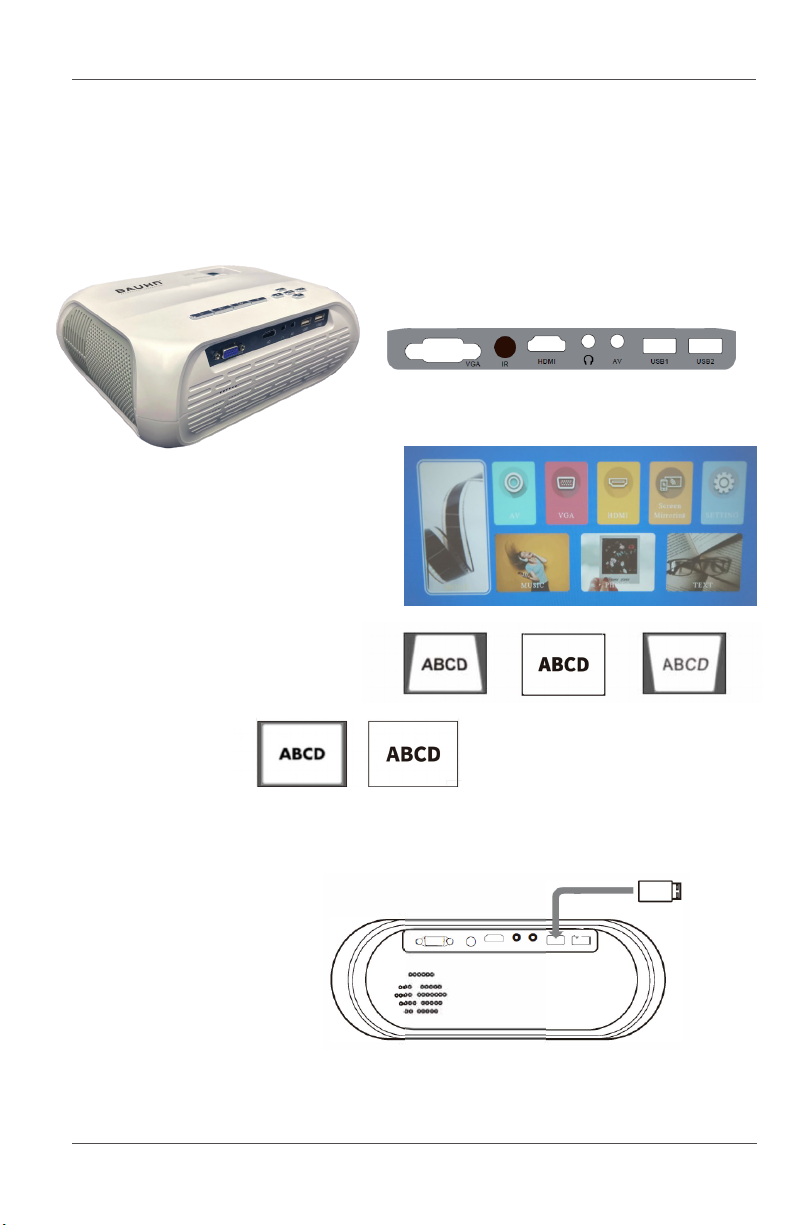
Parts and Functions of Projector
3.5mm audio outAVIN

7
Projector settings
Back
Right
Home
Vol. +
Input
Mute
Bad Good Bad
Bad Good
Getting started
1. Connect the projector with power cord, then plug the power cord into AC
connector. When the indicator light stops flashing, projector is under standby
status.
2. Connect your device to the chosen input port in the back of the projector.
3. Press the power button on
remote control or projector.
Press the Home button on the
remote control and choose the
input source of your connected
device.
4. Adjust the keystone distortion.
5. Adjust the focus.
Production Connection
1. Multimedia input
Insert the USB into
USB1 as showed in
picture below.
Select MOVIE, MUSIC, PHOTO and TEXT icon to playback the media files in USB

8
Wired connection to Android
Projector settings
Open the video page and select the MENU icon on the projector. Press the left and
right arrows on the projector panel or remote control, choose between different
options and press “OK” to select from the adjustments of the submenu items.
Connecting your mobile device
Press SOURCE button and switch to Screen Mirroring source.
Press OK button to switch Android Display and iOS display.
1. Android Display
Open the Android device. Make sure WiFi is turned on.
Select the Android device’s wireless display or multiscreen function to activate
screen mirroring. This is often called “Smart View.” Select “Projector-XXXXXX” to
2. VGA Input
Choose VGA input, and connect
projector with computer
3. AV Input
Choose AV input, and connect
projector with AV signal
4. HDMI Input
Choose HDMI input, and connect
projector with HDMI signal
5. Audio Output
Connect with 3.5mm earphone o
similar audio devices.

9
connect to the projector. After a few seconds the Android device’s screen will be
displayed by the projector.
2. iOS Display
iOS Display via WiFi:
1. Open the iOS device. Make sure WiFi is turned on.
2. Select “Projector-XXXXXX” to connect to this projector. If asked, enter
password “12345678” and press “Join”.
3. Open the iOS device’s browser and enter “192.168.49.1”,
4 Select “WiFi AP”, and then select “Scan” to auto search the WiFi router SSID and
then type password to connect projector to WiFi router.
5. If the WiFi router SSID is hidden, please select “Add Network” to manually
input SSID and password to connect.
6. Connect the iOS mobile device to your home WiFi network.
7. In the iOS mobile device, pull down the control panel, select “Screen
Mirroring” and select “Projector-XXXXXX”, the projector will display the iOS
screen.

10
Projection size and distance
8.
iOS Display via USB cable:
1. Connect the iOS device to the projector USB 2 port using Apple Data
Cable.
2. For the first time (after connecting to the projector device, it will
connect automatically), a dialog box will pop up to ask “Trust the
device?”. Click “Trust” and wait for 3-5 seconds, then the content of
the iPhone or iPad will be projected to the projector screen.
Connect PC windows 10
1. Press SOURCE button and switch to Screen Mirroring source, and select
“Android Display”
2. Make sure both of your projector and computer are connected to the same
WiFi router.
3. Click quick key by + P/K button on the computer, and connect to the device
named by “Projector-XXXXXX” to start your projection.
NOTE: Please upgrade your windows 10’s operation system to the latest version.
Inhaltsverzeichnis
Sprachen:
Andere Bauhn Projektor Handbücher
Beliebte Projektor Handbücher anderer Marken

Panasonic
Panasonic PTL735NTU - LCD PROJECTOR-NETWORK IB Bedienungsanleitung

NEC
NEC NP600S EDU Bedienungsanleitung

BenQ
BenQ SH753P Bedienungsanleitung

Eiki
Eiki EK-623U series Bedienungsanleitung

Epson
Epson PowerLite Pro Cinema 6020UB Bedienungsanleitung

Epson
Epson PowerLite Home Cinema 705HD Bedienungsanleitung