
BT PaperJet 50e Bedienungsanleitung

PaperJet 50E
Plain paper fax, copier and telephone
User Guide
This product is intended to be connected to analogue networks and private switching systems in the United Kingdom.
This product has not been designed for making emergency telephone calls when the power fails. Alternative arrangements
should be made for access to emergency services.
PaperJet 50e User Guide_se 10-06-2003 10:06 Pagina 1

2
12 Month guarantee
FOR ASSISTANCE CALL THE HELPLINE ON
0870 240 8026 quoting the model and serial number
1. In the event that the Helpline is unable to resolve a
problem over the phone, the following will apply:
I. The Helpline will require the customer to provide
details of where the BT PaperJet was purchased,
date of purchase and method of payment.
II. If the fax was purchased within 28 days a brand
new replacement BT PaperJet will be despatched by
courier to the customer
III. If the product was purchased more than 28 days
ago and within the guarantee period, a ‘loan’
BT PaperJet will be despatched by courier to the
customer.
2. If 1 (III) applies, the original fax will be repaired
free of charge subject to the conditions in clause 5.
BT’s normal repair times for most faults is 14 days.
If the fax is beyond economical repair we will
replace it with a brand new BT PaperJet. On
completion of repair the customer will be contacted
and given the option of the return of the original
repaired fax and free collection of the loan fax or at
the customer’s choice retention of the loan fax.
3. A new or loan fax will be delivered by courier. If a
Helpline call is received by 4pm we can arrange an
overnight courier, but will agree a delivery time
with the customer. On delivery of the new loan or
repaired fax as appropriate, the customer must
promptly replace it in the box with the faulty fax or
loan fax to enable the courier to return the fax to
BT.
4. If the customer decides to retain the loan fax the
balance of the original guarantee will transfer to
this fax.
5. This guarantee does not cover the fair wear and
tear or accidental damage or damage caused by
improper installation. The guarantee will not apply
if upon inspection it is established that
unauthorised repairs or modifications have been
made to the fax.
In such circumstances the Customer will be sent a
condition report with a choice of either (a) paying
the cost of repair of the faulty fax or (b) the
carriage charges incurred in having the original fax
returned unrepaired and the loan fax collected
6. The liability of BT under the terms of the guarantee
is limited to the exchange of the fax or the repair
and return of the original fax
7. Excluded from this guarantee are accessories,
consumables, eg ink cartridge.
8. This guarantee applies to the original customer
only and is not transferable.
9. This guarantee does not affect the customer’s
statutory rights.
PaperJet 50e User Guide_se 10-06-2003 10:06 Pagina 2

At a glance
3
Document outlet
Outlet for received faxes, copied
documents and originals.
Display screen
Control panel
Document feeder
width guides
Adjust to fit the width
of your document for A4,
Letter and Legal sizes.
Document feeder
Holds up to 5 sheets placed face
down for faxing or copying.
Paper feeder width guide
Adjust to fit the width of your
paper for A4, Letter and Legal
sizes.
Plain paper sheet feeder
Max. capacity 40 sheets of
80gsm paper.
Paper support
Handset
Telephone line socket
Cover
Open the cover
for changing the
print cartridge
and clearing
document jams
Loudspeaker
PaperJet 50e User Guide_se 10-06-2003 10:06 Pagina 3
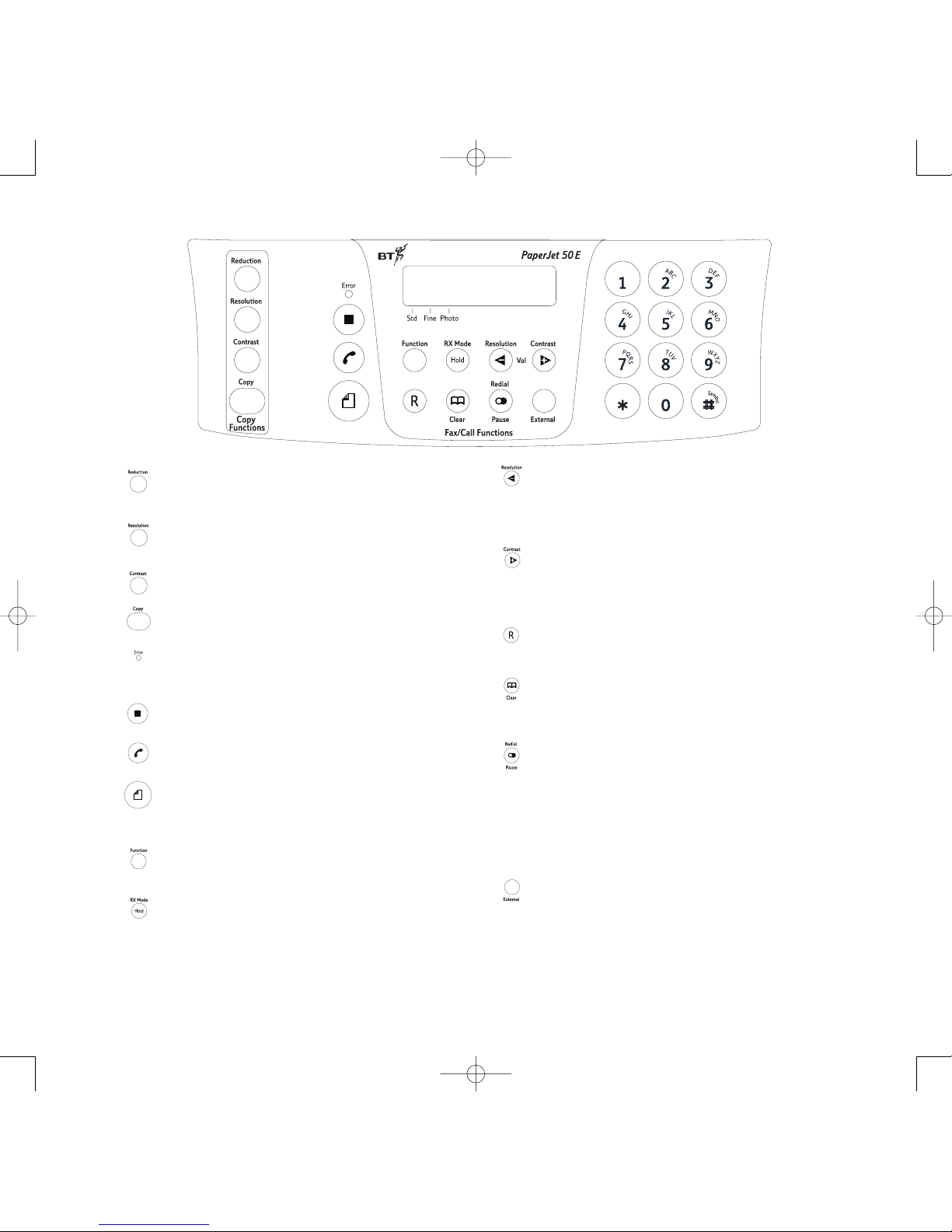
3
Reduction/Enlargement button. Reduces and
enlarges copies to either 70% or 140%.
Resolution button. Allows you to choose text or
photo resolution for copies.
Contrast button. Adjusts the contrast of
documents to be copied.
Copy button. Press to start copying a document.
Error light. Indicates a problem when sending or
receiving a fax.
Stop button. Stops the current operation.
Returns the fax machine to standby.
Monitor button. Press to get dialling tone.
Start button. Press to send a fax. Confirms an
option chosen from the menu. During a call, press
to receive a fax.
Function button. Function button lets you select
options from the menus.
RX Mode/Hold button. Selects reception
methods for faxes. When on a phone call, press to
put a caller on hold. They hear a beep.
Resolution/Volume – button. Adjust the
resolution of documents to be faxed. Select next
option from a menu.
Decrease loudspeaker volume
Contrast/Volume + button. Adjust the contrast
of documents to be faxed. Select previous option
from a menu.
Increase loudspeaker volume
Recall button. For use with switchboards and BT
Select Services.
Speed Dial/Clear button. Used to speed dial a
stored number. Deletes incorrect settings and
characters.
Last Number/Pause button. Press once to
display last number dialled. If you have a
document in the document feeder it shows the last
fax number, if not it shows the last telephone
number called. Press again to dial the number
displayed.When dialling or storing a number,
press to enter a pause.
External button. Connects you to an outside line
when connected to a switchboard.
NOTE:
The control panel
is protected by
a plastic film.
Remove by carefully
peeling from
the corner.
PaperJet 50e User Guide_se 10-06-2003 10:07 Pagina 4

5
Cartridge holder
Optical scanner
PaperJet 50e User Guide_se 10-06-2003 10:07 Pagina 5

6
Key features
Plain paper fax
Holds up to 40 sheets of A4 paper for ink
jet quality printing.
21 page memory
If you run out of ink or paper while
receiving a fax the document will be stored
in the memory and automatically printed out when
the new paper or ink has been added.
Copier with zoom
Make single or multiple copies of
documents. Enlarge copies to 140% or
reduce to 70%
One touch and speed dial memories
10 one touch memories and 32 speed dial
memories can each store a fax number,
phone number and name. Easy to display and scroll
through the memories.
PaperJet 50e User Guide_se 10-06-2003 10:07 Pagina 6

7
In this guide
12 Month Guarantee 2
At a glance 3
Key features 6
Introduction 8
Safety information 9
Setting up 10
Using your PaperJet 50E 16
Sending faxes 16
To broadcast a document 20
Using the one-touch memories 22
Using the speed-dial memories 23
Reports and lists 25
Making and receiving phone calls 27
Copying documents 29
Additional features 30
Polling 34
Caller display 36
Connecting to a switchboard 37
Help 39
Maintenance 44
Technical information 49
Index 51
PaperJet 50e User Guide_se 10-06-2003 10:07 Pagina 7

8
Introduction
Unpacking your PaperJet 50E
When you unpack you should have:
PaperJet 50E with attached
mains power cable and
fitted 3-pin plug.
Telephone line cord
Starter print cartridge
Handset with cord
Paper support
For your records
Date of purchase:
Place of purchase:
Serial number (on base of unit):
Proof of purchase is required for warranty purposes,
so please keep your receipt.
PaperJet 50e User Guide_se 10-06-2003 10:07 Pagina 8

Never put foreign bodies into the fax machine.
Their accidental contact with powered parts may
cause a fire or electric shocks.
Do not expose to direct sunlight.
Do not stand your fax machine on carpets or other
surfaces which generate fibres, or place it in
locations preventing free flow of air over its surfaces.
Do not submerge any part of your fax
machine in water and do not use it in damp
or humid conditions such as bathrooms.
Do not expose your fax machine to fire,
explosive or other hazardous conditions.
There is a slight chance that your fax
machine could be damaged by an electrical
storm. We recommend that you unplug the
power and telephone line cord for the duration of
the storm.
9
Safety information
PaperJet 50e User Guide_se 10-06-2003 10:07 Pagina 9

10
Setting up
1Plan the location of your PaperJet 50E
Place your PaperJet 50E on a stable, flat surface.
Make sure it is close enough to the telephone and
mains power sockets so that cables will reach.
Remember to leave enough room at the front of the
machine for documents to come out. Allow a free
flow of air around the machine for ventilation.
2Fit the paper support
Fit the plastic support into the slot at the back of the
machine. Ensure it clicks firmly into place.
3Connect the handset
Click into position
Plug the handset cord into the socket marked
at the back of the machine.
Place the handset in the cradle.
4Connect the telephone line cord
1Plug the telephone line cord into the socket
marked LINE at the back of the machine.
2Connect the other end to the telephone wall socket.
12
PaperJet 50e User Guide_se 10-06-2003 10:07 Pagina 10
Inhaltsverzeichnis
Andere BT Multifunktionsdrucker Handbücher


Beliebte Multifunktionsdrucker Handbücher anderer Marken

Triumph Adler
Triumph Adler DC 2016 Handbuch

Epson
Epson WorkForce WF-2510 Benutzerhandbuch

Epson
Epson Stylus Scan 2000 Installations- und Betriebshandbuch

Epson
Epson PictureMate Snap PM 240 Bedienungsanleitung

Konica Minolta
Konica Minolta bizhub C35 Bedienungsanleitung

Brother
Brother MFC-J430w Bedienungsanleitung


