Helpful Information
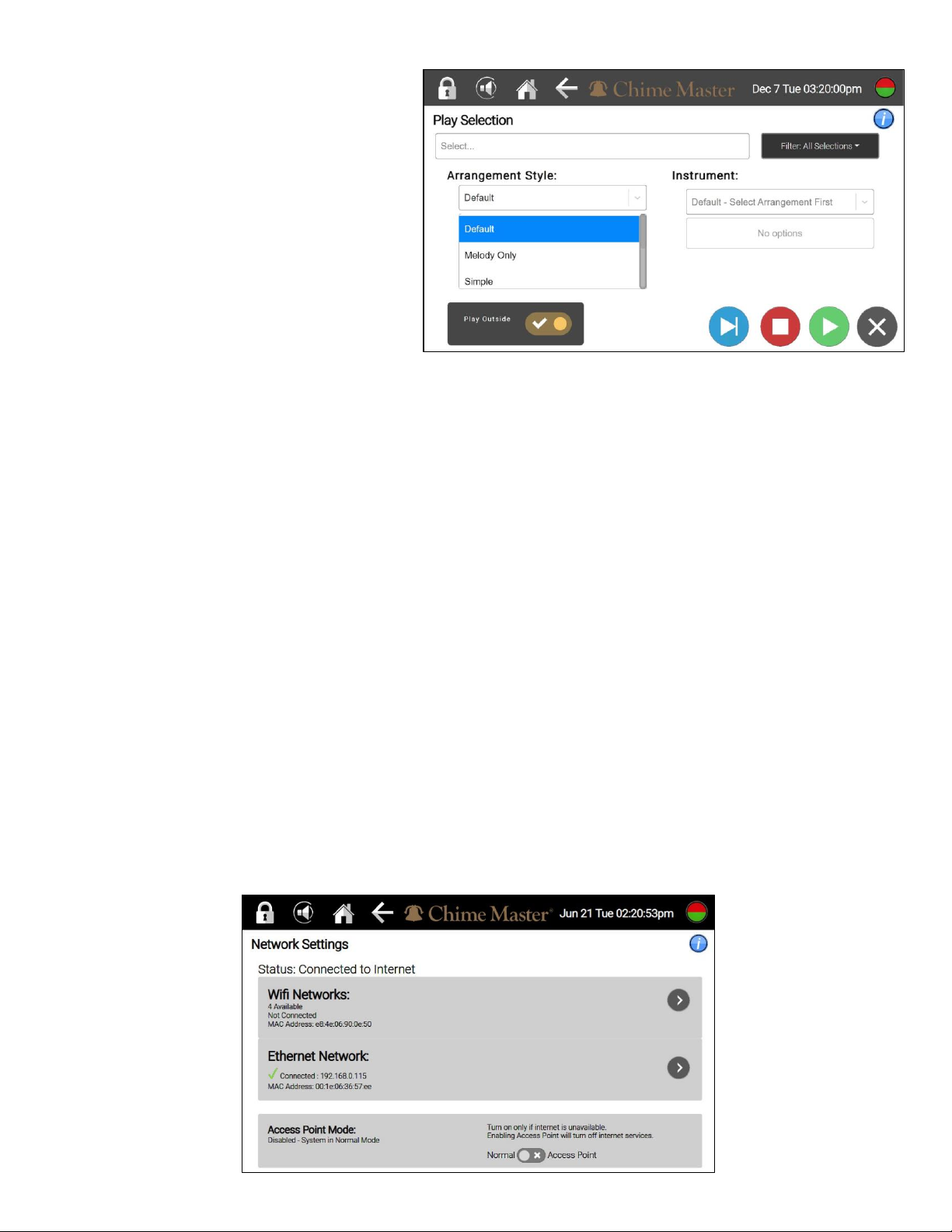
Many screens provide a blue informational icon below the status button. Tap this button
to see additional information and tutorial videos which accompany the current screen.
Welcome!
Thank you for becoming a Chime Master customer! The instructions in this QuickStart
Guide are specifically for use on the front panel touchscreen of your Advanced
eXperiend ringing system. Once the internet has been connected, you can also use
our remote management website, Chime.Center.
Power Light Button
Plug in the system to power it up. Normal operation is indicated when the blinking
power light becomes solid gold. Click the light once to dim or brighten the screen.
Double-clicking this button works the same as the stop function on the screen, and the
light will momentarily turn red.
To power down the system, press and hold the gold button for about two seconds until
it turns red. The light will blink through several colors until it is solid blue. At that time,
the power is off. This is when you can connect or disconnect any accessories like the
WiFi antenna or a keyboard. Tap the blue light again to restart the system.
If you need to unplug your system, follow the instructions above to power down the
system. Wait for the solid blue power light before disconnecting power.
Guided Setup
The system will be locked and display a clock after starting. This lock screen is also a
secure screen saver. If left alone, the screen will go into standby mode, and the screen
will go dark. The gold power light indicates that the automatic schedule will still play,
and manual commands can be given. To wake up the screen, tap it, or click the power
light button, so you will be prompted to enter your PIN, then tap the checkmark. From
the factory, the PIN is 1234. It can be changed in User Profile under Settings.
Chime Master may have collected your scheduling details and seasonal options before
shipment or installation. In that case, the system setup may be complete, and you will
see your home screen after first logging in.
More often, there will be a few questions to answer to fully synchronize your new
Advanced eXperience system with your traditions and music preferences. Once you
finish the Guided Setup, you will see your home screen.
AX-QuickStartGuide 4