Cytron Technologies Shield-G15 Bedienungsanleitung

ROBOT . HEAD to TOE
Product User’s Manual – G15 Shield R2
Index
1. Introduction 3
2. Packing List 4
3. Product Specification and Limitation 5
4. Board or Product Layout 6
5. Dimension 8
6. Half Duplex Serial Communication 9
7. Hardware Installation 11
8. Getting Started 13
9. Warranty 14
Created by Cytron Technologies Sdn. Bhd. – All Right Reserved 2

ROBOT . HEAD to TOE
Product User’s Manual – G15 Shield R2
1.0 INTRODUCTION
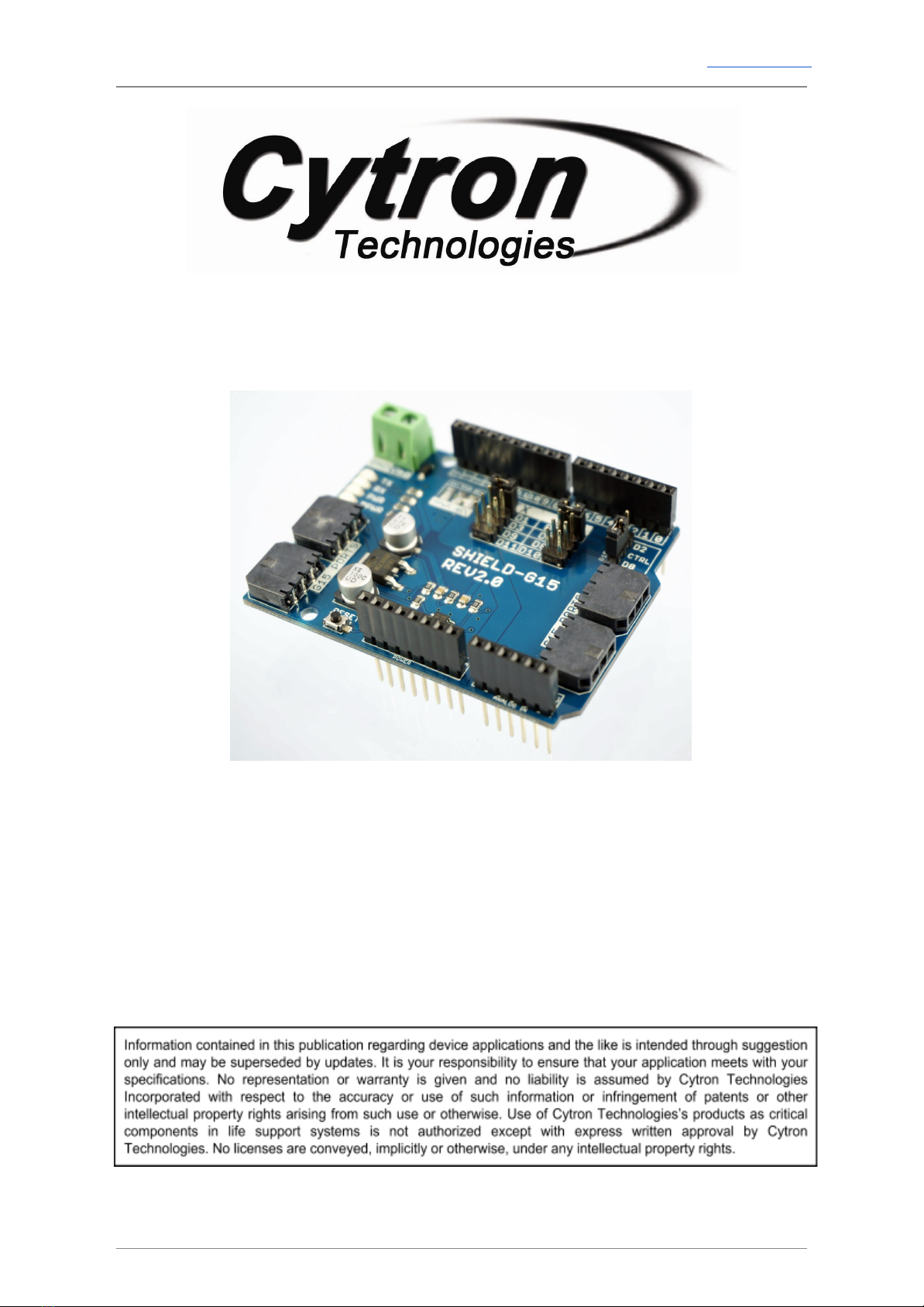
G15 Shield is an Arduino shield for controlling Cytron’s G15 Cube Servo. It converts UART
duplex communication to half-duplex single line communication compatible for G15 Cube
Servo. It is compatible with Arduino Uno,Arduino Duemilanove,Arduino Mega2560,
Arduino Leonardo and possibly other pin compatible main boards.
G15 Shield Rev2.0 has four ports for Cytron’s G15 Cube Servo. The two ports for Robotis’
Dynamixel AX-12 servo were removed from G15 Shield. G15 Cube Servo is serial servo
which can be daisy chained for more servos. G15 Shield has external motor power port for
user to supply separate power for the servos besides using the internal power from the
Arduino board. G15 Shield has stackable side headers which allows for more Arduino shields
to be stacked on top of it.
G15 Shield R2 comes with:
●Arduino Reset button.
●4 x G15 Cube Servo ports, two extra on Rev2.0.
●G15 control pin selector (D2 or D8).
●External power port for servo with polarity protection.
●Stackable I/O header pin.
●Selectable Digital pins for UART communication with G15, via mini jumpers.
●2 LEDs as logic power and servo power indicators.
●TX and RX LED indicators, new on Rev2.0.
●On pad internal and external power selectable.
Created by Cytron Technologies Sdn. Bhd. – All Right Reserved 3

ROBOT . HEAD to TOE
Product User’s Manual – G15 Shield R2
2.0 PACKING LIST
Please check the parts and components according to the packing lists. If there are any parts
missing, please contact us at [email protected] immediately.
1. 1 x G15 Shield
2. 3 x mini jumper
Created by Cytron Technologies Sdn. Bhd. – All Right Reserved 4

ROBOT . HEAD to TOE
Product User’s Manual – G15 Shield R2
4.0 BOARD OR PRODUCT LAYOUT
1. External Motor Power (EXT_MPWR)
JP1 is for external power for the servo motor. User may choose to provide power to the servo
through this connector besides using the internal Vin power from Arduino main board.
2. Motor Power Selection
MPWR_SEL is Motor power selection. Default setting for motor power is internal power for
easy setup and test. It will take the power (Voltage and Current) from Arduino Vin pin.
However, user may desolder internal power connection and solder the MPWR pad to external
motor power pad (EXT pad) if user want external power for motor.
3. Stackable Digital I/O header
This header pin is Digital I/O pin stacked to the Arduino main board.
4. G15 Control pin
User may choose D2 or D8 as the control pin of G15’s UART communication. The selection
is done by changing the mini jumper selector. You will need this pin in the Arduino sketch.
Created by Cytron Technologies Sdn. Bhd. – All Right Reserved 6

ROBOT . HEAD to TOE
Product User’s Manual – G15 Shield R2
5. G15 Servo port
2 ports for G15 servo motor.
6. Stackable Analog Input pin header
JP8 is stacked to the Arduino main board. Other Arduino shield can be stacked on top of this
stackable header.
7. RX Pin Selector
User may select D0, D2, D8 or D10 as the RX pin from Arduino main board with the mini
jumper.
8. Stackable Power Input pin header
Power Input pin is stacked to the Arduino main board. Power supply for this board is 5V and
Vin. Make sure the Vin voltage to the Arduino main board is within the operating range of
the servo motor.
9. TX Pin Selector
User may select D1, D3, D9 or D11 as the TX pin from Arduino main board with the mini
jumper.
10. Reset button
Reset button is for convenience of user to reset the Arduino main board.
11. Motor Power LED
Power indicator LED for motor power. The LED will turn on when power for motor is supply
either through internal or external power option.
12. Power LED
Power indicator LED for logic power (5V). The LED will turn on when 5V power is supplied
to this board.
13. RX Indicator LED
RX LED as indicator for RX signal.
14. TX Indicator LED
TX LED as indicator for TX signal.
Created by Cytron Technologies Sdn. Bhd. – All Right Reserved 7

ROBOT . HEAD to TOE
Product User’s Manual – G15 Shield R2
6.0 HALF DUPLEX SERIAL COMMUNICATION
G15 Cube Servo is using half duplex serial communication. The communication is standard
UART with 8 bit data, 1 stop bit and no parity. There is only one data pin for the half duplex
communication instead of 2 pins of normal UART communication. Thus, the main controller
as the master will need to have one control pin to switch between transmit and receive mode
as shown by the figure below. Besides TX and RX pin, main controller will need one digital
output pin as the control pin. The implementation is as shown by the logic circuit below. TX
and RX bus is merged into one single data bus.
On G15 Shield, there are options to select either pin D2 or D8 as the control pin(G15 CTRL).
Choose the pin by moving the mini jumper to the corresponding headers. If the state of
control pin is 1 (logic high), it is in receive mode (Arduino receives data from G15). Else if
control pin is 0 (logic low), it is in transmit mode (Arduino transmits data to G15).
Created by Cytron Technologies Sdn. Bhd. – All Right Reserved 9

ROBOT . HEAD to TOE
Product User’s Manual – G15 Shield R2
The following flowchart shows the communication flow for G15 Cube Servo. The control pin
can be either D2 or D8. For the communication protocol, please refer to G15 Cube Servo
User’s Manual.
Created by Cytron Technologies Sdn. Bhd. – All Right Reserved 10
Inhaltsverzeichnis
Andere Cytron Technologies Controller Handbücher