
Daytime Smart Control SC16 Bedienungsanleitung

Operating Manual
Smart Control
SC16 3-Channel for matrix

Dear Customer,
Thank you for choosing a WALTRON daytime
®
lighting controller.
Your daytime
®
lighting controller is a high-quality roduct that was s ecially designed, along with
the daytime
®
LED lighting line, for aquatic and aquarium a lications. It satisfies the most de-
manding safety requirements.
The features of this daytime
®
roduct are described in detail in the following cha ters.
Please read the o erating manual carefully and com letely. We would be ha y to answer any
questions that you may have.
The entire team at WALTRON wishes you a "bright" future with our daytime
®
lighting!
Notice, warning and safety symbols
The Euro ean Standard rescribes the use of the following symbols for s ecific situations; they
are not intended to unsettle the user. They are a art of modern o erating manuals for any electri-
cally o erated a liance.
General descri tion:
Warning!
Serious injuries can result from an electric
shock if you do not follow the information
marked by this symbol.
Notice!
The daytime
®
roducts may malfunction or be
damaged if the information marked by this
symbol is not observed.
Info
Sections marked by this symbol contain hel -
ful recommendations and ti s for using the
daytime
®
roducts.
Information for dis osing of the roduct in an
environmentally res onsible manner
Com liance with EC directives

Proper and intended usage
This roduct is designed for rivate household usage. It may only be used to control WALTRON
GmbH's daytime
®
LED lighting systems for aquariums and terrariums.
Read and observe this entire o erating manual before using the lighting controller for the first time.
The warranty does not cover damage or defects which have resulted from not observing the in-
formation in the o erating manual. Kee this o erating manual accessible near the device. Make
sure that it is given to any subsequent users.
WALTRON assumes no liability for the consequences of im ro er usage.
For your safety
Warning!
Carefully read and observe the following im-
ortant safety information. In order to avoid an
electric shock:
Position the device in a suitable lace to ensure
that it is not ex osed to water (from condensation
or falling into water).
Info
WALTRON recommends making "dri loo s" in
the converter cables to revent water (condensa-
tion) from running along the cable to the converter
or outlet.
Notice!
Make sure that all cables:
• have no kinks in them,
• are not routed over shar edges,
• cannot be jammed or snagged,
and cannot come into contact with hot surfaces
(> 60 °C).
Warning!
If you notice that the ower cable is damaged,
disconnect the device from mains ower su ly
immediately. Contact an authorized daytime
®
ser-
vice artner or the manufacturer (WALTRON
GmbH) directly.
Warning!
If the o erating device's ower cable or second-
ary cable(s) are damaged, they must be re aired,
either by an authorized daytime
®
service artner
or directly by the manufacturer.
Never use a device which has a damaged or de-
fective ower cable (o erating device).
Warning!
Never o en or re air the o erating devices and
lights by yourself. Do not make any changes
which are not described in these o erating in-
structions. The o erating device contains live
(current-carrying) arts (with 230 V AC). A fatal
injury can result from an o ened device.
Re airs may only be made by authorized day-
time
®
service artners or by Waltron, using only
original s are arts and accessories.

Scope of delivery
1 lighting controller: Smart Control SC16 three-channel for matrix
1 o erating manual
The daytime SC16 Android
®
a can be downloaded free at
www.daytime.de
Optional accessories
Single-channel erformance extension module SEM16, for eco & cluster
Three-channel erformance extension module SEM16, for cluster control
Three-channel erformance extension module SEM16, for matrix
Features & functions
• Sunrise, sunset, dus (morning and evening), midday reduction, etc. – simulating nat-
ural lighting conditions and changes, with u to ten rogrammable switching or dimming
times
• Can be conveniently and securely rogrammed using Android smartphones and tablets
(an iOS a is lanned).
• Smoothly dims with virtually no "jumps" over the entire range of brightness
• Individually adjustable lighting scenarios for each day or night time
• Clouds and storms – weather simulations can be selected in three intensity levels
• Demonstration mode with constantly changing scenarios
• Manually change the lighting characteristics in real time using the slider
• Moving clouds and lightning at the press of a button – weather simulation can be trig-
gered manually
• Professional "Plug & Play" connector system manufactured by Binder – the controller is
sim ly inserted between the converter and the lighting: can also be retrofit!
• O erates the daytime
®
matrix lighting with up to 240 watts (24 matrix modules)
• Parallel/combined o erations for all daytime
®
lighting roducts is ossible when using the
corres onding o tional SEM16 performance extension module.
• An a can be used to conveniently update the software at home.

Device overview and explanation
Overview of the daytime SC16 app – start page
Sliders
Current status
Status LED
Green -> automatic mode (not connected)
Green blinking -> active scenario change
Red -> manual mode (Bluetooth connection)
RJ11 socket | Outlet for
the SEM16 erfor-
mance extension mod-
ule
5- in lug
(for 24V converter connection)
5-
ole socket
(for connecting light or distributor)

1. Setup and initial usage
Install the daytime SC16 app (download and instructions can be found at www.daytime.de).
All electrical connections and components (except for the power plug) should be connect-
ed according to the following examples. Observe any relevant safety instructions!
Exam le with one converter and one daytime
®
matrix light, with an out ut of max. 240 watts:
Exam le with one converter, one two-way s litter (o tionally available), and two daytime
®
matrix
lights, with a total out ut of max. 240 watts:

Exam le with multi le converters, SEM16 erformance extension modules three-channel for ma-
trix (o tionally available) and multi le daytime
®
matrix lights, each with an out ut of max. 240
watts:
Plug in the mains power plug or switch on the power supply/supplies.
The SC16's status LED illuminates green. The controller is ready for o erations. It switches to au-
tomatic mode.
Info: The factory settings are used to specify the daily routine during the initial start-
up.
BLUETOOTH
®
pairing between the SC16 and an Android device (smartphone, tablet, etc.)
NOTICE: Observe the documentation and user manual for the Android device.
Enable BLUETOOTH
®
on the Android device.
Start the search (scan) for "available devices".
• After the device has been found, SC16_XXX will be listed under "Available devices" (XXX
signifies the sequential serial number.)
Select the device for airing.
• The PIN code request will then a ear.
Enter the PIN number 1234 and confirm with OK.
• The daytime SC16 light controller will now a ear under the list of "Connected devices".

2. Connect the controller with the Android device
Open the SC16 app and clic on "Connect".
The list of aired devices will then be shown. Select/click on the corres onding SC16. The control-
ler's status LED illuminates in red; this indicates manual mode. The time is automatically synchro-
nized.
3. Manual operations
You can use the sliders (WHITE, BLUE, RED) to adjust the brightness or the intensity for each
light colour se arately.
Info: If the matrix modules are being used without the red LED, then the RED slider will
have no function or influence. This also applies to the WHITE and BLUE sliders.
Click on the Cloud icon to start a random cloud simulation (which will last about 30 seconds). The
slider is not enabled during manual o erations.
Click on the Lightning icon to start a random thunderstorm simulation (which will last from 5 – 10
seconds). The slider is not enabled during manual o erations.
4. Programming
You can create and save a lighting configuration "scenario" for each time of day. Your saved sce-
narios are inserted in the "Daily routine" table along with their s ecific start and end times.
The time ga between a scenario's "Time to" and the "Time from" s ecified for the next scenario
define the duration for the change (for sunrise or sunset). The change takes lace uniformly (line-
arly).
4.1 Creating and saving scenarios
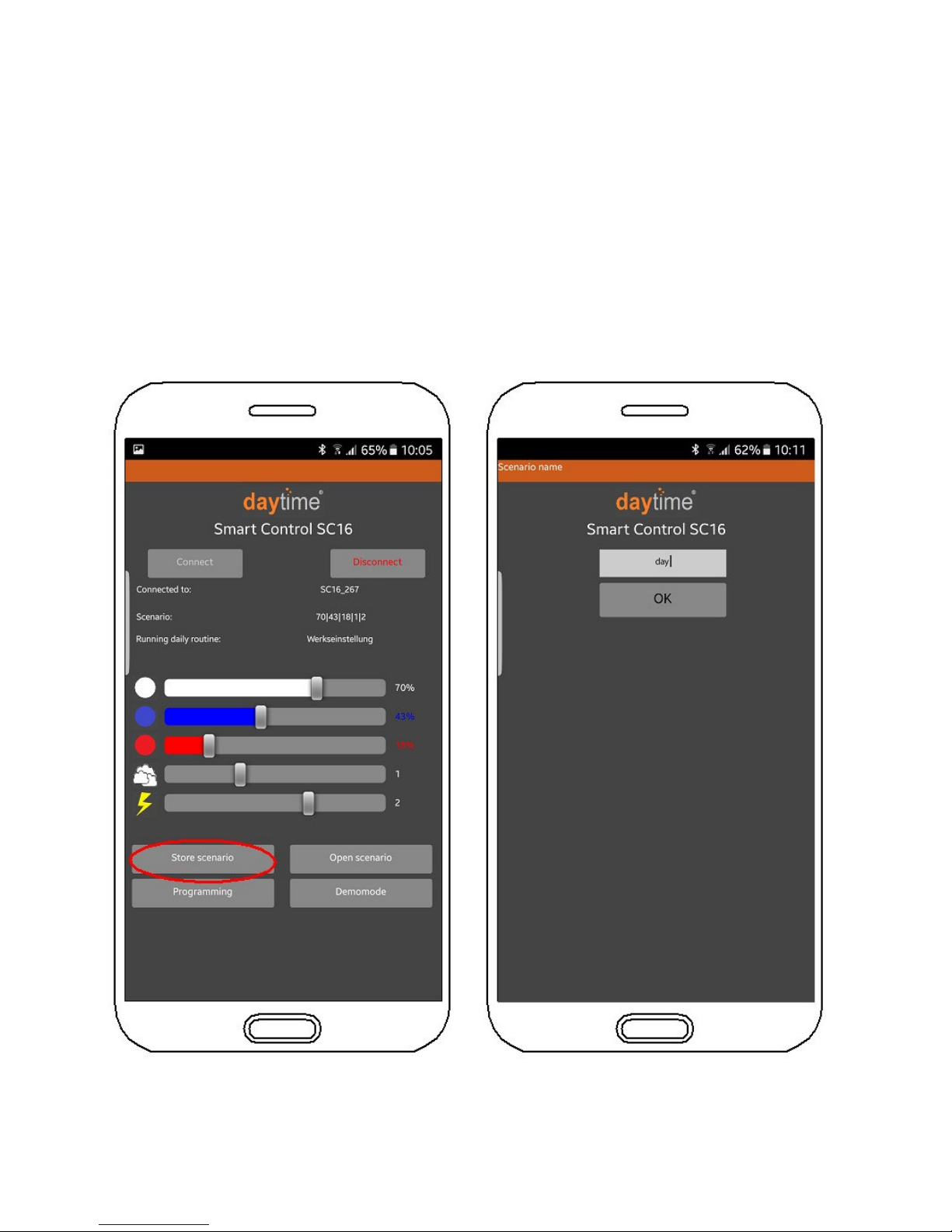
Use the sliders to adjust the brightness, light colour, clouds and thunderstorm intensity. Then click
on "Store scenario". Then s ecify a name (e.g. Day) and confirm by clicking on OK. Any number
of scenarios can be created and saved.
The saved scenarios can be o ened, changed and re-saved by clicking on the button corres ond-
ing to the scenario.

4.2 Creating and saving a daily routine
Click on "Programming" and then on "Create daily routine".
Inhaltsverzeichnis
Andere Daytime Controller Handbücher


