
DeviceGate Technology BT-Pusher WiFi Marketing Device Bedienungsanleitung
BT-Pusher WiFi Marketing Device
User Guide
Version 1.0.0
DeviceGate Technology Co.,Ltd
Web http://www.BT-Pusher.com
http://www.BT-Pusher.com.cn
Add Room 4032,HaoJing Building,NO.9 DaGangGongYe Road,
TianHe , GuangZhou, GuangDong, China
Mail Sales@BT-Pusher.com
Tel 0086-20-82317785, 0086-20-82317786
Fax 0086-20-62201638

BT-Pusher WiFi Marketing device User Guide
Page 2 of 16
Content
1 Introduction......................................................................................3
1.1 Overview.................................................................................3
1.2 Function……………………………………………………………………………………………….3
1.3 Application…………………………………………………………………………………………..4
1.4 Features……………………………………………………………………………………………….5
1.5 Package Contents………………………………………………………………………………..5
2 Installation……………………………………………………………………………………………………….7
2.1 BT-Pusher WiFi Marketing Device Interface Specification….………………7
2.2 User Guide…………………………………………………………………………………………….8
2.2.1 Power……………………………………………………………………………………………….8
2.2.2 FLASH DISK Local Managerment………………………………………………….10
3 Warranty Information …….………………………………………..……………………………………15
BT-Pusher WiFi Marketing device User Guide
Page 3 of 16
1. Introduction
1.1 Overview
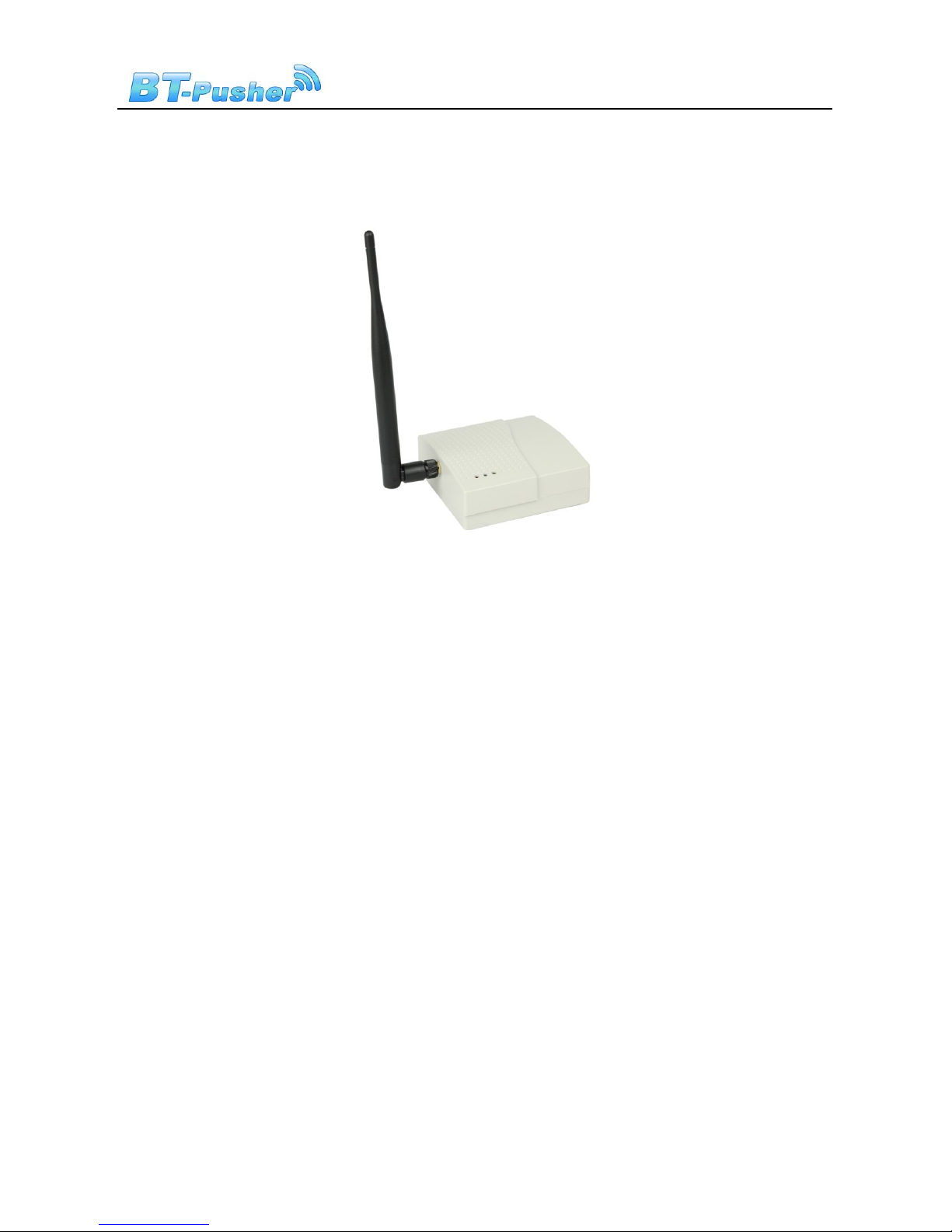
WiFi Marketing is a new and effective marketing method,BT-Pusher WiFi Marketing
device can Push advertisements pages to Smartphones ,laptops or Notebook(As iPhone,iPad
and so on). You can update advertising Photo or web pages to WiFi Marketing Device via flash
disk, When the users of Smartphones and laptops connect to your WiFi Marketing
device(Access Point), They can not have any online behavior(even IM application) before they
view your Advertising Pages
1.2 Function
● 1:StandAlone Work Function
● 2:Support build-in WebSite
● 3:Support DHCP Client and Server
● 4:Support Abnormal automatic recovery function
● 5:Show Device working status using LED
● 6:Transmission distance: up to 200 meters
● 7:Support Redirect to build-in website

BT-Pusher WiFi Marketing device User Guide
Page 4 of 16
● 8:Support Redirect to any internet website
● 9:Must View advertising Page before Any online behaviors
● 10:A variety of WiFi advertising methods
● 11:Support 802.11n,802.11g,802.11b wireless protocol
● 12:Download Speed up to 150Mbps.
1.3 Application
Shops and In-store Promotions ●Exhibitions
Restaurants and coffee shops ●Business center / shopping mall
Touristareas ●Hotels
Airports ●Sport events
Transportation ●Auto parts sales shop
Auto4Sshops ●Repair stations
MotorCity ●Cinemas
Housing Sales Center ●Recreation centers
Even you can think of any place, almost everywhere
BT-Pusher WiFi Marketing device User Guide
Page 5 of 16
1.4 Features
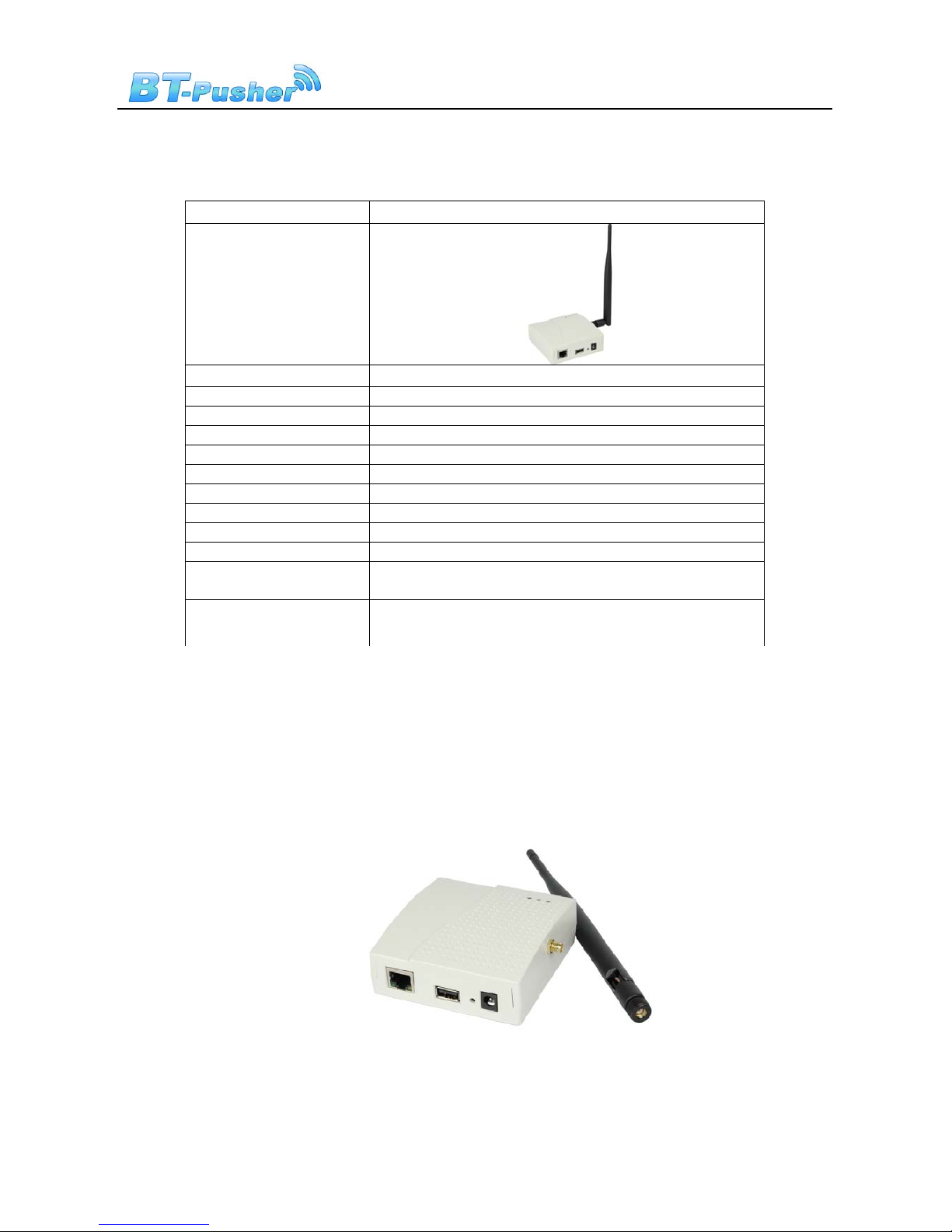
Model BT-Pusher WiFi Marketing Device
Appearance
Status indication LED status indication
Size 9cm*9cm*3cm(no include antenna)
Weight 200g
Power Input 110-240V
Storage Above 128M Byte, expanded to 1G Byte
Antenna External antenna(default 6db)
WiFi type 802.11n,802.11g,802.11b
Download speed Up to 150Mbps
Usb interface Yes
Ethernet 10/100 Ethernet
Abnormal automatic
recovery function Yes
Managerment
method
USB Flash disk local
1.5 Package Contents
Each BT-Pusher WiFi Marketing package include:
1,A BT-Pusher WiFi Marketing Device with 6dbi external antenna
BT-Pusher WiFi Marketing device User Guide
Page 6 of 16
2,A adapter(Appearance for reference only)
2. Installation
2.1 WiFi Device interface specification
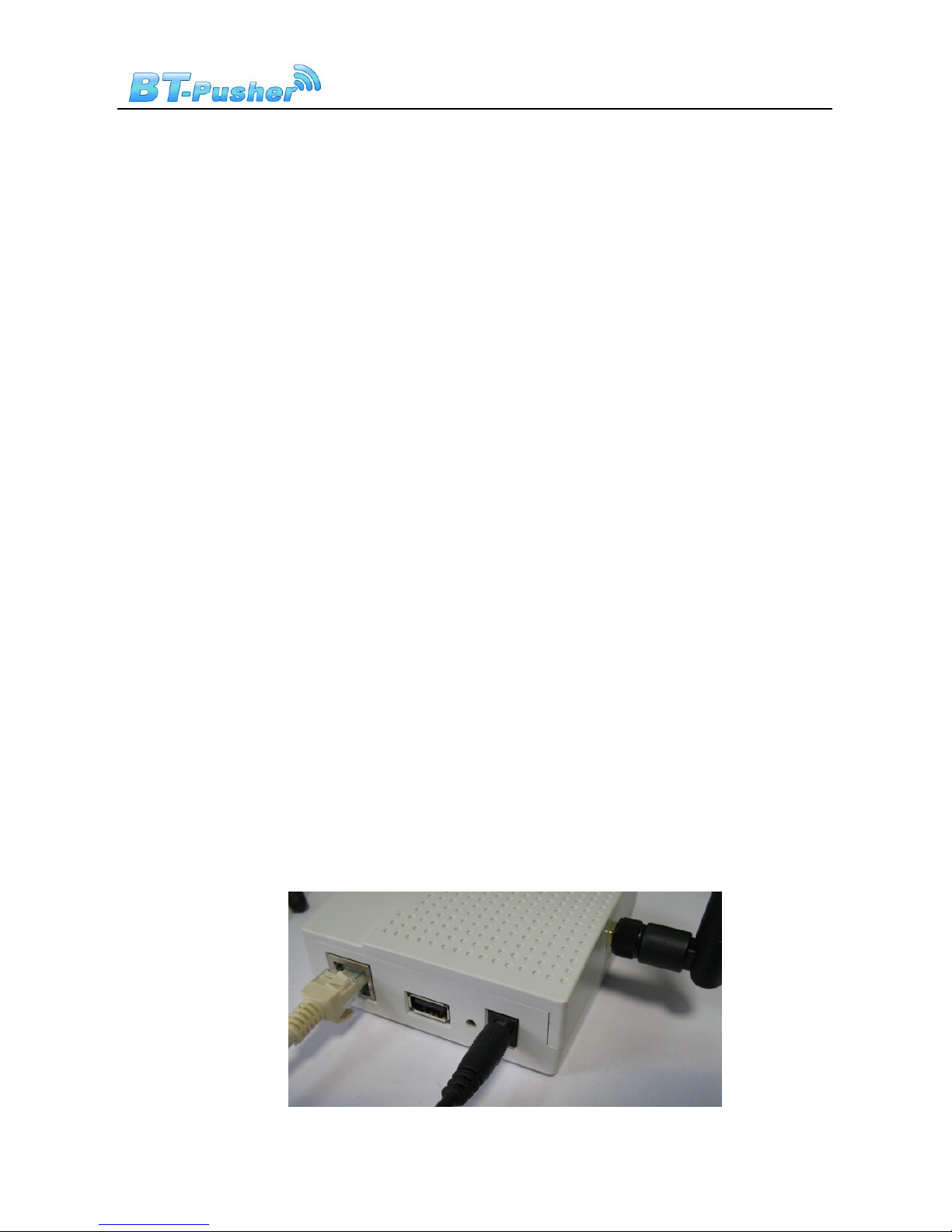
BT-Pusher WiFi Marketing device User Guide
Page 7 of 16
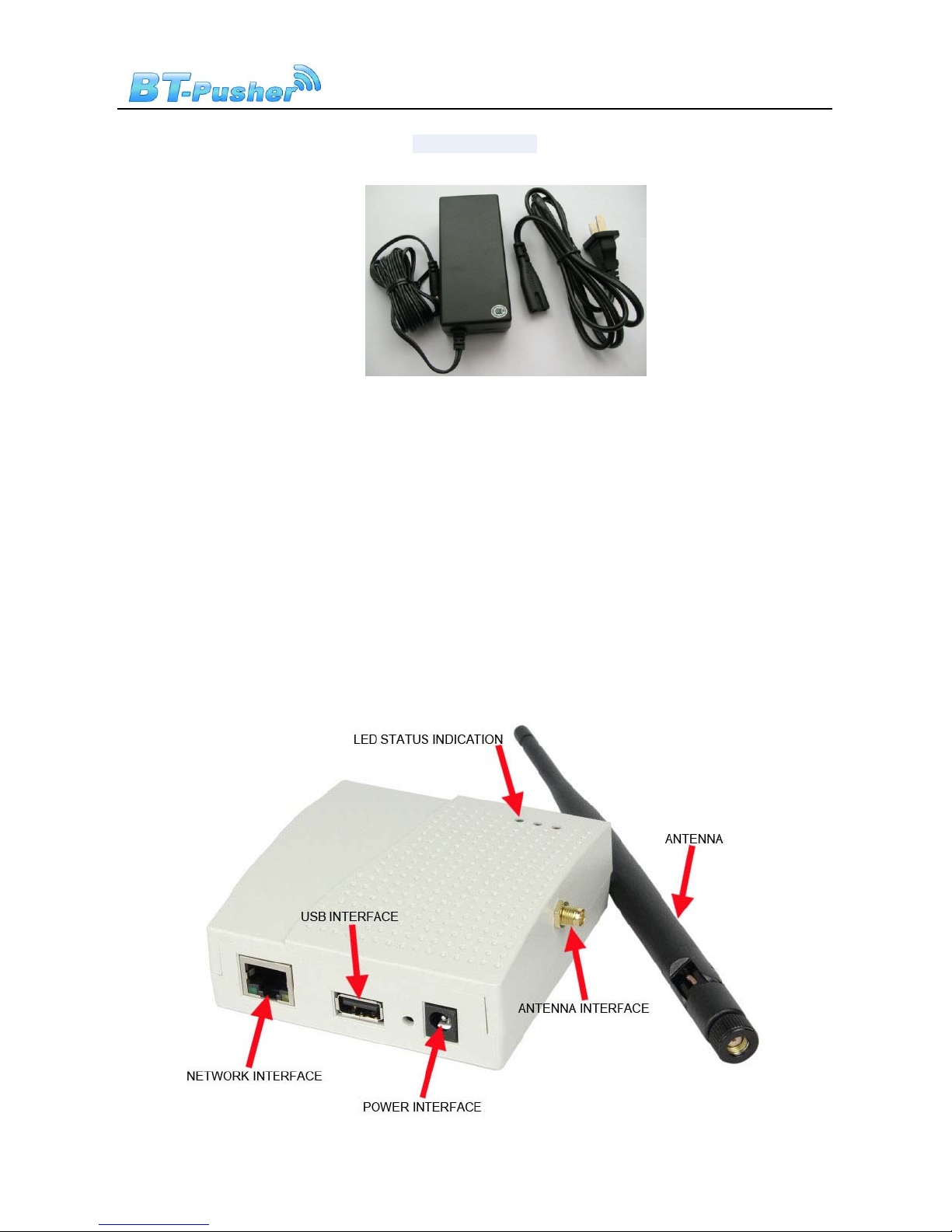
LED:Indicate the working status of the BT-Pusher WiFi Marketing device
POWER INPUT:DC 12V 1A power adapter
USB INTERFACE:Used to connect flash disk for offline management. Please use
WiFiConfig software to modify corresponding parameters or update Ads pages
and make sure to save the results to a flash disk,then insert the flash disk into the
relevant BT-Pusher WiFi Markering Device’s USB interface, the system will
automatically set the device parameters, update Ads pages and so on. (After you
insert a flash disk,please make sure LED show a status described in section 2.2.2)
NETWORK INTERFACE:Used to connect to your local network(Router or
Switch)
2.2 User Guide
2.2.1 Power
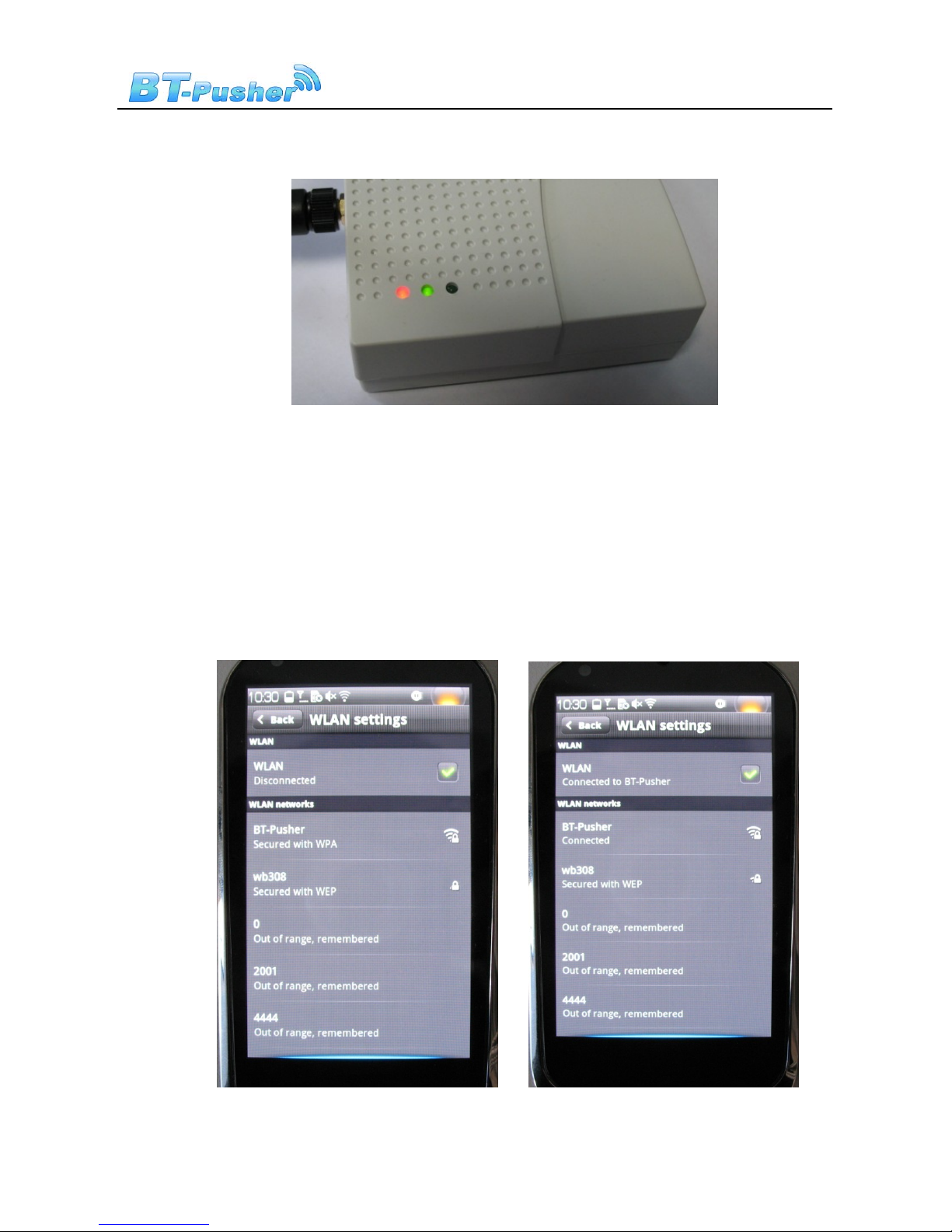
1. Put BT-Pusher WiFi Markeing device in a safe place, Connect Antenna to its
antenna interface,use network cable connect BT-Pusher WiFI Marketing device to
your Router or Switch and Plug power adapter (DC 12V) in the power interface,
As shown below:
BT-Pusher WiFi Marketing device User Guide
Page 8 of 16
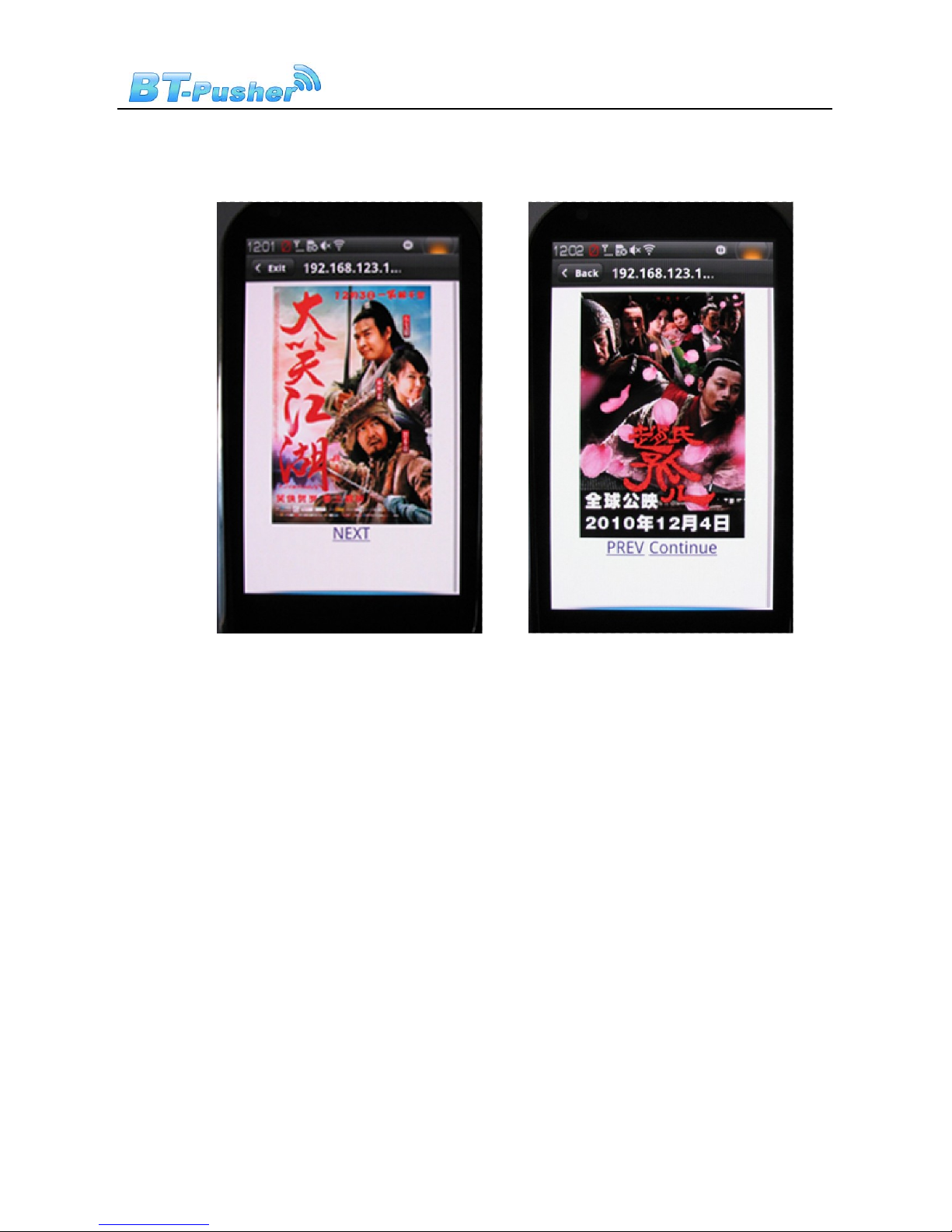
2. After power-on, LED will indicate the system status information, as follows
(1) Red LED and middle Green LED light. Indicates power supply normal
(2) After about one minute ,Middle Green LED will flash rapidly,This means
BT-Pusher WiFi marketing Device started to enter the normal work state,
Then your WiFi enabled device as iphone ,ipad, notebook will can scan and
conenct to BT-Pusher WiFI Marketing Device, and this will let you begin your
internet surfing. Enjoy it….
BT-Pusher WiFi Marketing device User Guide
Page 9 of 16
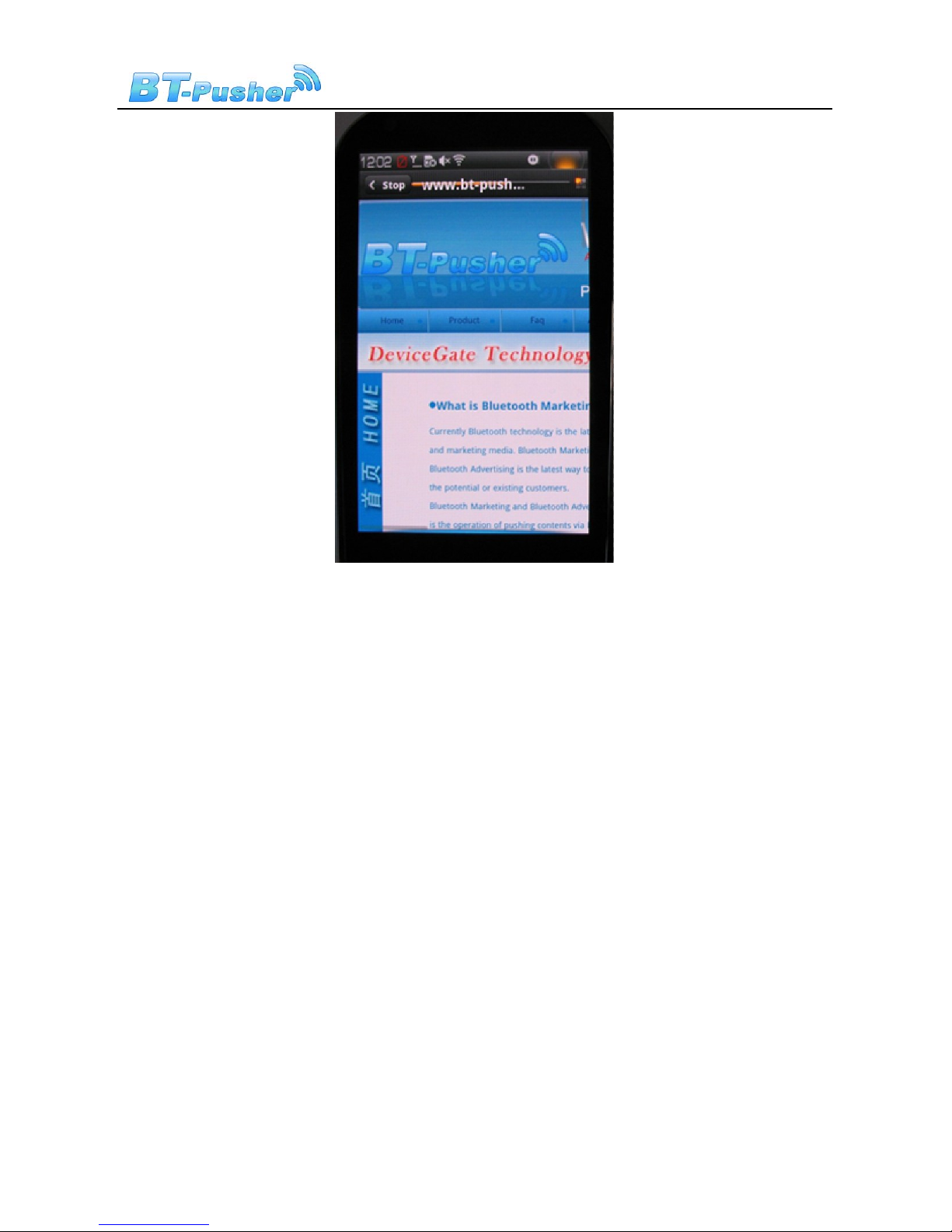
3. But You can not have any online behavior yet(Even IM,Bolg application and so on)
before they view your Advertising Pages. As below:
4. There is one “Hyper-Link” in last advertising Page, You can click last Advertising
page photo go to special internet Advertising WebSite, Even Build-in WebSite in
BT-Pusher WiFi marketing device's internal storage . if you click “Hyper-Link” in last
advertising page, You have to view Special advertising web page, as your corporate
website and so on, As Below
BT-Pusher WiFi Marketing device User Guide
Page 10 of 16
5. if you click "Continue" in last Ads page, You will be directed to the site you want to
surf(We assume that you want to www.google.com before you view advertising
page ).as below:
Inhaltsverzeichnis


