DF ROBOT BOSON KIT Sicherheitsleitfaden

A STARTER GUIDE
OF BOSON KIT
FOR MICRO:BIT

Welcome to the DFRobot blog:www.dfrobot.com/blog-tag-microbit.html
2/ 86
Contents
.................................................................................................................1
Contents......................................................................................................................................................2
Chapter 1: MakeCode and micro:bit .......................................................................................................5
An Introduction to MakeCode ..................................................................................................................5
A Brief Introduction to micro: bit................................................................................................................5
How to Use micro:bit ...................................................................................................................................6
STEP 1: Open MakeCode........................................................................................................................7
STEP 2: Connect micro: bit to computer...............................................................................................7
STEP 3: Start a New Project......................................................................................................................8
STEP 4: Download the program and upload to micro: bit ...............................................................10
Chapter 2:What Makes a Machine “Come to Life” ..........................................................................14
Interactive devices....................................................................................................................................14
Input Unit —— sensor .............................................................................................................................14
Control Unit ——micro: bit.....................................................................................................................14
Output Unit —— actuator .....................................................................................................................14
Relationship between Program and Hardware ....................................................................................15
The Boson Expansion Board for micro: bit...........................................................................................15
Chapter 3:Get hands on! ......................................................................................................................16
Project 1: The Mysterious Micro: bit.........................................................................................................16
Components list .........................................................................................................................................16
Connection.................................................................................................................................................17
Program.......................................................................................................................................................17
Exercises ......................................................................................................................................................20
Project 2:Flashing LED Light ...................................................................................................................21
Components list .........................................................................................................................................21
Connection.................................................................................................................................................22
Program.......................................................................................................................................................22
Exercise........................................................................................................................................................24

Welcome to the DFRobot blog:www.dfrobot.com/blog-tag-microbit.html
3/ 86
Project 3: Notification Light......................................................................................................................25
Components list .........................................................................................................................................25
Connection.................................................................................................................................................26
Program.......................................................................................................................................................26
Exercise:.......................................................................................................................................................30
Project 4: Electric Fan...............................................................................................................................31
Components list .........................................................................................................................................31
Connection.................................................................................................................................................32
Program.......................................................................................................................................................33
Chapter 4: A bit further ............................................................................................................................37
Project 1: Electronic Candle....................................................................................................................37
Components list .........................................................................................................................................37
Connection.................................................................................................................................................38
Program.......................................................................................................................................................38
Project 2: Automatic Door .......................................................................................................................42
Components list .........................................................................................................................................42
Connection.................................................................................................................................................43
Program.......................................................................................................................................................43
Project 3: Music Box .................................................................................................................................48
Components list .........................................................................................................................................48
Connection.................................................................................................................................................49
Program.......................................................................................................................................................49
Project 4: Colorful LED Strip ......................................................................................................................54
Components list .........................................................................................................................................54
Connection.................................................................................................................................................55
Program.......................................................................................................................................................55
Chapter 5: Become an expert ................................................................................................................63
Project 1: Electronic Stabilizer .................................................................................................................63
Components list .........................................................................................................................................63
Connection.................................................................................................................................................64
Program.......................................................................................................................................................64
Exercises ......................................................................................................................................................66
Project 2: DJ panel ...................................................................................................................................67

Welcome to the DFRobot blog:www.dfrobot.com/blog-tag-microbit.html
4/ 86
Components list .........................................................................................................................................67
Connection.................................................................................................................................................68
Program.......................................................................................................................................................68
Exercises ......................................................................................................................................................70
Project 3: Remote Doorbell......................................................................................................................71
Component list...........................................................................................................................................71
Connection.................................................................................................................................................72
Program.......................................................................................................................................................73
Exercise........................................................................................................................................................76
Project 4:Escape the maze ...................................................................................................................77
Components list .........................................................................................................................................77
Connection.................................................................................................................................................78
Program.......................................................................................................................................................78
Exercise........................................................................................................................................................85
Remember to check out the DFRobot blog for more tutorials, projects and latest trends. The link
can be found on the top left corner of the page.

Welcome to the DFRobot blog:www.dfrobot.com/blog-tag-microbit.html
5/ 86
Chapter 1: MakeCode and micro:bit
An Introduction to MakeCode
MakeCode for micro: bit is one of the most widely used graphical programming environment from
the micro: bit website. It is an open source project developed by Microsoft.
A Brief Introduction to micro: bit
micro:bit is a pocket-sized microcontroller designed for kids and beginners learning how to
program, letting them easily bring ideas into DIY digital games, interactive projects and robotics.
micro:bit comes with a variety of on-board modules, including a 5x5 LED matrix (also supports light
detection), 2 programmable buttons, motion detector, Compass and Bluetooth® Smart module.
Additionally, you may attach more modules such as a servo motor, RGB LED lights through 5 I/O
rings or 20 edge connectors.
The micro:bit can be used to realize many cool ideas. Everything you can imagine, a robot,
electric instrument, or even a home automation system. The possibilities are endless! The micro: bit
holds a host of innovative features such as 25 red LEDs to display messages and two
programmable buttons to control game or control music. It can detect motion, recognize gesture,
and be interconnected with other devices or the Internet via Bluetooth connection.

Welcome to the DFRobot blog:www.dfrobot.com/blog-tag-microbit.html
6/ 86
The micro: bit is equipped with light and temperature sensors and other common sensing devices, which
means that it itself can also produce a lot of common smart products used in our daily lives.
How to Use micro:bit
If you are new to micro: bit, you can start with the online programming platform- The MakeCode
Editor, to learn about how to program the micro: bit.
Before getting started, please make sure that the following items are ready by your hand. In
addition, you will also need a computer running operating systems such as Windows 10 / Mac OS /
Linux and with Internet connectivity.
COMPONENTS LIST:
Micro:bit Mainboard USB cable

Welcome to the DFRobot blog:www.dfrobot.com/blog-tag-microbit.html
7/ 86
The following steps are based on Windows 10 OS. It can be used as a reference for other operating
systems.
STEP 1: Open MakeCode
Visit the MakeCode page from the following link: https://makecode.microbit.org/
STEP 2: Connect micro: bit to computer
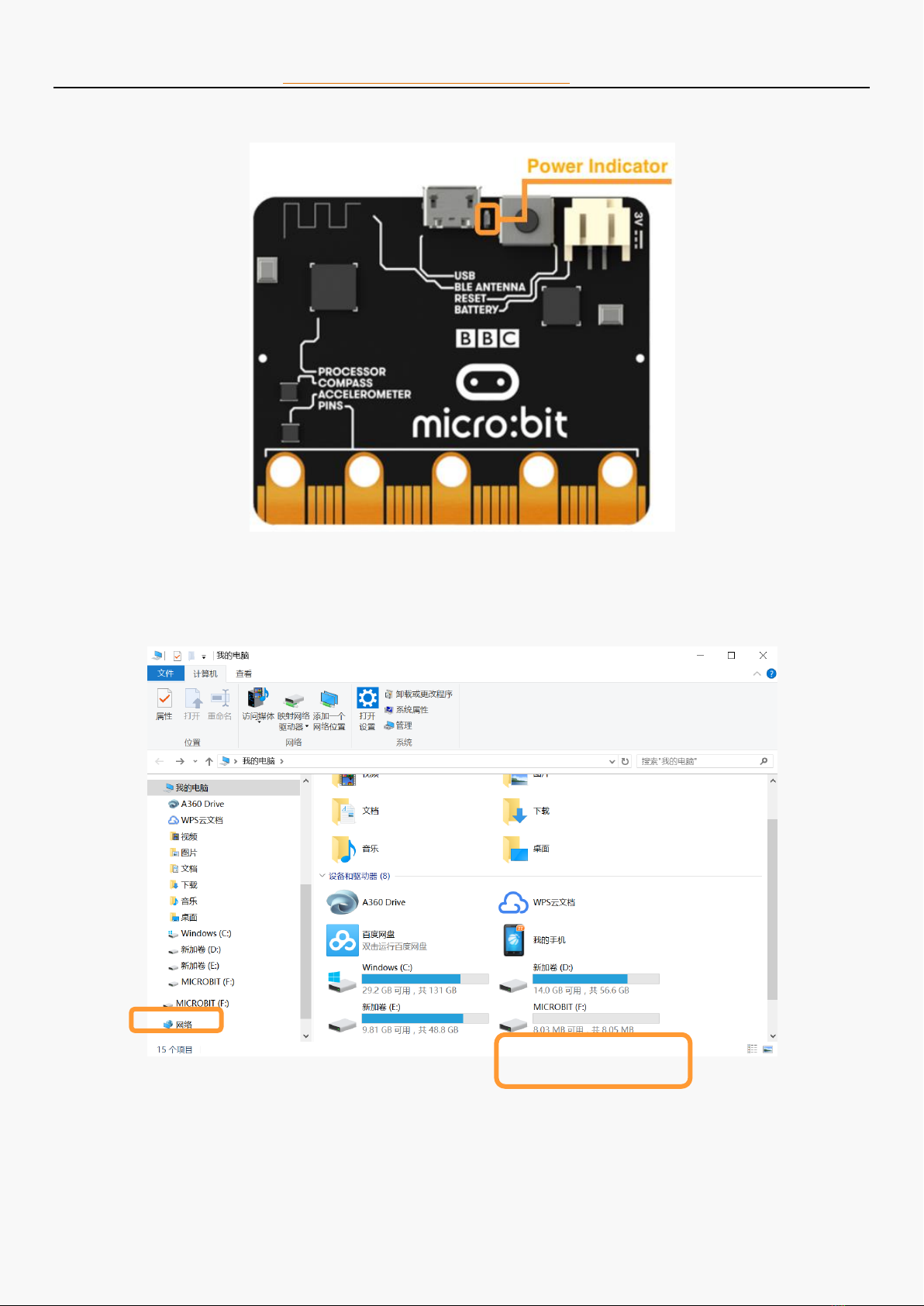
Micro: bit connects to computer via the USB cable. The power indicator on the back side of the
micro: bit will light up when connected.

Welcome to the DFRobot blog:www.dfrobot.com/blog-tag-microbit.html
8/ 86
Before programming, we should make sure that the mainboard is recognized by the computer.
When micro: bit is connected, a "MICROBIT" directory will show up in “My Computer”.
STEP 3: Start a New Project
Before starting a new project, we will need to first get familiar with the programming interface.

Welcome to the DFRobot blog:www.dfrobot.com/blog-tag-microbit.html
9/ 86
Simulation window: simulates the operating status of micro: bit. During the process of programming,
you can always check how your program looks like the through the window.
Function area: Where you can find all the function blocks, including input, output, loop, logic, etc..
Programming area: Dragged the blocks from “Function area”, stack them up and build your
program here.
Click "Project" at the top of the simulation window.
Then, click "New Project".

Welcome to the DFRobot blog:www.dfrobot.com/blog-tag-microbit.html
10 / 86
STEP 4: Download the program and upload to micro: bit
When we have finished our program, we can now download it from the website and uploaded to
micro: bit. We can also rename the project and save it in the browser. The project will stay in “my
stuff ”.
Before downloading, we can check the simulated results in the simulation window. The buttons in
the lower part of the simulation window can be used to control the analog micro:bit.
Inhaltsverzeichnis
Andere DF ROBOT Computerhardware Handbücher
Beliebte Computerhardware Handbücher anderer Marken

EMC2
EMC2 VNX Series Betriebsanleitung

Panasonic
Panasonic DV0PM20105 Bedienungsanleitung

Mitsubishi Electric
Mitsubishi Electric Q81BD-J61BT11 Bedienungsanleitung

Gigabyte
Gigabyte B660M DS3H AX DDR4 Bedienungsanleitung

Raidon
Raidon iT2300 Bedienungsanleitung

National Instruments
National Instruments PXI-8186 Bedienungsanleitung