Difrnce DIT7070 Bedienungsanleitung

1
11
1
User Manual
7” Tablet Android 4.1

2
Welcome .......................................................................................................... 3
Important Notices ............................................................................................ 3
Keys and Functions .......................................................................................... 4
I. Getting Started ............................................................................................. 5
1.1 Turn on/off ........................................................................................... 5
1.1.1 Turn on ....................................................................................... 5
1.1.2 Turn off ....................................................................................... 5
1.2 Loc /unloc the screen (sleep mode) ........................................... 5
1.3 Connect to computer ....................................................................... 5
II. Your Home Screen ....................................................................................... 6
2.1 Change wallpaper for home screen: ............................................. 6
2.2 Add/delete applications on home screen: .................................. 7
2.3 Add widgets to home screen: ......................................................... 7
III. Networ Connection .................................................................................. 7
3.1 Wi-Fi ...................................................................................................... 7
3.1.1 Turn on Wi-Fi .............................................................................. 7
3.1.2 Turn off Wi-Fi .............................................................................. 8
3.1.3 Add a Wi-Fi networ ................................................................ 8
3.2 Bluetooth ............................................................................................. 8
3.2.1 Ma e device discoverable ........................................................... 8
3.2.2 Scan for devices ............................................................................. 8
3.2.3 Pair with the Bluetooth device...................................................... 9
3.3 3G Networ ......................................................................................... 9
IV. Internet Browsing ........................................................................................ 9
4.1 Internet Browsing ................................................................................ 9
V. Install and Manage Apps ...................................................................... 10
5.1 Install Apps ...................................................................................... 10
5.2 Manage Apps ................................................................................ 11
VI. Multi-media Functions ........................................................................... 11
6.1 Music ................................................................................................ 11
6.2 Video................................................................................................ 12
6.2.1 HDMI output ................................................................................. 13
6.3 Gallery ............................................................................................. 13
6.4 Camera ........................................................................................... 14
6.5 E-boo reader ................................................................................. 14
VII. Settings .................................................................................................... 15
VII. Battery ..................................................................................................... 16
Troubleshooting ........................................................................................... 17

3
Welcome
Than you for purchasing this tablet.
It brings you much convenience for your business (supports Word, Excel,
send & receive e-mails...) and entertainment (supports 3D game,
chatting, movie playbac , eBoo s.....).
Running on Android 4.1, with a 1.6GHz processor and highly responsive
capacitive touch screen, it brings you wonderful user experience.
Before beginning, please refer to this user manual carefully.
Important Notices
⊙ The new battery will be in its best condition after 2-3 times full charge
and discharge.
⊙ While using the earphone, if the volume is excessively high it may
cause hearing damage. So please adjust the volume of the player
to a moderate level and balance the time of using.
⊙ Do not disconnect the tablet suddenly when formatting or uploading
and downloading, which can lead to program errors.
⊙ Do not dismantle the tablet by yourself, and do not use alcohol,
thinner or benzene to clean its surface.
⊙ Do not use the tablet while driving or wal ing.
⊙ The tablet is not moisture and water resistant. Please do not use it in a
damp environment.
⊙ Do not drop or hit it to hard surface, or the screen may get damaged.
⊙ Do not upgrade the firmware by yourself. This would cause damage
to your tablet.

4
Keys and Functions
1. Power jac
(DC input)
Hold and press to turn on or turn off the unit.
Briefly press to turn on or turn off the screen.
2. HDMI Connect to TV output via a HDMI cable
3. Mini-USB slot
Connect to a computer via a USB cable to
transfer data
(e.g., music, videos, photos, and other files).
4. Front camera 0.3 M pixel Front camera
5. Power and
loc ey
Hold and press to turn on or turn off the unit.
Briefly press to turn on or turn off the screen.
6. Vol- Key Press to increase the volume
7. Vol+ Key Press to decrease the volume
8. ESC ey To go to your previous screen
9. Earphone slot To connect with your earphone
10-11.Spea ers Spea ers
12. Rear camera 2M pixel rear camera
13.MIC MIC
14.TF Card Slot To insert your TF Card

5
I. Getting Started
1.1 Turn on/off
1.1.1 Turn on
To start your tablet, press and hold the power ey at the right side of
your tablet for a while. Tab and drag the loc out of the circle to unloc .
→
Tab and drag the loc out of the circle to unloc .
Drag the loc to right: you will go to the home screen.
Drag the loc to left: you will go to camera directly.
1.1.2 Turn off
To power off your tablet, press and hold the power button until the “Do
you want to shut down?” dialog appears and tap “OK” to power it off.
1.2 Lock/unlock the screen (slee mode)
To save battery, you should put your tablet in sleep mode by turning off
the LCD display. To do this, shortly press the power ey. Press it again to
wa e up the screen.
1.3 Connect to com uter
You can connect your tablet to your computer with the supplied USB
cable so you can transfer media files.
If your computer is XP system, please install a Windows Media Player 11
for your computer before transfer media files as android 4.1 system
needs Windows Media Player 11 support.

6
II. Your Home Screen
a b
a. Google
search Tap to enter Google search page
b. Voice search Tap to open voice search
c. ESC ey Tap to return to the previous screen/ page.
d. Home Tap to return to your home page
e. Recent
operations Tap to show your recent operations
f. Screenshot Tap to ma e a screenshot
g. Volume - Tap to lower the volume
h. Volume + Tap to upper the volume
i. WIFI Signal There will be WIFI signal when WIFI connected
j. Battery status Show battery status
2.1 Change wall a er for home screen:
Tab and hold your finger in any blan space of the home screen, you
will see a pop-up options; you can choose wallpaper from Gallery, live
Wallpapers or Wallpapers.
c d e f g h i j

7
2.2 Add/delete a lications on home screen:
There are several apps in the home screen, you can also add more
frequently-used app icons in this home page and delete some less
frequently-used ones.
Tab the app launcher in the top right corner to go to all apps panel, tap
and move the app you want to the home screen.
To delete an app from home screen, tap and hold it, and them movie it
to the remove icon
2.3 Add widgets to home screen:
Tab all Apps launcher→Tab WIDGETS. There are Analog cloc ,
boo mar s, calendar, Email, and lots of other widgets. Drag the widget
you want to the home screen.
Tips: Besides your home screen, you can access to other four panels by
sliding left or right in your home screen. You can also customize these
panels.
III. Network Connection
3.1 Wi-Fi
Wi-Fi can only be used when it connects with home Wi-Fi Access Point
(AP) or a free unsecured Wi-Fi hotpot. Under “Wireless & networ s”, tap
“Wi-Fi” to turn it on. After a moment, your Wi-Fi networ s list should
populate. If you need to rescan for available networ s, tap "scan"
3.1.1 Turn on Wi-Fi
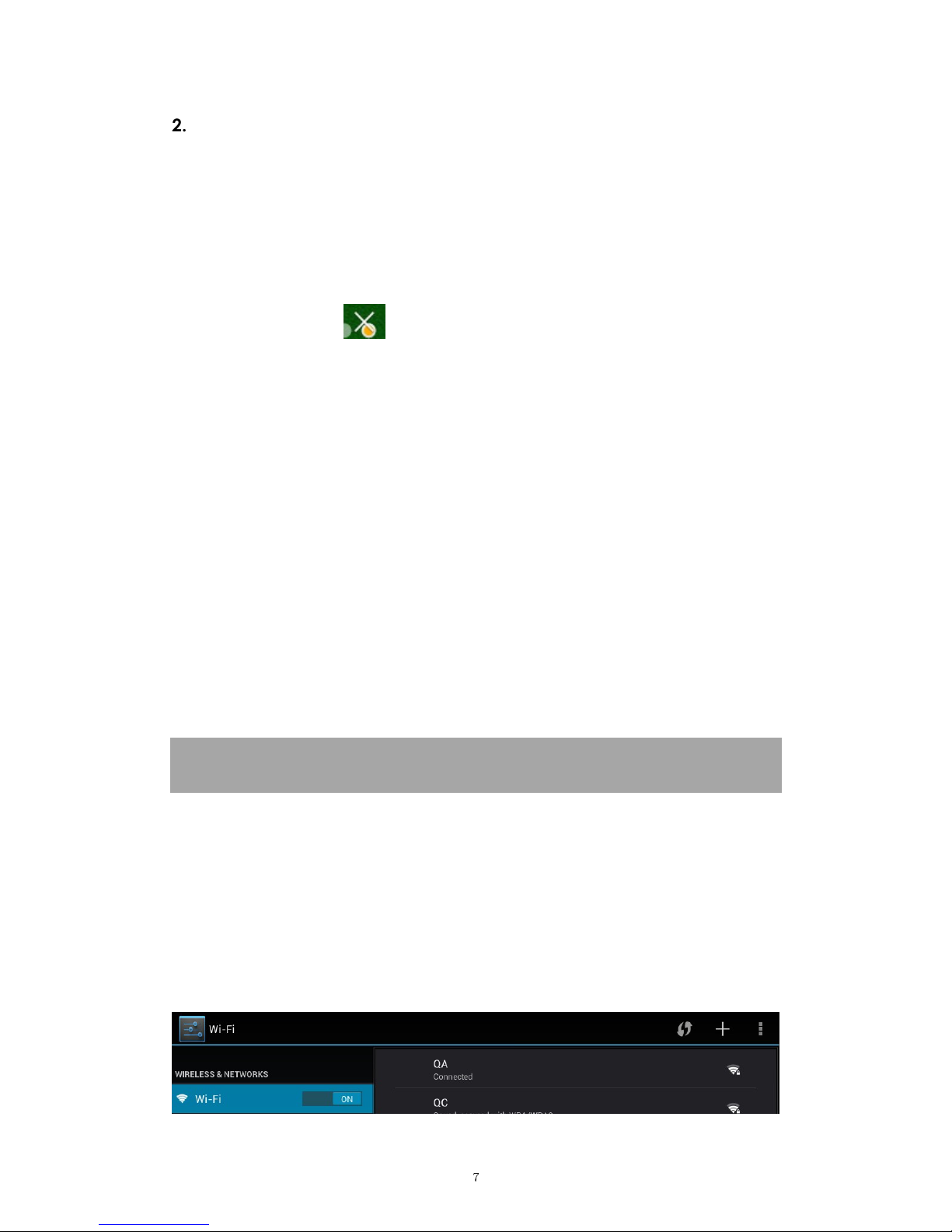
Within the App Panel, tap “Settings”” → “Wi-Fi” to turn on wifi.

8
Your tablet lists the networ s it finds within range. Tap a networ to
connect. If necessary, enter Networ SSID, Security, and Wireless
password, and tap “Connect”. When your tablet is connected to the
networ , the wireless indicator appears in the status bar. Waves
indicate connection strength.
3.1.2 Turn off Wi-Fi
Please turn off Wi-Fi if you’re not using it to save the battery. To turn off
Wi-Fi, Tab it again.
3.1.3 Add a Wi-Fi network
Users may also add a Wi-Fi networ under “Wi-Fi settings”. In “Wi-Fi
settings”, tap “Add networ ”. Enter the SSID (name) of the networ . If
necessary, enter security or other networ configuration details. Touch
Save.
Note: Networ status icons turn blue if you have a Google Account
added to your tablet and the tablet is connected to Google services,
for syncing your Gmail, Calendar events, contacts, for bac ing up your
settings, and so on.
3.2 Bluetooth
3.2.1 Make device discoverable
You must pair your tablet with a device before you can connect to it.
Once you pair your tablet with a device, they stay paired unless you
unpair them.
Under “Settings”, choose “Bluetooth settings”. Tap Bluetooth to turn on it
and tap “Search for devices”. The Bluetooth indicator then appears
in the status bar.
3.2.2 Scan for devices
After scanning, there will be a list of the IDs of all available Bluetooth
devices in range. If the device you want to pair with isn’t in the list,
ensure that the other device is turned on and set to be discoverable.

9
3.2.3 Pair with the Bluetooth device
Tap the name of an available Bluetooth device to pair with. In the
popup “Bluetooth pairing request” dialog, type a PIN.
If the pairing is successful, your tablet connects to the device.
Example: to transmit a photo
Go to “Gallery”, choose a photo to share. Tap icon or any spot on
the photo to view a submenu. Tap → → , and then
choose the device name in the Paired devices list. The photo will then
be sent.
You can touch the right icon to unpair the device.
Note: After pairing, it shows under the Bluetooth device “Paired but not
connected”, but file transmission is still possible.
You can see the received files by touch the top right corner icon.
At present, the Bluetooth function only supports files transmission.
To extend battery life, turn Bluetooth power off when not in use.
3.3 3G Network
A 3G networ is a mobile networ that allows high-speed data access
and advanced networ capacity. It features a wider range of services
and advanced networ capacity over the previous 2G networ .
Your tablet supports external 3G networ by a 3G dongle. 3G dongles
are connected via the USB HOST port. There require a convert cable,
you can find in the accessories.
Note: some models support 3G networ optional. If you purchase this
tablet with a SIM card slot, you can access to the Internet via your 3G
SIM card while Wi-Fi networ is not available. Please insert your 3G card
into the SIM card slot of the tablet, and the tablet will obtain 3G signal
automatically. If you purchase this tablet without a SIM card slot, you
can also try to access to Internet with a USB 3G dongle.
IV. Internet rowsing
4.1 Internet Browsing
Before using your browser, ma e sure Wi-Fi or internet is connected.
In your app panel, Tab the browser icon to open your browser.

10
Tap the address bar, the Android eyboard will appear for your entry of
eywords or URL.
New tab boo mar this page Open boo mar s
Tab the icon in the top corner of the browser page to open the
submenu.
V. Install and Manage Apps
5.1 Install A s
Go to the “Ap Installer” to install and manage your apps. To install
an application, follow below steps:
1. Tap to open the ‘APKInstaller’ → ‘Install’ → then tap “Internal
Memory” or “TF Card”. Available .ap files will appear at the right side.
Touch the required one to install it.
Note: Ma e sure the .ap file is wor able on android 4.1, and the suffix
is .ap . e.g. “angrybirds.ap ”.
In some cases, there may be no icon on in the App Panel after an .ap
file is installed. Possible reasons may be that this app is not compatible
Submenu
Inhaltsverzeichnis
Andere Difrnce Tablette Handbücher