
DigiSender DGXDSDV112 Bedienungsanleitung

Model: DGXDSDV112
Single Input HDMI AV Sender System
WATCH A VIDEO
INSTALLATION
& TROUBLESHOOTING GUIDE
Available online at: www.aei.eu/video
WATCH A VIDEO
INSTALLATION
& TROUBLESHOOTING GUIDE
Available online at: www.aei.eu/video

Page 02 Please read the instructions carefully prior to installation
DGXDSDV112 - DigiSender® XD HDMI - Single Input HDMI AV Sender System
Contents
Introduction 03
Installing your DigiSender® XD HDMI 04 - 10
Step 1 - Unpack your DigiSender® XD HDMI 04
Step 2 - Install the Transmitter 05
Step 3 - Install the IR Systeme Technik™ Remote Relay Kit 06
Step 4 - Install the Receiver 07
Step 5 - Test Your Setup Using the Test Mode 08-10
Using your DigiSender® XD HDMI 11 - 12
Standard Operation 11
Re-Syncing the Transmitter and Receiver 12
Troubleshooting 13 - 14
Frequently Asked Questions 13
Technical Support 14
For indoor use only. Do not expose the transmitter or receiver units
to moisture as this may lead to faulty operation and risk of electric
shock.
Risk of electric shock, do not open. None of the contents of this
DigiSender®pack contain user-serviceable parts.
Avoid dripping or splashing liquids on the transmitter or reciever and
do not place objects lled with liquid on them.
The transmitter and receiver rating labels are located on the base of
the units.

Page 03Please read the instructions carefully prior to installation
Introduction
Congratulations on purchasing the new DigiSender® XD HDMI from AEI Security & Communications
Ltd. This product represents the absolute pinnacle of state-of-the-art wireless audio video distribution
technology, at exceptional value for money.
You can now enjoy DVD quality video and Hi-Fi stereo sound from your Satellite, Cable, DTV, DVD, DVR
or VCR in another room in your home, without the worry of interference from other wireless products.
Its use of spread spectrum digital technology means that signals will not only pass through walls and
ceilings effortlessly, but that the signal will not degrade or be affected by interference from similar
wireless devices. In fact, this technology coexists so seamlessly with other wireless technologies, that
it can be set up and run right next to a wireless router or microwave, something that has never before
been possible.
With innovative features like HDMI throughpass, the IR Systeme Technik™ Remote Relay Kit and a
Test Mode you can rest assured that you have purchased one of the most advanced video sender
systems available on the market today.
DGXDSDV112 - DigiSender® XD HDMI - Single Input HDMI AV Sender System

Page 04 Please read the instructions carefully prior to installation
DGXDSDV112 - DigiSender® XD HDMI - Single Input HDMI AV Sender System
Installing your DigiSender® XD HDMI
Step 1 - Unpack your DigiSender® XD HDMI
All DigiSender® orders are computer weight checked when packed. However, it is a good idea to check
all kit contents are present before proceeding with the installation.
POWER
Transmitter
POWER
Receiver
IR Systeme Technik™ Kit 2x Power Supply Units
2x HDMI Cables

Page 05Please read the instructions carefully prior to installation
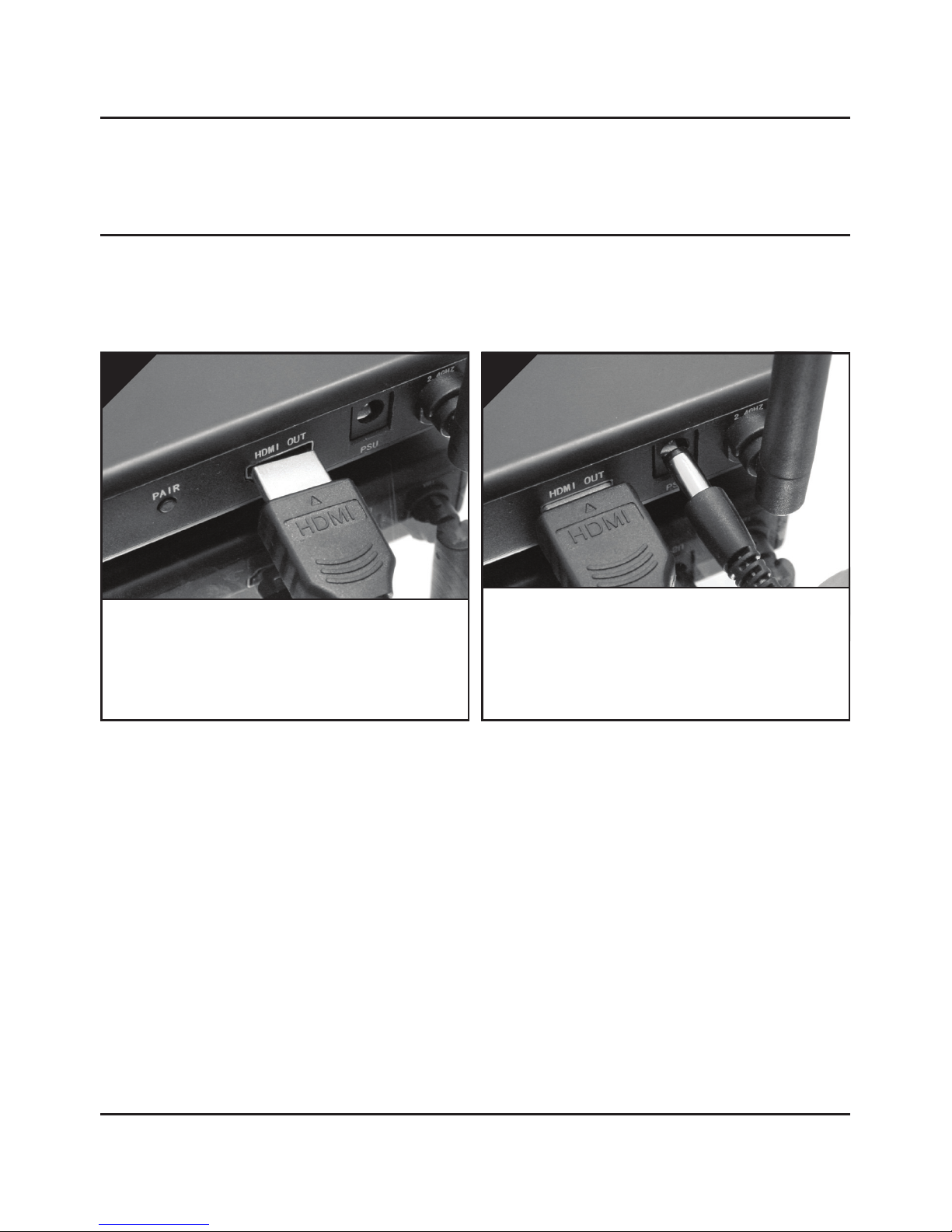
Use one of the included HDMI cables and connect
it to the socket labelled ‘HDMI OUT’ on the back
of the DigiSender® Transmitter and the HDMI input
on your TV.
2.
Locate the HDMI cable that goes from your Satellite
receiver or Cable box to your TV. Unplug the HDMI
cable from the back of your TV, and connect it to
the socket labelled ‘HDMI IN’ on the back of the
DigiSender® Transmitter.
1.
Installing your DigiSender® XD HDMI
Step 2 - Install the Transmitter
The DigiSender® Transmitter will send the audio and video from a connected source (your Satellite
Receiver for example) to the Receiver, located in another room in your home.
DGXDSDV112 - DigiSender® XD HDMI - Single Input HDMI AV Sender System
Connect the IR Emitter to the socket labelled ‘IR’ on
the back of the DigiSender® Transmitter. See Page
06 for more information on installing the IR Systeme
Technik™ Remote Relay Kit.
3.
Connect the Power Supply Unit (PSU) to the socket
labelled ‘PSU’ on the back of the DigiSender® Trans-
mitter and plug it into an available mains socket.
The Power Indicator will light up Red to indicate that
the unit is in Standby Mode.
4.

Page 06 Please read the instructions carefully prior to installation
DGXDSDV112 - DigiSender® XD HDMI - Single Input HDMI AV Sender System
Installing your DigiSender® XD HDMI
Step 3 - Install the IR Systeme Technik Remote Relay Kit™
The IR Systeme Technik™ Remote Relay Kit includes various accessories that will help you in setting it
up the Remote Relay system correctly.
Once set up, this Remote Relay system will enable you to control your source equipment (your Satellite
receiver for example), with its remote control, from the receiving location.
Example 1: Mount the IR Emitter vertically using
accessories 1 and 2. Ensure the LED is facing the IR
sensor on your source equipment.
Example 2: Mount the IR Emitter horizontally using
the supplied sticky pad. Ensure the LED is facing the
IR sensor on your source equipment.
Extension Pieces
Accessory #1
Accessory #2
IR Emitter
Page 07Please read the instructions carefully prior to installation
DGXDSDV112 - DigiSender® XD HDMI - Single Input HDMI AV Sender System
Connect the Power Supply Unit (PSU) to the socket
labelled ‘PSU’ on the back of the DigiSender® Re-
ceiver and plug it into an available mains socket.
The Power Indicator will light up Red to indicate that
the unit is in Standby Mode.
2.
Use one of the included HDMI cables and connect
it to the socket labelled ‘HDMI OUT’ on the back of
the DigiSender® Receiver and the HDMI input on
your receiving TV.
1.
Installing your DigiSender® XD HDMI
Step 4 - Install the Receiver
The DigiSender® Receiver will pick up the signals being sent by your DigiSender® Transmitter and
output them to a connected TV, located in another room in your home.
Page 08 Please read the instructions carefully prior to installation
DGXDSDV112 - DigiSender® XD HDMI - Single Input HDMI AV Sender System
Installing your DigiSender® XD HDMI
Step 5 - Test your Setup Using the Test Mode
Your DigiSender® XD HDMI is set to Test Mode by default and will aid you in getting the best possible
picture and help identify any problems that may arise during installation.
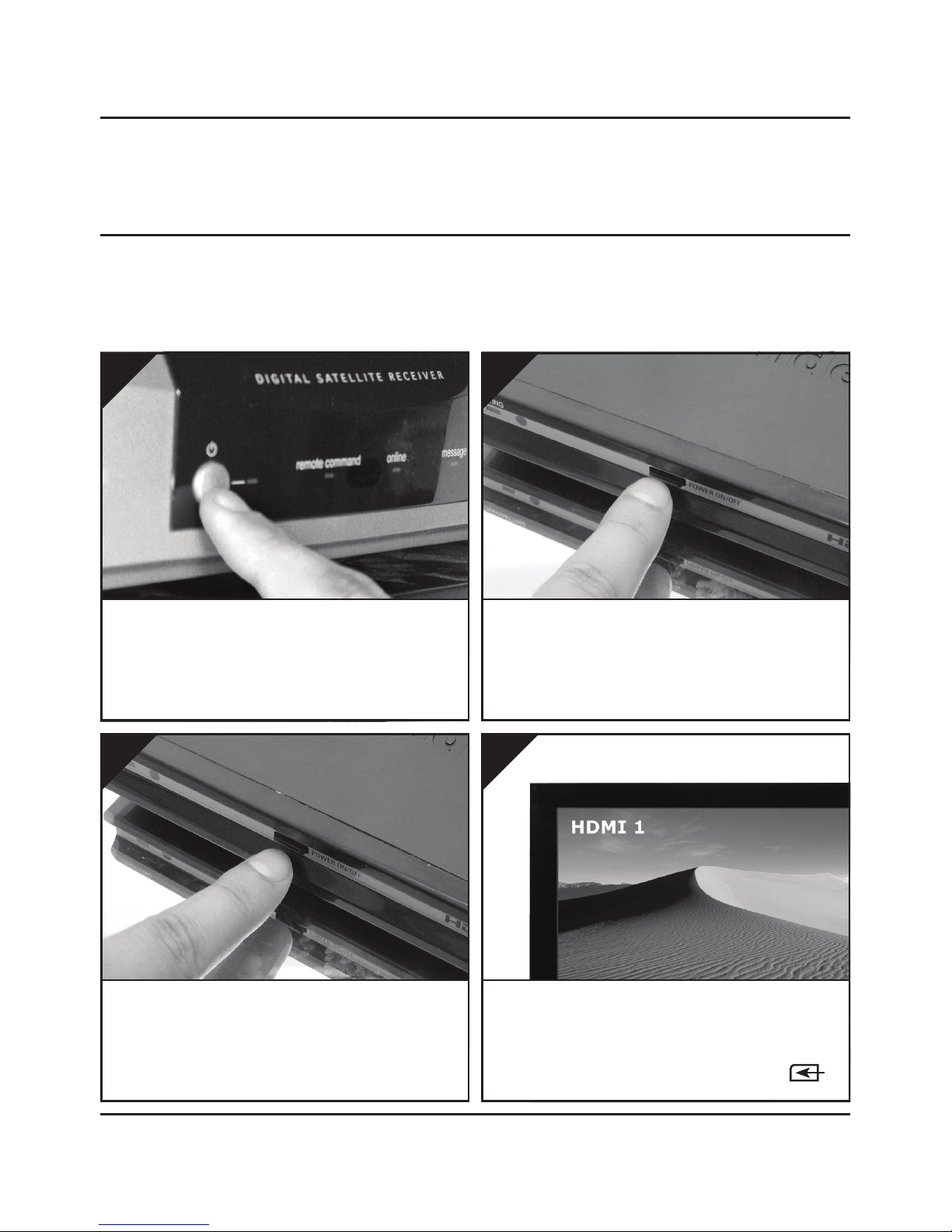
Turn on the receiving TV, and select the HDMI chan-
nel assigned to the HDMI Input that you plugged
the DigiSender® Receiver in to. This may be labelled
as SOURCE, INPUT, AUX, AV, VIDEO, VCR or .
4.
Switch on the source equipment (Satellite, Free-
view, DVD, VCR, etc.).
1.
Turn on the DigiSender® Transmitter by pushing the
Power button on the front of the unit. The Power
Indicator will change from Red to Green to indicate
that the unit is switched on.
2.
Turn on the DigiSender® Receiver by pushing the
Power button on the front of the unit. The Power
Indicator will change from Red to Green to indicate
that the unit is switched on
3.
Page 09Please read the instructions carefully prior to installation
DGXDSDV112 - DigiSender® XD HDMI - Single Input HDMI AV Sender System
continued...
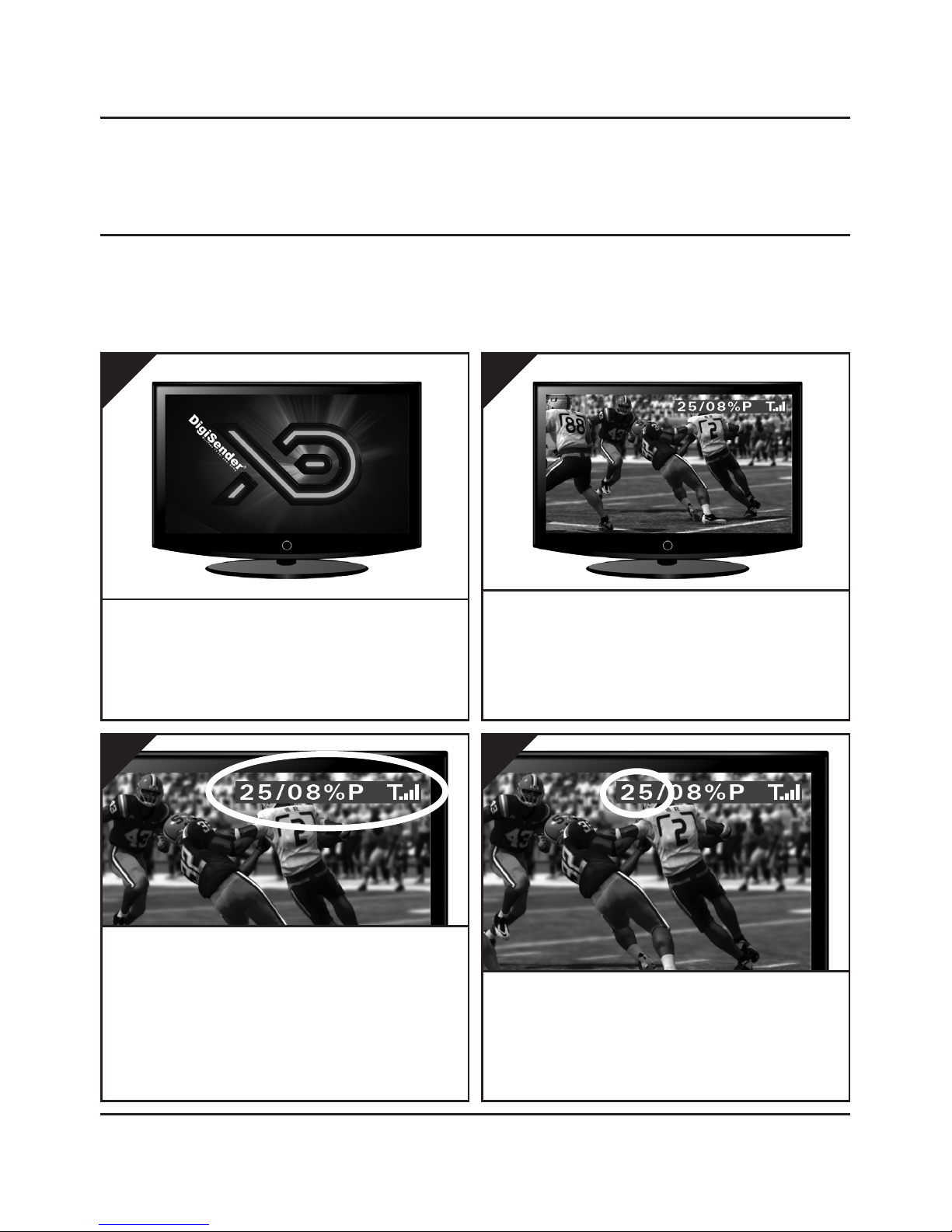
You will notice that at the top right corner of the
screen is a blue Test Bar with some information on
it. If the Test Bar is not present, then the DigiSender®
Receiver may not be in Test Mode. Turn the Di-
giSender® Receiver off, flick the Mode Switch on the
back from Normal to Test and then turn the Receiver
on again.
7.
The DigiSender® XD HDMI Boot Screen will be dis-
played whilst the DigiSender® Transmitter and Re-
ceiver synchronise.
5.
After approximately 5 seconds the picture will
change to whatever you are transmitting. If the pic-
ture does not change, or changes to a Test Card, you
may need to re-sync the DigiSender® Transmitter and
Receiver. See page 12 for more details.
6.
The first number indicates the Frame Rate that the
DigiSender® Receiver is picking up from the Trans-
mitter and outputting to your TV.
8.

Page 10 Please read the instructions carefully prior to installation
DGXDSDV112 - DigiSender® XD HDMI - Single Input HDMI AV Sender System
continued...
Note: When switching from Test Mode to Normal mode, or vice versa, it will be necessary to turn the
unit off and then back on again.
Having made any necessary adjustments to the po-
sitioning of the units and/or aerials, flick the Mode
Switch from Test to Normal and turn the unit off.
Installation is now complete!
12.
The second number indicates Frame Loss. This
is the percentage of Frames that are not getting
through to the DigiSender® Receiver correctly. If you
are getting high Frame Loss you may need to adjust
the positioning of the units and/or aerials.
9.
‘P’ means that the picture quality should be good,
with the Frame Rate remaining steady at around
25. ‘F’ means that you may notice subtle losses in
picture quality due to Frame Loss. Try adjusting the
positioning of the units and/or aerials.
10.
The last icon indicates Signal Level. This is key to a
good Frame Rate and low Frame Loss. Endeavour to
keep this as high as possible. If you are getting a low
Signal Level, you may need to adjust the positioning
of the units and/or aerials.
11.
Andere Handbücher für DGXDSDV112
1
Inhaltsverzeichnis
Andere DigiSender Extender Handbücher


