
Evolution Controls EVO ECM-ACU-PRO Series Bedienungsanleitung

Evolution
©Evolution Controls Inc
14-June-2021
EVO/TMECM-ACU-PRO . CONTROLS INC. EVO/TMConfigurator
EVO/TMConfigurator User Guide V3.0 Evolution Controls Inc. Page 1 of 26
The information in this document is confidential and must not be disclosed to any third party without the written consent of Evolution
Controls Inc.
Table of Contents
Introduction .................................................................................................................................................. 2
Equipment ..................................................................................................................................................... 4
PRO Product Selection .................................................................................................................................. 6
Setting Up Profile in Software ....................................................................................................................... 7
1. Upload from an EVO/ECM-ACU control with firmware 5.2 or higher .............................................. 7
2. Import profile from an existing file ................................................................................................. 13
3. Start a new profile from scratch ..................................................................................................... 18
Configuring Target ...................................................................................................................................... 21
Appendix A .................................................................................................................................................. 24
1. Installation ...................................................................................................................................... 24
2. Run the Software in administrator mode ....................................................................................... 25
3. Authentication ................................................................................................................................ 26

Evolution
©Evolution Controls Inc
14-June-2021
EVO/TMECM-ACU-PRO . CONTROLS INC. EVO/TMConfigurator
EVO/TMConfigurator User Guide V3.0 Evolution Controls Inc. Page 2 of 26
The information in this document is confidential and must not be disclosed to any third party without the written consent of Evolution
Controls Inc.
Introduction
ECM-ACU control firmware V5.2 is the first of the ECM-ACU-PRO series. Features from prior versions
remain and still selected by jumpers. The PRO series adds new features to be selected in a profile using
the EVO Configurator PC software. The profile is downloadable to each ECM-ACU-PRO with or without
applying power to the controller.
The EVO Configurator supports the following ACU-PRO profile features:
xStartup Counts
A new ACU-PRO control runs in startup mode when it is powered up the first time. The
startup mode allows the mechanical equipment to be tested, air balanced and used
before the building automation is installed. After the automation is installed, the startup
mode will be automatically disabled in most applications as daily schedules start and
stop the mechanical equipment. The startup mode can be exited manually by power
cycling the controller a preset number of times with a non-zero remote signal present or
if the “P’ jumper is installed, by raising and lowering the remote signal from +0.1V to
+10V the same preset number of times. The startup counts provide the number of
counts to exit the startup mode. Setting the count to 0 will disable the Startup mode
feature. The default is five times.
xLow and High Output Limits
The low and high output limits determine the PWM output range controlled by the 0 –
10V remote control signal. The default PWM range is 0 – 100%.
xOff Delay Timer
When the remote signal goes to zero the ACU output signal remains at its current value
until the adjustable delay timer expires. For example, switching the fan off at the same
time heating or cooling is switched off usually leaves residual heat or cooling energy in
the heating or cooling coil. Leaving the fan on for a period after shutdown allows this
residual energy to be carried into the conditioned space. The default Off Delay Timer
setting is 0 min.
xTach Pulse Rate
When enabled, ACU-PRO provides a 0-10VDC motor rpm feedback from 0 to 2000 rpm
to the remote controller. The user has the option to select 1 pulse-per-turn (ppt) for
Ebm-papst EC motor, 18 ppt SyMAX EC motor or 36 ppt Regal Beloit, Genteq EC motor
rpm feedback signal. The default is 36 ppt.

Evolution
©Evolution Controls Inc
14-June-2021
EVO/TMECM-ACU-PRO . CONTROLS INC. EVO/TMConfigurator
EVO/TMConfigurator User Guide V3.0 Evolution Controls Inc. Page 3 of 26
The information in this document is confidential and must not be disclosed to any third party without the written consent of Evolution
Controls Inc.
xRPM Line Alternate Function
The default function of the RPM line is to carry the 0-10Vdc motor RPM feedback to the
remote controller. When the line is not used for the RPM feedback, the user may
optionally select the line to return the local adjust setting in 0-10Vdc from 0 to 100% to
the remote controller. This allows remote controller to read the air balanced setting
from the ACU-PRO when the air balancing was completed by using ACU’s local adjust.
xRamping Enable/Disable
The ramping is disabled by default. When ramping is enabled, the ACU-PRO changes the
flow index at a 1% per second rate. This ramping feature reduces occupant awareness of
changes in diffuser airflow.
x Pilot Pulse Enable/Disable
Some PWM controlled EC motors are programmed to detect pilot pulse. Pilot pulse is a
small signal sent by the controller to the motor when the PWM signal is 0 % or 100% as
an indication that the control cable is still connected. When the pilot pulse is missing,
some EC motors are programmed to take an alternative action. For EC motors not
programmed to use pilot pulse, the pilot pulse may keep the EC motor from stopping
completely if the motor is programmed to stop at 0%. The pilot pulse is enabled by
default.
You may create or open a profile in the EVO Configurator software and then download to a connected
controller simply by pressing the Write button in the software or you may clone the profile by reading
from a controller and then download the profile to other ECM-ACU-PRO controllers.

Evolution
©Evolution Controls Inc
14-June-2021
EVO/TMECM-ACU-PRO . CONTROLS INC. EVO/TMConfigurator
EVO/TMConfigurator User Guide V3.0 Evolution Controls Inc. Page 4 of 26
The information in this document is confidential and must not be disclosed to any third party without the written consent of Evolution
Controls Inc.
Equipment
Computer: Windows 10 PC/laptop with an available USB port
Software: EVO/Configurator Windows software V2.0
Hardware: EVO/IF-Tool interface module
EVO/IF-CBL cable
Power Indicator
Communication
Indicator
EVO/IF-CBL
cable connector
Type B USB
connector
EVO/IF-Tool
Connector
4Spd Control 8 pin
Header Connector
Evolution
©Evolution Controls Inc
14-June-2021
EVO/TMECM-ACU-PRO . CONTROLS INC. EVO/TMConfigurator
EVO/TMConfigurator User Guide V3.0 Evolution Controls Inc. Page 5 of 26
The information in this document is confidential and must not be disclosed to any third party without the written consent of Evolution
Controls Inc.
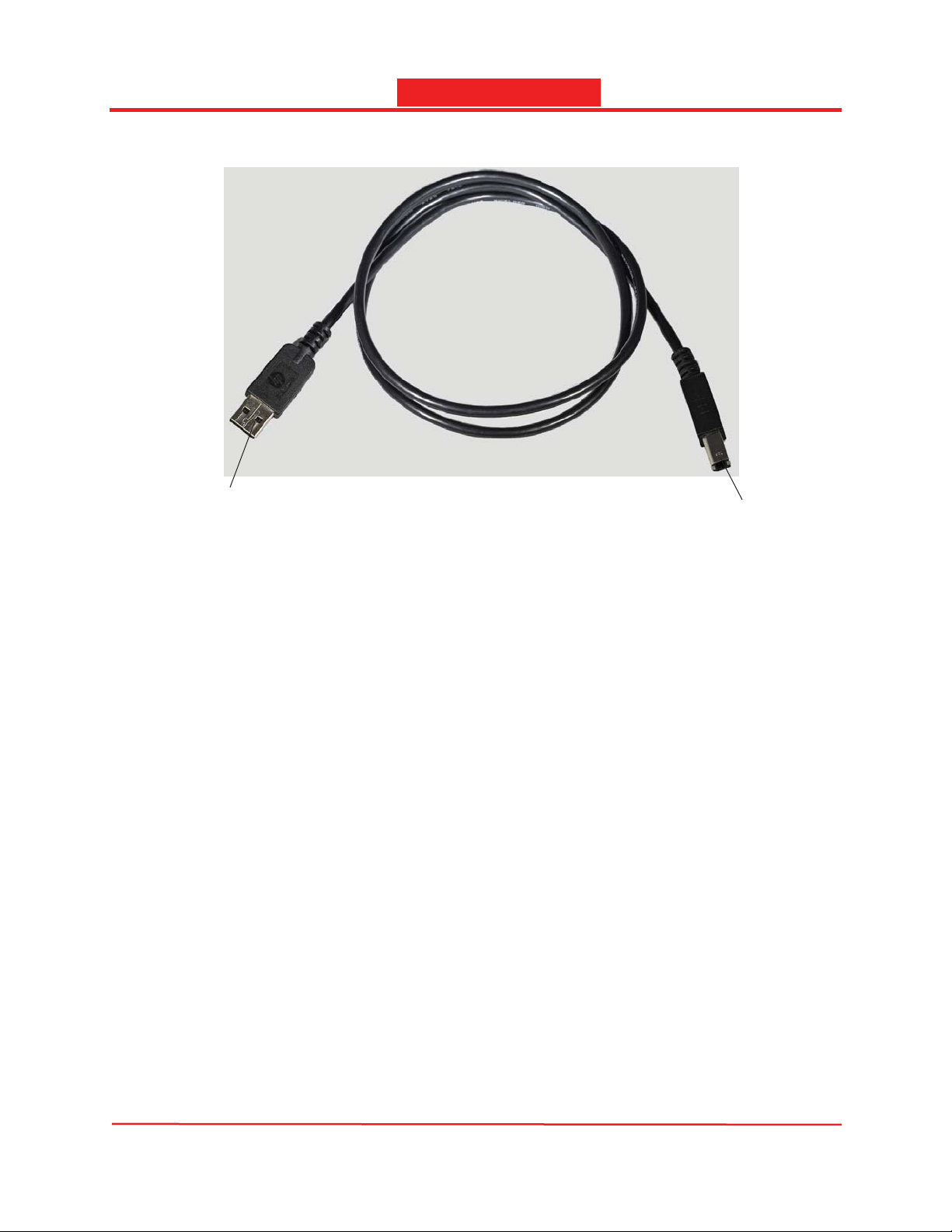
A-male to B-male USB cable
B-Type male USB
connector connects
with the B-type
female connector in
the EVO/IF-Tool
A-Type male USB
connector connects
with the configure
PC

Evolution
©Evolution Controls Inc
14-June-2021
EVO/TMECM-ACU-PRO . CONTROLS INC. EVO/TMConfigurator
EVO/TMConfigurator User Guide V3.0 Evolution Controls Inc. Page 6 of 26
The information in this document is confidential and must not be disclosed to any third party without the written consent of Evolution
Controls Inc.
PRO Product Selection
EVO/Configurator manages the configurations of the EVO PRO series which consists of three products:
ECM-4Spd, ECM-VCU and ECM-ACU. After the app is launched, double click to select ECM-ACU from the
PRO product list to work on the ECM-ACU control. The app saves the product type selection and
automatically starts with the previously selected product type next time when the app is launched.
To change the product type, simply exit the current product type that you are working with and then
double click to select a different product from the product list.
Note: When the app is installed in the Program Files (x86) folder, the product type selection is write
protected. It can only be changed when the app is run as an administrator. Otherwise, the message
below will pop up.
Follow the steps in Appendix A.2 to run the app as an administrator.

Evolution
©Evolution Controls Inc
14-June-2021
EVO/TMECM-ACU-PRO . CONTROLS INC. EVO/TMConfigurator
EVO/TMConfigurator User Guide V3.0 Evolution Controls Inc. Page 7 of 26
The information in this document is confidential and must not be disclosed to any third party without the written consent of Evolution
Controls Inc.
Setting Up Profile in Software
There are three ways to set up a profile in the EVO Configurator software.
1. Upload from an ECM-ACU control with firmware 5.2 or higher
2. Import from an existing profile
3. Start a new profile from scratch
1. Upload from an EVO/ECM-ACU control with firmware 5.2 or higher
A profile can be uploaded from a controller. The uploaded profile can be used as is or modified
and then saved in a new profile.
Note: The profile does not include the local adjust setting.
- Make sure the IF-Tool module and the ECM-ACU target are connected to the PC as shown
below. The ECM-ACU target may be configured before or after it has been installed in the
equipment. If the ECM-ACU target is not powered, the IF-Tool interface module will
automatically provide power for the upload.
Caution: Before installation, it is good practice to handle circuit boards by the edges without
touching the components or leads.
- Launch EVO Configurator software
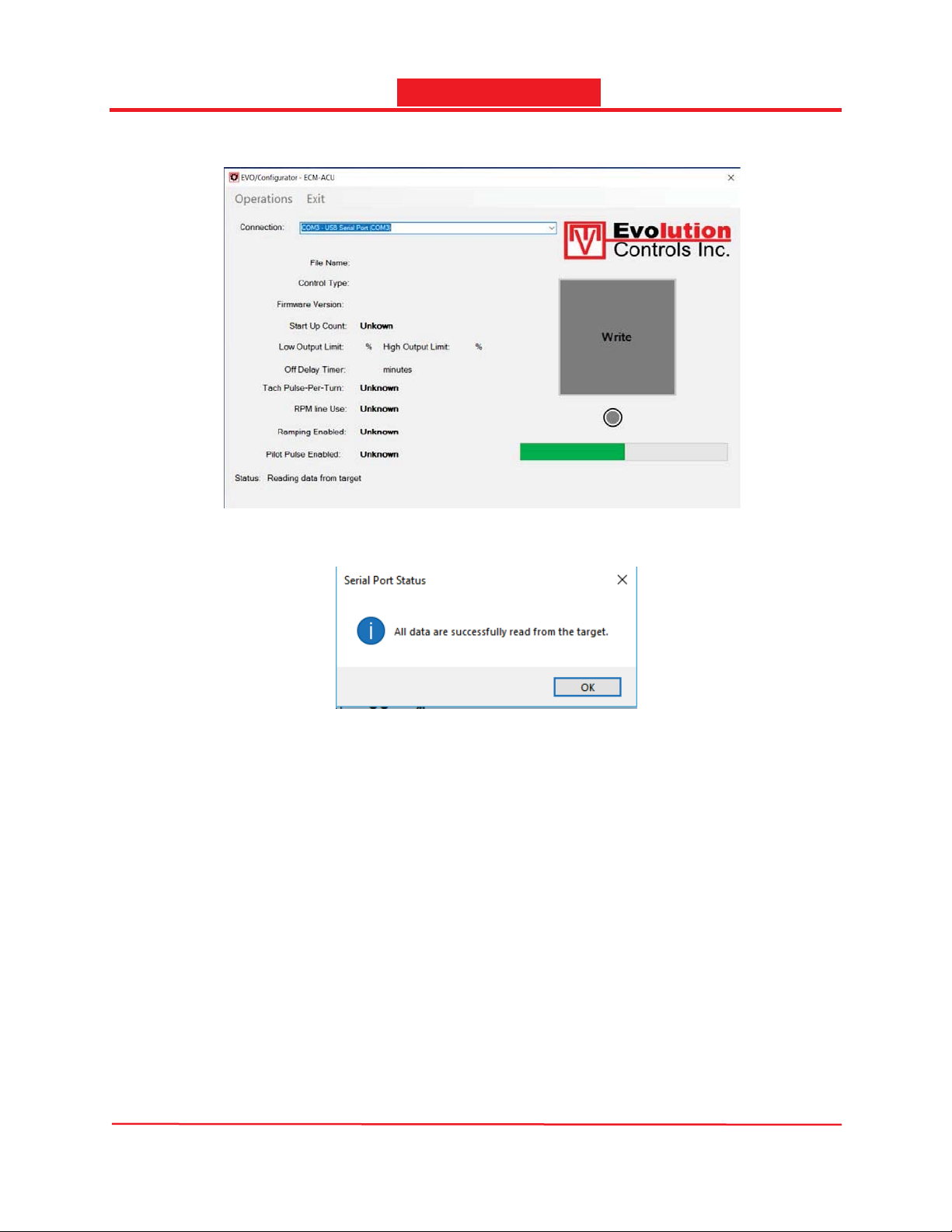
- Select the COM port in the Connection dropdown list.
EVO/TMIF-CBL
To PC
Insert the connector with the
brown wire next to the white
square

Evolution
©Evolution Controls Inc
14-June-2021
EVO/TMECM-ACU-PRO . CONTROLS INC. EVO/TMConfigurator
EVO/TMConfigurator User Guide V3.0 Evolution Controls Inc. Page 8 of 26
The information in this document is confidential and must not be disclosed to any third party without the written consent of Evolution
Controls Inc.
The COM port number may vary from PC to PC so it may not be the same as shown above. If
there are multiple COM ports connected to your PC, you need to identify which COM port is
for the IF-Tool. Disconnect the IF-Tool USB cable and relaunch the EVO Configurator
software. The COM port disappeared from the list is the one you should use. Re-connect the
USB cable and repeat this step to connect.
The app saves the COM port selection and automatically re-uses the same COM port next
time when the app is launched.
Note: When the app is installed in the Program Files (x86) folder, the COM port selection is
write protected. It can only be changed when the app is run as an administrator. Otherwise,
the message below will pop up.
Follow the steps in Appendix A.2 to run the app as an administrator.
- Select the Read option from the Operations drop down menu to upload the profile from an
ECM-VCU target.
Evolution
©Evolution Controls Inc
14-June-2021
EVO/TMECM-ACU-PRO . CONTROLS INC. EVO/TMConfigurator
EVO/TMConfigurator User Guide V3.0 Evolution Controls Inc. Page 9 of 26
The information in this document is confidential and must not be disclosed to any third party without the written consent of Evolution
Controls Inc.
-The Progress bar shows the progress.
- When uploading is finished, acknowledge the completion message by pressing the OK
button.
- When it is completed successfully, the Edit dialog as shown below will pop up. The Write
button and the LED below the Write button will turn green; otherwise, the Write button will
stay disabled, and the LED will turn red, and the Status displays the cause of the failure.
Check connection and retry.

Evolution
©Evolution Controls Inc
14-June-2021
EVO/TMECM-ACU-PRO . CONTROLS INC. EVO/TMConfigurator
EVO/TMConfigurator User Guide V3.0 Evolution Controls Inc. Page 10 of 26
The information in this document is confidential and must not be disclosed to any third party without the written consent of Evolution
Controls Inc.
The default StartUp Counts is set to maximum five times. The StartUp mode is disabled
when the value is set to 0.
The default Low Limit Output is disabled at 0 %. The default High Limit Output is disabled at
100 %.
The default Off Delay Timer is off at 0 min. The maximum Off Delay Timer is 10 min.
The default Tach Pulse Rate is 36 pulse-per-turn(ppt) for reading RPM feedback from Regal
Beloit, Genteq EC motors. Select Tach Pulse Rate accordingly to match RPM feedback pulse-
per-turn from the EC motor.
The default function of the RPM Line is for sending motor RPM feedback to the remote
control. Select Flow Index to send the local adjust setting.
Ramping is disabled by default. Check the checkbox to enable Ramping.
Pilot Pulse is enabled by default. Uncheck the checkbox to disable Pilot Pulse.
o buttons increment/decrement the value in the edit box.
oCancel button – ignore changes and exit
oAccept button – accept new settings and exit
Inhaltsverzeichnis


