
FAMOCO FP202 Bedienungsanleitung

User Manual
FP202
Table of contents

2
Contents
1. Copyright 3
2. Trademarks 3
3. Warnings and safety notices 4
4. Limitation of liability 4
5. About this manual 4
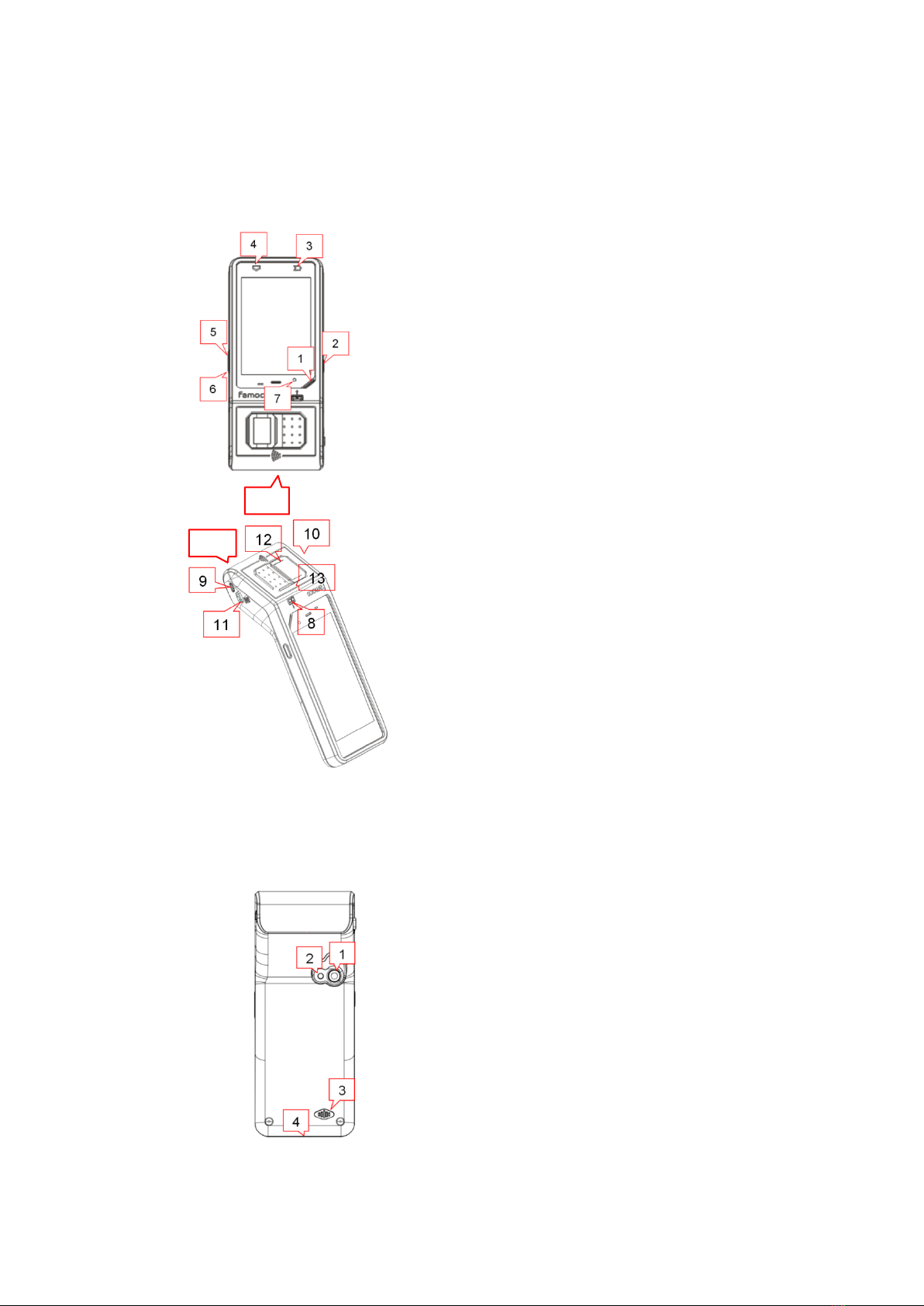
6. Device layout 5
6.1 Overview 5
6.2 Back view 6
6.3 Soft keys and buttons 6
7. Package contents 7
8. Getting started 8
8.1 How to switch the device ON or OFF 8
8.2 How to sync the device and install the fingerprint applications 9
8.3 How to use the fingerprint applications: 9
8.4 How to charge the device 10
9. Technical specifications 12
10. Warranty information 13
11. Safety and general information 13
12. Recycling 14
1. Copyright
Copyright ©2020 Famoco. All rights reserved.
This manual is protected under international copyright laws.

3
No part of this manual may be reproduced, distributed, translated, or
transmitted in any form or by any means, electronic or mechanical, including
photocopying, recording, or storing in any information storage and retrieval
system, without the prior written permission of Famoco.
We reserve the right to make modifications on print errors or update
specifications without prior notice.
2. Trademarks
o Famoco and the Famoco logo are registered trademarks of Famoco.
o MorphoSmart and the Idemia logo are registered trademarks of Idemia
o The Android™ logo is a trademark of Google, Inc.
o Bluetooth® is a registered trademark of Bluetooth SIG, Inc. worldwide.
o Wi-Fi® and the Wi-Fi logo are registered trademarks of the Wi-Fi Alliance.
o All other trademarks and copyrights are the property of their respective
owners.
FAMOCO SAS
59 avenue Victor Hugo, 75016 Paris – FRANCE
www.famoco.com
3. Warnings and safety notices
Please read all the safety notices before using this device. Do not use the device
near fuel or chemicals or in any prescribed area such as service stations and
refineries. Do not transport or store flammable gas, liquid or explosives in the
same compartment of your vehicle as your device and accessories.
This device is intended for professional (business) use and only works with a
Famoco FX200.
4. Limitation of liability
Famoco shall not be liable for any loss of profits or indirect, special, incidental
or consequential damages resulting from or arising out of or in connection with
using this product, whether or not Famoco had been advised, knew or should

4
have known the possibility of such damages. The user should refer to the
enclosed warranty card for full warranty and service information.
5. About this manual
Congratulations on becoming the owner of a Famoco FP202 device. This user
manual is specially designed to detail the device’s functions and features.
Please read this manual before using the device to ensure safe and correct use.
o Descriptions are based on the device’s default settings.
o Images and screenshots may differ in appearance from the actual
product.
o Content may differ from the final product, or from software provided by
service providers, and is subject to change without prior notice.
o Available features and additional services may vary by device, software,
or service provider.
o Applications and their functions may vary by country, region, or hardware
specifications. Famoco is not liable for performance issues caused by
applications from any provider other than Famoco.
o Famoco is not liable for performance issues or incompatibilities caused
by edited registry settings or modified operating system software.
Attempting to customize the operating system may cause the device or
applications to work incorrectly.
5
6. Device layout
6.1 Overview
6.2 Back view
1.Indicator light
2.Customizable button
3.Softkey: Back
4.Softkey: Home
5.Volume down
6.Volume up
7.Front camera
14.Contact card reader
8.Power button
9.Micro USB port
10.Data connection port
11.Fingerprint (hiden) ON/OFF button
12.Fingerprint pad
13.NFC Antenna
14.Contact card reader
1.Rear camera
2.Flash
3.Speaker
4.Lanyard hole
14
14

6
6.3 Soft keys and buttons
#
Name
Function
Power Button
Long press: turn the device ON/OFF
Short press: screen ON/OFF (standby mode)
Customizable Button
Action can be defined by the customer
ADB ON/OFF (hidden) button
This button could be accessed only through PIN
hole. It should be used only to activate the ADB
(Android Debug Bridge) option. It is
recommended not to use it.
Volume Up & Down
Press to turn the volume up or down
Home Screen (soft key)
Tap to return to the home screen
Back (soft key)
Tap to return to the previous screen
Micro USB Port
Connect the device to a USB power source
Data Connection Port
Connect the device to PC
Indicator Light
Turn red to indicate when the device is charging
and green when full charge level is reached

7
7. Package contents
Check the product box for the following items:
1 x FP202 Device
1 x User Manual
1 x USB Cable
1 x Power Adapter
1 x Soft Bumper
1 x Battery
Note:
o The items supplied with the device and any available accessory may vary
depending on the region or service provider.
o The supplied items are designed only for this device and may not be
compatible with other devices.
o Appearances and specifications are subject to change without prior
notice.
o Third party accessories may not be compatible with your device.
o The packaging materials, such as the adhesive tape, plastic film, string
and labels, are not part of this product.

8
8. Getting started
8.1 How to switch the device ON or OFF
#
#
#
To power ON the FP201:
Press the power button ‘1’ as the indication symbol shows. The home screen will
be displayed after a few moments.
To power OFF the FP201:
Press the power button ‘1’ as the indication symbol shows, then select the
shutdown option on screen.
To activate ADB capability:
Insert a PIN into the hole ‘2’ and press the hidden button to activate ADB
capability. Please note this will turn off the fingerprint scanner.
To turn off ADB capability and turn on fingerprint scanner:
Insert a PIN into the hole ‘2’ and press the hidden button to deactivate ADB
capability and turn back on the fingerprint scanner.
1.Power Button
2.ADB ON/OFF Button

9
Standby mode:
The device enters the standby mode after 5 minutes if left alone. One press on
Power button 1 to switch it on. The standby timer can be changed from the
MDM.
8.2 How to sync the device and install the fingerprint applications
First step is to enter in the dashboard surface, the middle part of the whole
screen includes a circulation arrow which is the trigger for sync. And then,
click this icon and wait for the complement of sync process.
After this stage, your device is totally ready. Installation of
the fingerprint applications is quite easy when you access into MDM and
select the specific fingerprint applications online and follow the tutorial of
MDM to install the matched applications.
8.3 How to use the fingerprint applications:
The fingerprint module works only with specific applications using the
associated SDK. After the installation of fingerprint applications. To use the

10
fingerprint module, start the application, follow the instructions in the
application, put a finger on the pad when the application indicates it.
For further details about the fingerprint SDK please contact Famoco support
or your sales account.
8.4 How to charge the device
To charge the device, only use micro USB cable supplied with the
corresponding power port:
1. Insert the charger cable carefully. Check that the plug and socket are
aligned.
2. The indicator light will turn red to indicate when the device is charging
and will turn green when full charge level is reached.
3. The battery will reach full charge in about 5 hours.
Connecting the charger improperly may cause serious damage to the
device. Any damage caused by misuse is not covered by the warranty.
Note: The device will power off automatically when the battery reaches at only
2%.
Note: You can use the device while it is being charged. In this case, the battery
may take longer time to be fully-charged.
Safety information for charging the device:
o To charge the battery, only use the main adaptor supplied with your
device. Do not use any other power supply or electrical device.
o The power outlet to which the device is connected must be near the
equipment and must always be easily accessible.
o Always wait at least 5 seconds after switching off the device before
restarting it. Switching the device off and then back on again immediately
may damage the electrical circuits.
o Do not disassemble, open or shred the battery contents. Do not dispose
of batteries in fire or water. Do not charge the battery if the room
temperature exceeds 45° C. Keep the battery in a clean and dry place.
Avoid leaving the battery under sunlight.
o Do not short circuit the battery. Do not keep the battery in a place where
it can be shorted by other metal objects.
o Keep the battery away from children, in case of swallowed, consult a
doctor immediately. In case of battery leak, take care to not allow the
liquid to come in contact with skin or eyes, if this happens, wash
thoroughly with water and consult a doctor.
Dieses Handbuch passt für folgende Modelle
1
Inhaltsverzeichnis
Andere FAMOCO Kartenleser Handbücher


Beliebte Kartenleser Handbücher anderer Marken


Rosslare
Rosslare DR-6255 Bedienungsanleitung

Lindy
Lindy 51541 Bedienungsanleitung

Diapro T?bbi Ürünler
Diapro T?bbi Ürünler Across System Bedienungsanleitung

Johnson Controls
Johnson Controls Kantech tyco ioSmart Bedienungsanleitung

ACS
ACS ACR122L Bedienungsanleitung

Secukey
Secukey S2-MF Bedienungsanleitung


