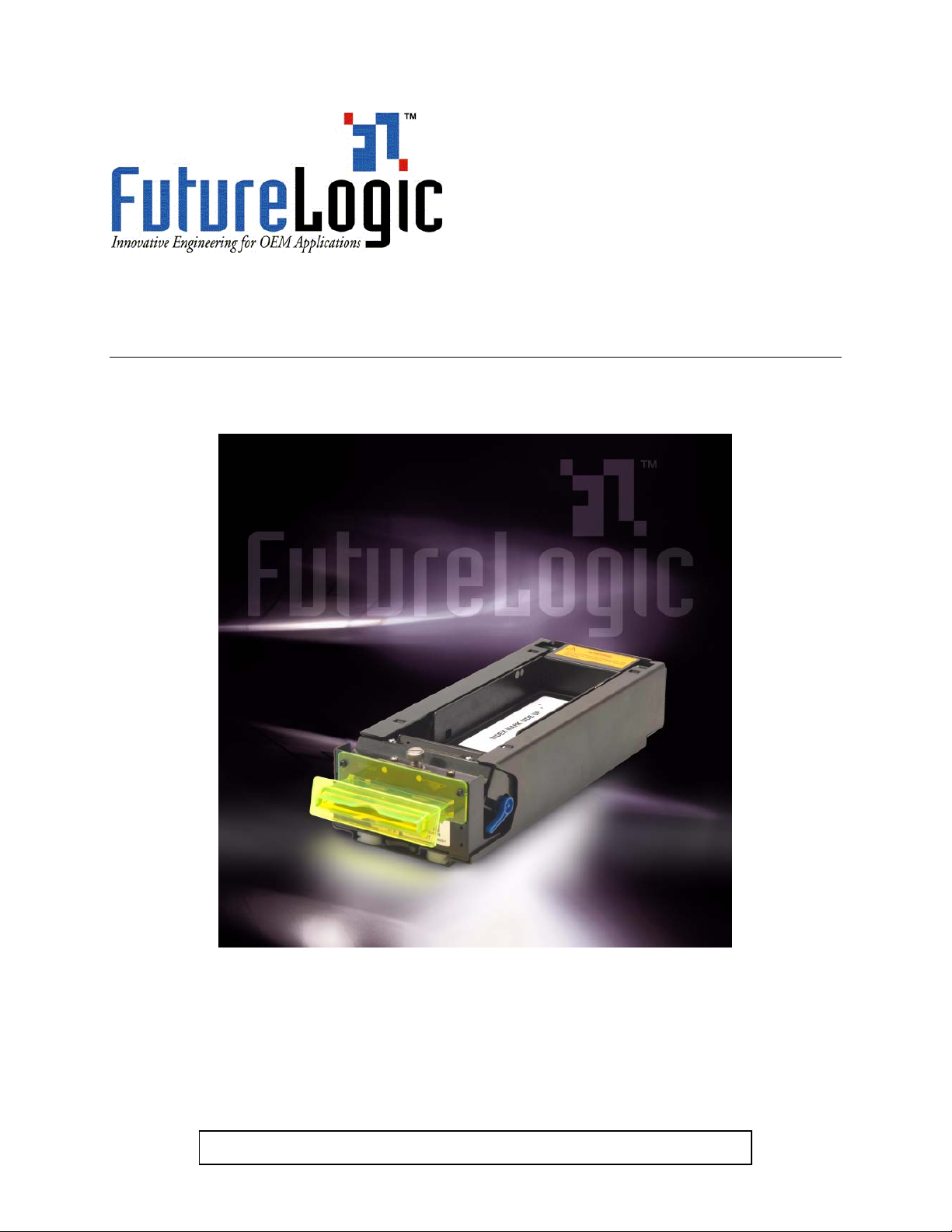
FutureLogic PSA-66-ST Bedienungsanleitung

This document is uncontrolled when printed.
Firmware Download Utility Instructions
PSA-66-ST
PSA-66-ST (RS232 Interface)
PSA-66-001N (Netplex Interface)
PSA-66-ST

FutureLogic, Inc.
425 East Colorado Street • Suite 100
Glendale, CA 91205 USA
Phone 818.244.4700 • Fax 818.244.4764
www.futurelogic-inc.com
Firmware Download Utility Instructions
PSA-66-ST
Copyright ©2004 FutureLogic, Inc. All Rights Reserved.
The FutureLogic logo is a trademark of FutureLogic, Inc.
Netplex is a proprietary hardware interface and protocol of International Game Technology
Corporation.
All other trademarks and products or brand names mentioned herein are the property of their
respective owners.
This document contains Proprietary and Confidential information and its contents are covered
by Non-Disclosure Agreement.
Technical information in this manual is disclosed for informational purposes only. No grant of
license or use rights of any such information is made by publication or distribution of this
manual.
These specifications are subject to change without notice and may not completely and correctly
document the operation of this product.
11/30/2004
PUBN-000015
REV.A
The PSA-66-ST (RS232 Interface) printer described in this manual is in compliance
with all applied CE standards.

Firmware Download Utility Instructions
Copyright ©2004 FutureLogic, Inc. All Rights Reserved. PUBN Page i of 22 11/30/2004
PUBN-000015 REV.A
PSA-66-ST
Table of Contents
1Background.............................................................................................................. 1
2Changing Firmware on One or More Printers ....................................................... 2
2.1 Removing the Printer from the Machine ................................................................... 2
2.2 Using the Download Utility....................................................................................... 4
2.2.1 Version Control and Verification .................................................................. 9
3Changing Firmware Using the PSA-66 4-Station Stand ...................................... 10
3.1 Removing the Printer from the Machine ................................................................. 10
3.2 Using the PSA-66 4-Station Stand.......................................................................... 12
3.3 Using the Download Utility..................................................................................... 13
3.3.1 Version Control and Verification ................................................................ 18

Firmware Download Utility Instructions
Copyright ©2004 FutureLogic, Inc. All Rights Reserved. PUBN Page 1 of 22 11/30/2004
PUBN-000015 REV.A
PSA-66-ST
1Background
In recognition of the need for multiple versions of firmware both for different gaming
applications and normal enhancements, FutureLogic, Inc. has developed a Download Utility to
provide a secure yet simple means to reload printer firmware.
This publication describes how to re-flash the printer firmware using the following:
•Download Utility. Use this software to change the printer firmware on one or multiple
printers connected using different communication ports. See Chapter 2 on page 2.
•PSA-66 4-Station Stand (Part Number 5005008). Use this hardware with the
Download Utility to change the printer firmware on four printers at one time. See
Chapter 3 on page 10.

Firmware Download Utility Instructions
Copyright ©2004 FutureLogic, Inc. All Rights Reserved. PUBN Page 2 of 22 11/30/2004
PUBN-000015 REV.A
PSA-66-ST
2Changing Firmware on One or More
Printers
This section describes how to remove a printer from a machine, change the firmware on one or
more printers at a time using a standalone Stationary Module for each printer, each connected
to different communication ports.
CAUTION!
ESD Sensitive Equipment!
Electronic boards and their components are sensitive to static electricity. Care must
be taken during all handling operations and inspections of this product in order to
ensure product integrity at all times.
Do not handle this product out of its protective enclosure while it is not used for
operations purposes unless it is otherwise protected.
Discharge your clothing before touching the assembly. Discharge tools before use.
Whenever possible, unpack or pack this product only at EOS/ESD safe workstations.
Where a safe workstation is not guaranteed, it is important for the user to be
electrically discharged before touching the product with his/her hands or tools.
Note: If using a Nexplex printer, connect using the power supply. For additional
information on the Netplex interface, please contact International Game Technology.
2.1 Removing the Printer from the Machine
Note: Skip this section if the printer is not already in a machine.
To remove the printer from the machine:
1. Power down the printers to be downloaded.
2. Slide the unit open until it locks in the open position.

Firmware Download Utility Instructions
Copyright ©2004 FutureLogic, Inc. All Rights Reserved. PUBN Page 3 of 22 11/30/2004
PUBN-000015 REV.A
PSA-66-ST
Figure 2-1 Slide the Unit until It Locks
3. If you can access the Ribbon Cable which attaches the Sliding Module to the Stationary
Module, go to the next step.
If you cannot access the Ribbon Cable because of the Paper Tray, grab the back of the
Paper Tray by the back fin and rock it forward, pulling it out of the unit.
Figure 2-2 Pull Out Paper Tray
4. Release the Ribbon Cable by spreading the finger latches at the rear of the unit.
Figure 2-3 Eject the Ribbon Cable
Note: The black end of the Ribbon Cable connects to the rear Daughter Board. The gray
end of cable connects to main controller.
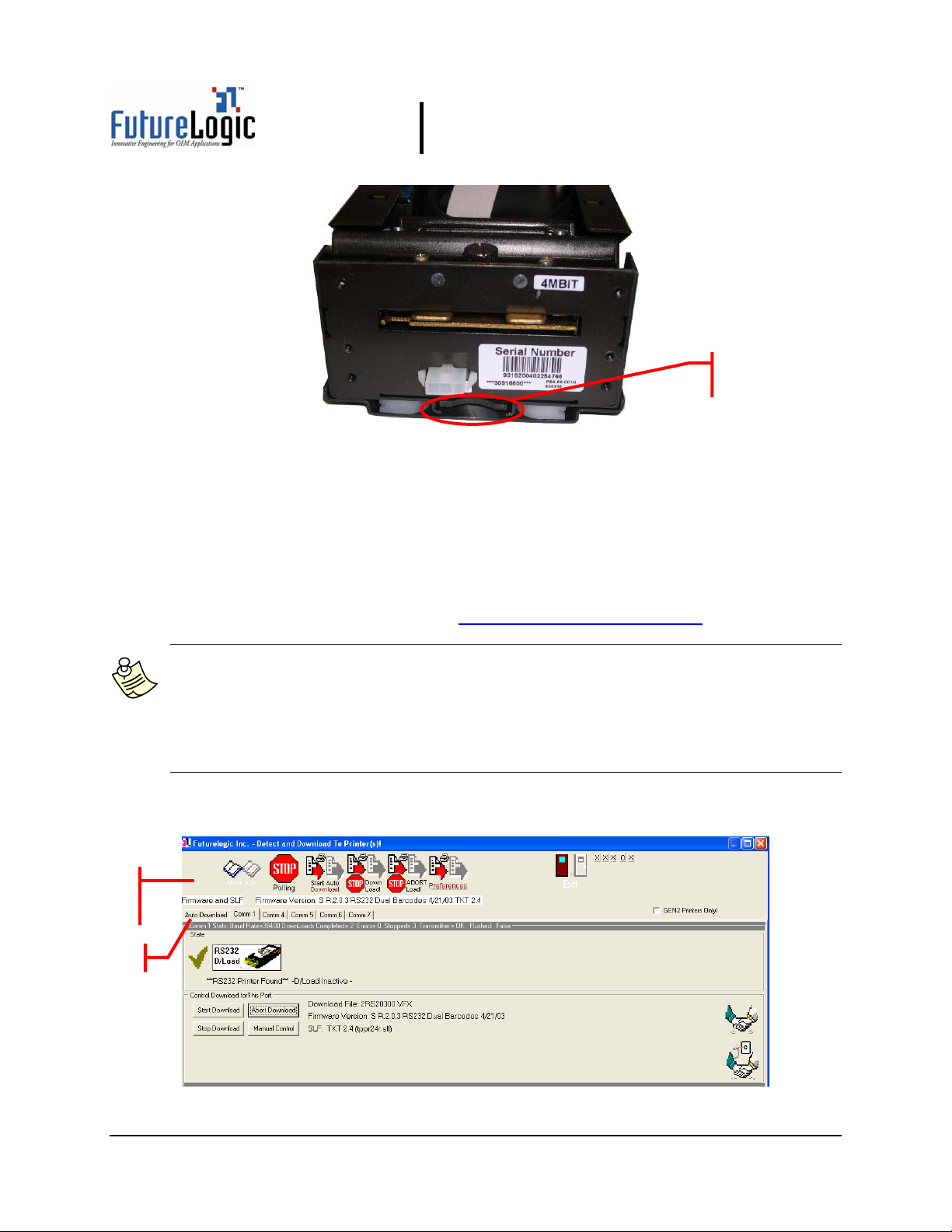
5. Press in the Release Lever under the front of the Sliding Module to release the locking
mechanism.

Firmware Download Utility Instructions
Copyright ©2004 FutureLogic, Inc. All Rights Reserved. PUBN Page 4 of 22 11/30/2004
PUBN-000015 REV.A
PSA-66-ST
Figure 2-4 Press the Release Lever
6. Remove the printer from the machine.
7. Slide the printer into the standalone Stationary Module which will be connected to the PC.
8. Connect the black end of the Ribbon Cable to the rear Daughter Board of the Stationary
Module.
2.2 Using the Download Utility
Verify that you have installed the FutureLogic, Inc. Download Utility. You can acquire this
software from the FutureLogic, Inc. Web site (http://www.futurelogic-inc.com) or CD-ROM.
Note: The main window of the Download Utility displays a tab marked Auto Download.
Additional tabs for each communications port you select on the Auto Download
Preferences dialog display as well.
When the Download Utility detects a printer connected to a communications port, the
tab for that port displays “Printer Found.” If not printer is detected, the tab for that port
displays “??No Printer??”.
To change the firmware on the PSA-66-ST printer:
1. Access the Download Utility.
Figure 2-5 Download Utility – Main Window
Release Lever
T
oolbar
Buttons
Tabs

Firmware Download Utility Instructions
Copyright ©2004 FutureLogic, Inc. All Rights Reserved. PUBN Page 5 of 22 11/30/2004
PUBN-000015 REV.A
PSA-66-ST
2. Click the Abort Load or Stop Download toolbar button to verify that the download process is
NOT active.
Figure 2-6 Download Utility Toolbar
3. Connect the printer to the PC using the FutureLogic, Inc. Evaluation Cable (Part Number
150-00013) or other approved cabling.
Note: If using a Nexplex printer, connect using the power supply.
4. Power up the printer.
5. Load paper into the printer.
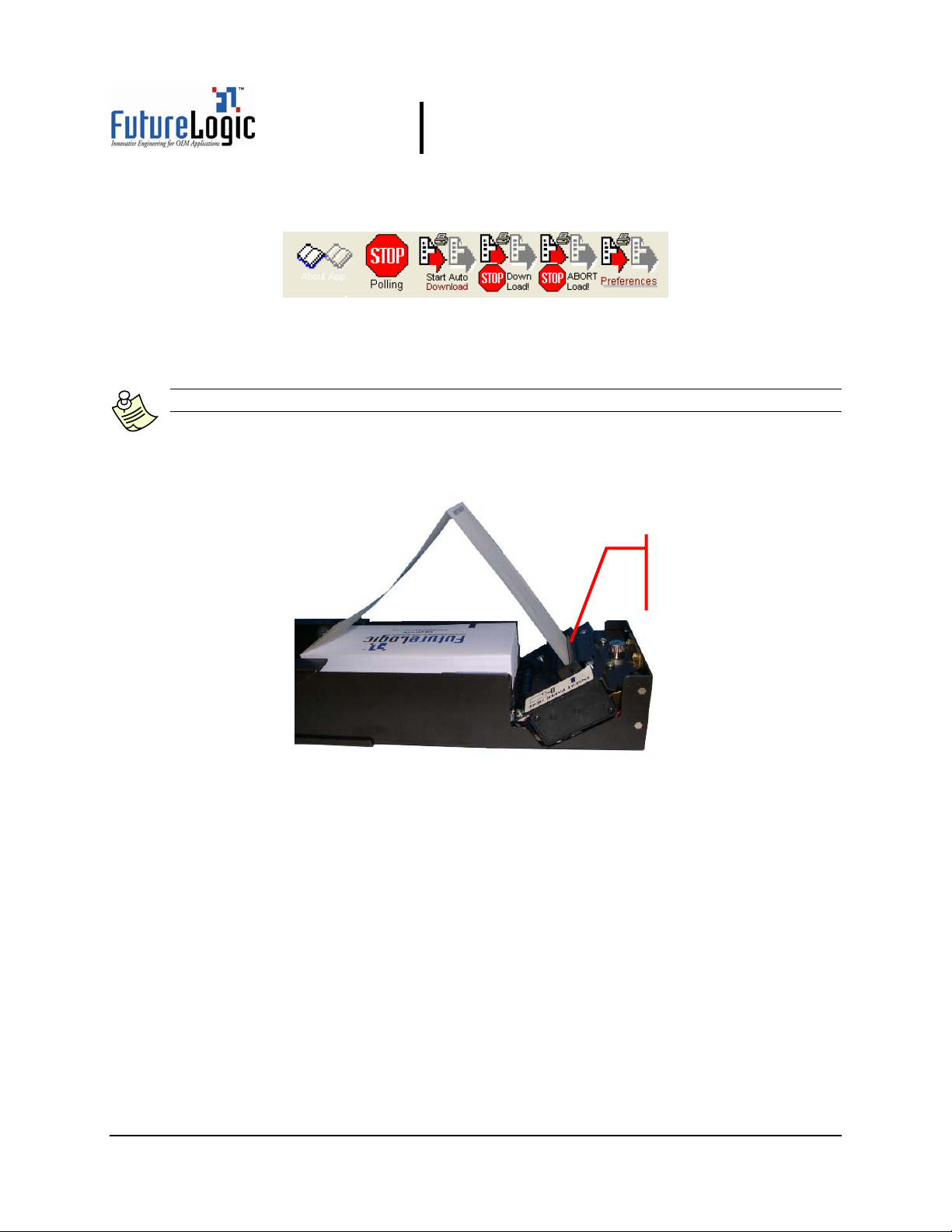
Figure 2-7 Load Paper into Slot
The paper will self feed and stop with the second ticket in place.
6. Tear off the extended ticket.
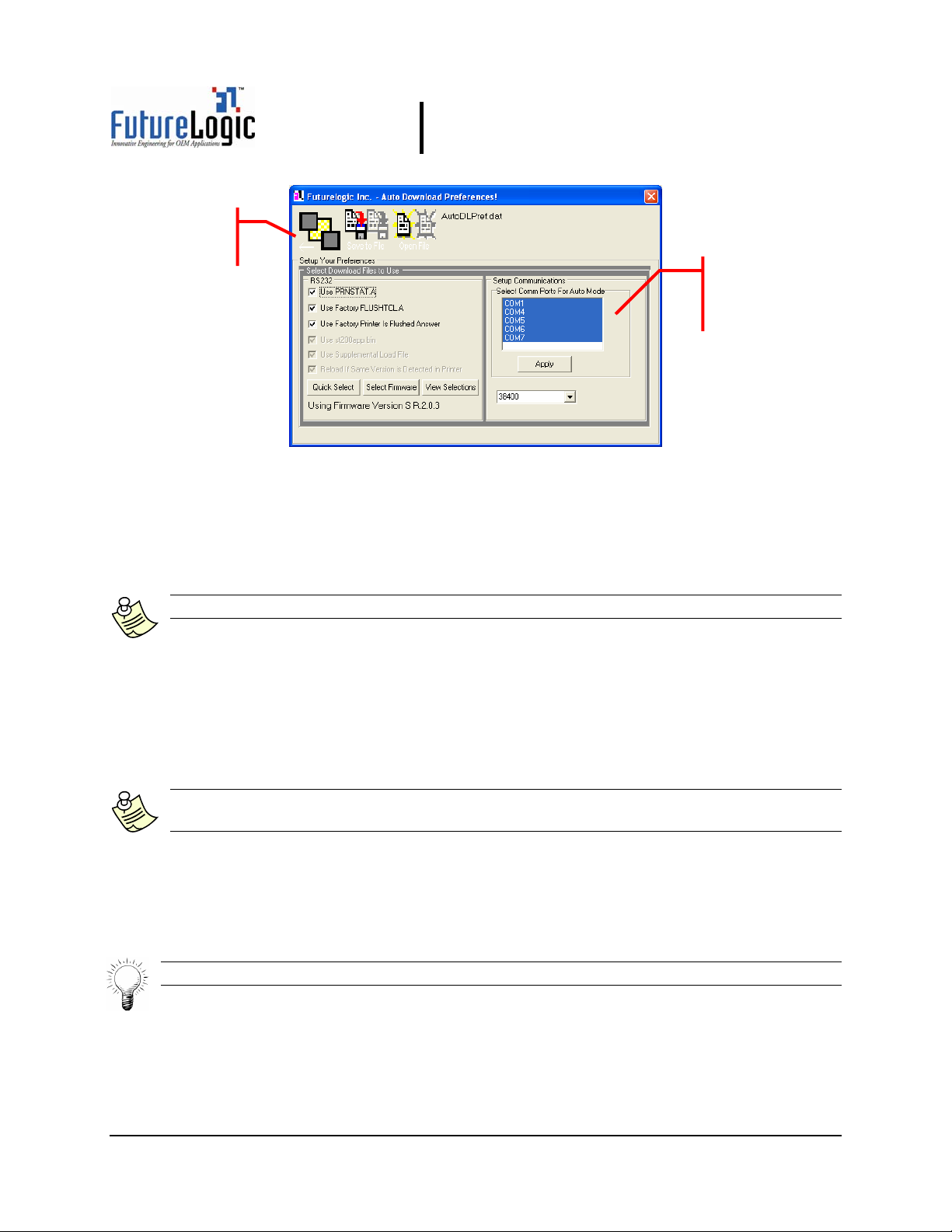
7. (Optional) Set up your preferences if using the Download Utility for the first time.
a. Click the Preferences toolbar button.
The Auto Download Preferences dialog displays.
Paper
Loading
Slot

Firmware Download Utility Instructions
Copyright ©2004 FutureLogic, Inc. All Rights Reserved. PUBN Page 6 of 22 11/30/2004
PUBN-000015 REV.A
PSA-66-ST
Figure 2-8 Auto Download Preferences Dialog
b. Select the communications port to which the printer is connected in the Select Comm
Ports for Auto Mode area.
c. Click the Apply button.
d. Click the Select Firmware button to set up the firmware.
Note: The firmware file (.VFX) must be located in the same folder as the Download Utility.
e. Select the firmware file and click the Open button.
The Auto Download Preferences dialog updates to display the version number of the
selected firmware file.
f. Click the Save Preferences toolbar button to save these preferences and use them each
time you access the Download Utility.
Note: If you move your Download Utility files to another computer, double-check your
preferences settings on the new computer as they may no longer apply.
g. Click the Back to Prior toolbar button to return to the main window of the Download
Utility.
The main window refreshes to display the download file name, firmware version, and
(optionally) the ticket template(s).
Tip: To view the selections for the printer, click the View Selections button.
Select Comm
Ports For Auto
Mode Area
T
oolbar
Buttons

Firmware Download Utility Instructions
Copyright ©2004 FutureLogic, Inc. All Rights Reserved. PUBN Page 7 of 22 11/30/2004
PUBN-000015 REV.A
PSA-66-ST
8. After the printer powers up, the image(s) on the screen will change to indicate that the
printer was detected.
If the printer is detected, click the Start Download button.
Figure 2-9 Download Utility – Control Download for This Port Commands
The process will continue automatically through completion.
The State area of the main window updates to display the status of the download in
progress.
Figure 2-10 Download Utility – Main Window
Caution: Do NOT power down the printer or disconnect the RS232 cable from the PC
during this process! Doing so MAY result in an unusable printer that is flushed and will not
communicate!
After the printer downloading is complete, the printer prints a ticket showing the firmware
version and ticket package. Compare the firmware version with the version displayed on the
screen. If the version numbers match, the download was successful.
9. Click the Abort Download button.
10. (Optional) Click anywhere in the State area of the main window to view the status of the
printer download.
The Printer Status Dialog displays.
State Area
Progress
Indicator
Dieses Handbuch passt für folgende Modelle
1
Inhaltsverzeichnis
Beliebte Aufnahmegeräte Handbücher anderer Marken

Strymon
Strymon NIGHTSKY Bedienungsanleitung

Mitsubishi Electric
Mitsubishi Electric 16CH DIGITAL RECORDER DX-TL5000U Bedienungsanleitung

Tews Technologies
Tews Technologies TPMC465 Bedienungsanleitung

Honeywell
Honeywell Excel 50 Bedienungsanleitung

SeaLevel
SeaLevel COMM+8.LPCI Bedienungsanleitung

Arturia
Arturia AUDIOFUSE STUDIO Bedienungsanleitung