
gCreate gMax 2 PRO Bedienungsanleitung

v210819 (Marlin 2 Firmware)
gMax 2 PRO
Getting Started
Even if you are familiar with 3d prinƟng, please review this guide
to set up and learn about your gMax Printer.
This guide should be used aŌer you have received the printer and followed the
unboxing instrucƟons. This manual is for Single and Dual extruder printers
Check out youtube.com/gCreate3d
to watch a gMax 2 Geƫng Started Video

X-Axis
Y-Axis
Z-Axis
Extruder Drive Gear
Hotend
Hotend Fan
(Active cooling)
Blower Fan
Bed Clips
Corner Foot Leveling
gMax 2 PRO
Diagram
Pg 1
Extruder Drag Chain
Extruder Swing Arm
Hotend
Nozzle
BLTouch
Bed Sensor
Extruder Carriage
Extruder
Filament Bracket
Lead Screw
LCD Screen
Power Button
USB Connection
RGB LED
Light Bar
Lead Screw
Pillow Block
Lead Screw
Coupler
Power Supply
SD Card Slot
Lead Screw Nut Block
Print Bed
(Acrylic or G10 FR4)
X-Axis Arm
Electronics Box

Pg 2
Machine Specifications (For Reference)
•
Set your max temperature 5 degrees below the maximum firmware
limit to prevent a “MAXTEMP” error.
•
This machine includes sensitive wiring and hardware. It should be kept
in a well ventilated and dry environment. Humidity can have adverse
or negative affects on the printer and should be avoided.
•
This printer includes parts which can exceed 350C and caution should
be taken. Do not let pets or children near the product without supervi-
sion. Let the hotend cool down 10 minutes before touching it.
•
Always keep a working fire extinguisher and have a working smoke
alarm near the printer. Never place flammable objects near the printer
including liquid chemicals that can release flammable vapors.
•
Never open the electronics case when the printer is powered on.
•
Any modifications or attempted repairs, not explicitly directed by
gCreate, that cause damage are not covered under the Warranty
Max Hotend Temperature
(Do not set above)
350C ( All-Metal) 450C Compaable
Filament Diameter 1.75mm
Layer Height Range
(Suggested)
0.080mm - 0.740mm
(Nozzle Dependent)
Electronics
Power
SKR v2, STM32 32-bit (Arm Cortex M4)
Heated Bed 120C MAX TEMP
Firmware Marlin 2.0 (gCreate Modified)
120V - 240 V (Selectable)
Warning

Pg 3
Printer Accessories
Print Scraper SD Card
Filament Spool Bracket
Spare Hardware Hex Key Set Power Cord
Addional Nozzles
Brass Nozzle
Cleaning Brush
Filament Cuers
Open the accessory box and remove all the parts. Each printer comes with a scraper for removing parts
from the build plate, a power cord, hex keys, nozzle cleaning brush and an extra bag of hardware for
future upgrades.

Pg 4
Insert Filament In Extruder
Plug In and Turn On
3. Pinch the extruder arm above the spring and insert
filament in the white PTFE tube.
4. Slide filament in unl you see it enter the top of the
tube just under the metal drive gear. The filament
should slide in about 4 inches more.
1. Plug in the printer to
a surge protected
power strip.
2. Make sure power
switch is on.
SD Card Slot
Power Buon
1
USB Slot (use
90 degree adapter)
1. We recommend cung offthe first 12” of a new spool of filament.
2. Every me you insert filament, cut end of filament at a 45 degree
angle and straighten 4” of the end of the filament by bending it.

Pg 5
gMax Initial Run (Required)
LCD Screen Breakdown
1. You must run the supplied gcode file to test your gMax printer
aer transport. Slide the SD card (upside-down) into the leside
of the LCD screen.
2. On the LCD screen, the noficaon area will say “Card Inserted”.
If not, try removing the SD card and reinserng it and make sure
the “lock” is in the offposion on the side of the card.
3. Select “Print > TFT SD > gMax IniƟal Setup”.
The test file will perform several funcons:
• X, Y, Z Axis Motor test (slow and fast)
• Mulple Homing Test
• Extrusion test (with heat)
• Fan test then cooldown
Heated
Bed Temp
Hotend #1
Temp
Noficaons
Sengs
Menu
Fan
Speed
Printer
Speed
Coordinates of
Extruder (X, Y, Z)
Current Temp /
Target Temp
Print
Menu
Noficaons
“
P
i
The gMax “Initial Run Test File”
should take about 15 minutes
to complete. If the printer fails
during any of these tests or the
bed probe doesn’t drop/raise
contact support.
Note
”.

Pg 6
1. To run the bed leveling roune go to “Menu > Movement > Bed Level > BBL > Start”.
2. Wait for the bed leveling roune to finish then click “Ok” to save the mesh to memory. The bed
leveling mesh will automacally load when you start a print.
Manually Level X-Axis Arm
Bed Leveling
1. Turn the couplers that connect the z-axis motors to the lead screws.
2. Clockwise will raise the x-axis arm and counter clockwise will lower it.
3. Line up the top of the arm to the nearest bolt hole on the linear rails for
both leand right lead screws.
1.
1
To
T
T
T
r
The gMax 2 PRO x-axis arm should be manually leveled prior to bed leveling especially after it has been shipped.
The easiest method is to turn the lead screws with the printer turned off. If the arm is not level the z-axis may bind
while it tries to lift.
The gMax 2 Pro uses Bilinear Bed Leveling (BBL) in marlin to probe the bed and create a 3d mesh for the first
layer. The mesh is saved to memory and helps ensure the extruder lays down a proper fist layer. It is important
the x-axis stays level relative to the bed. If it changes you must re-run the bed leveling. We recommend running
the bed leveling command before any large prints
Note
Make sure to turn Bed
Leveling on after the leveling
has completed if it is off.

Your First Print (Required)
Printing Status Screen
1. Aer conducng the Inial Run and leveling the arm, this first print will confirm that your gMax is
running the same as when it lethe manufacturing facility. This is a necessary and useful print.
Make sure to run it with the supplied filament and on the cold acrylic bed.
2. Go to “Print > TFT SD >Your First Print”. As the prinng
begins, you will need to adjust the first layer height using the
Babystepping feature since it is set intenonally high from the
manufacturing facility so as not to damage the bed. Refer to
the next page for more informaon.
Pg 7
Current Temp /
Target Temp
Print
Progress
Fan
Speed
Print Flow
/ Feed Rate
Cancel Print
Filename
Pause Print
Babystep Menu
(Displays model
thumbnail if acvated)
Bed Temp
More Menu
(Adjust printer sengs)
Note
The printer bed probe is
intentionally set high when
leaving our facility. You will
have to babystep the printer
on your first print.
Pg 8
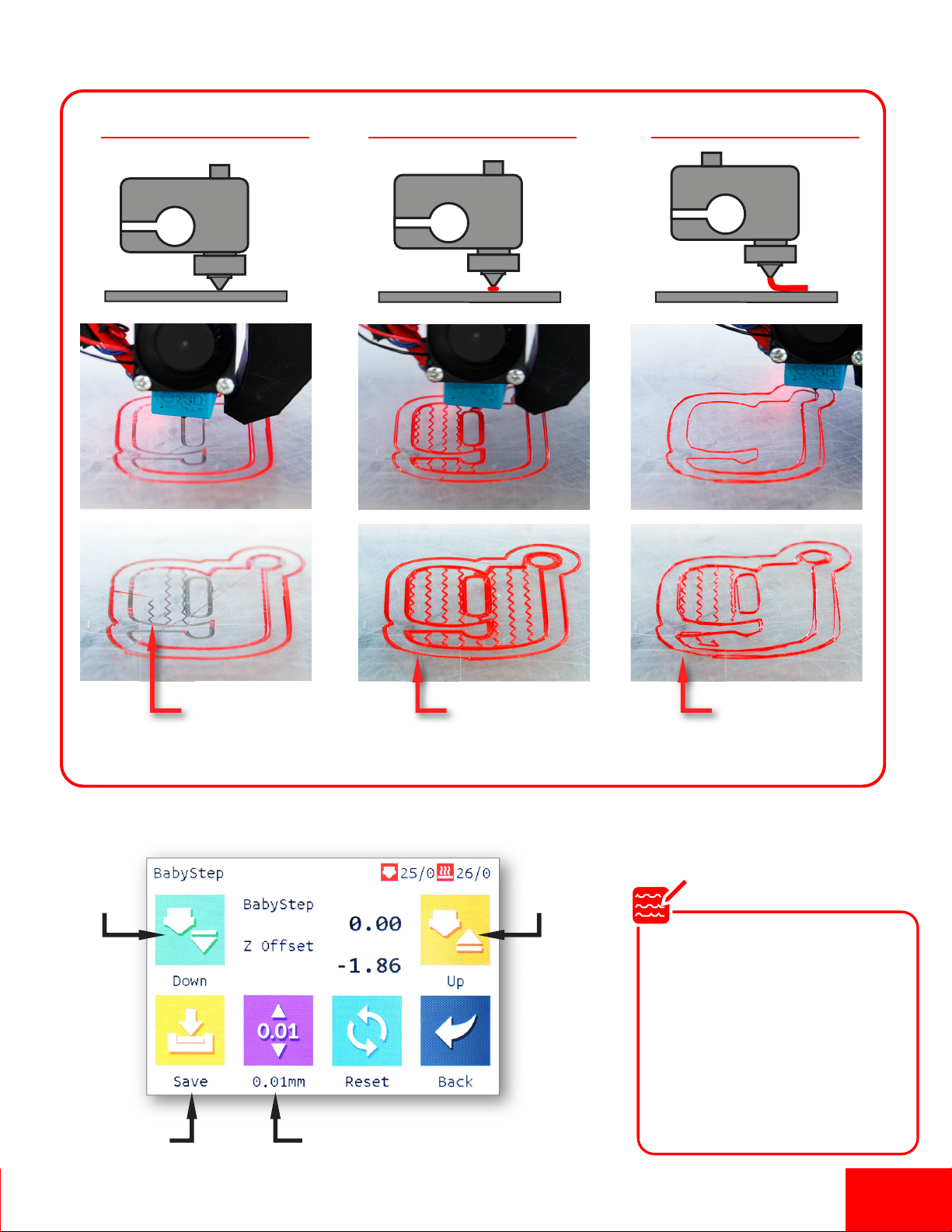
Babystepping Cheat Sheet
Lower
Extruder Raise
Extruder
Change IncrementSave to
Memory
Too low and nozzle
is digging in the bed
causing damage.
Too high and
not adhering to
the bed
Correct height.
Sticks to bed just
enough.
Extruder Extruder Extruder
Extruder is too low Extruder is perfect Extruder is too high
As your print starts, click
“Babystep”.
You may have to raise or
lower up to 0.50 mm depend-
ing on settings and if your
nozzle has been changed. It
might take a few seconds to
see any change in height
Note

Pg 9
Removing the Print. Strength vs Finesse
1. If the bed is acrylic, aer the print finishes you can immediately remove it.
If you are using a heated bed, turn it offand let it cool several minutes before removing or you risk
damaging the print surface or warping you rpart.
2. If the first layer printed correctly you should see no curling at the edges.
3. USING CAUTION, take the scraper and gently tap at the edges of the print. Look for corners of the
model and tap them. Aer several taps the print should pop offthe bed. If the model has a large
surface area on the print bed, it may be harder to remove and you may have to slide the scraper
below the model.
Tap Edges or
Corners
The scraper is very sharp.
NEVER place your hand
behind the area you are
scraping and take caution
not to dig into any build
surfaces.
Warning
Andere Handbücher für gMax 2 PRO
2
Dieses Handbuch passt für folgende Modelle
1
Inhaltsverzeichnis
Andere gCreate 3D-Drucker Handbücher


