Giada RN28 Bedienungsanleitung

- 1 -

Statement
The copyright of this manual belongs to Shenzhen JIEHE Technology Development Co., Ltd.
(Giada, JIEHE’s global brand) and all rights are reserved. The company reserves the right to
change this manual at any time without notification. Specifications here are for reference only,
please take the real product as standard.
Without official authorization of Giada, other company or individual may not copy, plagiarize,
translate or disseminate this manual for commercial purpose.
The information provided in this manual is accurate and reliable. The company does not take
any legal responsibility for the consequences of infringement use of this manual.
Safety Notice
• Read the user manual carefully before setting up the Giada product.
• Disconnect the power cord before installing the internal components
• Most electronic components are sensitive to static electrical charge, please wear a
wrist-grounding strap when installing the internal components.
• Don’t disconnect the power cord when the system is running to avoid damage to the
sensitive components by instantaneous surge voltage.
Contact Information
Shenzhen JIEHE Technology Development Co., Ltd.
Website: www.giadatech.com
Phone: +86-755-3330 0336
Email: support@giadatech.com
Address: 1~2/F, Block A, Tsinghua Information Harbor, North Section, Shenzhen Hi-tech
Park, Nanshan District, Shenzhen, China

- 1 -
Table of Contents
1. Product Introduction ....................................................................................... 3
2. Interface Description and Hardware Specifications ..................................... 3
2.1 Interface Description .................................................................................... 3
2.2 Hardware Specifications ............................................................................... 4
3. Accessories Installation Steps ........................................................................... 5
3.1 Memory Installation ....................................................................................... 5
3.2 SSD(M.2) Installation..................................................................................... 6
3.3 WIFI(M.2) Installation ................................................................................... 6
3.4 SATAIII for 2.5'' HDD Installation ................................................................ 7
4. BIOS Setup ........................................................................................................ 8
Notice .................................................................................................................. 8
A. State of BIOS Setup ....................................................................................... 9
B. Function Keys definitions ............................................................................. 10
C. Auxiliary information Main interface............................................................ 10
4.1 Main (Standard CMOS Setting) .................................................................. 11
4.2 Advanced BIOS Setup ................................................................................. 12
4.2.1 ACPI Settings ..................................................................................... 13
4.2.2 CPU Configuration ............................................................................ 13
4.2.3 Wake Configuration ........................................................................... 15

- 2 -
4.2.4 Trusted Computing .............................................................................16
4.2.5 System Devices Configuration ...........................................................18
4.3 Security .................................................................................................... 19
4.4 Boot Menu ............................. .................................................................... 21
4.5 Save & Exit ................................................................................................. 23
5. JAHC Introduction ......................................................................................... 24
5.1 Auto Power on ............................................................................................ 24
5.2 JAHC Software ........................................................................................... 26
5.2.1 JAHC Software Functions .................................................................. 26
5.2.2 JAHC Software Installation Guide .................................................... 26
5.2.3 Startup and Shutdown Time Setup ..................................................... 29
5.3 Watchdog API and Instruction .................................................................... 31

- 3 -
1. Product Introduction
Based on Intel®Alder Lake-N platform, Giada RN28 is a fanless model featured with Intel®N100
processors. With one HDMI that supports max 4K resolution. And also six Ethernet interfaces, four
of which can support POE function. The player is suitable to be applied in gateway, surveillance etc.
applications.
2. Interface Description and Hardware Specifications
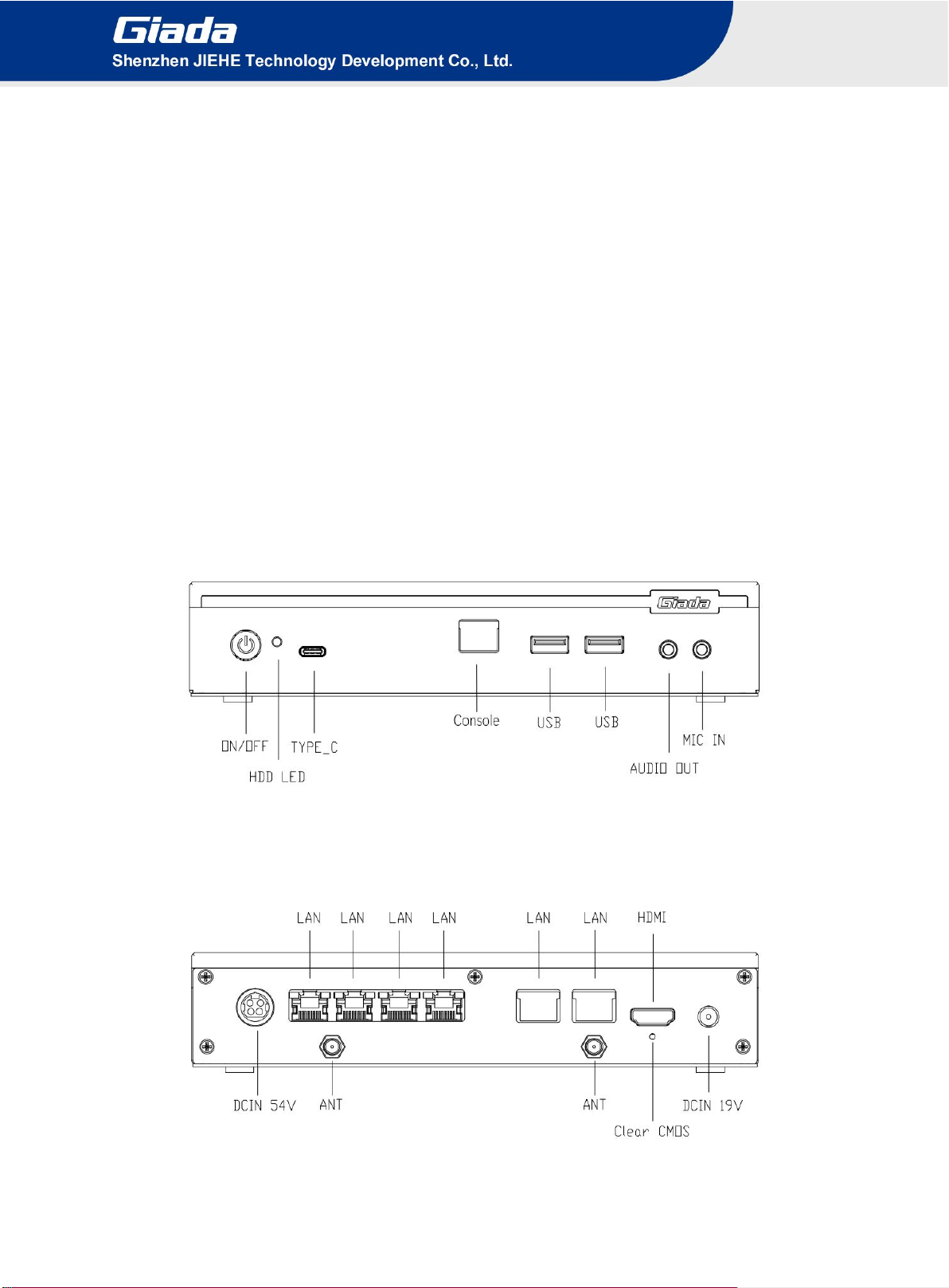
2.1 Interface Description
Front I/O Port
Rear I/O port

- 4 -
2.2 Hardware Specifications
RN28
Processor
CPU
Intel®Processor N100
Turbo Frequency
3.40 GHz
BIOS
AMI Source Code
Chipset
SoC
Memory
Type
DDR4-3200MHz
Socket
1 x SO-DIMM
Max Capacity
16 GB
Graphics
GPU
Intel®UHD Graphics
Graphic Engine
DirectX 12.1, OpenGL 4.6, OpenCL 3.0
HDMI 2.0
1 x HDMI (Max.4096 x 2160 @60Hz)
Network
Controller
6 x Intel i210-AT Gigabit Ethernet
Interface
2 x GbE RJ45, 4 x GbE RJ45 (PoE 30W/LAN)
BYPASS
1 x BYPASS pair on LAN1-2
Cellular Network
NA
I/O Interface
USB
1 x USB Type-C3.2 Gen1 (5 Gbps), 2 x USB3.2 Gen1 (5 Gbps)
Serial Port
1 x RJ45 Console(RS232)
Audio
1 x MIC-IN, 1 x AUDIO-OUT
M.2
1 x M-Key M.2 (2280) for PCIe X2 SSD
1 x E-Key M.2 (2230) for Wi-Fi/BT, support Wi-Fi 5, Wi-Fi 6, Wi-Fi 6E(CNVi)
Storage
M.2
1 x M-Key M.2 (2280) for PCIe X2, for SSD
SATA
1 x 2.5" SATAIII, for HDD
Operation
System
OS
Windows 11 (64bit) / Linux Ubuntu (64bit)
Power
Power Type
DC-IN, PSE DC-IN
Input Voltage
19V/3.42A, PSE 54 V/2.22 A
Mechanical
Construction
Metal
Mounting
VESA Mounting kit JC283
Dimension
(W x D x H)
200mm x 150mm x 40mm (7.87” x 5.90” x 1.57”)
Color
Dark Gray
Environment
Operating
Temperature
0-45℃( 32℉~ 113℉) at 0.7m/s Air Flow
Relative Humidity
95%@45℃(non-condensing)
Certification
CE, FCC Class B, UKCA

- 5 -
3. Accessories Installation Steps
For safety reasons, please ensure that the power cord is disconnected before opening the case.
How to open the top cover and bottom cover
Unscrew the four screws and then remove the bottom cover. SO-DIMM, M.2 for WiFi, M.2 for SSD
are at the right side. SATAIII for 2.5'' HDD is at the left side.
3.1 Memory Installation
This product only supports DDR4 SO-DIMM memory modules.
1. Locate the SO-DIMM slot on the board.
2. Gently insert the module into the slot in a 45-degree angle.
3. Carefully push down the memory module until it snaps into the locking mechanism.

- 6 -
3.2 SSD (M.2) Installation
1. Plug the M-Key M.2 (2280) SSD (PCIe protocol) into the appropriate slot.
2. Secure the module to the carrier by tightening up the screw.
3.3 WIFI (M.2) Installation
1. Plug the E-Key (2230) WIFI module into the appropriate slot.
2. Secure the module to the carrier by tightening up the screw.
3. Connect the two black cables to WIFI module and install the antennas.

- 7 -
3.4 SATAIII for 2.5'' HDD Installation
1. Locate the two small holes on the side of the HDD, corresponding to the two protruding points on
the HDD bracket on the motherboard.
2. Connect the hard drive to the connection interface on the motherboard.
3. Insert the side holes of the hard drive into the two protruding points on the side of the hard drive
bracket.
4. Secure the HDD to the carrier by tightening up the screw on the right side.

- 8 -
4 BIOS Setup
Notice:
The descriptions relating to BIOS setup in this Manual is for reference only since the BIOS version
of the product might be upgraded. Giada provides no guarantee that all the contents in this Manual
are consistent with the information you acquired.
BIOS is a basic I/O control program saved in the Flash Memory. Bridging the motherboard and the
operation system, BIOS is used for managing the setup of the related parameters between them.
When the computer is activated, the system is first controlled by the BIOS program. Firstly, a
self-detection called POST is performed to check all hard devices and confirm the parameters of the
synchronous hardware.
Once all detections are completed, BIOS will hand over the controlling to the operation system (OS).
As BIOS serves as the only channel that connects the hardware and software, whether your computer
can run stably and work in optimized state will hinge on how to properly set the parameters in BIOS.
Therefore, the correct setup of BIOS plays a key role in stably running the system and optimizing its
performance.
The CMOS Setup will save the set parameters in the built-in CMOS SRAM on the motherboard.
When the power is shut off, the lithium battery on the motherboard will provide continuously power
to CMOS SRAM.
The BIOS setup program will allow you to configure the following items:
1. HD drive and peripheral devices
2. Video display type and display items
3. Password protection
4. Power management characteristics
Inhaltsverzeichnis
Andere Giada Medienplayer Handbücher

Giada
Giada DK310 Bedienungsanleitung

Giada
Giada F108D Bedienungsanleitung

Giada
Giada F106D Bedienungsanleitung

Giada
Giada D77 Bedienungsanleitung

Giada
Giada DM5 Bedienungsanleitung

Giada
Giada D612 Bedienungsanleitung

Giada
Giada DN76 Bedienungsanleitung

Giada
Giada DN73 Bedienungsanleitung

Giada
Giada DM6 Series Bedienungsanleitung

Giada
Giada D613 Bedienungsanleitung