Giesecke & Devrient StarSign Key Fob Bedienungsanleitung

Fehler! Unbekannter Name für Dokument-Eigenschaft., Public
2/96
Table of contents
Setup and Enrollment..................................................................................................3
Usage.........................................................................................................................9
Management.............................................................................................................10
Safety Instructions ....................................................................................................11
Troubleshooting........................................................................................................12
Disposal....................................................................................................................13
Product Description...................................................................................................14

Fehler! Unbekannter Name für Dokument-Eigenschaft., Public
3/96
Setup and Enrollment
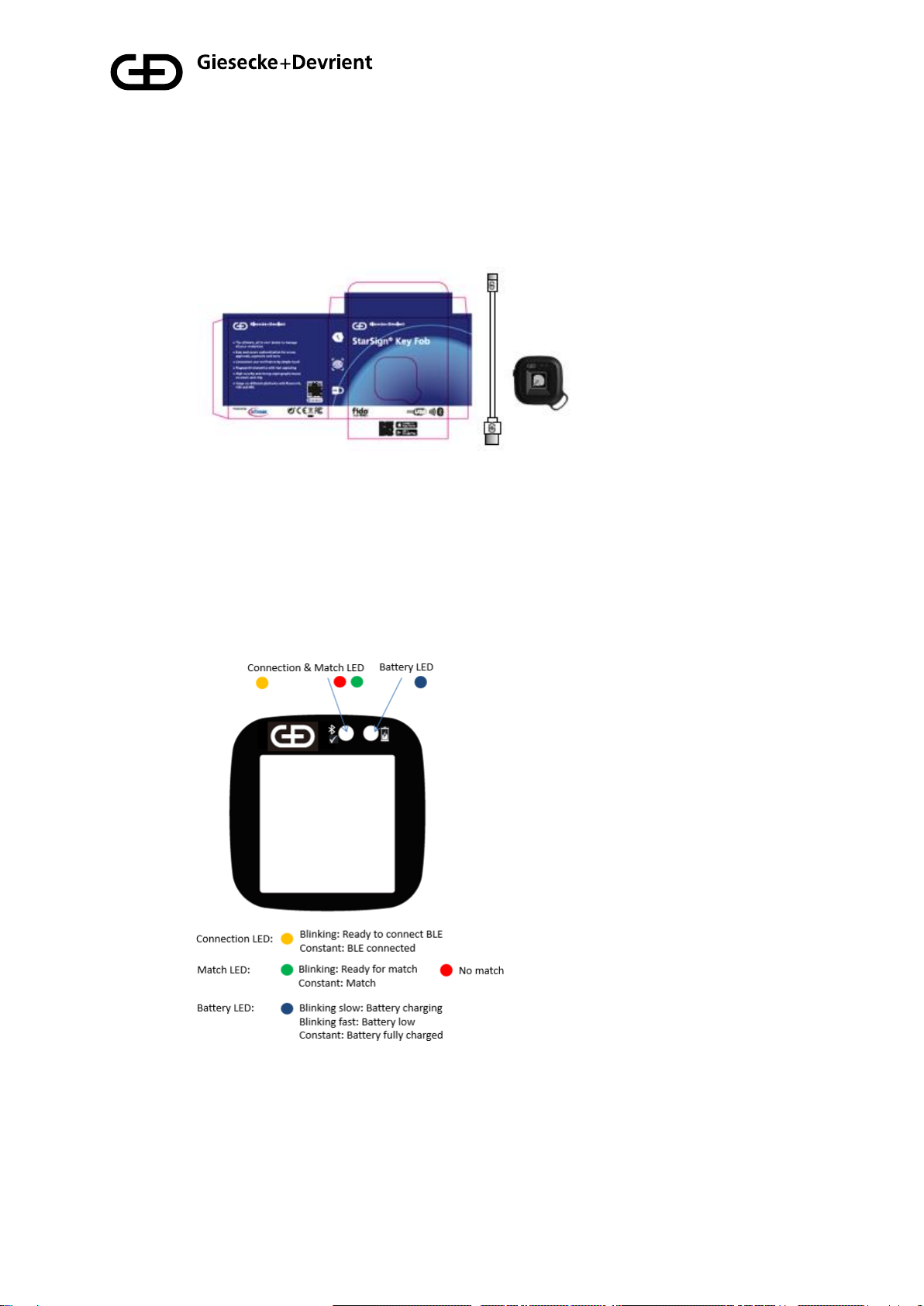
1. Unpack the StarSign Key Fob from your presentation box.
The box contains the following:
•StarSign Key Fob device
•USB type C cable
•Quick guide
2. Please familiarize yourself with the StarSign Key Fob LED light indications.

Fehler! Unbekannter Name für Dokument-Eigenschaft., Public
4/96
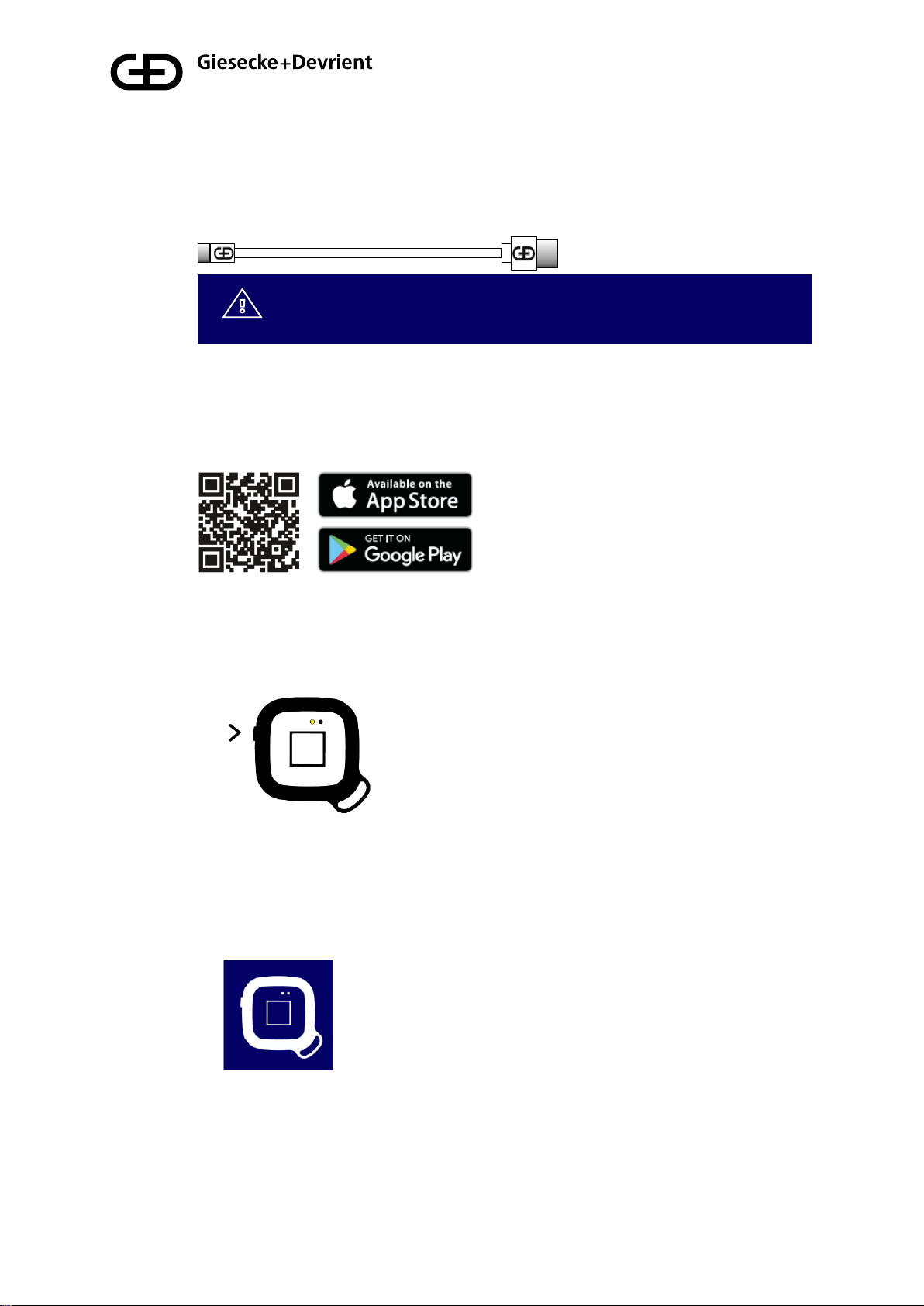
3. Charge the StarSign Key Fob using the USB cable provided (or any other
USB type C cable) until the battery LED emits a constant blue light.
Please re-charge the StarSign key fob if the battery LED blinks
blue fast.
4. Download and install the Enrolment Application from the App Store using your
mobile device by scanning the QR code printed on the side of the packaging
box.
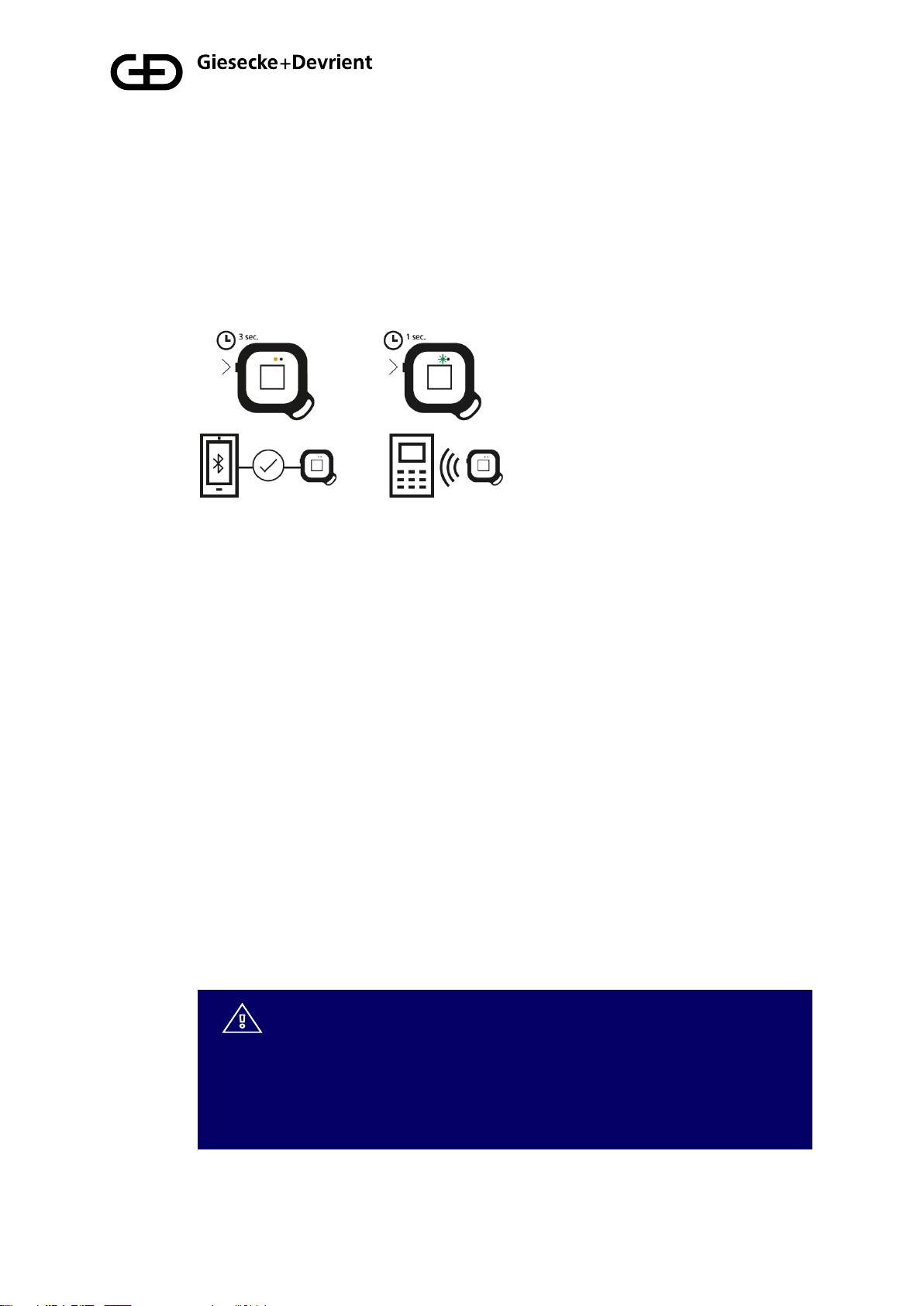
5. Switch on the StarSign Key Fob by firmly pressing the button on the side for 3
seconds. The LED will blink yellow.
6. Please ensure that Bluetooth is enabled on your mobile device, then start the
Enrolment Application on your mobile device. Wait until the StarSign Key Fob
is in connectivity mode (LED shows a constant yellow light).

Fehler! Unbekannter Name für Dokument-Eigenschaft., Public
5/96
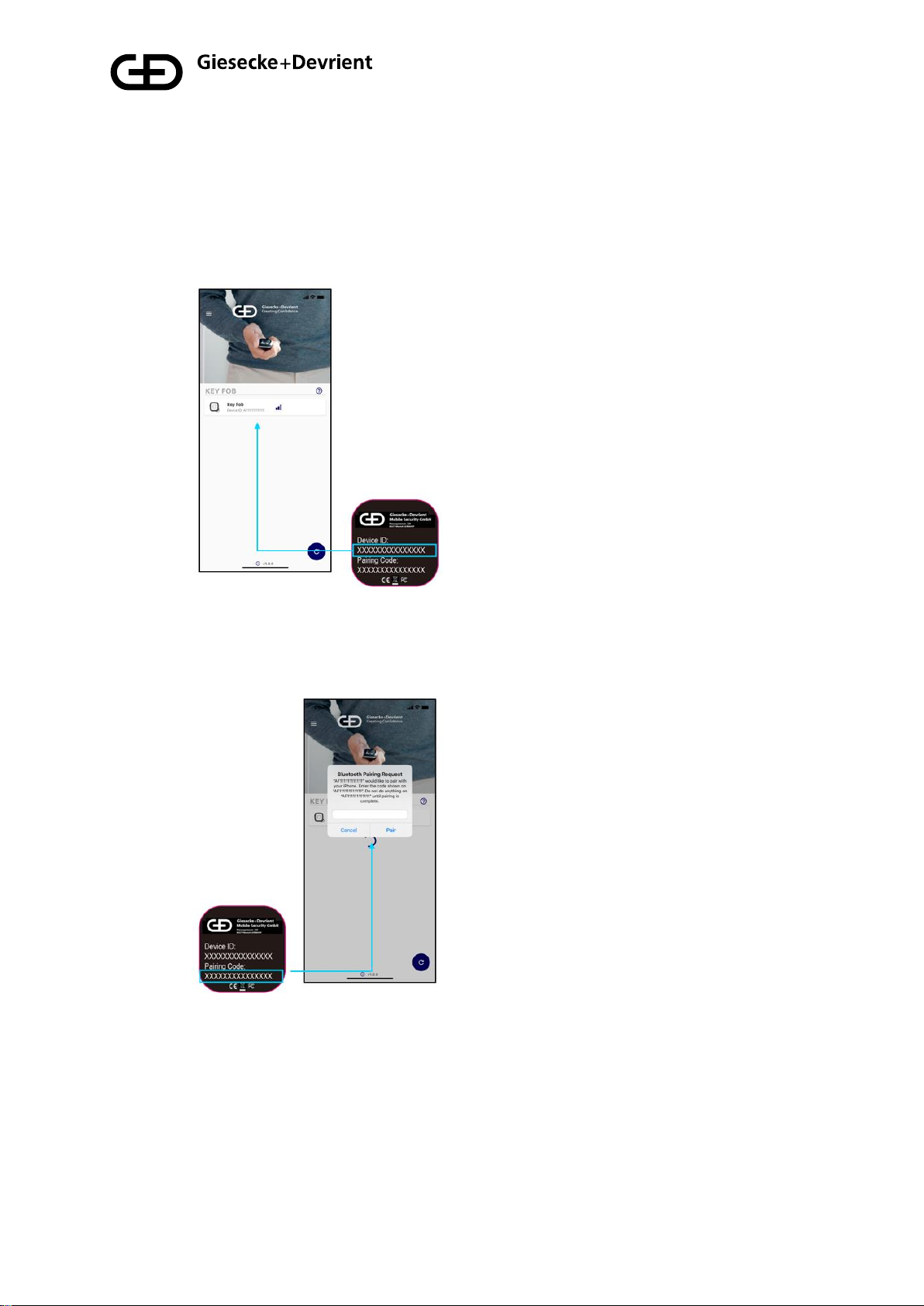
7. Identify and select the correct StarSign Key Fob that you wish to enroll from
the list of available StarSign Key Fobs. The StarSign Key Fob can be
identified by matching the device ID printed on its reverse side with the
corresponding device ID in the list.
8. Enter the pairing code printed on the reverse side of the StarSign Key Fob in
the connection menu. The check marks in the dialog can be ignored.

Fehler! Unbekannter Name für Dokument-Eigenschaft., Public
6/96
9. Once the StarSign Key Fob is connected the following screen will appear with
more information about the StarSign Key Fob including any fingerprints that
are already enrolled for the StarSign Key Fob. Press the blue button with the
‘+’ symbol to enroll a new fingerprint.
10. Before the fingerprint can be enrolled an Access Code needs to be entered.
The default Access Code is 00000000.
Please change the Access Code to
an individual Access Code after the
setup in the settings menu.

Fehler! Unbekannter Name für Dokument-Eigenschaft., Public
7/96
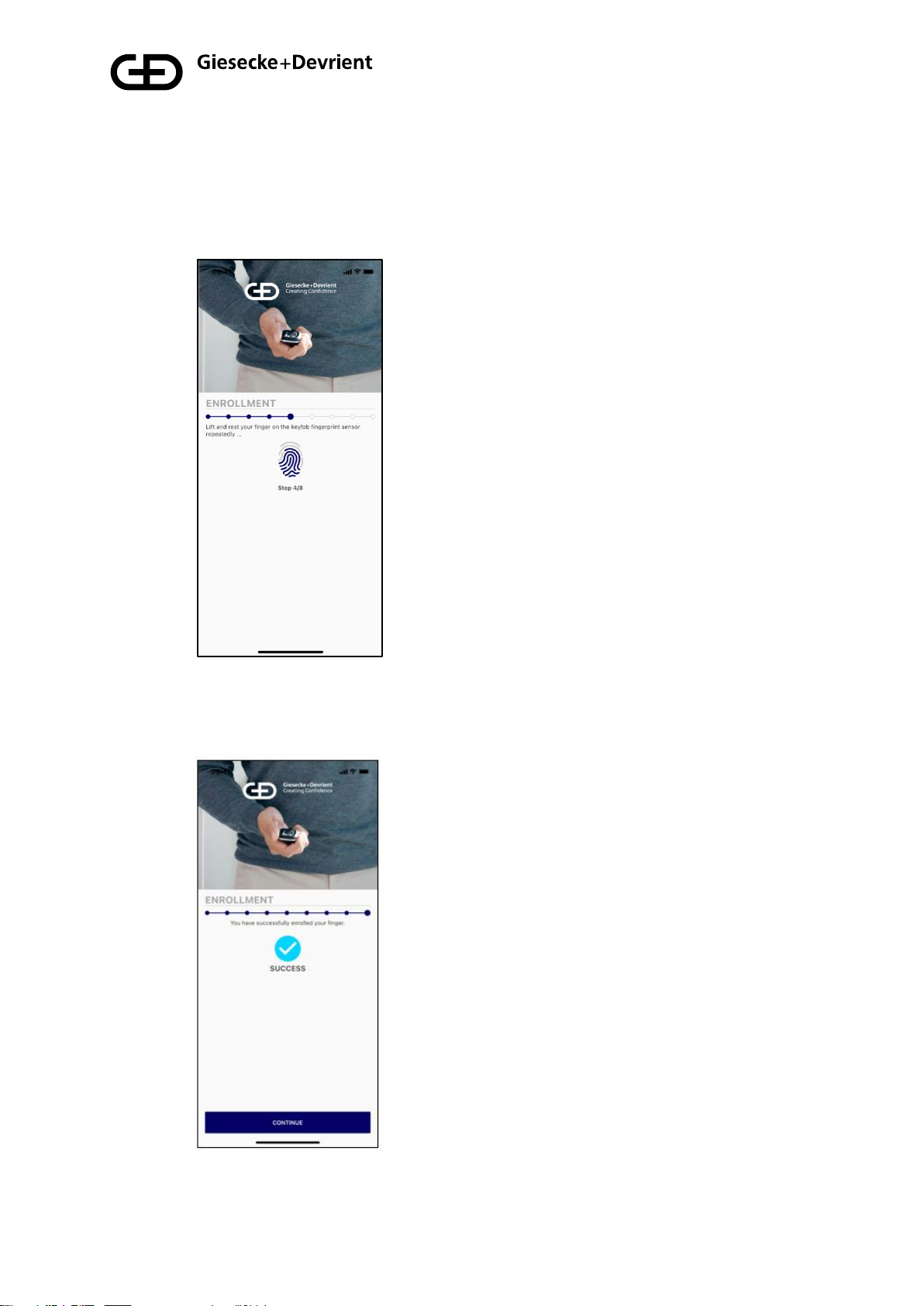
11. After the Access Code has been entered, the enrolment of the fingerprint can
be performed. The enrolment process is a step-by-step guide to the fingerprint
capturing process.
12. Once the fingerprint template is enrolled, you are notified that the fingerprint
was successfully enrolled.

Fehler! Unbekannter Name für Dokument-Eigenschaft., Public
8/96
13. The newly enrolled fingerprint is captured in the list of enrolled fingerprints for
the device. The StarSign Key Fob can now be used for FIDO registrations and
any other transaction. Authorization is provided by using the enrolled
fingerprint verification. The device will allow a maximum of 20 fingerprints to
be enrolled. All enrolled fingerprints are listed in the Companion App and may
be renamed by selecting the specific ‘fingerprint x’ from the list and then
holding the selection until the option to rename the entry is available, upon
which you can modify the entry.
14. Fingerprint templates may be deleted by switching into edit mode by pressing
the edit mode button on the right upper corner identified with a stylus icon.
15. Ensure to disconnect your fob from the BLE connected devices when
fingerprint enrolment is completed to conserve the StarSign Key Fob’s battery
and avoid a constant yellow LED light whenever you use the StarSign Key
Fob and the connected mobile device is nearby.
16. The enrolment application can also be used for the deletion and creation of
further fingerprint templates. For further fingerprint enrolments, please
continue as described in step 6 for the first enrolment.

Fehler! Unbekannter Name für Dokument-Eigenschaft., Public
9/96
Usage
1. The device can be used via USB, BLE and NFC. For USB, just connect the
device via USB cable to a host system (e.g. Windows PC). For NFC, press the
power button briefly, for BLE, keep the button pressed for at least 3 seconds.
2. Before an NFC transaction can be performed, the device should blink green
(ready for fingerprint match). Place an enrolled finger on the sensor and hold it
there until the device shows a constant green light –this means it has
successfully matched your fingerprint. Then simply tap the reverse side of the
StarSign key fob against the NFC terminal to initiate the transaction (this will
work like any contactless card) within 60 seconds, then the device switches off
automatically. If the LED lights red, the fingerprint does not match the pre-
enrolled fingerprint templates. In this case, try again.
3. In the BLE mode, the device blinks yellow. When the StarSign Key Fob is
connected to your mobile via BLE it will maintain a constant yellow LED light
while it is connected. Please follow the instructions of the application (e.g.
website) to perform a transaction with BLE. For FIDO authentication, please
register the StarSign Key Fob on a FIDO registration service (e.g. in the
account of a website). After registration the StarSign Key Fob can be used for
FIDO authentication (e.g. login to the website).
4. When the StarSign Key Fob is plugged into the USB cable, the device also
automatically switches on BLE and the device is ready for USB- and BLE-
based transactions in this status.
If the finger mismatches 4 times, the StarSign Key Fob blocks
and needs to be restarted with the power button by switching
off and on again. In case of finger mismatches 50 times in a
row (also after re-starts), the StarSign Key Fob is completely
blocked and can be only reactivated after entering the access
code.

Fehler! Unbekannter Name für Dokument-Eigenschaft., Public
10/96
Management
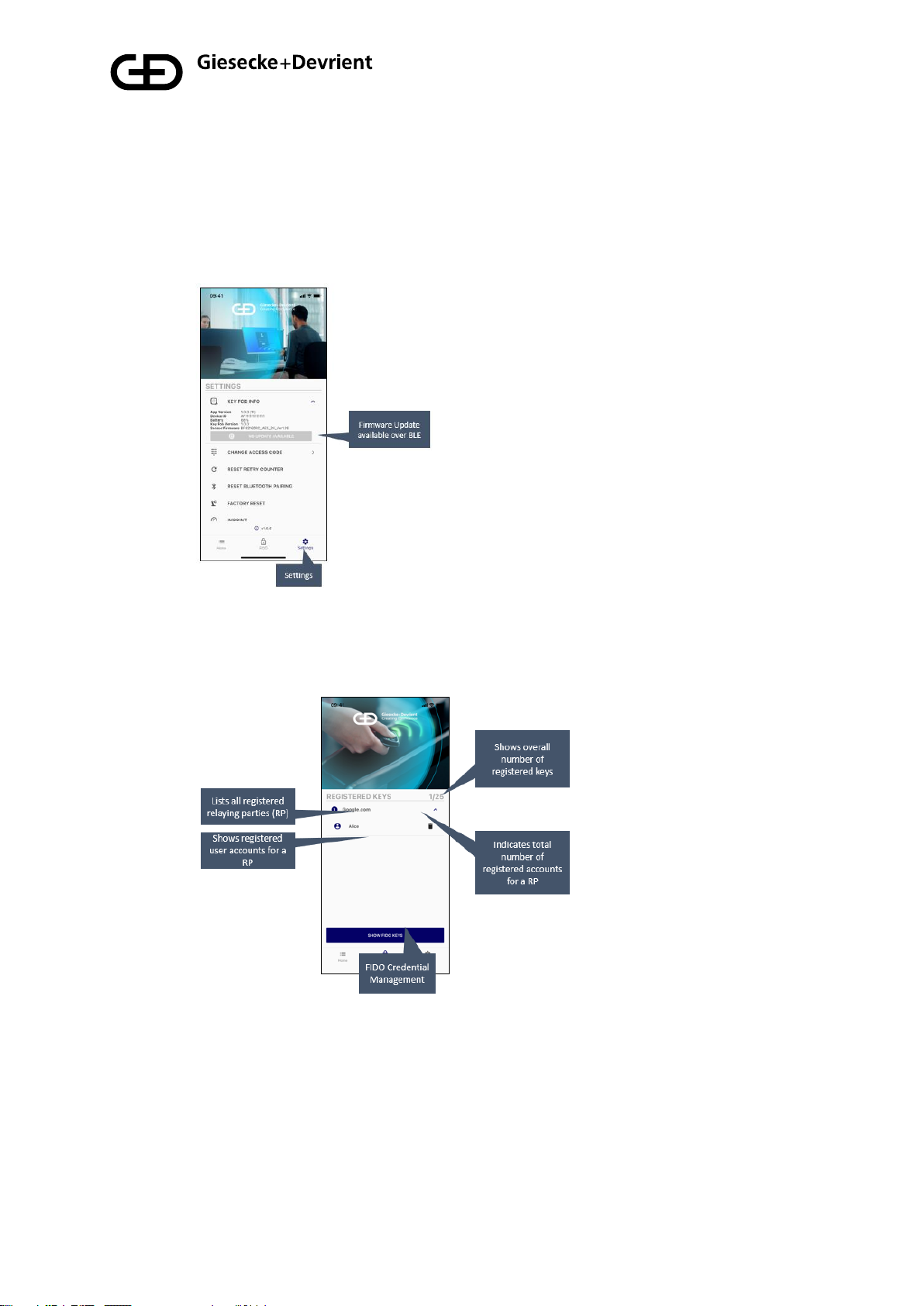
1. The firmware can be updated via the Companion App in the settings menu.
2. Registered FIDO keys that are stored on the StarSign Key Fob can be
displayed in the settings menu.
The settings menu allows you to also perform a factory reset. After the factory reset,
the device reverts to the status as delivered from the manufacturer and all stored data
(e.g. fingerprint templates, FIDO keys) are deleted.
Inhaltsverzeichnis
Sprachen:
Beliebte Sicherheitssystem Handbücher anderer Marken

EDM
EDM Solution 6+6 Wireless-AE Bedienungsanleitung

Highway Safety Group
Highway Safety Group EA401 Bedienungsanleitung

Siren
Siren LED GSM Bedienungsanleitung

Detection Systems
Detection Systems 7090i Montageanleitung

Se-Kure Controls
Se-Kure Controls MicroMini SK-4841 Bedienungsanleitung

Siemens
Siemens FDM273 Bedienungsanleitung