GL-INET Velica Bedienungsanleitung

Velica
(GL-B2200)
USER MANUAL

Page 1 | 4
Table of Contents
1. Getting Started with GL.iNet Velica .....................................................................................1
1.1. Set Up Your B2200 (Velica) ..........................................................................1
2. INTERNET ........................................................................................................................................2
2.1) Cable...................................................................................................................3
DHCP..................................................................................................................................................4
Static ..................................................................................................................................................4
PPPoE................................................................................................................................................5
2.2) Repeater .............................................................................................................5
3. WIRELESS ........................................................................................................................................6
WiFi 6
4. Mesh ...................................................................................................................................................8
Mesh network setup steps........................................................................................8
5. CLIENTS............................................................................................................................................9
6. UPGRADE...................................................................................................................................... 10
6.1. Online Upgrade ........................................................................................... 11
6.2. Upload Firmware ........................................................................................ 11
(1) Official OpenWrt/LEDE firmware ......................................................................... 12
(2) Compile your own firmware................................................................................... 12
6.3. Auto Upgrade.............................................................................................. 12
7. FIREWALL ..................................................................................................................................... 13
7.1. Port Forwards ............................................................................................. 13
7.2. Open Ports on Router................................................................................. 14
7.3. DMZ ............................................................................................................. 15
8. VPN.................................................................................................................................................. 15
8.1. OpenVPN..................................................................................................... 15
8.1.1. OpenVPN Client ...................................................................................................... 16
8.1.2. OpenVPN Server ..................................................................................................... 20
8.2. WireGuard ................................................................................................... 23
8.2.1. WireGuard Client..................................................................................................... 23
8.2.2. WireGuard Providers ............................................................................................. 26
8.2.3. WireGuard Server ................................................................................................... 28

Page 2 | 4
8.2.4. Wireguard App Support........................................................................................ 31
8.2.5. Visit Client’s LAN Subnet..................................................................................... 31
8.3. VPN Policies ............................................................................................... 32
8.3.1. Settings....................................................................................................................... 32
8.3.2. Add VPN policy........................................................................................................ 33
8.3.3. Clear DNS cache..................................................................................................... 35
9. APPLICATIONS .......................................................................................................................... 35
9.1. Plug-ins........................................................................................................ 35
9.2. Internet Kill Switch ..................................................................................... 36
Setup ............................................................................................................................................... 37
9.3. File Sharing ................................................................................................. 39
9.3.1. Router settings........................................................................................................ 39
9.3.2. Access the storage device................................................................................. 40
Windows........................................................................................................................................ 40
Mac OS........................................................................................................................................... 45
iOS .................................................................................................................................................... 48
Linux ................................................................................................................................................ 52
ChromeOS or ChromiumOS (Neverware CloudReady and others) ...................... 52
Android........................................................................................................................................... 53
9.4. DLNA Server................................................................................................ 57
8.3.1. Install Plug-ins ............................................................................................................... 57
8.3.2. Use the DLNA server in GL.iNet Routers ........................................................... 58
9.5. DDNS ........................................................................................................... 66
9.6. Cloud ........................................................................................................... 74
Introduction.................................................................................................................................. 74
Setup ............................................................................................................................................... 75
Manage your devices ............................................................................................................... 83
Site to Site..................................................................................................................................... 89
Batch Setting ............................................................................................................................... 98
Template Management.........................................................................................................101
Task List ......................................................................................................................................103
GoodCloud and VPN...............................................................................................................104
Disable..........................................................................................................................................105

Page 3 | 4
9.7. Tor ............................................................................................................. 108
10. MORE SETTINGS ................................................................................................................118
10.1 Admin Password ......................................................................................... 119
10.2 LAN IP........................................................................................................... 119
10.3 Time Zone ................................................................................................. 120
10.4 MAC Clone ................................................................................................ 121
10.5 Custom DNS Server.................................................................................. 122
10.6 Network Mode .......................................................................................... 123
10.7 Revert Firmware ....................................................................................... 124
10.8 Advanced .................................................................................................. 125
11 Troubleshooting..................................................................................................................126
11.1 LED Indicators .......................................................................................... 126
GL-B2200 .............................................................................................................. 127
Power Up .....................................................................................................................................127
Reset .............................................................................................................................................128
Upgrade........................................................................................................................................128
Mesh..............................................................................................................................................129
LED Customization............................................................................................... 129
11.2 Repair or Reset.......................................................................................... 130
11.3 Debrick via Uboot...................................................................................... 131
11.4 Change WAN to LAN................................................................................. 133
11.5 Captive Portal............................................................................................ 135
11.6 GL.iNet app................................................................................................ 137
11.7 Access Web Panel .................................................................................... 139
Check connection/router's IP address ...........................................................................139
Your IP address is incorrect ................................................................................................139
Your IP address is correct....................................................................................................139
11.8 Extensible Authentication Protocol (EAP)............................................... 140
Introduction................................................................................................................................140
Connect via web panel...........................................................................................................141
Connect via Luci.......................................................................................................................144
11.9 GoodCloud issues..................................................................................... 146
How to fix if my device show "Deactivated".................................................................146

Page 4 | 4

Page 1 | 147
1. Getting Started with GL.iNet Velica
Model:
GL-B2200
1.1. Set Up Your B2200 (Velica)
Please download GL.iNet Mobile app (https://www.gl-inet.com/app/) to
set up Velica.
The GL.iNet Mobile app gives you convenient access to your router’s
features anywhere and anytime.
Basic Setup: Setup and change the password of your devices.
Discover the real-time traffic in both mesh & guest network. Block
unwanted users that share your WiFi network.
Mesh Network: Build up your home mesh network. Step-by-step
guidelines for setting up sub-nodes within your house.
VPN Setup: Easily configure selected OpenVPN and WireGuard VPN
for your private home network.

Page 2 | 147
Live Router Status: Real-time performance checklist of your devices,
including memory storage and CPU load data. Easily pause WiFi,
update firmware, turn off LED lights on the router, and more!
2. INTERNET
There are total 2 types of connection method that you can use to access
the Internet: Cable and Repeater.
For Mesh Network, you could ONLY use Cable to connect the internet.
We recommend that you set up the internet by our Mobile App
(https://www.gl-inet.com/app/) .
You could also setup it through the Admin Panel, the instruction is as
below.
Click INTERNET to create an Internet connection.

Page 3 | 147
2.1) Cable
Connect the router to the modem or main router via Ethernet cable to
access the Internet.
Before plugging the Ethernet cable into the WAN port of the router, you can
click Use as LAN to set the WAN port as a LAN port. That is useful when
you are using the router as a repeater. As a result, you can have one more
LAN port.
Plug the Ethernet cable into the WAN port of the router. The information of
your connection will be shown on the Cable section. DHCP is the default
protocol. You can click Modify to change the protocol.

Page 4 | 147
DHCP
DHCP is the default and most common protocol. It doesn't require any
manual configuration.
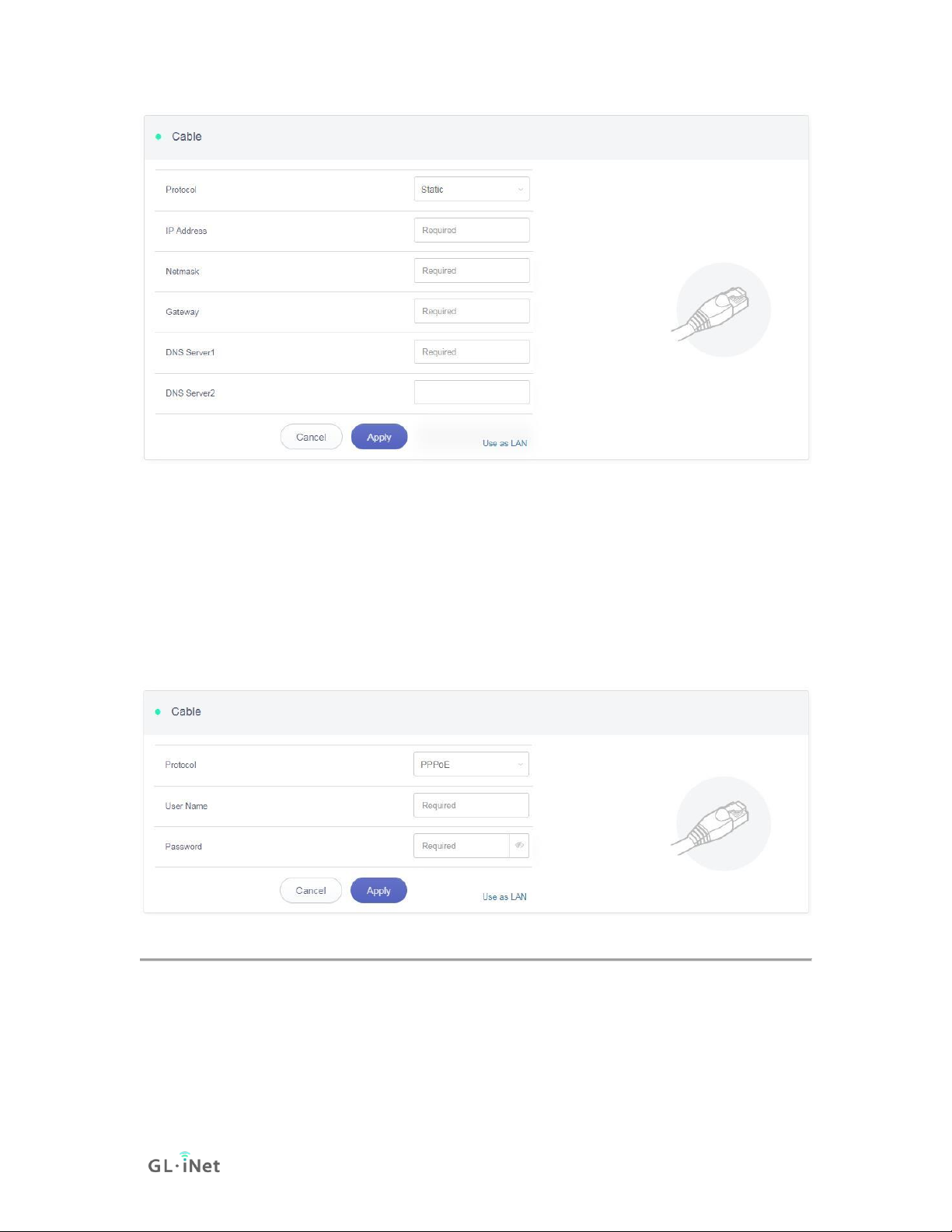
Static
Static is required if your Internet Service Provider (ISP) has provided a fixed
IP address for you or you want to configure the network information such
as IP address, Gateway, Netmask manually.
The current settings will be automatically filled once you choose Static.
Change it according to your needs and then click Apply.

Page 5 | 147
PPPoE
PPPoE is required by many Internet Service Providers (ISP). Generally, your
ISP will give you a modem and provide you a username & password that
you needed when you are creating the Internet connection.
Under PPPoE protocol, enter your username and password, then
click Apply.
2.2) Repeater
Using Repeater means connecting the router to another existing wireless
network, e.g. when you are using free Wi-Fi in a hotel or cafe.
Dieses Handbuch passt für folgende Modelle
1
Inhaltsverzeichnis
Andere GL-INET WLAN-Router Handbücher