Hyun Won Ultrasm Bedienungsanleitung

Owner s Manual
Phone
: 82-54-338-6000
Facsimile
: 82-54-337-3075
Homepage
: http://www.m-any.com
e-mail: [email protected]
333-1 Shindae-Ri, Kumho-Eup, Youngcheon-City, KyoungBuk 770-803, South
Korea
P/N : FAMA-C01
Voice Recorder
& Music Encoder
Multi Format Digital Audio Player

1 - Welcome to the Digital Audio World with Ultrasm
2 - What is a Digital Audio Player (MP3 Player)
3 - PC System Requirements and Accessory
4 - Product Specification
5 - Installing Software(M -Any Loader Express)
7 - How to connect Ultrasm to your PC
8 - Device Selection as Ultrasm
9 - How to use M-Any Loader Express
11 - How to format the memories of built-in and MMC
13 - How to download files from your PC
15 - How to upload files from Ultrasm
16 - How to Upgrade OS
17 - How to convert ADP(ADPCM) to WAV & MP3 to WMA
18 - Troubleshooting Problems
20 - Getting started with Ultrasm
21 - Ultrasm LCD Display
22 - How to set Language, Repeat & Play Mode
23 - How to set User EQ Mode
24 - How to set EQ MODE and use Fast Searching
25 - How to record Voice and Music
27 - How to erase files without software
28 - How to use Removable battery compartment
29 - Handling and Storing Instructions
30 - LIABILITY FOR DAMAGES TO THE CUSTOMERS
31 - WARRANTY FORM
32 - MANUFACTURER INFORMATION
33 -
FCC Compliance Statement
Congratulations on your purchase of the Ultrasm.
Ultrasm is a Digital Audio Player(more than MP3 player) with special
additional functions of Voice Recorder & Direct Encoder(directly record
a music from normal audio players through a encoding cable without
computer).
The Ultrasm contains 32/64/128/256MB of on-board memory. The
Ultrasm also is designed with a programmable and upgradeable
Digital Signal Processor(DSP) to support MP3 files as well as new
audio formats and digital rights management systems. Please check
the Hyun Won website at www.m-any.com for the latest software
upgrade.
You are now ready to enjoy the world of digital audio with the most
versatile digital audio player on the market today.
Contents Welcome to the Digital Audio World with Ultrasm 1

What is a Digital Audio Player (MP3 Player) ? PC System Requirements and Accessory
A. Software CD
The following PC specifications are required for Ultrasm compatibility
MicrosoftWindows98,ME,2000orXPOperatingSystem
CD-ROMDrivewithdigitalaudioextractionsupport
Pentium(orcompatible)200MHzorhigherprocessor
32MBRAM(64MBforWindowsMEor2000)orgreater
128MBfreeHardDiskSpace(morefordigitalaudiofilestorage)
USBportcapability
MP3 is a well known, high quality digital audio format. MP3 files can be
compressed up to 12 times the original wave file size.
MP3 is one of Audio Formats and 'MPEG Audio Layer-3'.
MPEG(an expert group who researches for audio/video compression) is the
acronym for Moving Picture Experts Group.
This group has developed compression systems used for video data. The MPEG
compression system includes a subsystem to compress sound, called MPEG
audio Layer-3. We know it by its abbreviation, MP3.
WMA(Windows Media Audio code) is the highest quality in terms of a sound and
music. WMA provides all type of the best sounds from 8kHz to 48 kHz. WMA files
can be compressed up to 50% the original MP3 file size and can sound as good
as an MP3 file.
What is a Digital Audio Player (MP3 Player) ?
MP3 Player is a portable digital audio Player that plays MP3 files without requiring
the use of tapes or CDs.
MP3 Player is a palm sized audio device that uses no
moving parts for playback and lets you enjoy high quality
sound that uses MPEG1 Layer 3 compression method
for quality internet audio.
MP3 Player uses one or two flash memory cards, which
are expandable to up to 256MB.
You can make your own CD quality MP3 files from CD
or WAV making use of the MP3 encoder software or
direct encoding system built in the device of Ultrasm.
Ultrasm Accessory B. Earphone C. Owner's Manual
D. Line-in Cable
(Direct Encoding Cable)
H. Carrying Case I. A/C Charger
G. USB Cable
Note
Accessories and optional items are subject to change. Please check
www.m-any.com for the latest in Ultrasm accessories and software
upgrades.
E. AAA 1.5v battery 1EA F. 1.2v Rechargeable Ni-
MH battery EA
CD Data MP3 Data
1/12
Compression
Internet PC
Digital audio file Digital audio file
Digital Audio Player
1/2
Compression
WMA Data
2 3
Digital Audio Player
Normal Audio Player

Model Name : Ultrasm
Basic Function : Digital Audio File Playback, Voice Recording, Direct MP3
Encoding
Memory(On-board) : 32/64/128/256MB,
Dimension (WxHxD) : 54x77x9.8mm
Weight (except battery) : 55g
Power Supply : 1.2V Rechargeable Ni-MH or Normal AAA 1EA
Earphone Output : 7mW max
s/n Ratio : 90dB
Frequency Response: 20Hz ~ 20Khz
PC Interface : USB Connection
Other features
- Voice recording : 8hours & 40 minutes (128MB)
- Direct encoding : 2hours (128MB)
- Multi CODEC Support : MP3, WMA, ADPCM and other format by O/S
upgrade
- High speed file transfer(USB Port) : Max. 2.5Mbps
- Play time : 8~10hours(Ni-MH 1EA + AAA 1EA)
- Firmware Upgrade Solution using TI chip
- EL LCD Solution
- Dual Power Supply : Rechargeable battery inside of the body and Removable
AAA battery compartment
Product Specification 4Installing Software(M -Any Loader Express)
In order for the Ultrasm and your PC to communicate and transfer digital
files, you must first install the M-Any Loader Express by completing the
following steps:
1. Insert the M-Any Loader Express CD into the CD-ROM drive.
The following screen should display:
2. Follow the directions when the setup program is being automatically installed.
If the program is not installed automatically, search for the install.exe file in the
CD ROM drive and double click on it.
5

Installing Software(M -Any Loader Express)
3. Please click the icon indicated by arrow on each screen then you complete
the installation process.
4. When the installation is completed, the icon, 'M-Any Loader
Express' will show up on the background screen.
Note
If a rebooting message displays during setup, install again after rebooting
the computer.
➡➡➡
Next
Next
Next
Next
Finish
Finish
How to connect Ultrasm to your PC
Please make sure that you finished installation process and device selection
before connecting the USB cable.
To make the Ultrasm and your PC share Audio Files(Up & Down Load),
connect Ultrasm with the USB cable which is supplied in the accessories, as
following picture
Ultrasm
DATA
(USB Port)
USB Port
Computer
Note
USB means Universal Serial Bus connecting a device(hardware) to a PC.
7
6
Caution !
The power of the device
automatically turns off
when the device is
connected to PC.
USB Cable
Be careful of the
insertion direction

How to use M-Any Loader Express
A.File filter
B. File list window
C. Memory window
D. Button to
transmit files
F. Memory status
E. Folder window
Start the manager of 'M-Any Loader Express' by double
clicking on shortcut icon on the background screen
A. File filter
Makes it possible to select files by type.
B. File list window
This window enables the selective downloading of files included in the given
folder to the flash memory or MMC memory.
C. Memory window
This window shows the title, size, type of file and the downloading status of
MMC memory card.
D. Button to Transmit Files
This button is for transmitting selected music files to the player.
E. Folder window
This window is for browsing the files in a certain folder to easily select music
files. If files are selected, they will show up in the file list window.
F. Memory status
This shows the remaining memory, the entire memory and the connection status
of memory. In the following cases, a message 'No Memory Found' will appear.
When having selected MMC memory when the memory card is not put into the
player.
Device Selection as Ultrasm
Device Selection
M-Any Loader Express is our integrated manager supporting all of the
models of Hyun Won Inc.
Once the installation of M-Any Loader Express, run the program by clicking
the shortcut icon on the desktop or click on the Windows Start menu. Then,
the following screen(Preferences) will show up.
Select Ultrasm among the devices and choose the server location closest
to you to access operation system updates via the Internet.
If you want to change the above
preference, just go the "View" and
"Preferences", as left
Click 1
Click 2
8 9

How to format the memories of built-in and MMC
When wishing to format the memory card or to erase all files in the
memory card, clicking on 'Format' button will initialize the memory
card. However, if formatting the memory card, all settings including
'play back position' will be also initialized.
1
Run M-Any Loader Express and
connect the communication cable to
the digital audio player and then select
the memory card to format.
2
Select the type of formatting and
click the mouse and then the
confirmation dialog box for
formatting will appear.
3
Press 'Yes' button and the
formatting will be executed. When
the formatting is completed, the
dialog box for confirming the
formatting will show up.
4
Pressing 'OK' button will complete
the format.
Selects the basic(flash) memory.
Selects the detachable MMC.
Adds selected files to the selected memory card.
The selected files will appear "ADD" in the memory window.
UploadingselectedfilestotheselectedPCfolder.
Deletes the selected files from the memory.
Formats the memory card. In this card, all selected files in the memory
cardaredeleted.
The selected memory is refreshed.
The transmission of file between the product and PC
G. Functional Icon
How to use M-Any Loader Express 10 11

How to download files from your PC
1Buy the MP3 files or any available audio files that you want from DC
communications or internet sites and save them on your PC.
3Connect Ultrasm to your PC using USB cable.
2Run the "M-Any Loader Express" by clicking shortcut icon on the background.
4Select a memory on the menu bar which the desired files are to be
downloaded to.
When downloading the desired files from PC to Ultrasm, follow
next steps ;
Click!
Normal format : Deletes only the information saved in the memory card of
the audio player and the deletion is quickly done.
Low level format : Like formatting the entire floppy disk, the entire memory
card is initialized and so it takes some time.
Note
Once formatting begins, do not stop the process. Removing the
communication cable to stop the process by force can give some error to the
operation of the digital audio player.
Normal format / Low level format
You can also format the memories using edit menu button,
as under
How to format the memories of built-in and MMC 12 13

How to upload files from Ultrasm
To upload files
To upload the Audio files or data files from Ultrasm to your PC, carry
out the following descriptions.
Note : M-Any Loader Express does NOT upload music files (MP3 and WMA) to
your PC because it could infringe a copyright.
Select a directory or folder on the PC Directory display panel.
(The files of the selected directory or folder will be displayed on
the PC Files display panel)
Select files in the file list of Memory Window and click upload
button. Then, the selected file(s) will be up-loaded into the
selected directory or folder of your PC.
Note
You can upload files by Drag & Drop as well.
When up/downloading files to or from the digital audio player,
Files other than digital audio files can be uploaded or downloaded.
Uploading/downloading is possible when batteries are not in the digital audio player,
Files cannot be played on the digital audio player during communication.
Noise can be heard through an earphone during communication.
Other USB communication cables than the provided USB cable should not be used.
5Select a folder where the files to be downloaded are saved so that the files
are displayed on the file list window. Then select the desired files.Click "ADD"
icon on the menu bar to display the files on the memory contents window as
"ready to transfer".
6Press 'Transfer'(F6) in the bottom and the selected files will be
downloaded.
Note
Files can be downloaded by using Drag & Drop.
Click!
How to download files from your PC 14 15
1

1Connect the USB cable and double click on 'MP3 Explorer' on the background
screen.
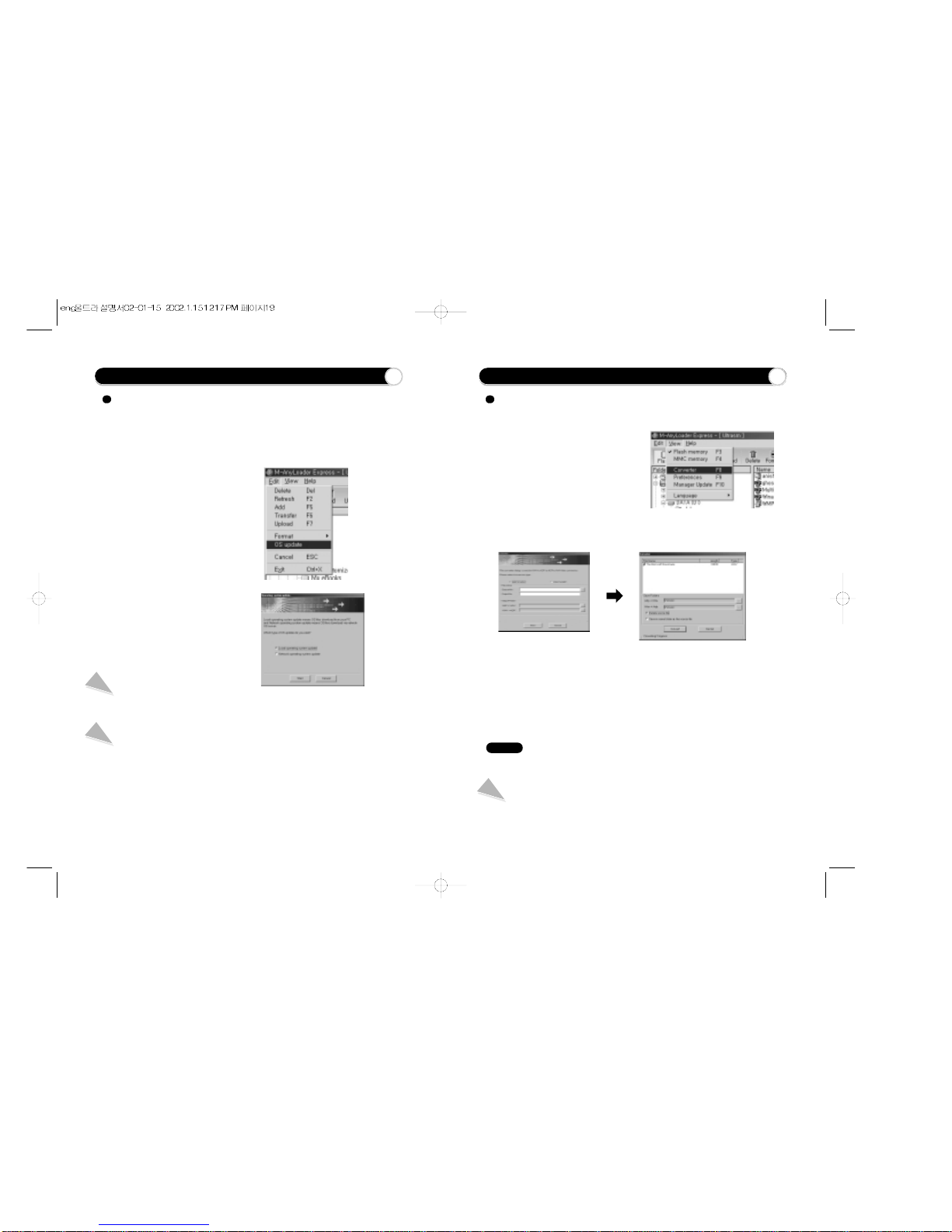
2After selecting 'Edit' on the menu bar,
press OS Update. The OS update dialog
box will show up.
To upgrade the OS of running the digital audio player, follow the following
procedure. To convert ADP to WAV or WAV to ADP, follow the under procedure.
3Select the OS update method and then
press 'start' button. Then Ultrasm will be
updated.
OS Update with PC
When formatting is going on while OS is downloaded to Ultrasm basically installed in
the PC, the process will be automatically done.
OS Update with Network
Connect the latest OS to the server and update the OS basically installed in PC with
the latest OS and then the latest OS is downloaded to Ultrasm.
However, updating network OS should be done when PC is connected to the Internet.
How to Upgrade OS How to convert ADP(ADPCM) to WAV & MP3 to WMA
Voice files(ADP) recorded by
Ultrasm can be converted from
ADP to WAV format or reverse
by selecting "Converter" from the
View menu. If the voice recorded
files have been up-loaded to the
computer using the M-Any
Loader Express, then the dialog
window below can be used when the device is not connected.
You can also convert ADP to WAV files directly when uploading
ADP files from the on-board memory to the PC using the dialog
window above. Select the ADP file on Ultrasm to be uploaded
and the folder the file to be uploaded into. Begin uploading the
ADP file and the dialog window above will open automatically.
After selecting your file conversion options and converting the
file, you may choose to rename the file.
To convert MP3 to WMA
You can also convert MP3 format to WMA(Window Media Audio) format to
make the file size smaller by half size with same sound quality. You can find
lots of convert programs in the website by using words "audio + converter".
16 17
Caution
There is a possibility to be lower quality in converting a normal WAV files to ADP file.
Inhaltsverzeichnis
Andere Hyun Won Diktiergerät Handbücher