
iHome LifeTalks IH-H415BB Bedienungsanleitung

user manual
IH-H415BB
LifeTalks™
Bluetooth®wireless headset Congratulations on the purchase of your
new LifeTalks™ Bluetooth®wireless headset.
This product comes with a limited lifetime
warranty.
Before using your product, please thoroughly
read and follow the instructions inside this
manual.
If you still need help, see the back page for
other support options.
If you want to know more about our
products, visit us online at
www.life-works.com.
system requirements
Windows• ®2000, XP or
Windows Vista®
or
Mac®OS X v10.4 or later
Bluetooth v1.2 or later•

your package should contain
2
user manual contents
features•2
yournewheadset•3
foldingyourheadset•3
chargingyourheadset•3
connectingyourheadset•3
basicheadsetoperation•12
phonecalls•13
playingmusic•13
computerinput/outputvolume•13
productoperatingtips•14
troubleshooting•14
features
high quality audio•
adjustable microphone•
rechargeable•
folds into a compact size•
30 ft. range•
user manual
(in your hands right now)
LifeTalks Bluetooth
wireless headset
USB charging cable
user manual
.
L

3
your new headset
L
indicator light
USB charging
connector
ear clip
adjustable
microphone
volume controls
on/off button
folding your headset
charging your headset
Charge your headset fully (approximately 3–4 hours) before
rst use using the included USB charging cable.
connect to a
USB port on
your computer
L
connecting your headset
connecting to Windows 2000 or XP
Depending on your software and Bluetoothnotef
adapter, the procedure for connecting to your computer
may vary from what is given here.
Before beginning, ensure Bluetooth is active on your
computer by right-clicking the Bluetooth icon in the system
tray and choosing Start the Bluetooth Device. (If Stop the
Bluetooth Device displays, Bluetooth is already active.)
4
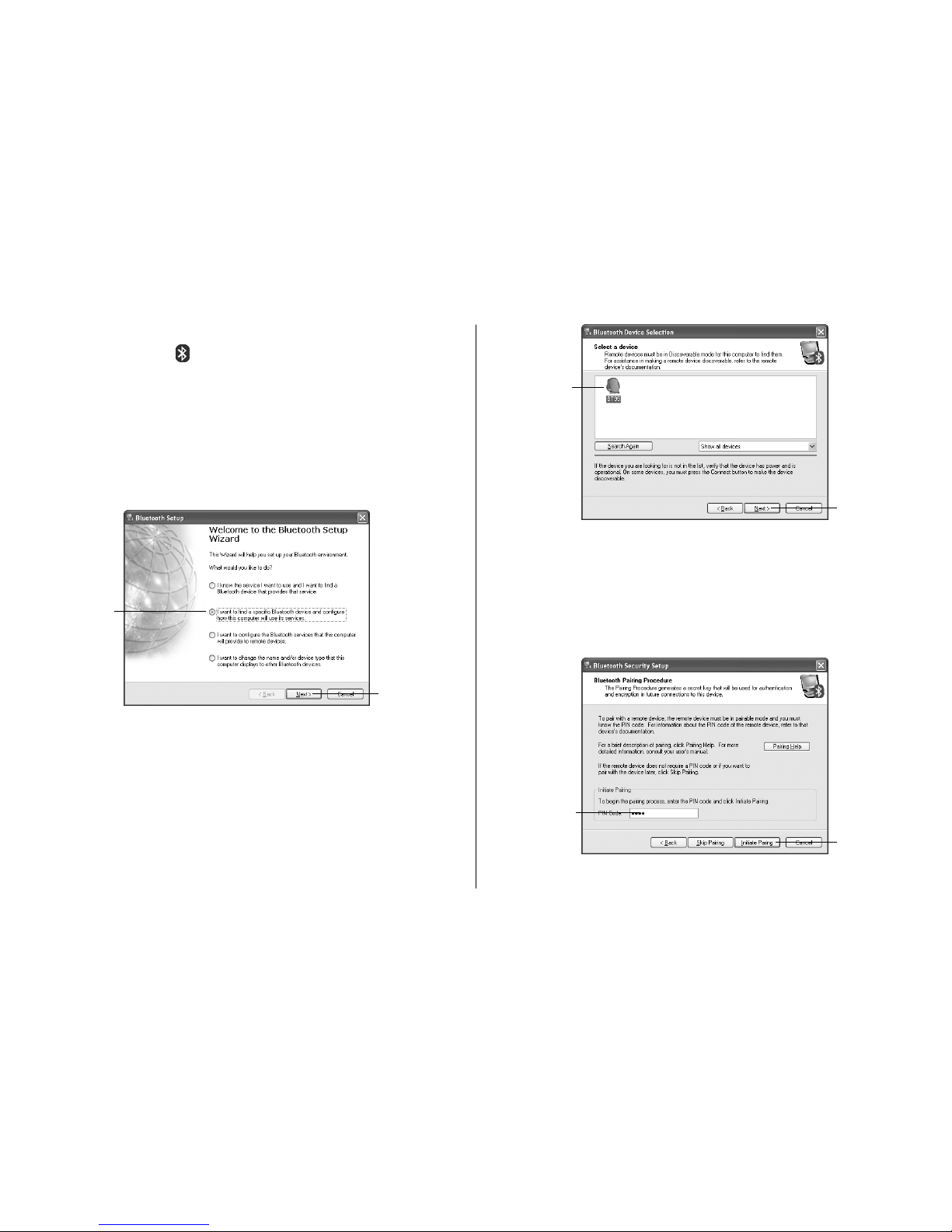
Search for Bluetooth devices on your computer by1.
right-clicking the Bluetooth icon in the system tray and
choosing Bluetooth Setup Wizard.
Press and hold the on/off button on your headset for
5 seconds until the indicator light ashes blue and red.
The2. Bluetooth Setup dialog box displays. Select I want
to nd a specic Bluetooth device and congure how
this computer will use its services. Click Next.
The Bluetooth Device Selection dialog box displays and
begins searching for Bluetooth devices. Select BT95
when it appears in the list, and click Next.
a. select
b. click
The3. Bluetooth Security Setup dialog box appears. Enter
the PIN 0000 and click Initiate Pairing. (Pairing is the
process of establishing a trusted relationship between
two Bluetooth devices. Once two devices—in this case
your computer and headset—have been paired, they
can be connected to each other.)
a. select
b. click
a. enter
PIN b. click
5
The indicator light on the headset stops ashing blue
and red and starts ashing blue every two seconds
when pairing succeeds.
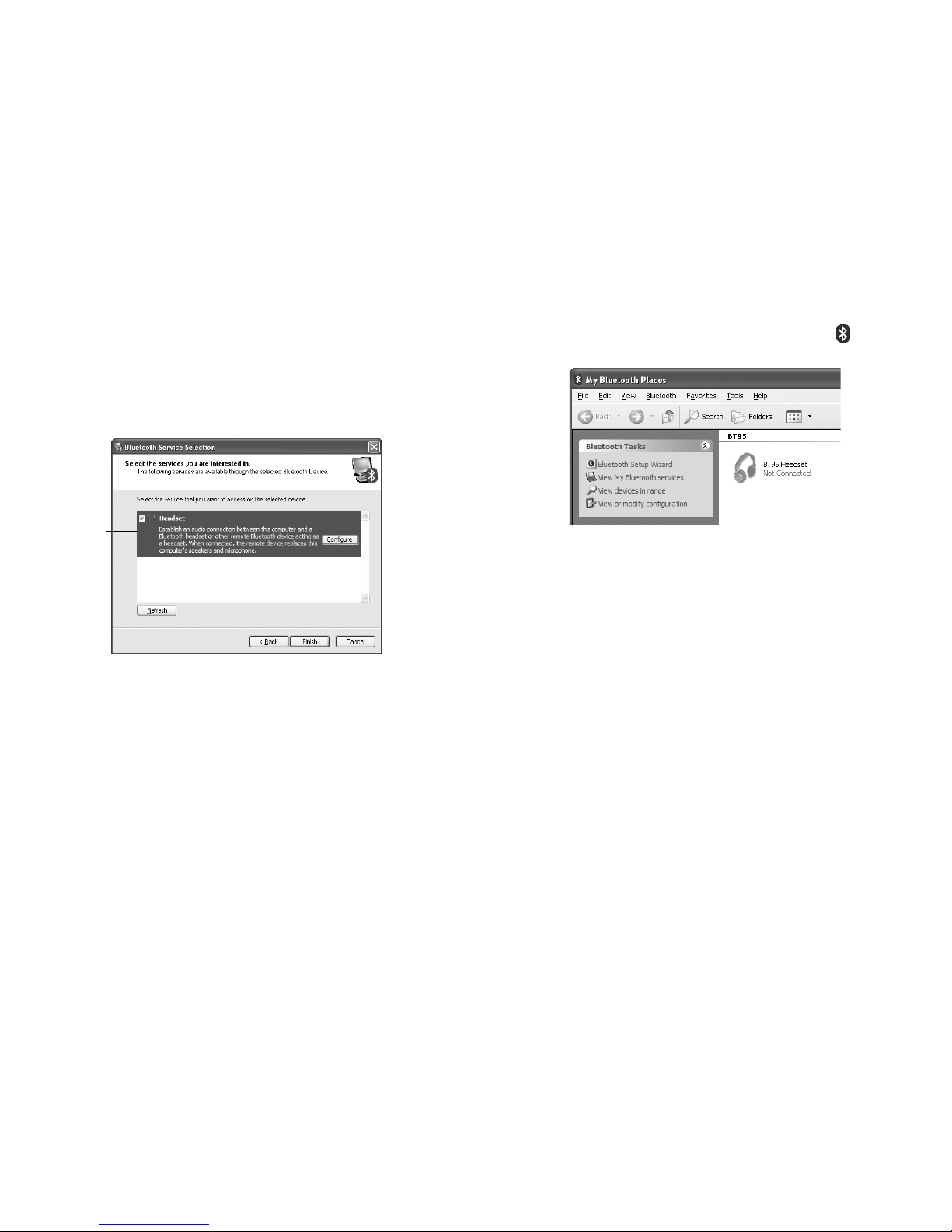
The4. Bluetooth Service Selection dialog box displays.
Select the Headset service.
A Bluetooth Properties dialog box displays. Select
Secure Connection if you want an encrypted connection
between your computer and headset, then click OK.
The Bluetooth Service Selection dialog box displays
again. Click Finish.
This completes the pairing procedure.
select
To connect to your headset, double-click the5. Bluetooth
icon in the system tray to open My Bluetooth Places.
Double-click the icon for your headset (BT95 Headset).
Windows attempts to establish a connection. When the
connection succeeds, the icon for your headset displays
Connected.
Your headset is now connected to the computer, but before
you can use it you must select it as the audio input and
output device on your computer, as follows:
In Windows XP, click6. Start > Control Panel > Sounds,
Speech, and Audio Devices > Sounds and Audio
Devices.
In Windows 2000, click Start > Control Panel, then
double-click Sounds and Audio Devices.
The Sounds and Audio Devices Properties dialog box
displays.

6
Click the7. Audio tab and select Bluetooth High Quality
Audio as the default device for sound playback and
recording. Click OK.
Your headset is now ready to use!
connecting to Windows Vista
Depending on your software and Bluetoothnotef
adapter, the procedure for connecting to your computer
may vary from what is given here.
Click1. Start > Control Panel > Hardware and Sound.
Under Bluetooth Devices, click Set up a Bluetooth
enabled device.
The2. Bluetooth Devices dialog box displays. Click Add.
a. click
b. select
c. select
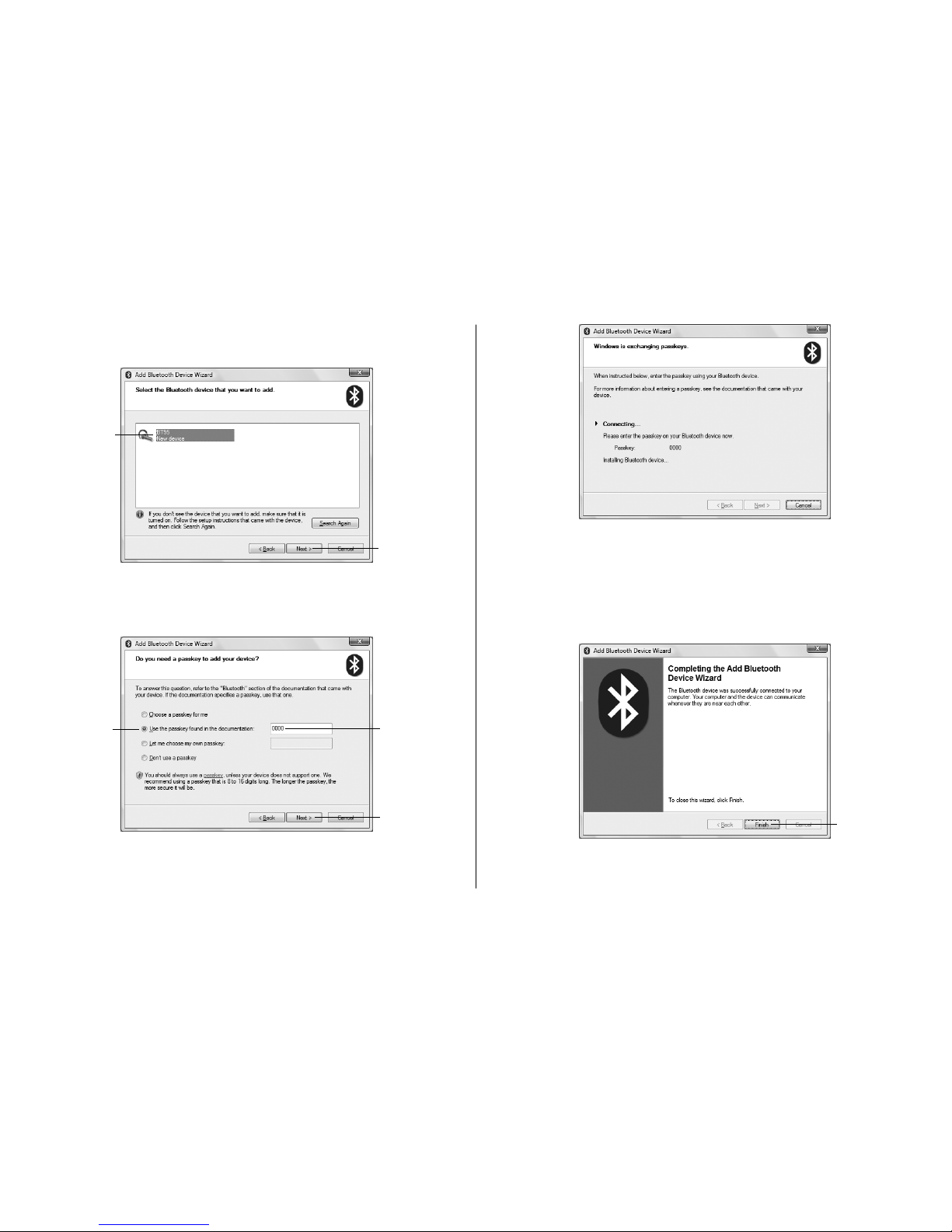
The3. Add Bluetooth Device Wizard displays.
Press and hold the on/off button on your headset for
5 seconds until the indicator light ashes blue and red.
Select My device is set up and ready to be found. Click
Next.
click
a. select
b. click
7
The wizard begins searching for Bluetooth devices.
Select BT95 when it appears in the list, and click Next.
The passkey dialog box appears. Select4. Use the
passkey found in the documentation, enter the passkey
0000 and click Next.
The wizard attempts to connect to your headset.
a. select
b. click
a. select
c. click
b. enter
passkey
The indicator light on the headset stops ashing blue
and red and starts ashing blue every two seconds
when the connection succeeds.
Once the connection is complete, the wizard displays a
completion screen. Click Finish.
click

8
The5. Bluetooth Devices dialog box displays again, now
showing your headset.
Press and hold the on/off button for 5 seconds to
turn your headset off, then press and hold the on/
off button for 1 second to turn your headset back on
again. Windows connects to your headset and displays
Connected in the Bluetooth Devices dialog box.
Select your headset (BT95) and click Properties.
The6. BT95 Properties dialog box displays. Click the
Services tab and select Headset. Click OK.
The Bluetooth Devices dialog box displays again. Click
OK.
Your headset is now connected to the computer, but before
you can use it you must select it as the audio input and
output device on your computer, as follows:
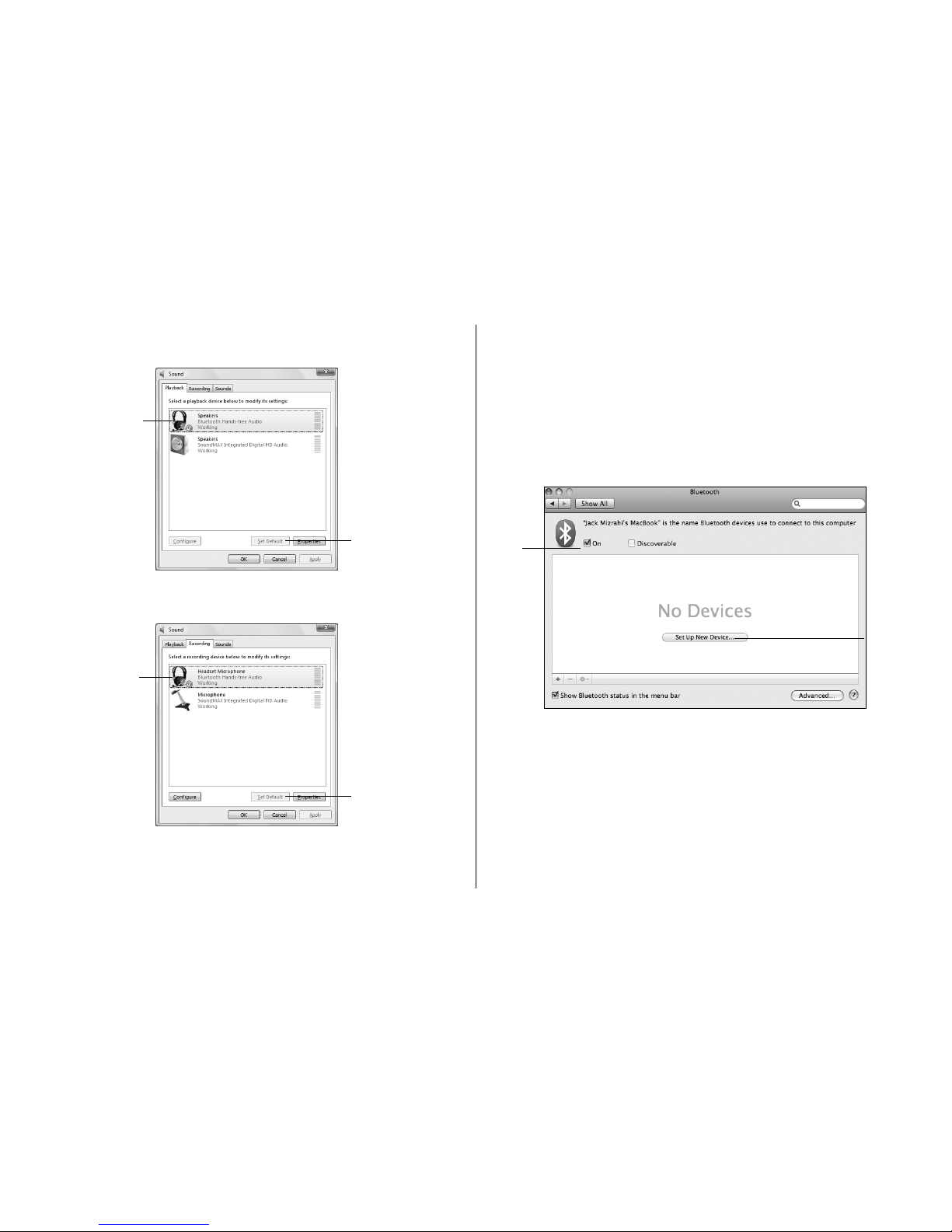
Click7. Start > Control Panel > Hardware and Sound >
Sound. The Sound dialog box displays.
a. select
b. click
9
Click the Playback tab, select Speakers (Bluetooth
Hands-free Audio) and click Set Default.
Click the Recording tab, select Headset Microphone
(Bluetooth Hands-free Audio) and click Set Default.
Click OK.
Your headset is now ready to use!
a. select
b. click
a. select
b. click
connecting to Mac OS X
Depending on the version of Mac OS X you arenotef
using, the procedure for connecting to your computer
may vary from what is given here.
Click the1. Apple menu and choose System Preferences.
Click Bluetooth. The Bluetooth preferences dialog box
displays.
Ensure On is selected, then click Set Up New Device.
a. select
b. click

10
The2. Bluetooth Setup Assistant displays. Click Continue.
The3. Select Device Type screen displays. Select Headset
and click Continue.
click
a. select
b. click
The Bluetooth Device Setup screen displays and begins
searching for devices.
Press and hold the on/off button on your headset for
5 seconds until the indicator light ashes blue and red.
Select4. BT95 when the list of available Bluetooth devices
appears. Click Continue.
a. select
b. click
Inhaltsverzeichnis
Andere iHome Headset Handbücher


