
Joled glancy EPS269Q01DA Bedienungsanleitung

EPS269Q01DA
Monitor operation manual
Important
•Before use, be sure to read this instruction manual and usage
instructions carefully and use it correctly.
•Please see https://glancy.jp for the latest information on various
manuals.

1
Table of contents
1. Important Note..............................................................2
1.1 Safety precautions and maintenance........................................2
1.2 Warning indication.................................................................5
1.3 Disposal of products and packing materials...............................5
2. Operation of monitor......................................................6
2.1 Included items.......................................................................6
2.2 Remote controller...................................................................7
2.3 Assembly,connection and other connections.............................8
2.4 Operation of the monitor.......................................................13
3. Specification.................................................................16
3.1 Monitor specification.............................................................16
3.2 Supported resolution, color range and color depth....................18
4. Power management......................................................19
5. After-sales service and product warranty......................20
6. Troubleshooting and FAQ..............................................21
6.1 Troubleshooting...................................................................21
6.2 FAQ....................................................................................22
Appendix..........................................................................24
Copyright /portrait right...................................................24
Trademark......................................................................24
ENERGY STAR.................................................................25

2
1. Important Note
This operation manual is for everyone
who uses JOLED monitors. Please
read this user manual carefully before
using the monitor. Contains important
information and precautions about
working with the monitor. JOLED
warranties apply when the product is
properly handled and operated
according to the intended use and
presented with the original invoice or
receipt indicating the date of purchase,
place of purchase, model and product
serial number.
1.1 Safety Precautions and
Maintenance
Warnings
Any operation, adjustment, or procedure
other than those specified in this
instruction manual may result in an
electric shock, electrical hazard, or
mechanical hazard. Read and follow these
instructions when using this monitor.
Excessive sound pressure from earphones
and headphones can cause hearing loss.
Adjusting the equalizer to the maximum
increases the output voltage of the
earphones and headphones and increases
the sound pressure level.
Stability Hazard
The product may fall, causing serious
personal injury or death. To prevent
injury, this product must be securely
attached to the floor/wall in accordance
with the installation instructions.
A product set may fall, causing serious
personal injury or death. Many injuries,
particularly to children, can be avoided by
taking simple precautions such as:
•When mounting the monitor to the wall,
use the supplied wall mounting brackets
and rotary jigs. Wall bracket needs 3sets
of anchors and M4x30mm screws.
Rotation bracket needs 4 pieces of
M4x10mm screws.
•ALWAYS use furniture and wall that can
safely support the product.
•ALWAYS ensure the product is not
overhanging the edge of the supporting
furniture.
•ALWAYS educate children about the
dangers of climbing on furniture to reach
the product or its controls. Be careful not
to have children under the product.
•ALWAYS route cords and cables
connected to your product so they
cannot be tripped over, pulled or
grabbed.
•Never place a product in an unstable
location.
•NEVER place the product on tall furniture
(for example, cupboards or bookcases)
without anchoring both the furniture and
the product to a suitable support.
•NEVER place the product on cloth or
other materials that may be located
between the product and supporting
furniture.
•NEVER place items that might tempt
children to climb, such as toys and
remote controls, on the top of the
product or furniture on which the
product is placed.
•If the existing product is going to be
retained and relocated, the same
considerations as above should be
applied.
Caution for batteries
•Do not replace a battery with an incorrect
type that can defeat a safeguard.
•Disposal of a battery into fire or a hot
oven, or mechanically crushing or cutting
of a battery, that can result in an
explosion.
•Leaving a battery in an extremely high
temperature surrounding environment
that can result in an explosion or the
leakage of flammable liquid or gas.
•A battery subjected to extremely low air
pressure that may result in an explosion
or the leakage of flammable liquid or gas.
•Risk of fire or explosion if the battery is
replaced by an incorrect type.
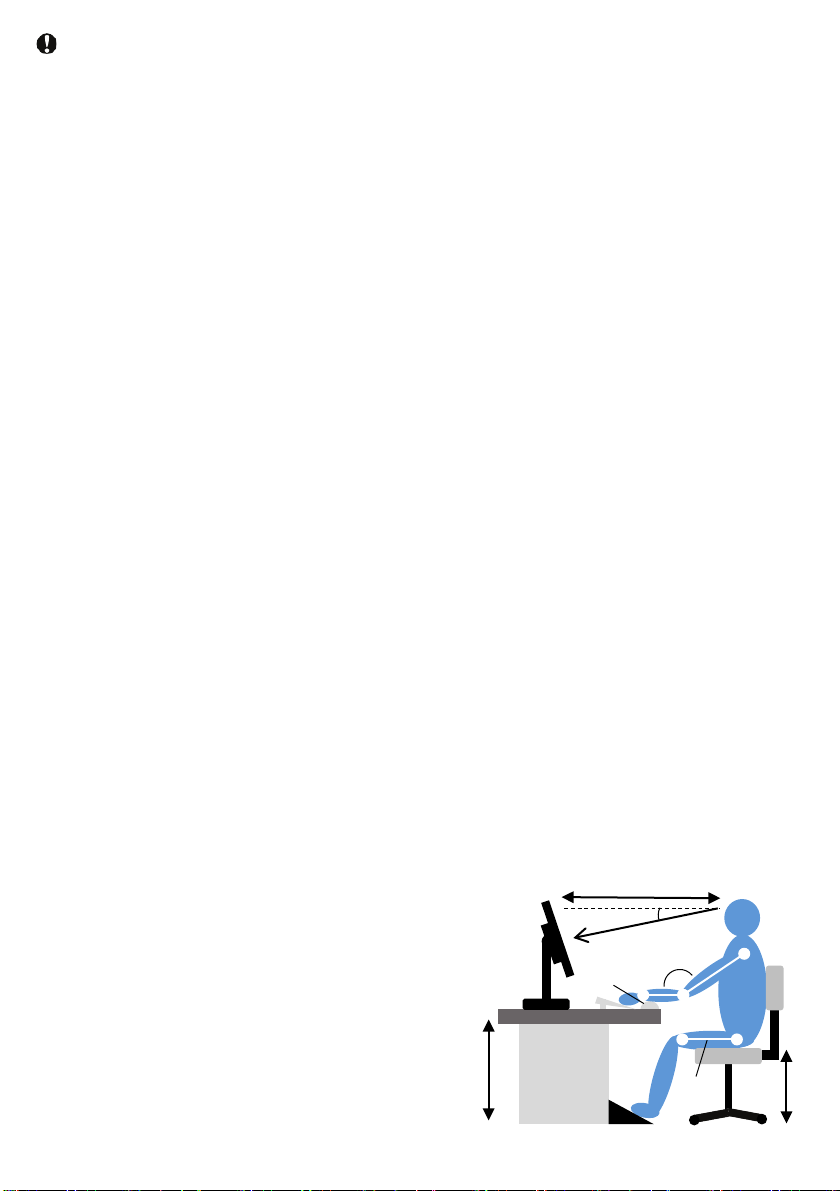
3
•Please use it in the correct sitting
method as follows.
•After looking at the screen for a long
time, look far away.
•Be conscious while using and ask for
frequent blinking.
•To relax, slowly close your eyes or
move them.
•Adjust the screen to the appropriate
height and angle according to your
height.
•Adjust the brightness and contrast to
the appropriate level.
•Adjust the brightness of the screen as
well as the environmental lighting to
avoid fluorescent light and excessive
surface reflections.
•If you have any symptoms, consult a
doctor.
min20°
40-75cm
90-100°
72-75cm
38-55cm
Footrest
Line of sight
keyboard pad
Parallel to
the floor
•Do not tilt the monitor down beyond
-10 degrees. This may cause
damage, such as the panel peeling
off the bezel. If the maximum tilt
angle of the down direction exceeds
-10 degrees and the monitor is
damaged, it is not covered by the
warranty.
•If the stand is purchased and used as
a PC monitor, excessive use can
cause eye discomfort. It is better to
take shorter breaks frequently than
longer breaks (for example, a 5-10
minute break after 50-60 minutes of
use is better than a 15-minute break
every 2 hours). If you continue to
look at the screen for a certain period
of time, please do the following to
protect your eyes from fatigue.
Caution during operation
•Do not directly expose to direct sunlight
or very strong light. Also, do not place
near the heat source. If left in such an
environment for a long time, the monitor
may be damaged or damaged.
•Keep the oil away from the display. Oil
can damage the plastic cover of the
display and make it out of warranty.
•Do not drop foreign objects or put them
in the opening (air opening). The
monitor's electronics may not cool
properly.
•Do not block the opening (air opening) of
the cabinet.
•Please confirm the distribution system
provide the circuit breaker the customer
region rated voltage(from 100V to 240V)
and 20A(maximum). Please ground the
ground cord or ground pin that came
with the power cord.
•When installing the monitor, make sure
that the power plug and outlet can be
easily connected.
•If you unplug the power cable or DC
power cord and turn off the monitor, wait
6 seconds before connecting the power
cable or DC power cord for normal
operation.
•Do not use anything other than the acdc
adapter and power cord that came with it.
In case of breakdown or loss, please
contact the service center.
•Do not use a monitor other than the
specified power supply. Using the wrong
voltage can cause malfunctions and
cause fire or electric shock. Protect the
cable.
•Do not pull or bend the power or signal
cables. Do not place heavy items such as
monitors on the cable. Damage to the
cable may cause fire or electric shock.
•Do not cause severe vibrations or strong
shocks to the monitor during operation.
•Do not hit or drop the monitor hard
during operation or transportation.
•If the panel cracks, turn it off
immediately and do not operate.

4
Important information for Image
sticking (residual image)
•Because of the characteristics of
OLED materials, image sticking
(residual image) may occur. This
can occur especially if you display
an image that is fixed at the same
position on the screen, or that has a
large difference in brightness or
contrast from the surroundings for a
long time or repetition(*). Please
use this product after agreeing that
this phenomenon is not a failure.
•Avoid watching the same video for
a long time.
•Turn off the menu bar and taskbar.
•Use screen savers.
•If the OLED monitor displays the
same still image for a long time,
always perform periodic screen
updates.
* Examples) still images/photos,
framed images (black borders around
the screen, including multi-display),
color bars, taskbars, menu bars,
characters, icons, clock displays, etc.
note
We recommend the following.
Missing dots
•JOLED strives to provide the highest
quality products. We use the most
advanced manufacturing processes
in the industry and practice strict
quality control, but there may be
dots(missing dots) that do not light
up on parts of the screen. Please use
this product after agreeing that this
phenomenon is not a failure.
Blue light
•This product uses an OLED panel
with less blue light.
Maintenance
•Do not apply excessive pressure to
the monitor screen as this may
damage the monitor. Please handle
it carefully so that the transparent
frame (resin part) does not bend.
•Oil-based cleaning solutions can damage
plastic parts. In addition, damage caused
by this liquid may not be covered by the
warranty.
•If you need to clean the monitor, unplug
it. Clean the monitor with a dry soft cloth,
such as a cleaning cloth. However, do not
use organic solvents such as alcohol,
acetic acid, chlorine, or ammonia-based
liquids to clean the monitor.
•Do not expos the monitor to dust, rain,
water, or excessive humidity as there is a
risk of electric shock or damage to the set.
•If the monitor gets wet, wipe it with a dry
cloth as soon as possible.
•If there is any foreign object or water on
the monitor, turn it off immediately and
unplug the power cord. Please contact
the service center.
•Do not store or use the monitor in places
exposed to heat, direct sunlight, or
extreme cold.
•For the best performance and longer use
of the monitor, use the monitor in the
following temperature and humidity
ranges:
•Temperature: 0-35°C (32-95°F)
•Humidity: 10-80% RH note
•This product has a protective film on
the surface. Please note that the
protective film may have surface
scratches or bubbles due to
manufacturing. After setting the
monitor, remove the protective film
before use.

5
1.3 Disposal of products and
packaging materials
Disposal of electrical and electronic
equipment (WEEE)
In the European Directive
2012/19/EU, which manages used
electrical and electronic equipment,
this marking of the product or its
packaging indicates that the product
cannot be disposed of with regular
household waste. You are responsible
for disposing of this equipment
through the collection of the disposal
of designated electrical and electronic
equipment. Please contact your local
government, the waste disposal
agency that provides services to your
home, or the store where you
purchased the product to dispose of
such electrical and electronic
equipment.
The new monitor contains materials
that can be recycled and reused.
Certain companies can recycle their
products to increase the amount of
reusable materials and minimize the
amount they dispose of.
All excess packing materials are
omitted. We do our best to make it
easy to separate packages into mono
materials.
For local regulations on how old
monitors and packaging are disposed
of, contact your local government or
the waste disposal authority that
provides services to your home.
note
If the monitor does not work
properly, or if you follow the
instructions in this manual but do
not know the procedure, please
contact the service center.
1.2 Warning indication
The notation rules used in this manual
are described below.
note, Caution, Warning
Throughout this instruction, there is
the text having an icon. These
sentences contain note, cautions, or
warnings and are used as follows:
Warning
This icon shows how a person can be
injured and how to avoid that problem.
Some warnings appear in a different
format and may not have icons. In such
cases, the specific presentation of the
warning is mandated by the relevant
regulatory body.
Caution
This icon indicates information that
avoids hardware damage or data loss.
note
This icon provides important information
and tips to help you get more out of this
monitor, dongle and application.
Service support
•Do not open the case cover except in
the service personnel.
•If repair or adjustment is required,
please contact the service center
(please refer to the service center
contact information as it is listed in the
manual).
•For technical information, please refer
to "Technical Specifications".
•Do not leave the monitor in the
car/trunk in direct sunlight.

6
2. Operation of monitor
2.1 Included items
❶Monitor ❷Tools for wall mount
❸Power cables
(3 type for 3 region)
❹
ACDC adapter with DC
cable
❺DC extension cable
❻Remote controller
for monitor
❼Dongle set(white box) ❽USB-OTG cable
❾USB drive ❿Monitor operation manual
(Please download the latest
version from glancy.jp)
⓫Dongle operation manual
(Please download the latest
version from glancy.jp)
⓬Power cabel paper ⓭Caution paper ⓮Quick start guide
(Only Japanese)
(Please download the latest
version from glancy.jp)
Dongle
2 Batteries
Remote
controller
Quick guide
2 batteries
Rotating bracket with cable cover Wall mount bracket
Anchor B
Screw B
each 4 pieces
(1 piece is a spare)
Screw A
4pieces
Anchor C
Screw C
each 4 pieces
(1 piece is a spare)

7
2.2Remote controller
Please insert the attached battery paying attention to +/-.
②
③
⑨
⑪
⑫
⑤
④
⑥
⑧
⑩
⑭
⑬
⑯
⑮
No Function
①Power
②Input Select
③UP
④DOWN
⑤LEFT
⑥RIGHT
⑦ENTER
⑧BACK
⑨Menu
⑩USB function ON *1)
⑪Information
⑫Volume Mute
⑬Brightness+
⑭Brightness-
⑮Volume+
⑯Volume-
⑦
*1)It is turned off in the shipping state,
and USB communication and USB
power supply are turned off to save
power. It is recommended to turn it on
if you want to use the included dongle.
When on, it will be out of Energy Star
mode.
①

8
2.3 Assembly, connection and other connections
Take the included items out of the box.
Waring
It contains heavy objects, so be careful not to drop it or hit it when removing it.
1
3(Back)Connect the dongle and USB drive to the monitor.
①Remove the dongle cover on the back.
Press the cover
closure to remove
the dongle cover.
②Connect the dongle to the monitor.
Connect the
USB-OTG cable
to the USB-C
terminal of the
monitor.
③Put back the dongle cover
Connect the USB-OTG
cable to the USB-micro
terminal of the dongle.
Connect the tip of the
dongle to HDMI1.
Do not connect the
dongle to anything other
than this monitor.
1
2
3
2
Power LED
Remote control
receiver
Luminance
sensor
(Front)LED and Sensor light receiving part.

9
4Hang the monitor on the wall. Please prepare a screwdriver and a drill.
Remove the white cable cover once, pass
the DC extension cable through the hole of
the rotating bracket, and attach the cable
cover.
Align the arrow mark on the rotating bracket
with the ^ mark on the VESA mount on the
main unit, and attach it with the attached
screw A. Attach the DC cable to the DC jack.
* Be careful not to pinch the cable.
①Attach the rotating bracket to the monitor
*If using another commercially available cable
purchased by the customer, attach it to the monitor
and pass it through the cable cover and the hole of the
rotating bracket. (The figure is for HDMI2)
screwdriver
cable
cover
Hole
Rotating bracket
DC extension cable
Inhaltsverzeichnis


