
Kodak PIXPRO SP360 4K Bedienungsanleitung

Ver. 2
User Manual
PIXPRO SP360 4K
(Smart Device Version)
for
KODAK PIXPRO SP360 4K Action Cam

1
Before You Start
Declaration of Conformity
Responsible Party: JK Imaging Ltd.
Address: JK Imaging Ltd., 17239 So. Main Street, Gardena, CA 90248 USA
JK Imaging Europe, 71 Clarendon Road, Watford, WD17 1DS, UK
Company Website: kodakpixpro.com
About this Manual
JK Imaging Ltd. reserves all rights of this document. No part of this published manual may be reproduced, transmitted, transcribed,
stored in a retrieval system or translated into any language or computer language, in any form, by any means, without the prior written
permission of JK Imaging Ltd..
All trademarks mentioned in this manual are used for identification purposes only and are properties of their respective owners.
This manual will instruct you on how to operate the PIXPRO SP360 4K APP. Every effort has been made to ensure that the contents of
this manual are accurate, however JK Imaging reserves the right to modify and make updates and changes as necessary.
Throughout this manual, the following symbols are used to help you locate information quickly and easily:
Indicates useful information
Indicates pressing and holding in a certain point
Indicates tap a certain point

2
Matters Needing Attention
Your smart device operating system needs to be version iOS 7 or higher, or Android 4.3 or higher. iPad mini1 / iPad 2 / iPhone 4s and
earlier models (using any system versions) will not support this APP.
Do not use in places with high intensity magnetic fields, electrostatic and electric wave interference (for example near a microwave
oven), which may or may not cause failure in the camera receiving proper signals.
Please do not use Wi-Fi or NFC connection functionality on a plane.
When using the Wi-Fi or NFC connection, the camera and the Smart Device can only be connected one to one. Please keep the camera
within 10 meters (32.8 feet) avoiding signal shielding interference.
When the Smart Device detects its operating system to be out of memory, the APP will not be able to operate normally. Please check the
memory of your Smart Device and make any necessary updates.
We will update the APP from time to time. Some new features will require you to synchronously update the firmware version of the
camera in order to ensure the stability of the system. Please note for these types of prompts on the APP.

3
Contents
Before You Start.......................................................................................................................................... 1
Contents....................................................................................................................................................... 3
Connecting the Camera with your Smart Device................................................................................ 6
Downloading and Installing the APP .............................................................................................................................................................................6
Establishing Connection...................................................................................................................................................................................................7
Wi-Fi Connections (iOS and Android Systems) ...............................................................................................................................................7
NFC Connection (Android System).....................................................................................................................................................................7
Operation Methods ................................................................................................................................... 9
Remote Viewfinder............................................................................................................................................................................................................9
Remote Viewfinder Interface................................................................................................................................................................................9
Parameter Settings..................................................................................................................................................................................................11
Shooting Mode ..............................................................................................................................................................................................11
Unfold Mode ..................................................................................................................................................................................................13
View Mode .....................................................................................................................................................................................................14

4
Field of View...................................................................................................................................................................................................15
Level Sensor ...................................................................................................................................................................................................16
EV settings .....................................................................................................................................................................................................16
White Balance ...............................................................................................................................................................................................17
Menu................................................................................................................................................................................................................18
Shooting Method.....................................................................................................................................................................................................26
Shooting..........................................................................................................................................................................................................26
Video Recording ............................................................................................................................................................................................27
Playback...............................................................................................................................................................................................................................28
Switching of the Remote Viewfinder Mode and the Playback Mode...........................................................................................................28
Switching Camera and Smart Device Index Playback .....................................................................................................................................29
Introduction of the Icons in the Playback Mode...............................................................................................................................................30
Single Playback..............................................................................................................................................................................................30
Index Playback...............................................................................................................................................................................................31
Description of the Functions in Playback Mode ...............................................................................................................................................32
Gestures in Playback Mode ........................................................................................................................................................................32
Rotate (Smart Device Single Playback Mode) ...............................................................................................................................32
Cardboard VR (3D VR glasses play).................................................................................................................................................33

5
Select One or More File(s) (Camera and Smart Device Index Playback Mode).............................................................................36
Stitch Photo (Smart Device index Playback Mode) .....................................................................................................................38
Download (Camera Single Playback and Index Playback Mode) ..............................................................................................39
Share ..........................................................................................................................................................................................................40
Delete ........................................................................................................................................................................................................44
Play the Video (Camera and Smart Device Single Playback Mode)...........................................................................................45
Menu (Camera and Smart Device Index Playback Mode)...........................................................................................................46

6
Connecting the Camera with your Smart Device
Downloading and Installing the APP
Please download APP installation package (APP Name: PIXPRO SP360 4K) to your smart device from the path below and install it.
Android System
For Android devices, search and download the “PIXPRO SP360 4K” APP in Google Play and install it following the instructions on
the interface.
iOS System
For APPle devices, search and download the “PIXPRO SP360 4K” APP in the iTunes APP store and install it following the
instructions on the interface.
After successful installation, this icon will appear on your Smart Device's screen.
https://play.google.com/store/apps/details?id=com.ao.SP360_4K
https://itunes.apple.com/us/app/pixpro-sp360-4k/id1048882214?mt=8

7
Establishing Connection
Wi-Fi Connections (iOS and Android Systems)
1. Camera: Check the SSID (PIXPRO-SP360-4K_XXXX) and password (default factory password: 12345678) as indicated on
the label inside the battery compartment of the camera. In the main interface, press the button to switch to
Wi-Fi mode.
2. Smart Device: Enable Wi-Fi mode, the Smart Device will automatically search nearby Wi-Fi hotspots. Select the camera’s SSID
(PIXPRO-SP360-4K_XXXX) and input the password.
To optimize Wi-Fi performance, please close other unnecessary programs running on your Smart Device.
For an Android system Smart Device, you can directly tap the APP icon to enter the “Select connecting device” screen.
Select the SSID name of the camera to be connected, enter an eight-digit password, and tap “Connect”.
NFC Connection (Android System)
1. Enable NFC mode on your Smart Device.
2. Use your Smart Device to lightly touch the NFC mark on the camera; if the Smart Device has a prompt tone or vibration, it means
the connection is successful.
3. The APP should automatically open on your Smart Device.
The NFC feature will only be available when your smart device's screen is unlocked.
1
2

8
If connection fails, tap try to reconnecting.
Connection Failed!
XXXXXXXXXXXXXXXXXXXX
•XXXXXXXXXXXXXXXXX
•XXXXXXXXXXXX
•XXXXXXXXXXX
•XXXXXXXXXXXXXXXXX
•XXXXXXXXXXXXXXXXXXXXXXXXXXXXXXX
XXXXXXXXXXXX
When it is unnecessary to connect your Smart Device to the camera or you are unable to connect your Smart Device to the camera,
tap the icon on the screen of your Smart Device to perform related operations under the Playback Mode of the Smart Device.
9
Operation Methods
Remote Viewfinder
Remote Viewfinder Interface
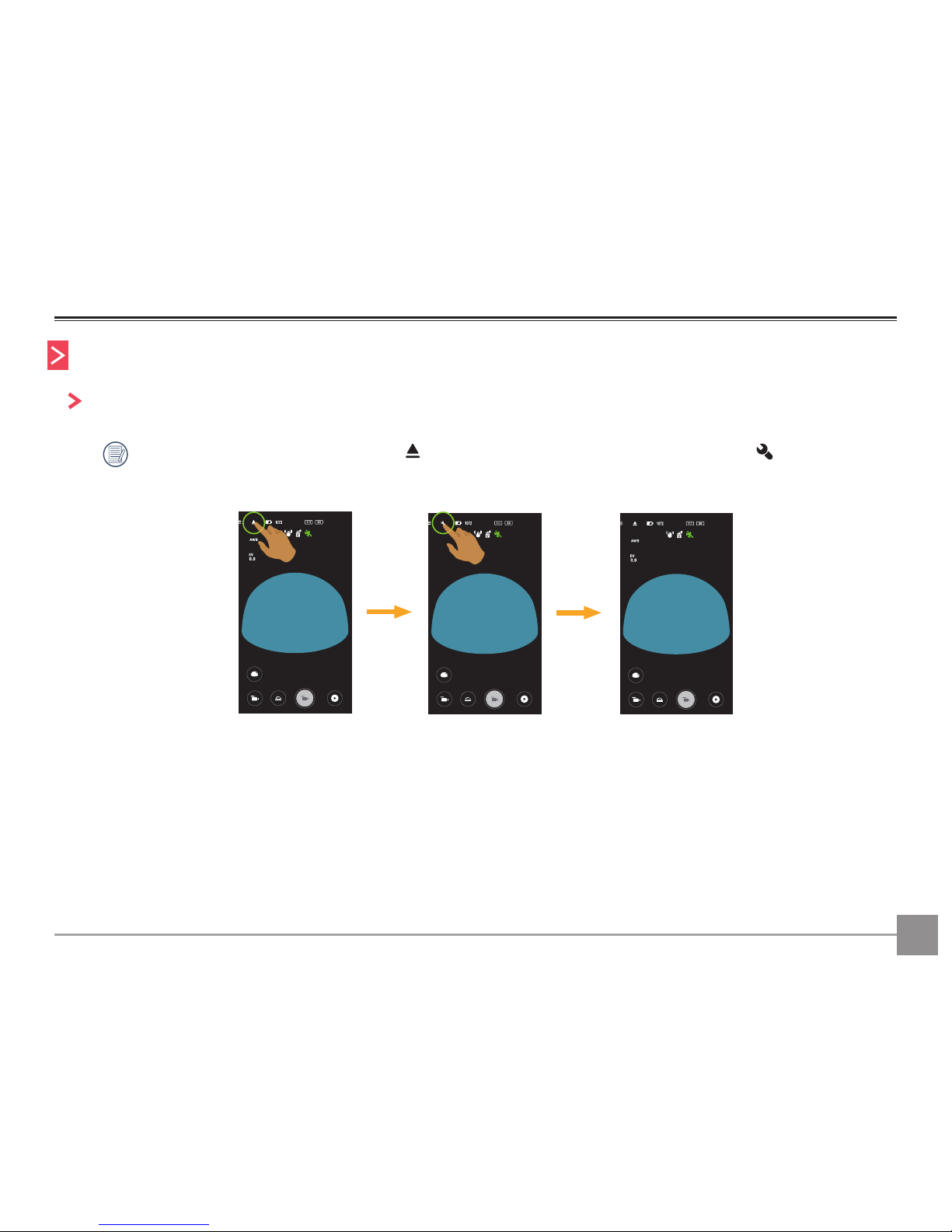
On the Remote Viewfinder interface, tap the icon to hide EV value and White balance icons, and tap to restore initial
display.
01:27:26 01:27:26 01:27:26
1
Andere Handbücher für PIXPRO SP360 4K
4
Inhaltsverzeichnis
Andere Kodak Action-Kamera Handbücher

Kodak
Kodak Pixpro SP1 Bedienungsanleitung

Kodak
Kodak PIXPRO SP360 4K Bedienungsanleitung

Kodak
Kodak PIXPRO SP360 Bedienungsanleitung

Kodak
Kodak PIXPRO SP360 4K Bedienungsanleitung

Kodak
Kodak Pixpro SP1 Bedienungsanleitung

Kodak
Kodak PIXPRO SP360 4K Bedienungsanleitung

Kodak
Kodak Pixpro SP1 Bedienungsanleitung

Kodak
Kodak PIXPRO SP360 Bedienungsanleitung

Kodak
Kodak PIXPRO SP360 4K Bedienungsanleitung


