
Kodak EasyShare Series 3 Bedienungsanleitung
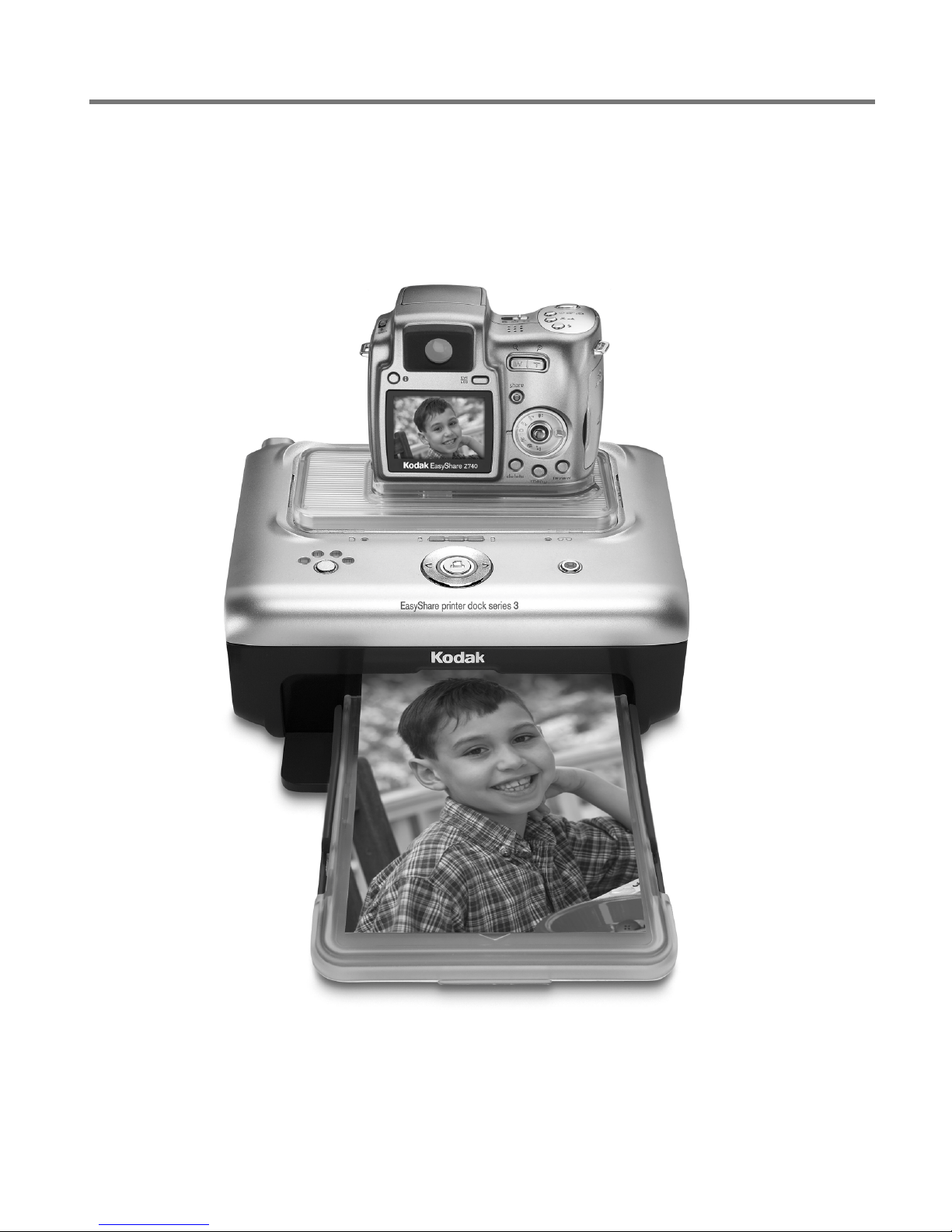
Kodak EasyShare
printer dock series 3
User’s Guide
www.kodak.com
For interactive tutorials, www.kodak.com/go/howto

Eastman Kodak Company
Rochester, New York 14650
© Eastman Kodak Company, 2004
All screen images are simulated.
Kodak, EasyShare, ImageLink, and XtraLife are trademarks of
Eastman Kodak Company.
P/N 4J1893

Product features
www.kodak.com/go/support i
Front/top/side view
1 Battery charging lights/
Refresh button
7
8
Paper tray door
Picture Size button
2
3
4
Color cartridge light
Transfer button/light
Left/Right control
9
10
Picture Size lights , , ,
USB device connector (for optional Kodak
card reader or PictBridge compatible device)
5
6
Paper tray
Print button/light
11
12
Paper light
Camera connector
2
3
6
5
9
4
8
12
1
11
10
7

ii www.kodak.com/go/support
Product features
Back/top/side view
1 Power connector (DC-in) 4 Slot for paper path
2 USB connector (to computer) 5 Color cartridge (installed as shown)
3 Cooling vents 6 Cartridge door
2
46 5
1
3

www.kodak.com/go/support iii
Table of contents 1
1 Getting started ......................................................................................1
Finding a location for your printer dock..........................................................1
Installing the custom camera insert................................................................2
Connecting the power...................................................................................3
Handling and storing the color cartridge ........................................................3
Installing and removing the color cartridge ....................................................4
Handling and storing the paper .....................................................................5
Loading the paper.........................................................................................6
Installing and removing the paper tray...........................................................7
2 Setting up your digital camera ..............................................................8
Choosing the right camera battery for your EasyShare camera........................8
Docking and charging your digital camera ...................................................10
Setting the picture quality............................................................................12
Tagging pictures for printing........................................................................12
3 Printing without a computer ...............................................................13
Printing from your digital camera.................................................................13
Printing from a Kodak card reader ...............................................................14
Printing tagged pictures ..............................................................................15
Printing from a PictBridge compatible device ...............................................15
Changing the printed picture size ................................................................16
Canceling printing.......................................................................................19
Removing the perforated tabs from the paper..............................................19
4 Installing software ...............................................................................20
Minimum system requirements ....................................................................20
Installing the software.................................................................................20

iv www.kodak.com/go/support
Table of contents
5 Using the printer dock with a computer ..............................................23
Connecting to a computer...........................................................................23
Transferring pictures from your digital camera..............................................24
Transferring pictures from a Kodak card reader............................................25
Printing from a computer.............................................................................26
Canceling printing.......................................................................................29
6 Care and maintenance ........................................................................30
General care ...............................................................................................30
Cleaning the paper feed roller .....................................................................31
Traveling with your printer dock ..................................................................32
7 Troubleshooting ..................................................................................33
Printing problems........................................................................................33
Transfer/communication problems ...............................................................40
Printer dock status lights .............................................................................41
8 Getting help ........................................................................................47
Helpful links................................................................................................47
Telephone customer support .......................................................................48
9 Appendix .............................................................................................49
Printer dock specifications ...........................................................................49
Important safety instructions .......................................................................50
Upgrading your software and firmware........................................................51
Additional care and maintenance ................................................................51
Warranty.....................................................................................................52
Regulatory information................................................................................54

www.kodak.com/go/support 1
1Getting started
Finding a location for your printer dock
■Place the printer dock on a flat, clean, dust-free surface, in a dry location, and out
of direct sunlight.
■Allow at least 5 in. (12.7 cm) clearance from the
back of the printer dock for paper travel.
■For proper ventilation, make sure the top and back
of the printer dock are not blocked.
■When connecting power or USB cables, keep the
cables clear of the paper path to the front and rear
of the printer dock.
■Avoid areas where ventilation ducts, open doors, or frequent passersby might
expose the printer dock and paper to high levels of dust and debris. Airborne dirt
particles can affect picture quality.
■Allow enough space on all sides of the printer dock to let you connect and
disconnect cables, change the color cartridge, and add paper.
5 in.
(12.7 cm)

2www.kodak.com/go/support
Getting started
Installing the custom camera insert
IMPORTANT:
Use the custom insert that came with your digital camera to dock the
camera, otherwise the camera may not fit on the printer dock.
■Locate and install the custom insert included with
your camera.
IMPORTANT:
Depending on your camera connector, you
may also need to use the Kodak dock
adapter D-26. See the instructions included
with the dock adapter.
aRemove any packing material covering the
connector.
bPlace the rear tabs of the insert in the slots
toward the back of the printer dock.
cPress the front of the insert down and snap into
place.
Purchase a custom camera insert for your Kodak EasyShare digital camera and other
accessories at www.kodak.com/go/accessories.

Getting started
www.kodak.com/go/support 3
Connecting the power
RISK OF ELECTRIC SHOCK:
Use only the AC power adapter included with your printer dock. Other adapters or
cords can damage your camera, printer dock, or computer.
1Remove the camera from the printer dock.
2Connect the AC power cord to the AC power
adapter, then to the back of the printer dock.
NOTE: The AC power cord included with your printer dock may not
require assembly, and may be different from the one shown.
3Connect the AC power cord into a power outlet.
Purchase an AC power cord and other accessories
at www.kodak.com/go/accessories.
Handling and storing the color cartridge
■For best quality prints, store the color cartridge in a location where the
temperature does not exceed 85 °F (30 °C).
■To avoid getting fingerprints on the ribbon, handle the color cartridge by the spool
ends.
■Keep the color cartridge away from direct sunlight and out of high-temperature
environments (such as a vehicle parked in the sun).
4www.kodak.com/go/support
Getting started
Installing and removing the color cartridge
1Open the cartridge door on the side of the printer dock.
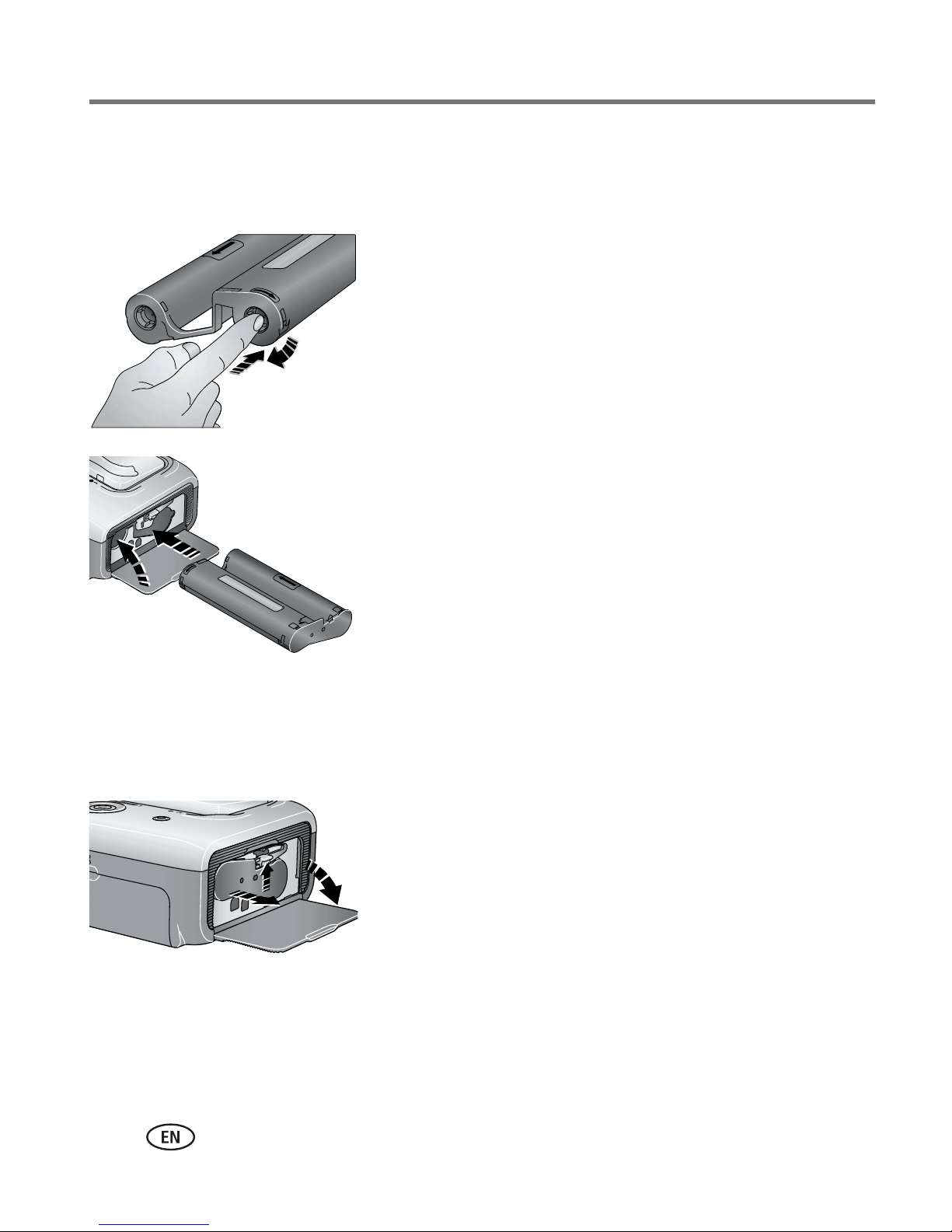
2Check to make sure there is no slack in the color
cartridge ribbon.
To remove slack, push in on the cartridge spool,
then rotate the spool clockwise.
IMPORTANT:
Be careful not to rotate the spool more
than necessary. Doing so could reduce the
number of prints you are able to make.
3Slide the color cartridge in, label side up, with the
arrow pointing toward the printer dock. Push the
cartridge until it "clicks" into place.
4Close the cartridge door.
IMPORTANT:
The color cartridge may lock in place if there is a paper error. Do not
attempt to remove the cartridge without first clearing the paper error. Make
sure the Paper light is off before attempting to remove the cartridge (see
Paper light under Printer dock status lights, page 41).
To remove the color cartridge, open the color
cartridge door, then push up on the green lever and
slide the cartridge out.
Andere Handbücher für EasyShare Series 3
2
Dieses Handbuch passt für folgende Modelle
1
Inhaltsverzeichnis
Andere Kodak Dockingstation Handbücher

Kodak
Kodak EasyShare Printer Dock 6000 Bedienungsanleitung

Kodak
Kodak EasyShare Series 3 Bedienungsanleitung

Kodak
Kodak 6000 - EasyShare Camera Dock Bedienungsanleitung

Kodak
Kodak Dock II Bedienungsanleitung

Kodak
Kodak EasyShare printer dock Bedienungsanleitung

Kodak
Kodak PD-450 Bedienungsanleitung

Kodak
Kodak EasyShare Camera Dock Series 3 Bedienungsanleitung

Kodak
Kodak 2F6571 Bedienungsanleitung

Kodak
Kodak PD-450 Bedienungsanleitung

Kodak
Kodak Dock II Bedienungsanleitung


