KOHLTECH AI4DC Bedienungsanleitung

Have any questions or need additional information? | Call us today at 877.708.7803
KOHLTECH | www.kohltechnology.com | info@kohltechnology.com
Solutions For Every Industry & Every Build
AI4DC USER
MANUAL

AI4DC User Manual
Page 2 of 68
Contents
1. Overview ..............................................................................................................................4
1.1. System Introduction...................................................................................................4
1.2. Function Overview.....................................................................................................4
2. Instructions for Use of Functions.........................................................................................5
2.1. Software Download and Installation..........................................................................5
2.2. Login/Logout .............................................................................................................5
2.3. General.......................................................................................................................8
2.4. Preview ....................................................................................................................11
2.4.1 Viewing Real-Time Recording ...........................................................................11
2.4.2 AI Calibration......................................................................................................11
2.5. Playback...................................................................................................................20
2.5.1. Video Playback...................................................................................................20
2.5.2. Video Export ......................................................................................................22
2.6. Basic Setup...............................................................................................................24
2.6.1. Regist Info ..........................................................................................................24
2.6.2. Time Setup.........................................................................................................24
2.6.3. ON/OFF..............................................................................................................27
2.6.4. User Setup .........................................................................................................30
2.6.5. Network.............................................................................................................31
2.6.6. Application.........................................................................................................38
2.6.7. Voice Setup ........................................................................................................39
2.6.8. Face Compare....................................................................................................39
2.7. Surveillance..............................................................................................................40
2.7.1. Recording...........................................................................................................40
2.7.2. IPC Setting .........................................................................................................47
2.7.3. Camera Setting ..................................................................................................48
2.8. Data Collection ........................................................................................................49

2.8.1. General Setting..................................................................................................49

AI4DC User Manual
Page 3 of 68
2.8.2. Capture Setting..................................................................................................54
2.9. Alarm Setting...........................................................................................................56
2.9.1. Base Alarm.........................................................................................................56
2.9.2. Video..................................................................................................................60
2.9.3. Advanced...........................................................................................................61
2.9.4. AI Alarm.............................................................................................................64
2.9.5. Algorithm Parameters .......................................................................................70
2.9.6. Algorithm Calibration ........................................................................................71

AI4DC User Manual
Page 4 of 68
1. Overview
The AI4DC User Manual is intended to help users to better understand and apply the powerful
functions available in the device system. Please note that only professional personnel can set the
device.
1.1. System Introduction
The AI4DC is an intelligent device that integrates the functions of the active collision
avoidance alarm system, the driver abnormal behavior alarm system, the alarm prompter and the
event data recorder (EDR), and can perform intelligent algorithm analysis and processing.
Employing the deep learning technology, it can effectively identify hazards such as forward collision
and too short following distance, and provide alarms for the driver's abnormal behaviors, thus
reducing the traffic accidents due to the driver's personal reasons.
The truck EasyCheck app orIE settings can increase its efficiency.The EasyCheck app is
recommended tofacilitate easy carrying and quick settings.
1.2. Function Overview
The KOHLTECH AI4DC is acost-effective intelligent device specially developed for
remote video surveillance and driving safety surveillance of trucks. It has the following
functions and features:
1. 4-channel video, 2-channel by default (ADAS and DSC), and extended 2-channel Integrating

AI4DC User Manual
Page 5 of 68
the ADAS camera, DSC camera and MDVR
2. Uploading the alarm event and relevant video evidence to the cloud platform via a wireless
network, providing real-time alarms, and preserving the onsite video evidence to facilitate evidence
collection and truth restoration
3. Front 500 W ADAS camera, with an ultra-wide viewing angle, to provide 110° surveillance
and 70 m vehicle detection
4. 1080p cockpit lens to provide HD surveillance of the whole cockpit
5. Integrating 3G/4G, Wi-Fi, Bluetooth, G-Sensor, and other modules to provide various
functions
6. Adopting the GPS positioning technology to record the vehicle track in real time for
background analysis
7. 2 × Micro SD card for video storage, with the maximum capacity of a single card up to 256
GB
8. Remote monitoring and IP voice intercom
2. Instructions for Use of Functions
2.1. Software Download and Installation
For Android phone users, please search for "Veyes" in Google Play, and for iPhone users, please
search for "Veyes" in Apple Store. Install the downloaded software.
2.2. Login/Logout
Turn on Wi-Fi and GPS on your mobile phone before connecting the device with the truck
EasyCheck app.
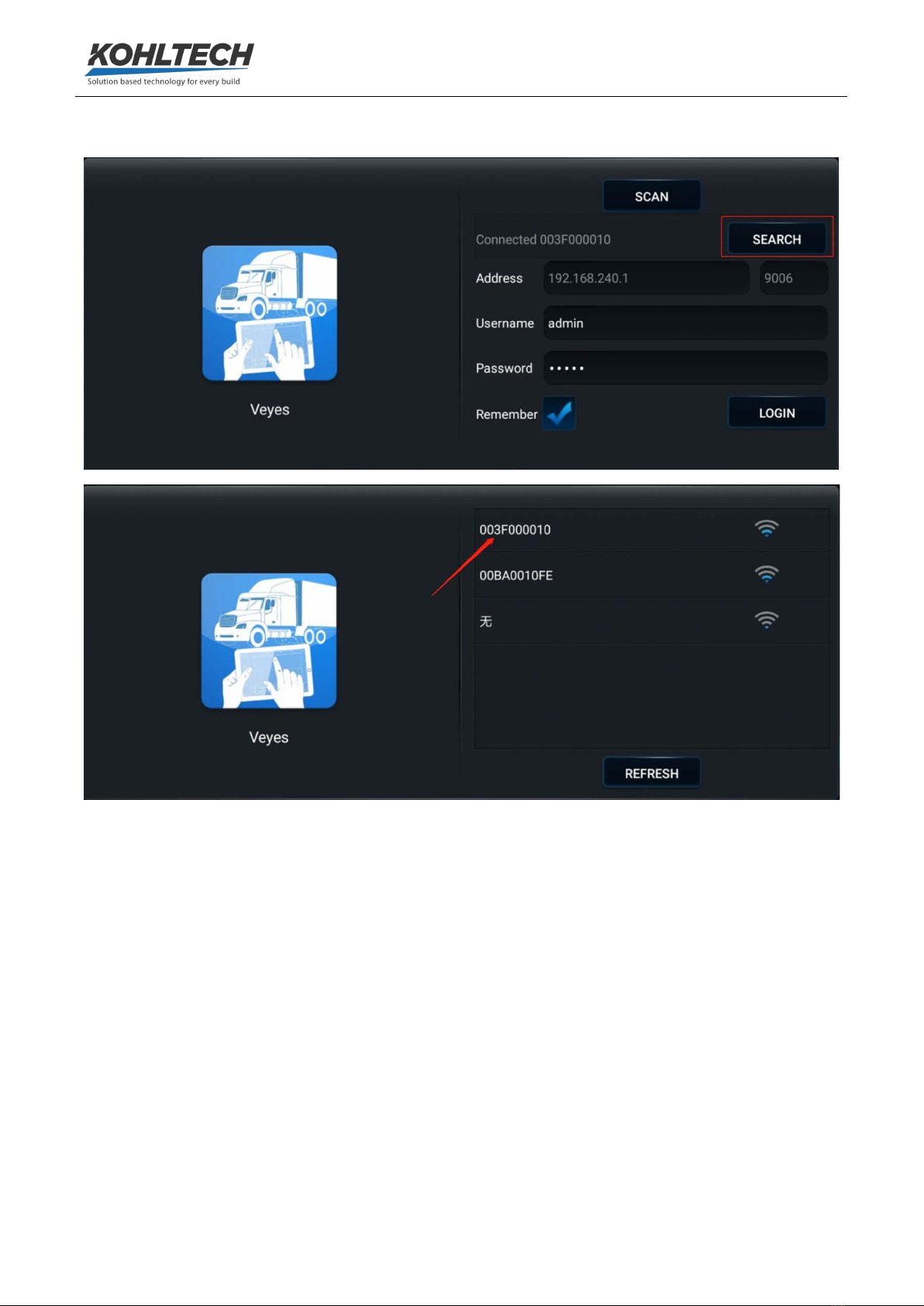
After the AI4DC device is powered on, it will remain in AP mode within 2 minutes. Then, run
the truck EasyCheck app on your mobile phone and tap SEARCH. The screen listing the Wi-Fi
hotspots found is displayed. During the first login, the Wi-Fi hotspot is named after the
encrypted chip number of the AI4DC. If the license plate number is changed, the hotspot name
is the new license plate number. Search for a Wi-Fi hotspot named after the encrypted AI4DC chip
number or the license plate number you have entered. The login screen is displayed.
On the login screen, enter the corresponding username and password. Default

AI4DC User Manual
Page 6 of 68
username/password: admin/admin.
Tap LOGIN. The operation screen is displayed, as shown in the figure below.

AI4DC User Manual
Page 7 of 68
Tap on the upper right corner. The menu including Help, About, and Logout is displayed.
Tap Logout to log out of the connected device.
Tap Help to view the help document of the truck EasyCheck app, as shown in the figure below.
Tap About to view the version information of the truck EasyCheck app on your mobile phone.

AI4DC User Manual
Page 8 of 68
2.3. General
On the General screen, you can view the real-time status of the device, import/export
parameters, logs, and other files, and upgrade the software.
Basic Info: shows the server connection status, IO level status and use, OBD data,
G-Sensor data, ACC status, pulse status, and device status.
Device Module: shows the status of the Wi-Fi, 3G/4G, and positioning modules of
the device.

AI4DC User Manual
Page 9 of 68
Storage Device: shows the information of the built-in and external storage devices
of the device and allows formatting them. For the built-in memory, a prompt will be displayed
after you tap the icon in the Formatting column, for you to confirm the formatting operation.
Version Info: shows the software version information.

AI4DC User Manual
Page 10 of 68
On the Version Info screen, you can locally upgrade the version of the MDVR, IPC,
R-Watch, communication module, GPS, or power box. A USB adapter cable is required to connect
to a USB flash drive or the EasyCheck App with the SD card for the upgrade. To upgrade the
required item, tap . In the displayed confirmation prompt box, tap OK.
Other: allows importing/exporting O&M logs, restoring default settings, and
rebooting the device. A USB adapter cable is required to connect to a USB flash drive or the
EasyCheck app with the SD card for data import/export operations.
Inhaltsverzeichnis