
Krown PORTA PRINTER PP2000 Bedienungsanleitung

MODEL: PORTA PRINTER 2000, 2000D, 2000DLD
4th EDITION

PortaPrinter 2000D | Instructions | 4th Edition | March 2006
Krown Manufacturing, Inc.
3408 Indale Road, Fort Worth, TX 76116
Voice/VP: (817) 738-2485, TTY: (817) 738-8993

INTRODUCTION
Welcome to state-of-the-art Telecommunications Devices for the Deaf
manufactured by the industry pioneer: Krown Manufacturing. For nearly
the decades, Krown has provided a full line of TDDs to meet the many
individual needs of the deaf and hearing-impaired. Expert craftsmanship,
superior design and affordable prices are what Krown Manufacturing
stands for.
Your new Porta Printer is the very latest in Krown technology. The unit is
compact, lightweight, portable and easy to use. This manual is
set up so that you are able to begin using your Porta Printer
immediately, while you take your time and become familiar with its many
unique features.
AQuick reference Guide is for your convenience. It provides a summary
of the features that your Porta Printer offer. For quick reference, you may
also consults your Porta Printer’s built-in Help Menu. If you have any
questions that this manual does not answer, feel free to call our Customer
Service Department toll-free at (800) 366-9950.
Your Porta Printer comes with:
• Porta Printer PP2000
• Power Cord with AC Adapter
• Modular Cord (PP2000D)
• Instruction Manual
• Warranty Card

KROWN MANUFACTURING
Our Mission is to improve the quality of life for people who are deaf and
hard of hearing by providing excellent telecommunication equipment for
individuals,businesses, and professionals in any place including the homes,
work place, and in all public facilities.
Who are we?
We are the world’s largest and leading Deaf-owned manufacturer of
telecommunications devices for the Deaf (TDD). Our headquarters are in
Fort Worth, Texas. (USA)
Krown Manufacturing, Inc. has earned an excellent reputation for
providing consumers, corporations, health care centers, governments,
hotels, schools, universities and many other organizations with outstanding
value and services.
At Krown, we...
• Sell • Rent/Lease
• Repair • Train
• Provide toll-free ordering and a support department
• Include a first rate warranty
Krown Manufacturing will serve you better.

TABLE OF CONTENTS
Introduction ................................................................................................................................1
i. Krown Keyboard ........................................................................................................................4
I. Getting Started ...........................................................................................................................7
• To setup your Memory Printer
• The Lights and Switches
• Electronic Voice
• Auto ID
• Battery Power Information
II Using Your Porta Printer ..........................................................................................................9
• Help Menu
• How to make and answer a TDD call
• Telephone Conversations
• To Answer a TDD Call
• Auto Alert Tone
• Printer ON/OFF (PP2000DLD Only)
• Emergency Call
• Making an Overseas call
• Auto Dial Texas Relay (PP2000D-TX Only)
III. Direct Connect Option - PP2000D...........................................................................................12
• Keyboard Dialing
• Tone/Pulse Dialing
• Acoustic/Direct Connect Mode Selection
• Using the Memory Printer Auto-Answer Feature
• Using the clock and calendar
IV. How to use VCO and HCO ......................................................................................................16
V. Multi-Wide Printing Feature ...................................................................................................17
• Test Message
VI. Loading and Changing the Paper Roll....................................................................................18
VII. Using your Porta Printer 2000D with a Wireless Phone........................................................19
VIII. Take your PortaPrinter 2000 with you....................................................................................21
IX. Technical Specifications ...........................................................................................................22
X. Important Information.............................................................................................................23
• Taking Care of your TDD
• Troubleshooting
XI. Miscellaneous Information.......................................................................................................24
• Commonly Used TDD Abbreviations
• Special TDD/TYY Operator Services
XII. FCC Required Information .....................................................................................................25

Most of the keys on your Porta Printer are same as the keys used on a typewriter, but some are
special and easily identified and understood.
SPECIAL PURPOSE KEYS
Used with another key to tell the Porta Printer to
perform or set a particular feature. The key must be
pressed first and held while another key is pressed.
Controls the typing of an upper case figure show on the
key (only upper case letters will appear on the display.)
Moves the cursor (pointer) to the left or right, one
character at a time, for reading and changing stored
messages. During conversations, those keys are also
used to generate GA and SK
Moves the cursor (pointer) one space forward.
Signals the printer or a TTY to begin a new line on the
paper. Also used to advance the paper.
Moves the cursor one space backward.
CONTROL
SHIFT
ARROW KEYS
SPACE BAR
RETURN
BACK SPACE
KEY NAME OPERATION DUTIES
SK GA
RETURN
SPACE BAR
BACK
SPACE
SHIFT
CTRL
i
4
PORTA PRINTER 2000 KEYBOARD

KEY USED WITH CONTROL KEY (Found at top, bottom, and right side of keyboard.)
NOTE: The CONTROL, SHIFT function keys must be pressed at the same time. Hold the
CONTROL, SHIFT key down first and press the special purchase key at the same time.
Allows you to call a phone number typed on the
keyboard or stored in the Directory
(PP2000D, PP2000DLD).
Automatically dials 911 and allows you to communicate
with 911 operator.
Turns the Auto Answer feature on and off.
Used to change the PortaPrinter 2000 to International
(50 Baud) Operation.
Used to select Pulse or Tone dial, when available
(PP2000D).
Turns electronic voice on and off.
Set Date and Time
.
View Date and Time
If you live in Texas, you can call direct to Relay Texas
by using this feature. (Only use for PP2000DTX.)
Turn on VCO mode or HCO mode.
DIAL*
EMERGENCY
DIAL
AUTO ANSWER
INTERNATIONAL
(LEFT ARROW)
TONE/PULSE
(RIGHT ARROW)
VOICE ON
SETS CLOCK
CLOCK &
CALENDAR
CALL RELAY
TX ONLY
VCO CALL
KEY NAME OPERATION DUTIES
+DIAL
CTRL
CTRL
+
+SHIFT E
SHIFT
+
0
5
CTRL +
CTRL
CTRL SHIFT
+
+
+RETURN
RETURN
CTRL +
SPACE BAR
+
CTRL
CTRL R
+
CTRL V
+

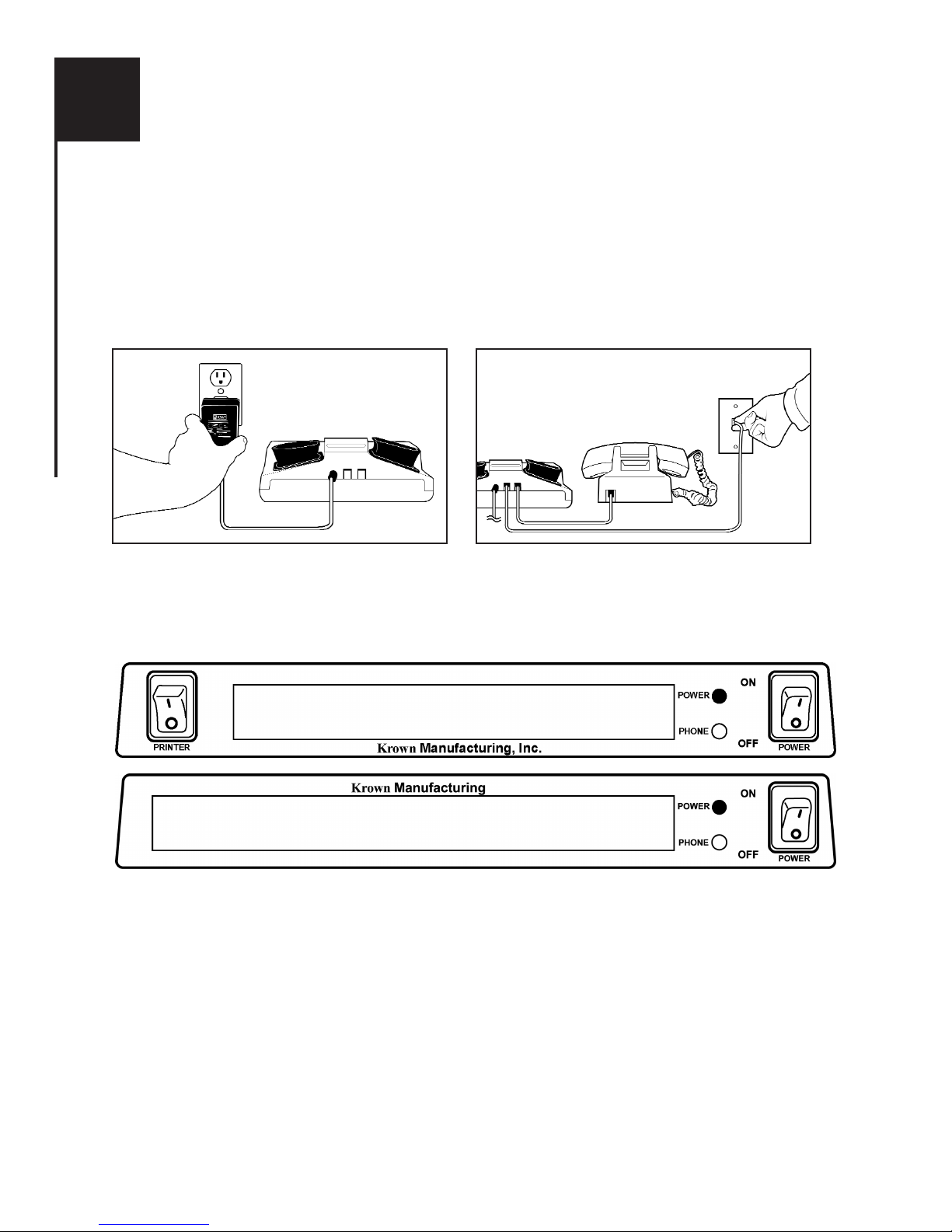
TO SETUP YOUR PORTA PRINTER 2000D
Place your Porta Printer near your telephone. The power unit is connected to a regular power outlet and
the Porta Printer is used with your telephone.
• Be sure that the ON/OFF switch on the TDD is OFF.
• Plug small end of adapter cord into small hole at back of TDD.
• Plug AC Adapter/Charger into an electrical wall-outlet.
• Keep both ends plugged in even when machine is not being used for a telephone call.
If your PortaPrinter 2000D has the Direct Connect option, plug one end of your modular cord into the
telephone wall jack. Plug the other end into either jack on the back of your TDD. The second jack can
be used to connect your telephone set or signaling device to the PortaPrinter 2000D.
THE LIGHTS AND SWITCHES
Phone Light Shows sounds heard on the telephone line.
Power Light Show status of power. When the light shows:
STEADY = Power is ON
FLASHING = Low battery power
NO LIGHT = Power is OFF
Power Switch This switch turns the power ON and OFF
Print Switch This switch turns the printer ON and OFF.
I
7
GETTING STARTED
KRown - PP2000D LD_
KRown - PP2000_

GETTING STARTED (CONT.)
ELECTRONIC VOICE
The Electronic Voice is a single unchangeable voice message that is stored in the memory of your
PortaPrinter 2000. The message is used for calling hearing people at VOICE/TDD number. It tells
them “Please use TDD for hearing-impiared caller.”
The voice message will repeated until your TDD conversation begins (when your TDD receives
signals from another TDD). As soon as the other person begins to type, the electronic voice
message stops.
To turn the Electronic Voice ON or OFF
•Press [CTRL] and [SPACE BAR] to turn your Electronic Voice on. VOICE ON will appear
on the display screen.
•Press [CTRL] and [SPACE BAR] to turn your Electronic Voice off again. VOICE OFF will
appear on the display.
Note: It will be necessary to turn your electronic voice off before using any control key operations.
AUTO ID
Each time your PortaPrinter 2000 is turned on, the Auto-ID feature emits tones automatically without
interfering with any of the TDD functions. This feature is turned off if the electronic voice is activat-
ed instead. These tones are to notify the party you are calling that a TDD call is being received. The
moment another TDD answers, the tones automatically stop. To turn on and off auto ID, press
[CTRL]-[S].
BATTERY POWER INFORMATION
Your Krown Porta Printer is designed to operate from battery or AC (house electricity) power.
The battery is used for backup memory and when power outages. If you unplug the AC adapter from
the machine, the Ni-Cad battery will operate for approximately 2 hours when fully charged. The
batteries will automatically recharge whenever the unit is plugged into the AC charger/adapter and the
TDD is turned OFF. To help the battery last longer, let it run down until the Power Light starts to
flash BRIGHT -dim- BRIGHT -dim-. This means that the battery is running down and needs
recharging. The light will flash for several minutes. Then the Porta Printer will stop working. When
this happens, you must change over to AC power to continue using your machine until you recharge
the battery. It is suggested that you use the Porta Printer with battery power in a regular cycle. That is,
operate the unit on battery power until it needs recharging. Then recharge the battery by plugging the
TDD into the AC charger/adapter for 12-14 hours. (The unit must be turned OFF in order to
recharge.)
SPACE BAR
+
CTRL
8
CTRL S
+
Andere Handbücher für PORTA PRINTER PP2000
1
Dieses Handbuch passt für folgende Modelle
2
Inhaltsverzeichnis
Andere Krown Drucker Handbücher

Krown
Krown PORTA PRINTER PP2000DLD Bedienungsanleitung

Krown
Krown PortaPrinter 2000DLD Bedienungsanleitung

Krown
Krown PORTA PRINTER PP2000D Bedienungsanleitung

Krown
Krown 2000 Bedienungsanleitung

Krown
Krown MP2000D Bedienungsanleitung

Krown
Krown PORTA PRINTER PP2000 Bedienungsanleitung

Krown
Krown MP2000DLD Bedienungsanleitung
Krown
Krown PP2000STD Bedienungsanleitung


