
Marshall Electronics VS-PTC-150 Bedienungsanleitung

Broadcast A/V Division
VS-PTC-150
Keyboard Controller
User Manual
V.1.0
Thank you for using this product.
If you want to get a better product’s functions, please read the user manual carefully when you use the product.
Keep the User’s Guide. If a problem occurs during the use, please contact our manufacturer.
Marshall Electronics

Marshall Electronics
2
Keyboard Controller Introduction
Keyboard PTZ Controller is a remote RS-232 & RS-422 control tool for operating Marshall’s
CV620/CV350/CV360/CV342/CV500 cameras and other model cameras on the market. This
controller can be programmed to control Pan, Tilt, Zoom, Focus, Iris, Presets, OSD Menu, Lights,
Wipers and other control features allowable on RS-232/RS-422 enabled cameras. This product is
designed with Number Keys, Function Keys, LCD Screen, and PTZ Joystick. Included in this box is
a RS-232 cable that will connect directly to the RS-232 IN on the rear of the Marshall PTZ Camera-
CV620, 12V Power Cable, and RS-422 harness.
Features of Keyboard Controller
* Pan, Tilt, Zoom simultaneous control via RS-232
* Unique control code learn function, which enables users to customize control codes.
* Devices connected to RS-422/RS-485 harness can be set with different protocols and control
codes.
* Update new rmware online by connecting controller via RS-485 bus on rear panel to computer.
* One Key Control to retrieve the protocol and baudrates assigned to each ID addresses.
* All parameters can be set to individual control key operations.
Basic Features of Keyboard Controller
* RS-485 control bus can control 255 cameras or control devices.
* RS-232 port can control 7 cameras in a daisy chain setup.
* Standard RS-422/RS-485 I/O ports are lightning-proof, low interference, and can be run at
distances of 1200m.
* Uplink port can provide links to maximum 15 slave keyboard controllers in other areas of
operation.
* Password protected LOCK/UNLOCK.
* Key Sound ON/OFF
* Progressive speed dome control
* Multi-dimensional PTZ knob control
* Rugged industrial build
www.LCDracks.com

www.LCDracks.com 3
VS-PTC-150 Manual
CAUTION:
• LCD Screen is fragile and can be damaged by pressure, or long-exposures to
sunlight or strong light.
• PTZ Joystick is fragile, please make sure product is packed with original
packaging material when shipping or moving, as it can be damaged if
mis-handled.
• The keyboard controller should be stored within the specied range of
temperature, moisture or humidity.
• Please follow the directions contained in this manual for setup and operation.
Name Quantity Remarks
5PIN Isobar plugs 1
DC-12V Power 1 INPUT: 100-240VAC ~ 50/60Hz
Users Manual 1
Certicates 1
Warranty cards 1
Item Parameters
Power supply DC12V±10%/50HZ
Temperature -10°-55°
Humidity ≤90%RH (No cream node)
Communication RS422 Full-duplex, 232 Serial Port
Baud Rate 1200bps, 2400bps, 4800bps, 9600bps, 19200bps
Interface 5PIN Pressure Line Terminal and 232 Interface
That way The LCD screen
Exterior size 318 (L) x 180 (W) x 118 (H)mm
Keyboard Controller Specications
List of Items

Marshall Electronics
4
CONTENTS
1. Function Keys of Keyboard Controller ......................................................... 5
2. The LCD Screen ........................................................................................... 7
3. Operation Knob Control ............................................................................... 7
4. Connections of Keyboard Controller............................................................ 7
5. Single Key and Combined Keys................................................................... 8
6. Detailed Introduction to Combined Keys ..................................................... 8
7. Control Code Memory Function................................................................... 9
8. Keyboard Controller Parameter Setup and Inquiry ...................................... 13
9. FAQ............................................................................................................... 17
10. Warranty ..................................................................................................... 19
www.LCDracks.com

.
.
5
VS-PTC-150 Manual
1. Function Keys of Keyboard Controller
www.LCDracks.com
Function keys:
[Esc] Back to previous menu.
[Setup] Press for 3 sec to set up key parameters.
[SEARCH] Inquire The Protocol & Baud Rate Of Current Address.
Pan-Tilt-Zoom Setup and recall keys:
(this function might be not available for all protocols if the PTZ does not have this function)
[F1] Auto focus, only used when camera is set to Manual Focus on IR-Remote or
OSD Menu
[F2] On/Off OSD Menu screen, only used in Sony camera control mode.
[F3] Control camera facing forward, used to center camera forward.
[F4] On/Off power, used to turn camera ON & OFF.
[PATTERN] Changes from Auto Focus to Manual Focus, then Focus [+] and Focus [-]
buttons are used.
[RUN] Turns backlight ON/OFF

Marshall Electronics
6
Function Keys of Keyboard Controller
www.LCDracks.com
Function keys:
[PATROL] PTZ reset.
[PRESET] Preset the original position of PTZ. This key should be used
together with number key and [Enter] key.
[SHOT] Recall the preset position of PTZ. This key should be used together with number
` key and [Enter] key. (Some special function are achieved via recalling preset, e.g.
` recall PTZ menu, recall integrated menu, pattern patrol, pattern scan, linear scan, et.)
[AUTO] Control PTZ Automatically.
[Addr] Address selection key. Select decoder address, PTZ address.
Number keys:
[Clear] Clear input.
[0] ~ [9] Number Key: 0, 1, 2, 3, 4, 5, 6, 7, 8, 9.
[Enter] Enter conrm input.
Basic keys for PTZ and decoder:
[FOCUS + ] Manual focus on distant object.
[FOCUS - ] Focus on closer object,
[ZOOM + ] Zoom in to object, i.e enlarge object.
[ZOOM - ] Zoom out the lens to larger view eld.
[IRIS + ] Increase aperture manually.
[IRIS - ] Downsize aperture.
[AUX ON] AUX key turns on. Turn on AUX key. This key should be used together with number
key and Enter key.
[AUX OFF] AUX key turns off. Turn off AUX key. This key should be used together with number
key and Enter key.

7
VS-PTC-150 Manual
2. The LCD Screen
3. Operation Knob Control
4. Connections of Keyboard Controller
www.LCDracks.com
All key operations will be displayed on LCD instantly. LCD will switch to Low-Power mode if the
smart controller does not receive any input for more than 30 seconds. Screen will return to the
initial state.
Backboard: 1 5-pin port, 1 DC-12V port, 3 LED indicator
Detailed functions of each portion:
When control PTZ and mounting plate:
Item Marked Interface Description
RS-422 Control output (Ta, Tb, Ra, Rb) Connect to camera RS422, Bus(Ta) to RXD IN-, (Tb)
to RXD IN+, (Ra) to TXD IN-, (Rb) to TXD IN+.
Ground Grounding (G) Grounding of communication cable
PW Power indicator Always on, RED
TXD Send data indicator Data sending status:icking,green
RXD Receive data indicator Data receiving status:icking,green
DC-12V DC power input DC power input
1
2
3
4
5
6

Marshall Electronics
8
5. Single Key and Combined Keys
6. Detailed Introduction to Combined Keys
www.LCDracks.com
Single key:
When single key is pressed, the corresponding PTZ will respond.
Single key operations include: [FOCUS+], [FOCUS-], [ZOOM+], [ZOOM-], [IRIS+], [IRIS-]
and control knob.
Combined key:
2 or more keys, or key and knob are pressed, the corresponding PTZ will respond.
The operations include: [PATTERN], [RUN], [PATROL], [TOUR], [PRESET], [SHOT], [Addr],
[AUX ON], [AUX OFF]
1. Enter PTZ mode:
If LCD display , indicating the control key board is working in PTZ mode, if no,
please [Esc] to back to PTZ mode.
2. Choose PTZ address:
In PTZ mode, press [Addr] and input the PTZ address number, then press [Enter].
E.g. To control PTZ code 28,
Operation: Press [Addr], LCD will display:
Input 28 via number keys, LCD will display:
Press [Enter], LCD will display:
3. Set and recall pattern scan:
Setup: Choose the address to set pattern scan. Then press [PATTERN] key, the
LCD will display:
E.g if we want to set the 1st pattern scan, press [1] and [Enter],
LCD will display:
Operate the control knob to stop or remain at certain position or zoom in/out lens, etc.
After Setup is compete, press [PATTERN] to stop recording pattern again, and
LCD will display:
Recall: Press RUN, LCD will display:
The speed dome will operate per the 1st pattern, LCD display:

9
VS-PTC-150 Manual
www.LCDracks.com
5. Set and recall patrol
Setup: Choose the address code of PTZ to set patrol.
Then press [PATROL] key, LCD display:
E.g. if we want to set the 1st patrol, press [1] and [Enter], LCD display:
(Indicating we are setting the 1st preset point of No.001 patrol), move knob leftwards or rightwards
to choose which preset point added to the track of this patrol.
Move knob downwards, LCD will display:
(indicating the1st preset added in the 1st patrol). Move knob leftwards or rightwards to change the
time of staying at this preset point.
Move knob downwards, LCD will display: , (indicating the stay time of 1st preset
point is 3S), move knob leftwards or rightwards to change the move time from one preset point to
another.
When Setup is complete, press [PATROL] key, LCD will display: ,
and press [Enter] to save and back, press [Esc] not to save and back.
If you want to continue to set more, repeat the above operations, press [Esc] to exit Setup.
Recall: Press [TOUR], LCD display: , enter the patrol # to recall. Run any single key
operation will exit patrol and back to normal status.
Notes:
1. LEFT and RIGHT on the control Joystick is used to maneauver menu selections, values, or
direction. Downward is used to scroll DOWN, maneaver, or enter. Up is used to scroll UP in
menu selections, values, or options.
2. In Setup process, press [Esc] to EXIT Setup.
3. Time of ALL Patrol program settings is the same, so rst item is time of Setup. Speed of patrol
is Default.
4. Time and speed of All Patrol RULES is the same, so rst item is time of Setup and second item
is Speed of Setup.
:
If you run any Single Key operation this will stop pattern scan and return to normal command
status.
Notes: Only one pattern scan operation can be saved when setup with Pelco-D (RS-422) or
Pelco-P (RS-422) protocols. Multiple patterns can be saved using VISCA and other protocols.
Marshall Electronics
10 www.LCDracks.com
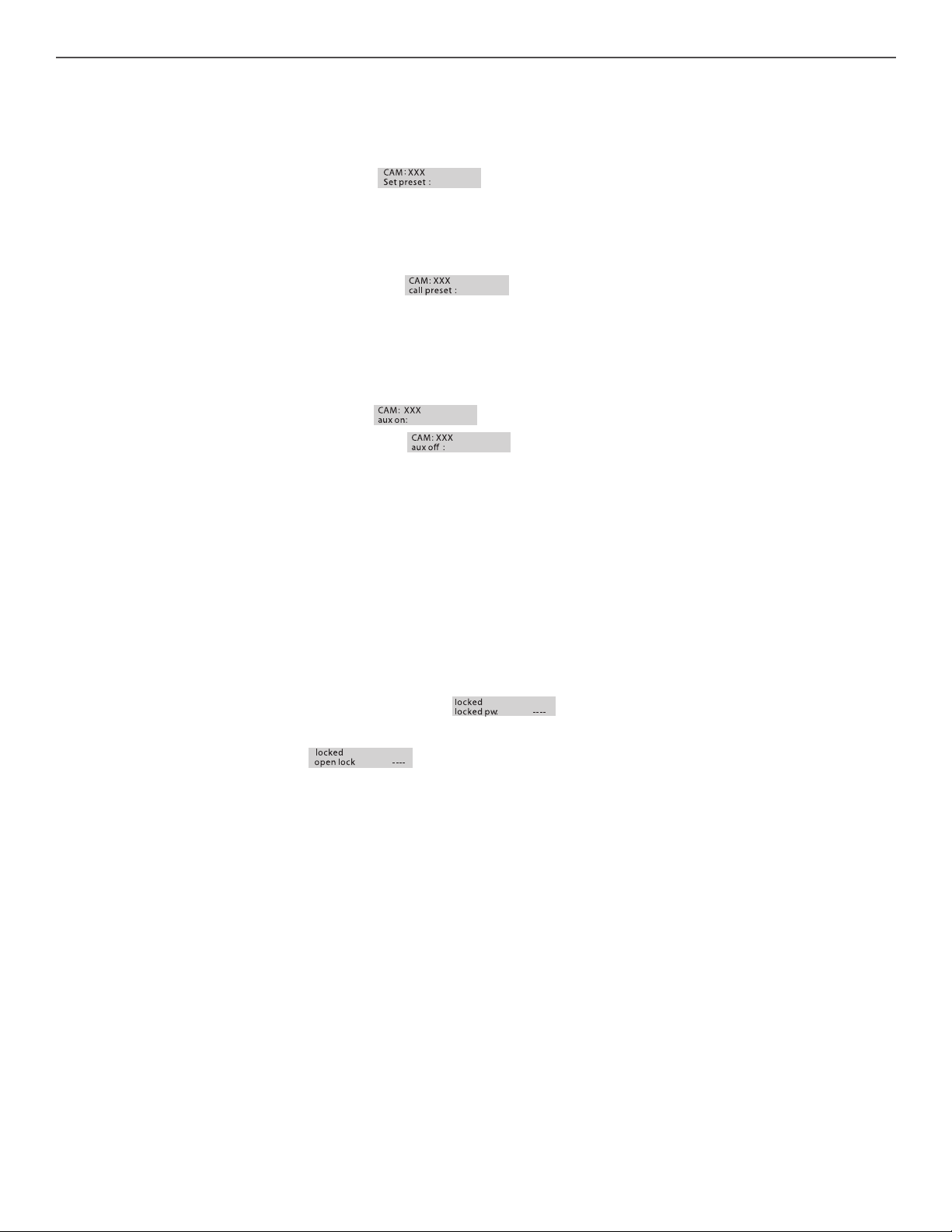
6. Set and recall preset point:
Set up: Choose the address of PTZ to set or recall.
Then press [PRESET], LCD display:
Operate knob to move to corresponding point, and zoom lens to specied position, then press
the preset point # to set, e.g 6, press 6 and [Enter], If you want tocontinue to set more, repeat the
above operations, press [Esc] to exit Setup.
Recall: Press [SHOT], LCD will display: , input the preset point #to recall, e.g [6],
then press [Enter], to recall more repeat the above operations, [Esc] to exit recall.
7. Turn on/off AUX:
Turn on: Choose the address of PTZ or decoder to turn on.
Then press [AUX ON], LCD display: , to turn on the AUX #1, press [1] and [Enter].
Turn off: Press [AUX OFF], LCD display: , to turn off AUX #1, press [1] and [Enter].
Note: The above combined key might be no available form some protocols, or some products do
not have this function. Therefore, some operations might not work on some devices. If you have
similar problems, please refer to the manual of device to achieve some specic function.
8. Keyboard controller lock
This function is to manage keyboard controller via password to allow authorized user to
operate. This function must be activated in keyboard controller setting menu.
Refer to details in 3.1.2.2.
In normal mode, press [Esc], LCD display:
Input 4-digit password, press [Enter], the LCD backlight OFF.
Press any key, LCD display:
Input password, press [Enter], the keyboard controller will be unlocked.
Andere Handbücher für VS-PTC-150
1
Inhaltsverzeichnis
Andere Marshall Electronics Controller Handbücher

Marshall Electronics
Marshall Electronics VS-PTC-50 Bedienungsanleitung

Marshall Electronics
Marshall Electronics VS-PTC-50 Bedienungsanleitung

Marshall Electronics
Marshall Electronics VS-PTC-150 Technisches Datenblatt

Marshall Electronics
Marshall Electronics VS?TKC?100 Bedienungsanleitung

Marshall Electronics
Marshall Electronics VS-PTC-200 Bedienungsanleitung

Marshall Electronics
Marshall Electronics VS-PTC-50 Bedienungsanleitung

Marshall Electronics
Marshall Electronics VS?TKC?100 Bedienungsanleitung


