MediaTech UTAH PLAYER MT821 Bedienungsanleitung

UTAH PLAYER
User Guide
Portable Digital MP4/MP3/WMA/ASF Player
MT821

Contents
Introduction .................................................................................2
Features..........................................................................................3
Safety instructions .....................................................................3
Player description ......................................................................4
Display............................................................................................4
Battery capacity ..........................................................................4
Basic function ..............................................................................5
Music mode..................................................................................7
Voice recording ...........................................................................8
Playing recording file ................................................................8
Converting ACT recording files to WAV..............................9
FM Radio......................................................................................10
Playing video..............................................................................11
System setting...........................................................................11
Text file viewer...........................................................................12
Graphic file viewer ...................................................................12
USB disk function .....................................................................13
Other setting............................................................................ 14
Encrypt disk function ........................................................... 15
Convert video file to AMV format..................................... 16
Troubleshooting ..................................................................... 18
Specification............................................................................. 19
2
Introduction
Welcome in MP4 users exclusive club. Because Your
new MP4 player is quite sophisticated device, please
read this manual first to discover all exciting features
of it.
MEDIA-TECH Team
Features
■Really small size
■Supports most of audio and video formats such as:
MP1, MP2, MP3, WMA, WMV, ASF, WAV, MTV, AMV.
■Stereo FM Radio with auto-scanning and manual
scanning frequencies. Up to 20 FM stations can be
stored in the memory
■Text viewer to read TXT files
■Picture viewer to browse JPG and BMP pictures
stored in MP4 memory
■USB disk mode to easy replace standard floppies
and even CD-ROM discs when You need a move
some data from/to the computer.
■Encrypted disk mode allow You to keep safe Your
valuable data secured by secret password
■Voice record & replay mode turns MP4 player into
professional digital voice recorder. You can record

voice everywhere You are and always with good
quality thanks to very sensitive built-in micro-
phone.
■7 settings of equalizer to make music more familiar
to Your ears.
■7 playing modes to browse and repeating Your fa-
vorite songs
■Telephony database to store Your friends phone
numbers
■Color OLED display to show movies & pictures in
sharp and bright 65K colors enviroment
■Built-in lithium battery to power Your device with-
out need to replace battery. Just simple connect to
USB port and recharge
■External +5V power adaptor to charge Your device
from normal, 230V home power outlet
3
Safety instructions
The manual contains the important safety instructions
and information of the device’s proper usage. Make
sure to read carefully and understand all the instruc-
tions to avoid accident.
Do not expose the device to extreme temperature
(above 40C), especially in cars with shutting win-
dows in summer.
Do not expose to moisture. Do not store in humid or
dirty areas.
Avoid the device falling and bumping strongly. Do
not make OLED suffer from violent shake; otherwise,
OLED could be damaged or displayed abnormally.
Choose the suitable volume. Do not turn up the vol-
ume of the earphones too high while using it. If you
get ringing in your ears stop using the device or turn
the volume down.
Do not disassemble the device yourself and do not
wipe the surface of device with alcohol and ben-
zene and thinners.
Do not using the device in areas with prohibiting
electronic devices, such as in plane.
Do not use the device while driving an automobile
or walking in the street, otherwise, an accident may
result.

4
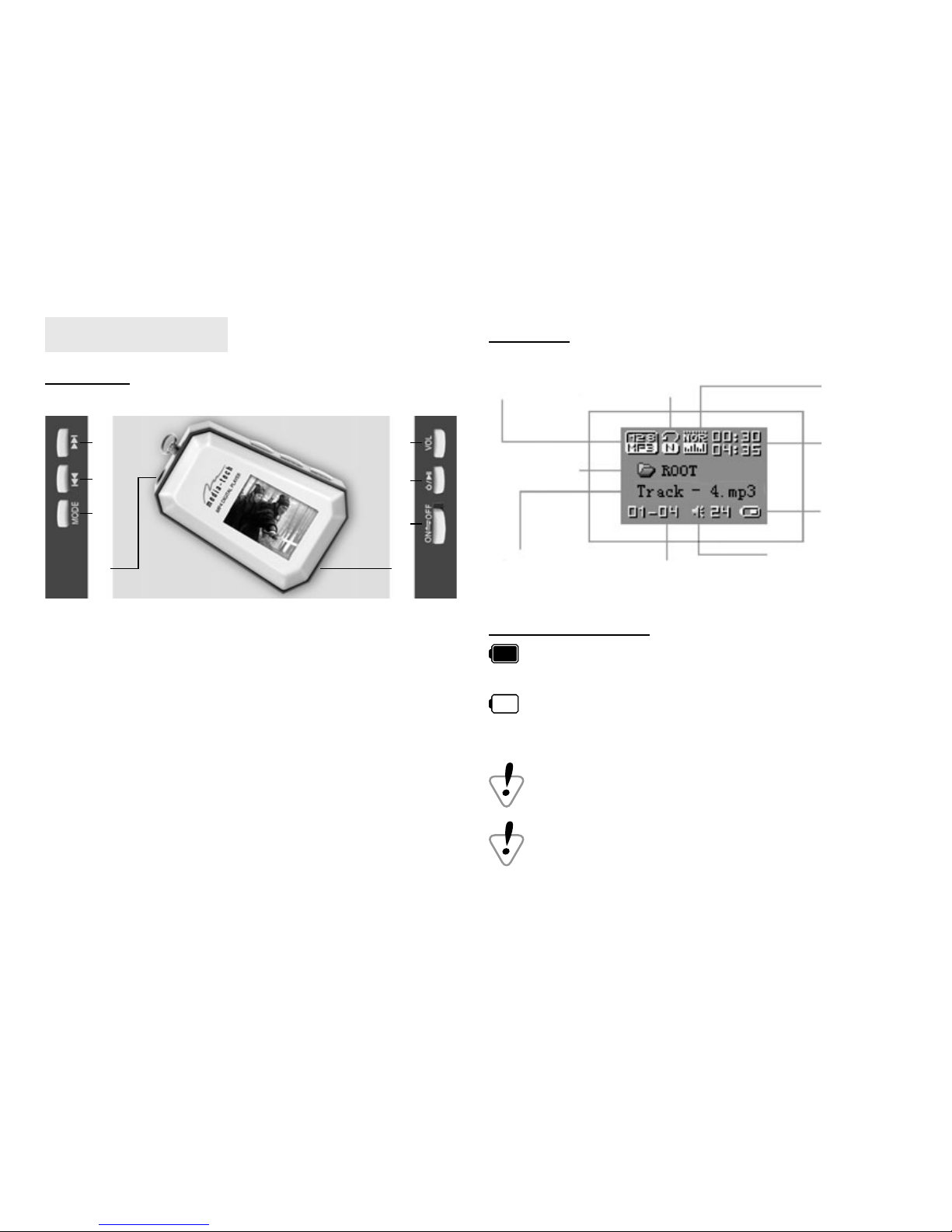
Player description
Buttons
ձEarphone socket
ղMODE button
ճPREV button
մNEXT button
յVOLUME button
նPLAY/PAUSE buton
շPower ON/OFF switch
ոUSB port
մ
ճ
ղ
ո
յ
ն
շ
ձ
Display
BIT/FILE FORMAT
FOLDER
TRACK INFO DATE
BATTERY
LEVEL
VOLUME LEVEL
PLAY MODE EQ MODE
PLAY TIME
Battery capacity
battery is full. Predicted time of playing up to 8
hours. During playing battery level is decreasing.
battery is empty. Should be charged immediately.
Please connect to power source (USB port or +5V
power adaptor).
To charge, please turn ON the power switch in the
device, otherwise device will be not charged.
When MP4 player is not in use, please turn it OFF
by power switch.

5
Basic function
■Enter main menu
Press and hold MODE button to enter main menu.
To enter any submenu press MODE button shortly.
■Browse modes
Use NEXT and PREV buttons to choose right mode
from menu
■Enter option menu
When player is in one of modes (ex. Music, Movie or
Record mode), please push MODE button to enter
option menu for specific mode.
Music mode
Main menu
Recording mode
Playing recording
mode
Radio mode
System settings

6
Text viewer mode
Picture viewer mode
Connection with PC
mode
■Volume control
Press VOL button, and then NEXT and PREV to in-
crease or decrease volume
■Turn ON/OFF
Press and hold PLAY/PAUSE button to turn device
on or off
■Playing & stopping
In music mode press PLAY/PAUSE shortly to play
music or pause playing or again start playing. Hold
PLAY/PAUSE to stop playing music.
■Recording / stop recording
In recording mode press PLAY/PAUSE shortly to
start recording or pause recording or again start re-
cording. Hold PLAY/PAUSE to stop voice recording.

7
Music mode
Playback
1. Insert earphone plug into the earphone socket
2. Move power switch to ON position
3. Press and hold PLAY/PAUSE button to turn device
ON
4. By PREV/NEXT buttons choose the music mode
and push MODE button to enter music mode
5. To choose track (song) use NEXT and PREV buttons.
Press PLAY/PAUSE to start playing.
6. If the file containing movie will be set, a video will
start display
Note. Exactly the same procedure will be used for dis-
playing video files.
Equalizer setting
1. When music is playing shortly press MODE to enter
option menu
2. Using NEXT/PREV buttons choose Equalizer
3. Use MODE to confirm choice
4. Choose one of effects: Natural, Rock, Pop, Classic,
Soft, Jazz, DBB
5. Confirm You choice by MODE.
Displaying lyric
Player supports LRC file format which allows to display
song lyric simultaneously with music. To use lyric fea-
ture, LRC file must have the same name as MP3 song.
For example:
Music file is: TRACK-4.mp3
Lyric file should be named: TRACK-4.lrc
The MP3 song containing matched files with lyric are
displayed on screen with “ ” icon, close to battery
icon:
1. Chose MP3 file with matched LRC file

8
2. Push MODE to switch to lyric mode
Voice recording
Entering Voice recording mode
1. Enable main menu
2. By NEXT/PREV set Record option and confirm by
MODE button
3. Press PLAY/PAUSE shortly to start recording
4. Press PLAY/PAUSE shortly to pause recording or
hold this button to stop recording.
File with voice recorded is stored in current folder
which can be set in Record submenu (push MODE
button)
If SPACE FULL information is displayed, it means
that there is not enough space to store more re-
cordings. Please delete unnecessary files to recov-
ers memory space.
If MENU FULL information is displayed, it means
that maximum capacity of current folder (99 files)
has been reached. Please change or create new
folder for recordings.
Voice recording type
In stop recording status, press MODE button to enter
record setting menu. Select RECORDING TYPE and
press [MODE] button to enter.
Fine recoding, WAV format, good voice quality
Long recording, ACT format, fair quality and longer
recording time
Fine VOR, WAV format, good voice quality, will pause
recording automatically when there is no sound de-
tected
Long VOR, ACT format, fair quality, will pause record-
ing automatically when there is no sound detected

9
Notice: VOR
1. VOR is that voice controls recording on/off. Record-
ing will stop without voice in order to save memo-
ry.
2. For fine recording, please record in little noise back-
ground.
3. Please do not talk before recording and start record-
ing in 5-6 seconds.
Playing recording file
1. Choose VOICE from main menu
2. Press MODE to enter
3. Choose recorded file using NEXT/PREV
4. Press PLAY to start playing
Converting ACT recording files to WAV
The player can convert ACT files to WAV by attached
installation tool.
1. Run“Sound Converter” and click [Open] button,
the picture will appear as below:
2. Select ACT files that is converted and click [Open]
3. Click [Convert] button and begin to convert to WAV
format
Notice. Besides this function, the tool can play WAV
and MP3 formats.

10
FM radio
Choose FM Radio from main menu
Press MODE button to enter FM radio menu in
FM radio mode
Save Save currently tuned frequency to a channel
Delete Delete current preset channel
Delete All Delete all preset channels
Normal Band Frequencies from 87MHz-108MHz
Japan Band Frequencies from 76MHz-90MHz
Auto Search Auto search channel
Exit Escape from FM radio mode
Auto search
1. Hold NEXT or PREV button for two seconds to tune
frequency upward or downward by 100KHz. When
a radio station is located, it will stop automatically.
Press MODE button briefly to enter radio submenu
to save orderly channels. Press again NEXT or PREV
button to resume auto searching and press NEXT or
PREV button shortly to stop the auto searching.
2. Use radio submenu to search channels automati-
cally.
Manual search
press PREV button briefly to search channel upward
press NEXT button briefly to search channel down-
ward
Listen to FM radio
Press PLAY/PAUSE button to listen the saved channel.
If no channel is saved, you can listen channels by auto
or manual searching.
Notice: Normal band and Japan band can each store
20 preset channels.
Inhaltsverzeichnis
Andere MediaTech MP3-Player Handbücher
Beliebte MP3-Player Handbücher anderer Marken

Blaupunkt
Blaupunkt Compact Drive MP3 Bedienungsanleitung

Memorex
Memorex MMP9008 - 8GB USB 2.0 Bedienungsanleitung

Meizu Electronic Technology
Meizu Electronic Technology E5 Bedienungsanleitung

Naxa
Naxa NMV-173NX Bedienungsanleitung

Philips
Philips PSA250 Bedienungsanleitung

Zipy
Zipy go! Waving Bedienungsanleitung