
Miditech MidiStudio 2 Bedienungsanleitung
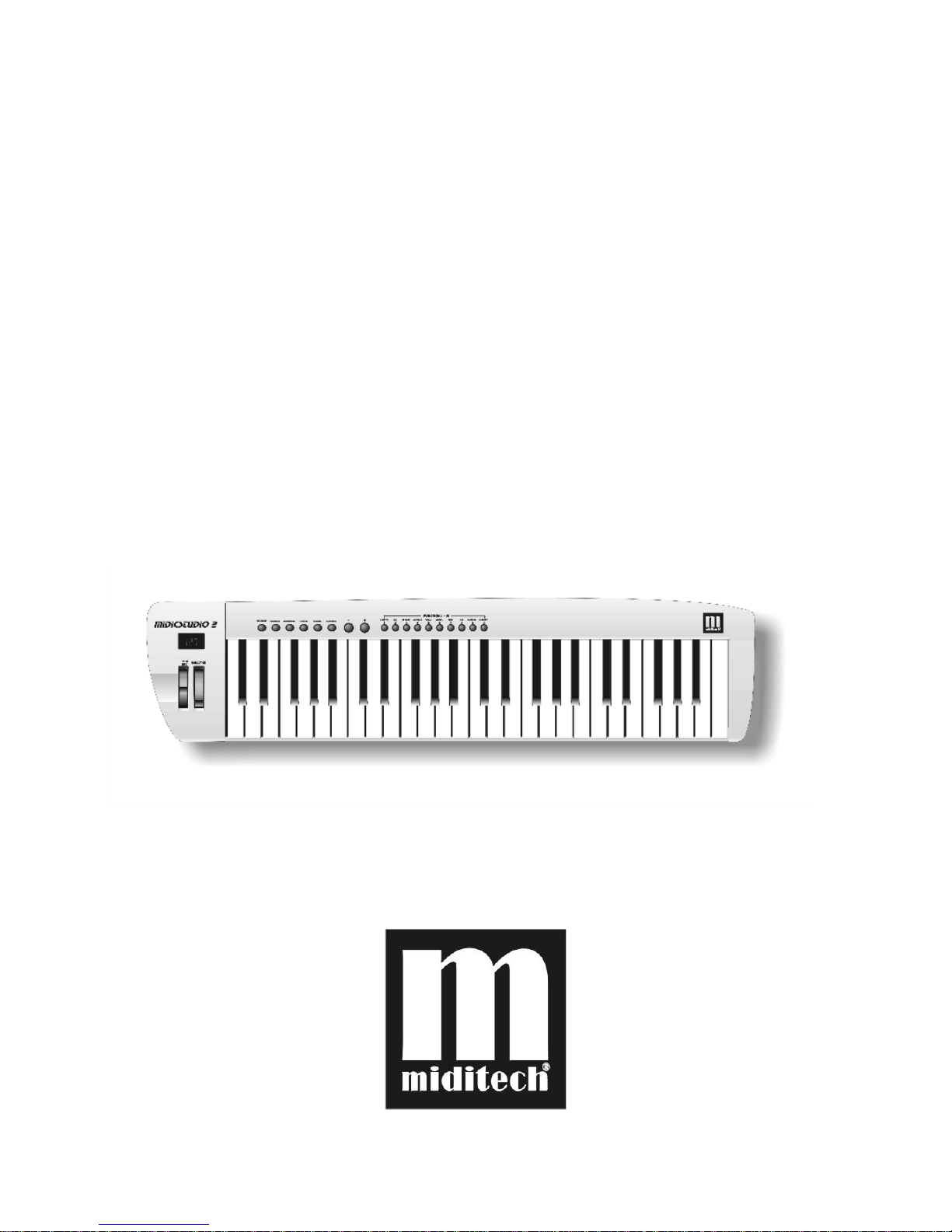
Usermanual
0,',678',2
0,',678',20,',678',2
0,',678',2

PREFACE
Congratulations on purchasing the Midistudio-2 master MIDI controller
keyboard. It is one of the finest products of its kind, made after extensive
research into what customers require from a MIDI Controller.
When using your Midistudio-2 in conjunction with a computer and appropriate
music software, you will be able to discover the wonderful world of Computer
Music, with a set of complete musical instruments from your sound card or
workstation.
This manual is written to help you become familiar with the features of the
Midistudio-2. Please read the manual carefully to discover all the features of
your Midistudio-2. After reading the manual, you will have a clear
understanding of how to transmit different MIDI messages to other instruments
and equipment. For ease of use of MIDI implementation, we strongly
recommend you to have the manual at hand when you are using the keyboard,
especially if you are new to the world of MIDI.

TABLE OF CONTENTS
Preface ............................................................................... 2
Userpanel ............................................................................. 4
Back panel connections ......................................................... 4
Something you should know before using the MIDI functions .5
Something you should know before using the USB functions .. 5
USB Driver software installation ............................................. 6
Switching on .......................................................................... 6
Basic Operations .................................................................... 7
Advanced Operations ............................................................. 10
Trouble Shooting ................................................................... 14
Specifications ........................................................................ 16
MIDI Implementation ............................................................. 17
Inedx ...................................................................................... 18

User panel:
1 = Display 2 = Pitch and Modulation Wheel
3 = Basic Functions 4 = Plus/Minus Keys
5 = Advanced Functions and Ten Keys
Back panel connections:
1 = Footpedal 2 = Soundmodul
3 = Computer 4 = Power supply

SOMETHING YOU SHOULD KNOW BEFORE
USING THE MIDI FUNCTIONS
MIDI is the acronym for Musical Instrument Digital Interface, which makes all
digital musical instruments equipped with this standardised interface capable of
exchanging their MIDI data or “talk to each other”
To explain how MIDI works on your instrument in more detail, the following
illustrations will outline the MIDI functions of the 0LGLVWXGLR, which allow
you to connect the keyboard to other MIDI instruments. The versatile MIDI
capability of the 0LGLVWXGLR will offer you tremendous power in a MIDI
environment.
SOMETHING YOU SHOULD KNOW BEFORE
USING THE USB- CONNECTION
USB is the acronym for Universal Serial Bus, and is the standard for exchanging
data between different units. All Units communicate over one cable with the
computer and so there is no need for many cables to connect, and this will make
your work much easier.
The 0,',68',2 will give you an USB-Interface for transfer midi data to your
computer. (Midi over USB)

USB DRIVER SOFTWARE INSTALLATION
When you use this master keyboard with Windows 98 or Windows 2000, you
must install USB driver software into your computer with attached CD-ROM.
Put the CD-ROM in CD-ROM driver tray, then you can find there are two
directories in the CD-ROM: Win98 and Win2000. Open one according to the
Windows version you are using. Double click on the “SETUP” icon, installation
will start. You simply follow instruction to complete all steps.
SWITCH ON
There are two ways to power the unit:
1. Use USB cable to connect USB socket of computer.
2. Use external adapter: Plug output jack of proper AC adapter into the DC
socket in the rear panel.
3. Then slide power switch to ON. Display will show “001” as program
number and the unit transmit initial program number to the equipment connected
to 0,',678',2 immediately. When you play on the keyboard, notes and its
velocity message will be transmitted. Note number corresponding to the most
left key is 36.
Note:
The default display is program number. After any operation in the unit, the
display will return to program number. Data transmitted is the number on the
display minus 1. For example, program number “001” on the display is
transmitted as “000”, etc
After legal operation, the data change will be transmitted immediately.

BASIC OPERATIONS
PROGRAM SETTING
Press PROGRAM button, the current program number will appear on the
display. Use +, - button to increase or decrease the program number you desire.
You can also press numerical buttons 0 - 9 to enter the number directly ranging
of 1 to 128. You must enter all 3 figures, for example, 001, 012, 126 etc. If you
don’t complete data entry by 3 seconds, the display will recover to previous
figure.
Note:
Transmitted program change is the number on the display minus 1. For example,
program number “001” on the display is transmitted as “000”, etc.
TRANSPOSE
Press TRANS button, the current note shift in semitone will appear on the
display. Use +, - button to increase or decrease the note shift you desire ranging
of -12 to +12.
About 3 seconds after you complete the operation, the display will return to
indicate program number.
The note will be transmitted as the physical key you are playing with shift of
transpose value.
OCTAVE
Press OCTAVE button, the current octave shift will appear on the display. Use
+, - button to increase or decrease the octave shift you desire ranging of -2 to +2,
i.e., two octave down or up.
About 3 seconds after you complete the operation, the display will return to
indicate program number.

MEMORY
There are 5 memory banks to save your favourite settings. It is easy for you to
recall your setting by pressing one button.
Press MEMORY button and hold down, display show “S-“ to prompt you to
input memory code. When you press one of the 1 - 5 buttons, your settings are
saved into this button.
The following settings can be saved: Program change, Transpose, Octave,
Velocity Curve, Volume, Reverb level, Pedal definitions, Wheel definition,
MSB, LSB, MIDI mode.
To recall your settings, simply click the MEMORY button. The display will
show “O-“. Then press one of the 1 - 5 buttons, settings stored in the bank will
be recalled and transmitted immediately.
About 3 seconds after you complete the operation, the display will return to
indicate program number.
KEYBOARD SPLIT
With this feature engaged the keyboard is divided to right and left section. You
can play a voice in the right section and another voice in the left section.
Press the SPLIT button, to engage split feature. All three dots on the display will
light up. Now, all operating of functional setting are for the left section of the
keyboard. When you use FUNCTION button for advanced setting, the display
will show “F.-_ .” and the two dots will flash waiting for further entry. Please
refer the next chapter - ADVANCE OPERATIONS - . About 3 seconds after
you complete the operation, the display will show the program number for the
left section of the keyboard.
Press and hold down the SPLIT button then press a key on the keyboard, this
key will be split point to separate the keyboard.
Press the SPLIT button again, to disable the split keyboard feature. All three
dots on the display will quench.

PITCH BEND WHEEL
Roll upward PITCH BEND wheel to increase the pitch or roll downwards the
wheel to lower the pitch smoothly by transmitting pitch bend message ranging
of 0 to 16383. Normally, the wheel stays on its centre position, i.e. no bending.
MODULATION WHEEL
Roll upward MODULATION wheel to add modulation effect ranging of 0 to
127. When the wheel stays on its lowest position, no modulation message is
transmitted.

ADVANCED OPERATIONS
Besides the basic functional operations above, you may have more features
using FUNCTION button.
When this function is engaged, all letters on the display will be followed by
three dots for identification. Please note that there are two dots only when split
feature engaged
VELOCITY CURVE
Press FUNCTION button, the display will show “F-“ to prompt you to input a
function code. Then press button 1 (V.CURVE), current velocity curve code will
appear on the display. Now, you can select a velocity code your desire ranging
from 0 to 9 with single numerical button. You can also use + or - button to
change it.
About 3 seconds after you complete the operation, the display will return to
indicate program number.
VOLUME
Press FUNCTION button, the display will show “F-“ to prompt you to input a
function code. Then press button 2 (VOL), current volume will appear on the
display. Now, you can set volume your desire ranging from 1 to 128. You can
also use + or - button to change it.
Transmitted volume is the figure on the display minus 1. For example, volume
“099” on the display is transmitted as 98, etc.
About 3 seconds later after you complete the operation, the display will return to
indicate program number.
Inhaltsverzeichnis
Andere Miditech Elektronische Tastatur Handbücher

Miditech
Miditech MIDIPLUS 61USB Bedienungsanleitung

Miditech
Miditech i Control-61 Bedienungsanleitung

Miditech
Miditech MIDIPLUS-61 Bedienungsanleitung

Miditech
Miditech Minicontrol 2 Bedienungsanleitung

Miditech
Miditech i2 Control-37 black edition Bedienungsanleitung

Miditech
Miditech i2-mini 32 BT Bedienungsanleitung
Beliebte Elektronische Tastatur Handbücher anderer Marken


Yamaha
Yamaha Portatone PSR-100 Bedienungsanleitung

Casio
Casio WK-1600 Bedienungsanleitung

Keith McMillen Instruments
Keith McMillen Instruments K-Board Pro 4 Technisches Datenblatt

Yamaha
Yamaha PortaSound PCS-30 Bedienungsanleitung

Roland
Roland Juno-6 Bedienungsanleitung

McGrey
McGrey 6170 Bedienungsanleitung


