Miditemp MP 11 Bedienungsanleitung

User Manual
Version 1.0 | Date 11.05.2012
MP 11 Firmware-Version 1.64d

2
Important safety instructions
Read the instruction manual thoroughly. It provides you with all the
information you need to use this device properly.
The warranty becomes void in case of unauthorized access, use or in-
terference. Use the device in compliance with the operating instruc-
tions. Use only accessories specied by the manufacturer.
CAUTION!
Risk of electric shock!
Do not open the device. There are no parts inside the device that you
can use for other purposes. Only qualied experts may attempt repair
work on the device.
Power connection
Before connecting MP11 to the power grid, please make sure the vol-
tage is suitable for the device. MP11 gets its voltage from an external
wide range power supply that can be used worldwide.
• Use only the original power supply unit
• Do not use defective adapters or damaged power cables
Moisture
In order to avoid any risk of re or electric shock the device must not
be exposed to rain or moisture. Spray or splashing water, or dripping li-
quids must not get inside the unit. Do not place any objects containing
liquids, e.g. beverages or vases, on the device.
If the device is taken from a cold location to someplace warm, conden-
sation may settle inside the device. Do not turn on the device before it
has adapted to and reached room temperature.
CAUTION!
Risk of exposure to high volume
Headphones can produce volumes so high that can be hazardous to
your health. Make sure the volume is not set too high before you put
on your headphones!
Assembly
Make sure you set up the device on a solid and rm surface.
Cleaning / maintenance
Do not use abrasive cleaners. A microber cloth would be most suita-
ble, which you can slightly moisten if necessary.
Advice on packaging
Please safekeep the device‘s packaging. This will keep the unit safe for
transportation, e.g. if repair work becomes necessary.

3
2s
Bound by TRADITION
Back in the 90s, MIDITEMP equipment was indeed ahead of its time. Even
before everyone could aord laptop computers, ambitious musicians and
keyboarders were able to manage their MIDI setup with ease and access
MIDI les through their Multiplayer (MP44, MP88, MP88W) - later, even audio
les using integrated hard disks.
But times are changing; technology has evolved rapidly - and computers,
sequencers and hard-disk drives have become the norm.
The time had come to redene the history of MultiPlayer.
The MIDITEMP MP 11 Multi Performer is a MIDI-player and audio le player
with integrated voice harmonizer. This puts your entire band within your
reach at all times. Be it the drums, bass, guitars, keyboards, wind instruments
or even a whole orchestra – thanks to MIDI-le and MP3 playback.
Plug in your keyboard and microphone and you can get started. Mix every
instrument live and exactly to your liking using the six faders. Give your
vocals the eects you want; the lyrics appear directly on the display or on an
external monitor.
Create and organize your playlists and markers right on the device. An
intelligent algorithm recognizes musical phrases, and automatically creates
seamless song segues.
The control concept of MP 11 has been specially designed for live perfor-
mances. You can control every important function in real-time using illumi-
nated buttons, turning knobs and sliders.
It is also very easy to access the additional functions and submenus: just
press the button that you want and hold it down for 2 seconds; this launches
the user menu. You can navigate using the main Master Volume knob, the
Up-Down buttons and the Enter button.
In the operating instructions this additional function is displayed as:
We hope you have a lot of fun using your MP 11 by MIDITEMP - and above
all: a whole lot of applause.

4
Safety instructions 2
Introduction 3
Table of Contents 4-5
Quick Reference 6 Upper control panel
7 Display
8 Lower control panel
9 Central control panel
Quickstart 10 Power up
11 Songs-Selection (Titel, Artist, Genre)
Using the ESC-Button
Upper control panel 12 MIXER | PLAYLIST | SHORT | WIZARD
13 IMMEDIATE | CROSSFADE | GOTO | NEXT SONG | SMOOTH
MIC delay | MIC reverb
Lower control panel 14 SPEED | KEY | SOUND FX | HARMONIZER
15 VOICE FX | MENU Edit • Save • Esc
Output volume | Level Meter
Central control panel 16 MASTER VOLUME | ARTIST • TITLE • GENRE
17 UP/DOWN | ENTER/LOOP | PLAY | STOP
Melody mute | A/Z search | MP3 Songs
Marker/Bar | Next/Current SONG
Selecting and Playing Songs 18 - 19 Browsing for a song alphabetically
Preparing the next Song 20 Selecting the song
21 Switching the display between current and next song
GoTo 22 Skipping or crossfading from the current song to the next
23 Adjusting SPEED and KEY
SPEED | BPM | WIZARD
24 Quick skip to the next song
Marker 25 Toggling between markers of the current song
26 Skipping to a marker of the next song
27 Changing the bar without markers | LOOP-Function
Playlist 28 Creating and naming a playlist
29 Selecting a playlist or changing to a dierent playlist
Adding songs to a playlist
30 AutoPlay function
Exiting the playlist mode
31 Managing playlists
32 Managing playlist songs
33 SHORT - Function in Playlists
34 - 35 Wizard and AutoBPM functions in playlists
Editing MIDI - Files 36 Progr.Chg/Bank | Status | Volume |
Reverb | Chorus | Insert | Pan | Transpose
37 Insert eects
38 Wizard Sound Function (WSF)
Editing MP3 - Files 39 Voice Cancelling
Harmonizer 40 Harmonizer and Melody-Tracker mode
Melody-Track-Modus 41 Mode | Efx | Octave | Dry/Wet

5
General use 42 Menue Options
Mic Presets 43
Mic Equalizer 43
Music Equalizer 43
MIDI Settings 44
Melody track | Chord mode | Midi-In | Click Count In
General Settings 45
Pedal Mode | Short Time | Lists font |
Auto playlist | Songs history | Search mode
Fade Curve 46
Auto BPM 46
Sound FX Settings 47
Video Settings 47
Song History 48
Find new song 48
System settings 49
Change memory | Optimize memory | List mode | Factory reset
Storage media 50 Technical details
Formats and compatibility 51
Connections 52
Technical specications 53
Solo vocals 54 Connection Examples
Vocals with guitar, mixer and foot-switch 54
Vocals with monitor or TV screen 55
PC + USB master-keyboard (MP 11 as expander) 55
Small band with master-keyboard and click for the drummer 56
Frequently asked questions 57 FAQ
Introduction / Installation 58 MP11 Utility-Software
Menu bar 59
Handling 60 - 61
Sound tables 62 - 64 Sound Charts
Drum Kits 65
Performances 66
Sound FX / Presets / Bridge Music 67
68 - 73 MIDI Implementation
CE / RoHS / WEEE / Trademark / Copyright 74 Legal
Items delivered:
MIDITEMP MP 11
External power supply unit
1 GB Compact-Flash-Card
MP11-Utility-CD
Uaser manual
Cinch connector
AV breakout-cable
Scart to Cinch adapter

6
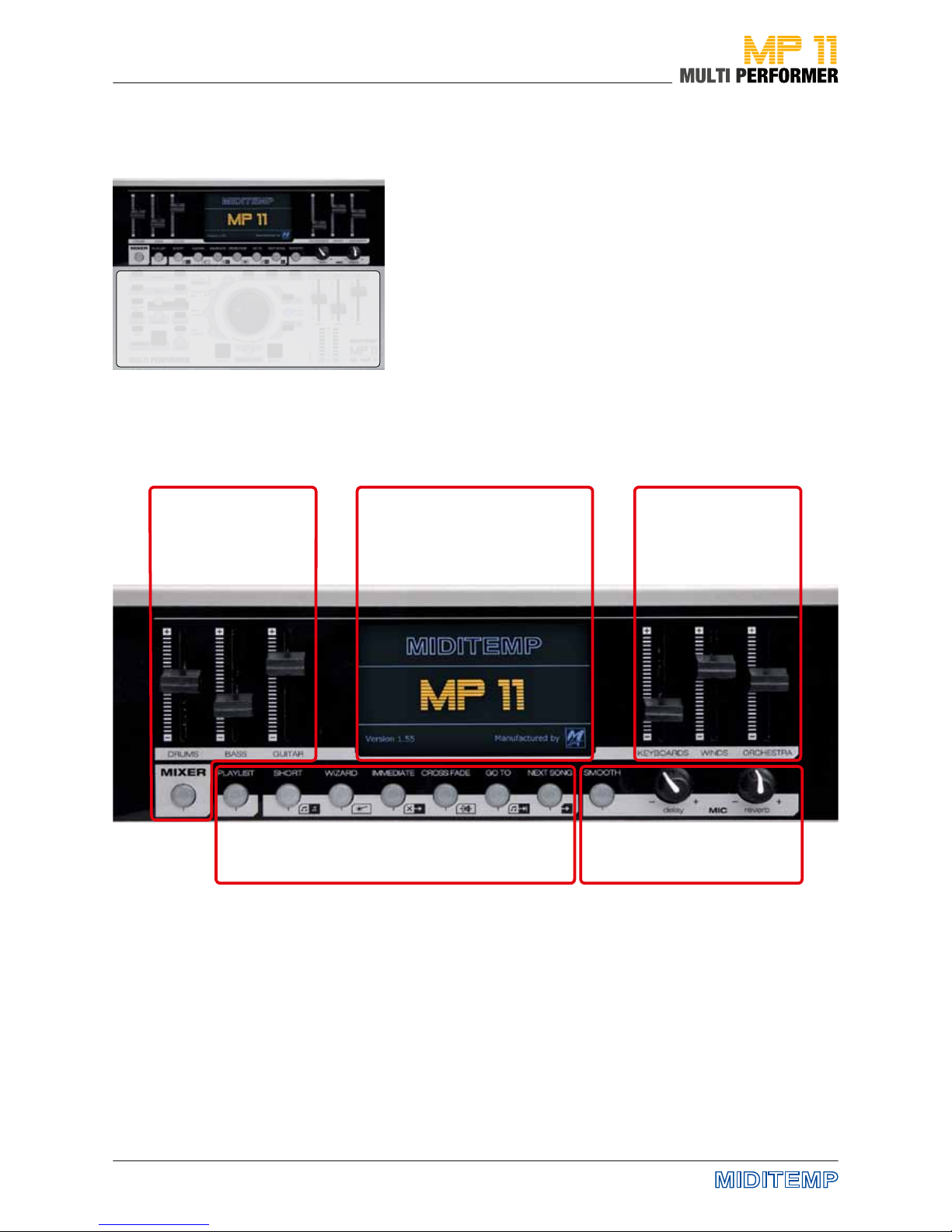
Quick Reference: Upper control panel
Volume control
MIDI Playback
Playlist- and Song-Functions Control for
microphone eects
Volume control
MIDI Playback
High denition graphic
display for putting
lyrics and menus on
view

7
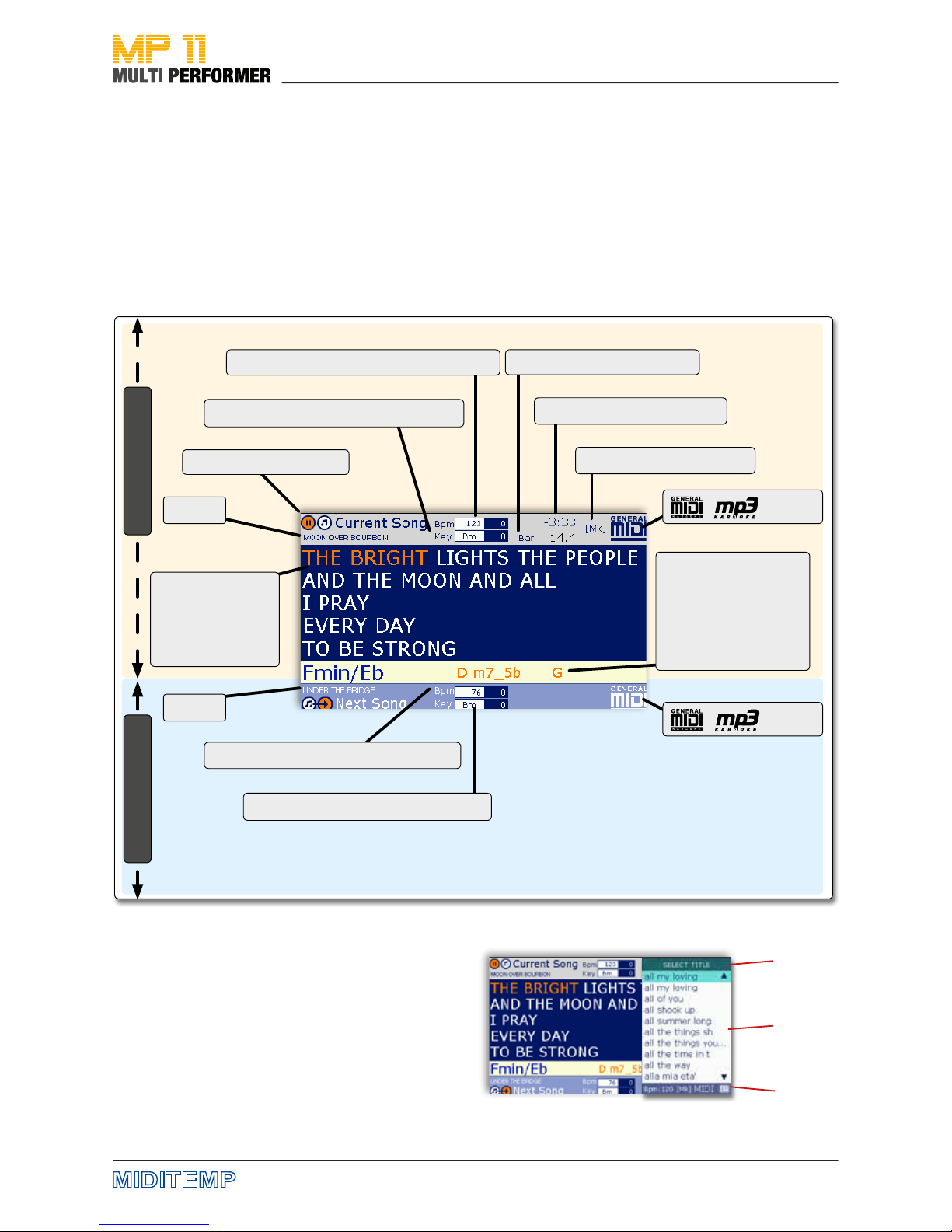
The main menu always has the lyrics of the song that is currently being
played (= Current Song) on display. The lyrics are divided in syllables based
on the tempo and highlighted in color. Of course, you can have the lyrics
displayed only if your songs contain the corresponding text les.
You can also see the following information on display:
• MK = Marker (if a song contains marker positions)
• BPM = Tempo (beats per minute)
• KEY = Tonic note and chord
and extra information on the song currently being played or the next song.
Also, if you press certain buttons, their corresponding
menus will be put on display, e.g.:
• Artists list
• Song list
• Genre list
• Playlist settings
• Marker settings
• General settings
• etc.
You can launch the menus that you need during the playback of a song
Operating status
Title
Title
Laufender Song
Lyrics
Highlighted in
color based on
the tempo
Nächster Song
Song chords
Highlighted in color
based on the tempo
Bpm: Tempo (and manual editing)
Time: Remaining play time
Key: Tonic note (and manual editing)
Bar: Bar indicator
[Mk]: Marker present
/ : Format
/ : Format
Quick Reference: The Display
Name
Content
Info

8
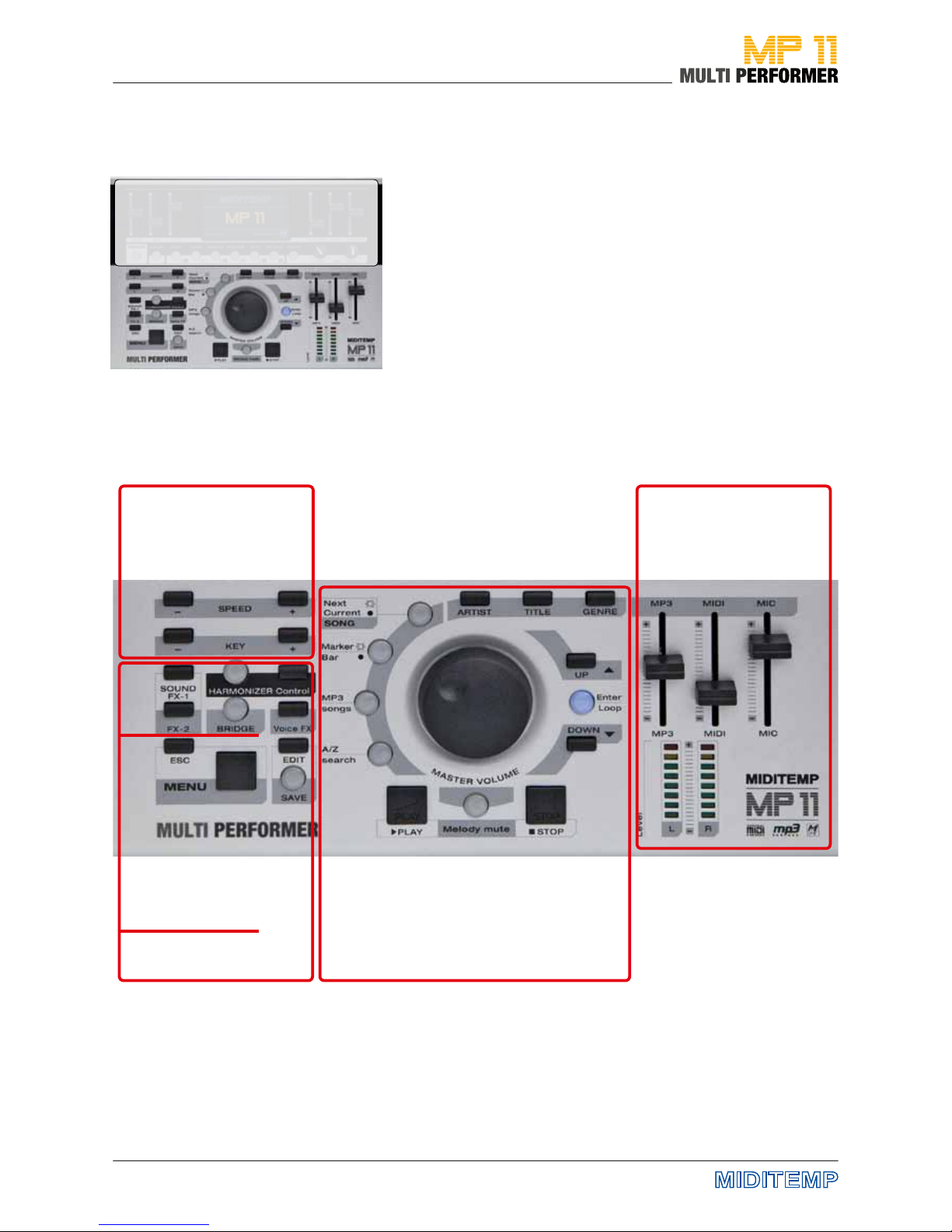
Quick Reference - Lower Control Panel
Main control panel
• Song slection
• Navigation
• Starting/stopping songs
• Search function
• and a lot more
Song control
• Tempo
• Key / pitch level
Control panel
• Harmonizer
• Eects
Menu - Buttons
Operating Panel
Volume control
• MP3
• MIDI
• Microphones

9
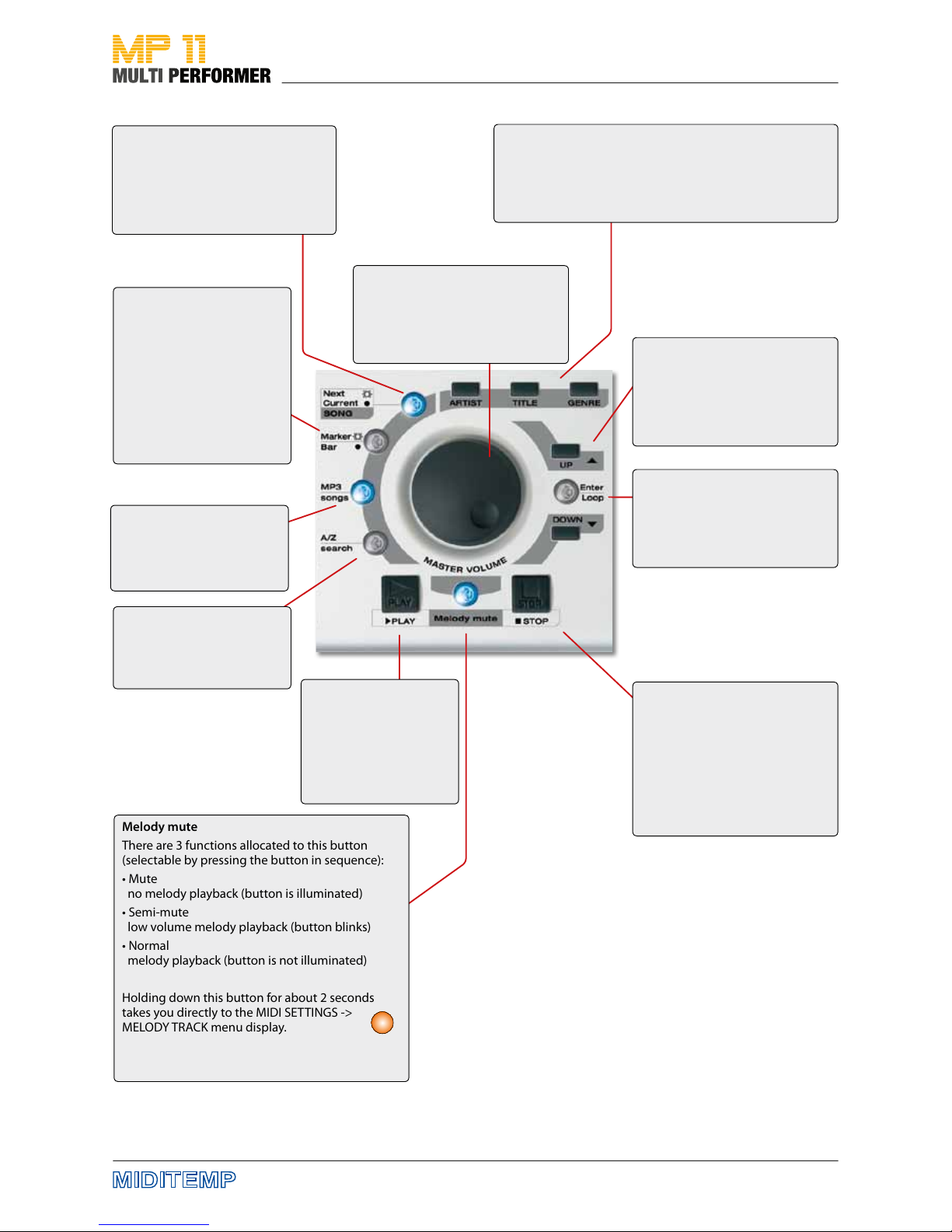
ARTIST - TITLE - GENRE
If you press these buttons, you can list songs by Artist, Title
(or lename) or Genre categories.
hold down the TITLE button for about 2 seconds lets you
select the storage medium of your choice.
UP / DOWN
Using these buttons you can
move the cursor (= colored bars)
up or down in dierent areas -
such as playlists, menus ...
Enter / Loop
You can conrm your current
selection or edits using this
button.
Special function: Loop
PLAY
This starts the playback.
Pressing the button again
starts the song from the
beginning (as long as you
do not use next song
functions).
Melody mute
There are 3 functions allocated to this button
(selectable by pressing the button in sequence):
• Mute
no melody playback (button is illuminated)
• Semi-mute
low volume melody playback (button blinks)
• Normal
melody playback (button is not illuminated)
Holding down this button for about 2 seconds
takes you directly to the MIDI SETTINGS ->
MELODY TRACK menu display.
STOP
Discontinues the playback of a
song.
Pressing 1 x = Pause
(Press PLAY to restart the playback
from the same position).
Pressing 2 x = Stop
MP3 songs
If this button is activated,
only MP3 les in the lists of
Artist, Title or Genre will be
played.
Next / Current SONG
You can toggle between the two
displays Current Song/Next Song by
pressing the button (as soon as a next
song has been loaded)
Marker / Bar
Button is illuminated = Current
song contains MARKERS.
Pressing the button opens
the MARKER MENU.
Button is not illuminated =
There are NO MARKERS.
Pressing the button opens
the BARS MENU.
(Not available for MP3 songs).
A/Z search
This activates the alphabeti-
cal search in the lists of Artist,
Title or Genre.
2s
DIAL knob
• Moving the cursor
• Editing the selected parameters
• Volume control (depending on
the menu you have activated)
Quick Reference - Central Control Panel

10
Plug in MP 11 to the outlet using the AC/DC adapter (9 Volt-DC) included in
delivery.
Connect the two jack sockets „R - Audio Out - L“ with the inputs of a mixing
console using 6.3 mm mono jack cable or connect a headphone set with a
3.5mm stereo jack plug to the mini jack socket „Phones“.
Now turn on MP11 by pressing the „On/O“ switch.
This starts MP11‘s operating system.
Since there is no storage medium connected to MP11 yet, the following mes-
sage appears on display after a short time:
Memory not inserted
Insert CF or USB Pen
Press ENTER to continue
Put the CompactFlash card included in delivery into the CompactFlash slot
(the side with the label faces up) on the right side of the device, and press
ENTER.
If the message „Reading Memory - Do you want to create songs database“
appears on display, conrm the message by pressing ENTER again (-> songs
start loading).
Once MP11 has completed loading the data, a song list will appear on dis-
play (these are the les that are on the CompactFlash card).
You can now turn the DIAL knob or press the UP/DOWN buttons to select a
song from the song list (the song you choose gets shaded in color = selec-
ted).
CAUTION: Before playing the song, please set the 3 volume sliders for
MP3, MIDI and MIC to the lower one-third level - just to be on the safe
side.
You can now press PLAY to start the playback of the song you have selected.
Functions of the PLAY and STOP buttons
1 x PLAY > plays back the selected song
1 x STOP > pauses the current song
2 x STOP > stops the current song completely (and display the song list)
1 x STOP > 1 x PLAY > continues the playback of the current song
1 x PLAY > 1 x PLAY > song starts over after the rst start
Quick Start: First Use
Inhaltsverzeichnis
Beliebte Aufnahmegeräte Handbücher anderer Marken

Strymon
Strymon NIGHTSKY Bedienungsanleitung

Mitsubishi Electric
Mitsubishi Electric 16CH DIGITAL RECORDER DX-TL5000U Bedienungsanleitung

Tews Technologies
Tews Technologies TPMC465 Bedienungsanleitung

Honeywell
Honeywell Excel 50 Bedienungsanleitung

SeaLevel
SeaLevel COMM+8.LPCI Bedienungsanleitung

Arturia
Arturia AUDIOFUSE STUDIO Bedienungsanleitung