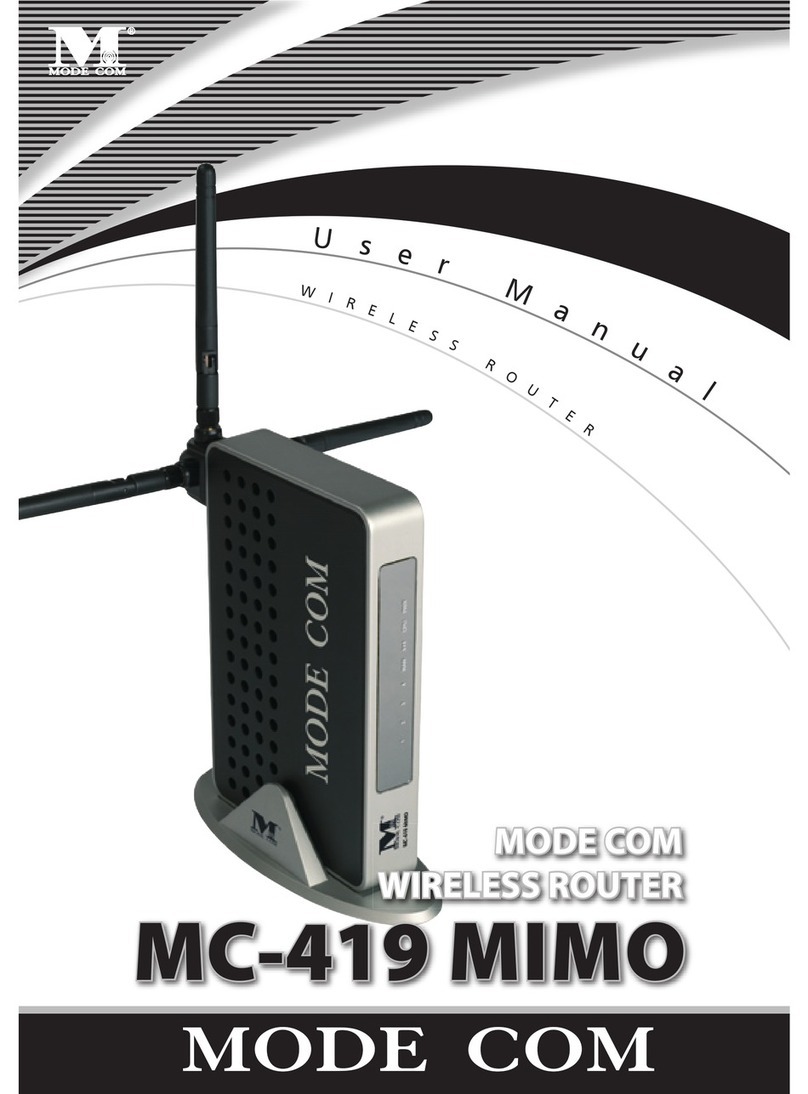
Modecom MC-421 Bedienungsanleitung

1
MODECOM
user’s manual
MC-421
WLAN Router

www.modecom.eu
2
WLAN Router
MC-421
WLAN Router
Contents:
Introduction 3
Features 3
Parameters that you need to congure the Wireless Gateway 4
What the Internet/WAN access of your own Network now is 5
Internet/WAN access is the DHCP client 6
Internet/WAN access is the Static IP 6
Internet/WAN access is the PPPoE client 7
Congure the Obtain an IP Address automatically for LAN Card 8
Getting to know the device 11
Parts Check 11
Front Panel 11
Front Panel and LEDs 11
Rear and Right Panel 12
Connecting your device 13
Easy Setup 14
WAN Conguration: 14
DHCP Client 14
PPPoE Client 16
Fixed IP 17
Getting Started with the Web pages 18
Accessing the Web pages 18
Testing your Setup 19
Quick Setup 21
Operation Mode Setup 21
Wireless ISP 22
WAN Interface Setup 22
Static IP 23
DHCP Client 23
PPPoE 24
Wireless Basic Setup 24
AP (Access Point) 24
Main WDS station: 25
Repeater WDS stations: 25
WDS (Wireless Distribution System) only 26
AP (Access Point) + WDS (Wireless Distribution System) 26
Wireless Security Setup 27
Conguring WEP 64bit ASCII (5 characters) security 28
Conguring WEP 64bit Hex (10 characters) security 29
Conguring WEP 128bit ASCII (13 characters) security 29
Conguring WEP 128bit Hex (26 characters) security 30
Conguring WPA (TKIP) Passphrase security 31

3
WLAN Router
Conguring WPA (TKIP) HEX (64 characters) security 31
Conguring WPA2 (AES) Passphrase security 32
Conguring WPA2 (AES) HEX (64 characters) security 32
Conguring WPA2 (Mixed) Passphrase security 33
Conguring WPA2 (Mixed) HEX (64 characters) security 33
Operation Mode 34
Wireless Network 34
Basic Settings 34
Advanced Settings 35
Security 36
WEP + Encryption Key 37
WEP + Use 802.1x Authentication 39
WPA/WPA2/WPA2 Mixed + Personal (Pre-Shared Key) 39
WPA/WPA2/WPA2 Mixed + Enterprise (RADIUS) 40
Access Control 42
Allow Listed 42
Deny Listed 43
WDS settings 43
Site Survey 48
WPS 51
Introduction of WPS 51
Supported WPS features 52
AP mode 52
AP as Enrollee 52
AP as Registrar 52
AP as Proxy 52
Infrastructure-Client mode 53
Instructions of AP’s and Client’s operations 53
Wireless Advanced Settings page 53
Operations of AP - AP being an enrollee 54
Operations of AP - AP being a registrar 59
Push Button method 61
Warning pop-up windows of AP 63
Un-supported mode in WPS 63
Un-supported security in WPS 64
LAN Interface 64
LAN Interface Setup 64
Changing the LAN IP address and subnet mask 65
Show Client 67
WAN Interface 67
Conguring Static IP connection 69
Conguring DHCP Client connection 71
Conguring PPPoE connection 73
Clone MAC Address 75
Port Filtering 77
Port ltering for TCP port 80 77
Port ltering for UDP port 53 78

www.modecom.eu
4
WLAN Router
IP Filtering 79
IP ltering for TCP with specied IP 80
IP ltering for UDP with specied IP 81
IP ltering for both TCP and UDP with specied IP 82
MAC Filtering 83
MAC ltering for specied MAC Address 83
Port Forwarding 84
Port Forwarding for TCP with specied IP 85
Port Forwarding for UDP with specied IP 86
URL Filtering 87
URL ltering for specied URL Address 87
DMZ 88
DMZ Host IP Address 88
Status 89
Statistics 90
Dynamic DNS 90
Congure DynDNS 92
Congure TZO 93
Time Zone Setting 94
Denial-of-Service 95
Log 97
Firmware Update 98
Manually updating rmware 98
Save/Reload Settings 99
Save Settings to File 99
Load Settings from File 100
Resetting to Defaults 100
Password 102
Logout 104
Logout 104
Conguring your Computers 105
Conguring Ethernet PCs 105
IP Addresses, Network Masks, and Subnets 108
IP Addresses 108
Subnet masks 109
UPnP Control Point Software on Windows ME/XP 110
UPnP Control Point Software on Windows ME 110
UPnP Control Point Software on Windows XP with Firewall 110
Troubleshooting 112
Troubleshooting Suggestions 112
Diagnosing Problem using IP Utilities 113
Glossary 115
Environment protection: 123

5
WLAN Router
Introduction
Congratulations on becoming the owner of the Wireless Gateway. You will now be able to access the Internet using
your high-speed xDSL/Cable modem connection.
This User Guide will show you how to connect your Wireless Gateway, and how to customize its conguration to get
the most out of your new product.
Features
The list below contains the main features of the device and may be useful to users with knowledge of networking
protocols. If you are not an experienced user, the chapters throughout this guide will provide you with enough in-
formation to get the most out of your device.
Features include:
10/100Base-T Ethernet router to provide Internet connectivity to all computers on your LAN•
Network address translation (NAT) functions to provide security for your LAN•
Network conguration through DHCP Server and DHCP Client•
Services including IP route and DNS conguration, RIP, and IP•
IOP (Inter-Operability) with major soft-switch vendors•
SIP signaling supporting•
Supports remote software upgrades•
Plug & Play, Auto Conguration / Auto Provisioning•
User-friendly conguration program accessed via a web browser•
User-friendly conguration program accessed via EasySetup program•
The Wireless Gateway has the internal Ethernet switch allows for a direct connection to a 10/100BASE-T Ethernet
network via an RJ-45 interface, with LAN connectivity for both the Wireless Gateway and a co-located PC or other
Ethernet-based device.
Device Requirements
In order to use the Wireless Gateway, you must have the following:
One RJ-45 Broadband Internet connection via cable modem or xDSL modem
Instructions from your ISP on what type of Internet access you will be using, and the addresses needed to•
set up access
One or more computers each containing an Ethernet card (10Base-T/100Base-T network interface card•
(NIC))
TCP/IP protocol for each PC•
For system conguration using the supplied•
a. web-based program: a web browser such as Internet Explorer v4 or later, or Netscape v4 or later. Note that
version 4 of each browser is the minimum version requirement – for optimum display quality, use Internet
Explorer v5, or Netscape v6.1
b. EasySetup program: Graphical User Interface
Note
You do not need to use a hub or switch in order to connect more than one Ethernet PC to your device. Instead,
you can connect up to four Ethernet PCs directly to your device using the ports labeled Ethernet on the rear
panel.

www.modecom.eu
6
WLAN Router
Using this Document
Notational conventions
Acronyms are dened the rst time they appear in the text and also in the glossary.•
For brevity, the Wireless Gateway is referred to as“the device”.•
The term LAN refers to a group of Ethernet-connected computers at one site.•
Typographical conventions
Italic text is used for items you select from menus and drop-down lists and the names of displayed web pages.•
Bold text is used for text strings that you type when prompted by the program, and to emphasize important•
points.
Special messages
This document uses the following icons to draw your attention to specic instructions or explanations.
Note
Provides clarifying or non-essential information on the current topic.
Denition
Provides clarifying or non-essential information on the current topic.
WARNING
Provides clarifying or non-essential information on the current topic.
Parameters that you need to congure the Wireless
Gateway
Following table is the parameters that you need to congure the Wireless Gateway.
If you cannot get the Internet/WAN access of your own network, it’s dicult to congure the Wireless Gateway cor-
rectly and have it work properly.
Parameters that you need to congure the Wireless Gateway
Internet/WAN Access of your own Network
DHCP Client
PPPoE Client
Static IP
Obtain an IP Address automatically
X
N/A
N/A
Username
N/A
1234
N/A
Password
N/A
1234
N/A
IP Address
N/A
N/A
192.168.10.110
Subnet Mask
N/A
N/A
255.255.255.0
Gateway
N/A
N/A
192.168.10.100
DNS Server IP
N/A
N/A
192.168.10.100
Note:
Username / Password which was given by Telecom or by your Internet Service Provider (ISP).
IP Address / Subnet Mask / Gateway / DNS Server IP which was given by your network administrator or by Telecom
or by your Internet Service Provider (ISP).

7
WLAN Router
What the Internet/WAN access of your own Network
now is
Now you could check what the Internet/WAN access of your network is to know how to congure the WAN port of
Wireless Gateway.
Please follow steps below to check what the Internet/WAN access if your own Network is DHCP Client, Static IP or
PPPoE Client.
Click Start -> Control Panel
Double click Network Connections

www.modecom.eu
8
WLAN Router
Internet/WAN access is the DHCP client
If you cannot see any Broadband Adapter in the Network Connections, your Internet/WAN access is DHCP Client
or Static IP.
Click Local Area Connection in LAN or High-Speed Internet and you could see string Assigned by DHCP in Details.
Internet/WAN access is the Static IP
If you cannot see any Broadband Adapter in the Network Connections, your Internet/WAN access is DHCP Client
or Static IP.
Click Local Area Connection in LAN or High-Speed Internet and you could see string Manually Congured in
Details.
Right click Local Area Connection and click Properties and then you could get the IP settings in detail and write
down the IP settings as follow:
IP Address: 192.168.10.110
Subnet mask: 255.255.255.0
Default gateway: 192.168.10.100

9
WLAN Router
Preferred DNS server: 192.168.10.100
Alternate DNS Server: If you have it, please also write it down.
Internet/WAN access is the PPPoE client
If you can see any Broadband Adapter in the Network Connections, your Internet/WAN access is PPPoE Client.
Click Broadband Adapter in Broadband and you could see string Assigned by Service Provider in Details.
For PPPoE conguration on Wireless Gateway, you’ll need following information that you could get from your
Telecom, or by your Internet Service Provider.
Username of PPPoE: 1234 for example
Password of PPPoE: 1234 for example

www.modecom.eu
10
WLAN Router
Congure the Obtain an IP Address automatically for
LAN Card
To congure the Wireless Gateway by Easy Setup utility or Web page, please follow steps below to congure your
LAN Card to obtain an IP Address automatically (DHCP Client).
If your LAN Card is congured to obtain an IP Address automatically (DHCP Client) already, just skip this chapter.
Click Start -> Control Panel
Double click Network Connections
Andere Handbücher für MC-421
1
Inhaltsverzeichnis
Andere Modecom WLAN-Router Handbücher