
netsys DMP-1000F Bedienungsanleitung

User Manual
Digital Multimedia Player
DMP-1000F

FCC RF
INTERFERENCE STATEMENT
NOTE :
This equipment has been tested and found to comply with the limits for a Class B digital device, pursuant
to Part 15 of the FCC Rules. These limits are designed to provide reasonable protection against harmful
interference in a residential installation.
This equipment generates, uses and can radiate radio frequency energy and, if not installed and used in
accordance with the instructions, may cause harmful interference to radio communications. However,
there is no guarantee that interference will not occur in a particular installation.
If this equipment does cause harmful interference to radio or television reception which can be
determined by turning the equipment off and on, the user is encouraged to try to correct the interference
by one or more of the following measures.
- Reorient or relocate the receiving antenna.
- Increase the separation between the equipment and receiver.
- Connect the equipment into an outlet on a circuit different from that to which the receiver is
connected.
- Consult the dealer or an experienced radio, TV technical for help.
- Only shielded interface cable should be used.
Finally, any changes or modifications to the equipment by the user not expressly approved by the grantee
or manufacturer could void the users authority to operate such equipment.

Table of contents
Introduction of DMP-1000F ……………………………………………………………………
-What is the DMP-1000F ……………………………………………………………………..
-What can I do with the DMP-1000F
-Package contents
-DMP-1000F Configuration/RCU Configuration
How to use
1. Setup
2. How to select memory cards
3. How to play photo image files
1) Seeing the image in thumbnail mode or full size mode
2) Zoom IN/OUT
3) PAN
4) Rotate
5) Slide show
4. How to play audio files(MP3) with background picture
5. How to play video files
6. How to know about file information(file size, file name, data etc)
7. How to delete files
8. How to print photo image
9. How to connect to PC(download or upload)
Trouble shooting guide

Introduction of DMP-1000F
Firstly we thank you for purchasing our product and also congratulate you on entering Digital Multimedia
world with our DMP-1000F
Please review this manual carefully to enjoy full powerful functions of DMP-1000F before you run the
product, and keep this manual besides you for any possible troubles you may experiences.
What is the DMP-1000F?
The DMP-1000F is the most easy and fun way to view your digital photographs(JPEG). You simply
connect DMP-1000F with your TV set using Audio/Video( RCA ) cable, and place your Digital memory
cards( Compact Flash/ Smart Media/Secure Digital /Multimedia card/Memory Stick/ Memory stick pro/
xD/Micro Drive/USB memory card ) into the DMP-1000F. And then you can enjoy your photos with
various effects which DM-1000F supports including background music.
And also DMP-1000F plays M-JPEG(AVI, MOV) and MPEG1(MPG) type of video clip which is
recorded by your digital camera, and also it plays MP3 files on your TV set.
Remark : If the format of Photos, Video clips or audio files are other than that DMP-1000F supports,
they are not shown or played by DMP-1000F.
What can I do with the DMP-1000F?
The DMP-1000F offers you a lot of fun as followings with remote control unit.(RCU)
• Thumbnail, full screen display of photos (in your memory card)
• Image rotating, Panning, Zoom In/Out
• Auto slide show with various transition effects
• To enjoy photos with background music
• To play MP3 files or Video files.
• To download your favorite photos or MP3 file from your PC into the built-in 16MB internal
flash memory or memory cards. Or you can upload files of memory card or built –in memory to
PC.

• To print photos with USB printers (HP).
Package Contents
Please make sure that following components are included in the package.
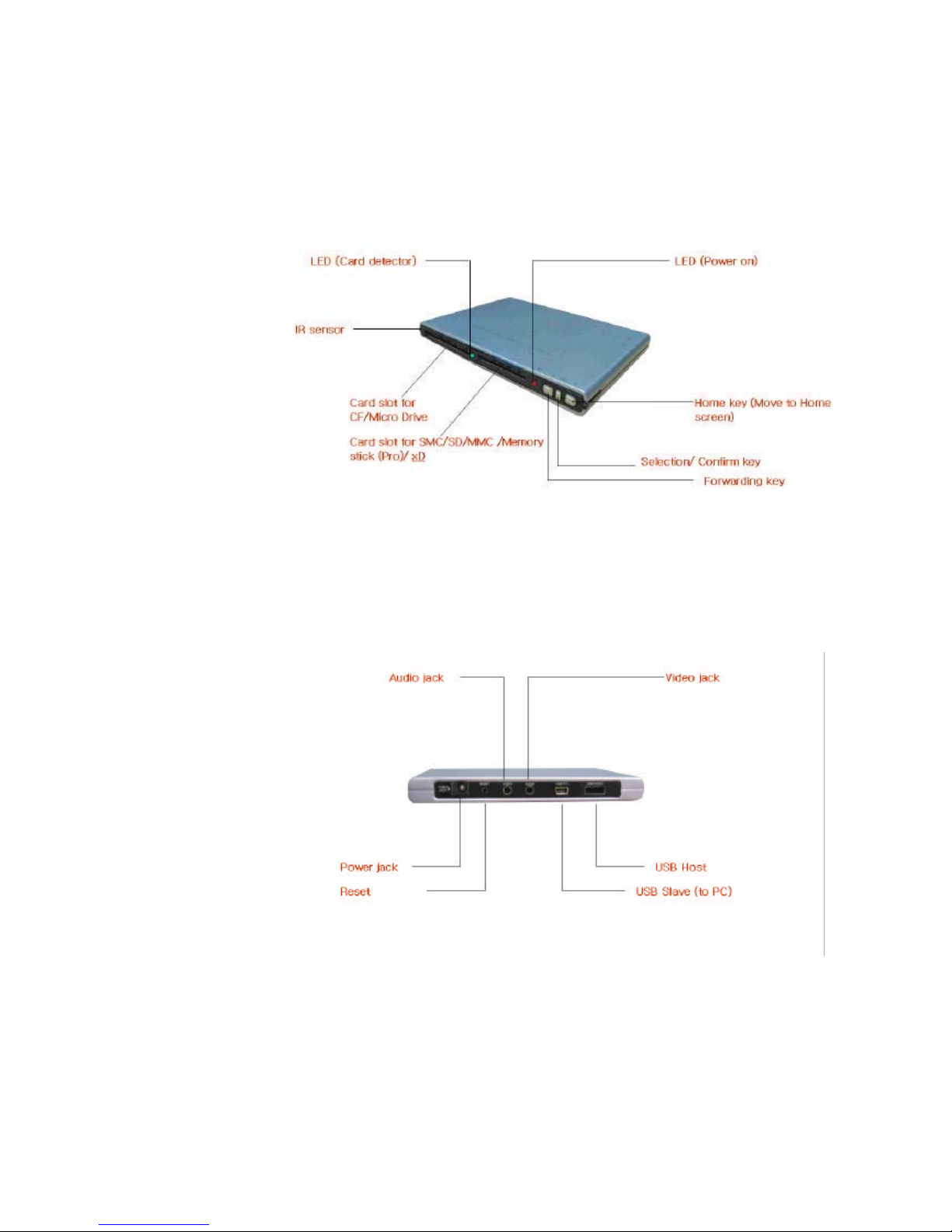
DMP-1000F Configuration
Front
Rear

RCU Configuration
* NTSC/PAL Key : It was already set as the TV system in your area so please do not press this key
unless you move to other area of different system. If it is pressed by mistake, the
home screen shall not be displayed or screen can be distorted.

How to use
1. Setup
Connect DMP-1000F with TV using Audio, Video cable.
Fig 1
* Color of RCA plug : Yellow for Video, Red for Audio Right, White for Audio Left
Plug power adaptor.
Fig 2
Turn on your TV and select its video source.
Then the home screen of DMP-1000F will be displayed.
Fig 3

*TVs has various way to set the video input source, so you may have to try several
options until you see the DMP-1000F screen.
2. How to select memory cards
There are memory card icons on right top side of the home screen, and each icon stands for
as followings.
TG INT : Internal Memory
TG S1 : CF card/Micro Drive
TG S2 : 5 in 1 slot( SD/MMC/SMC/Memory stick(Pro)/xD)
- USB : USB memory card
* USB type HDD is not supported.
* Some of USB memory card may not be supported due to different
memory structure.
In any case whether memory cards are inserted or not, DMP-1000F select
“INT”(Internal Memory) automatically. If you want to use some memory card, insert the
card first (the size of icon for the card is enlarged) and then select the icon for the card
using “Card SEL” key on the RCU. Whenever you press the “Card SEL” key, the cursor
move right side.
Fig 4
Home screen (Internal memory selected) 5 in 1 slot selected
3. How to play photo image file
1) Seeing the image in thumbnail mode or full size mode
Select the” Photo ” from the home screen using “Left” or “Right” key on the RCU, and
then press “PLAY” key to confirm . (Refer to Fig 3, “Photo” is set as default for home

screen.)
Then pictures in the memory card (or internal flash memory) will be displayed in
thumbnail mode.
* If there is no picture data, the thumb nail will be displayed in blank
* If there are photo files other than JPEG, the files are not listed
*If there are JPEG files which are not supported by DMP-1000F, it
shall be listed with “ ?” mark.
Remark:
1) DMP-1000F supports all kinds of JPEG formats which are used on the digital
cameras, however, some photos from Internet may not be played due to difference
JPEG file format. In this case, they shall be listed with “?” mark.
2) some photos from Internet may takes more time to be played than
photos from digital cameras due to difference JPEG file format.
Select photo which you want to see in full size using arrow key on the RCU, and press
“PLAY” key.
Fig 5
Thumbnail mode Full size mode
Press “Left” or “Right” key on the RCU to see the previous or next image in full size.
* If you wan to move to next page of thumbnail, place the cursor on the last picture of
the thumb nail and then press ” Right” key.
* If you wan to move to previous page of thumbnail, place the cursor on the first
picture of the some nail and then press “Left “ key.
* Press “STOP” key to move to thumbnail mode from full size mode.
Inhaltsverzeichnis


