
Nikkei NMP4BT Bedienungsanleitung

NIKKEI NMP4 MP4 PLAYER
WITH BLUETOOTH
INSTRUCTION MANUAL
DRAWINGS AND SPECIFICATIONS ARE SUBJECT TO CHANGE WITHOUT NOTICE.
1
NIKKEI NMP4 MP4 PLAYER
WITH BLUETOOTH
INSTRUCTION MANUAL
DRAWINGS AND SPECIFICATIONS ARE SUBJECT TO CHANGE WITHOUT NOTICE.
NIKKEI NMP4 MP4 PLAYER
DRAWINGS AND SPECIFICATIONS ARE SUBJECT TO CHANGE WITHOUT NOTICE.

2
Table of Contents
Features…………………………………………………………………………………………………………….3
Precautions ………………………………………………………………………………………………………3
Warning…………………………………………………………………………………………………………….3
Button &function………………………………………………………………………………………………4
Basic operation………………………………………………………………………………………………….4
Main Menu………………………………………………………………………………………………………..4
Music Mode ……………………………………………………………………………………………………..5
FM Radio Mode…………………………………………………………………………………………………6
Video Mode…………………………………………………………………….…………………………..……
Image Mode ……………………………………………………………………………………………………..
Bluetooth Mode…………………………………………………………………………………………………8
Record Mode……………………………………………………………………………………………………..8
Pedometer Mode ………………………………………………………………………………………………8
History Mode ………………………………………………………………………………………….……….11
Stopwatch Mode………………………………………………………………………………………………12
SYS Set Mode ....……………………………………………………………………………………….………13
Video Conversion Tool……………………………………………………………………………….……..13
Trouble Shooting………………………………………………………………………………………………15

3
Feature
•1.8-inch TFT screen display
•Bluetooth® 2.1 enabled
•Link with any bluetooth devices, transmit music from the watch to bluetooth
headset and/or speakers
•Measures your steps, calculates distance, calories (optional)
•End user can use it as stopwatch
•Built-in clock function
•Plays MP3,WMA,WAV,APE,FLAC,AAC music format files
•Plays AVI (160x128) video format files
•Built in Micro-SD card slot, supports up to 32GB
•Picture browsing of JPEG format files
•Built-in 350mAh Li-poly battery
•Built-in FM RADIO (optional)
•Multi languages supported
Precautions
Follow these tips to preserve the operational lifespan of your Digital Media
Player:
•It is recommended that you allow the battery to fully charge before using the
device for the first time.
•Do not recharge unattended for longer than 3 hours.
•If you use a Power Adaptor (Not included), Power Adaptor current is: 5V, 500
mA.
•Do not hang the player by its earphones or cables.
•Never force any cable connectors into the ports of your Digital Media Player or
computer. Always make sure that your cable connectors are identical in shape
and size before attempting to connect.
•When disconnecting your Digital Media Player from a computer, use the Safely
Remove Device function on your computer. Do not disconnect your Digital
Media Player while transmitting data.
Warning
•Do not use this Digital Media Player in extreme temperatures. Keep away from
extreme hot, cold, dry, or damp areas. Also keep away from water, fire, and
radiation.
•Do not disassemble your Digital Media Player.
•Do not allow young children to use your Digital Media Player unsupervised.
•
Do not install foreign software onto your Digital Media Player.
4
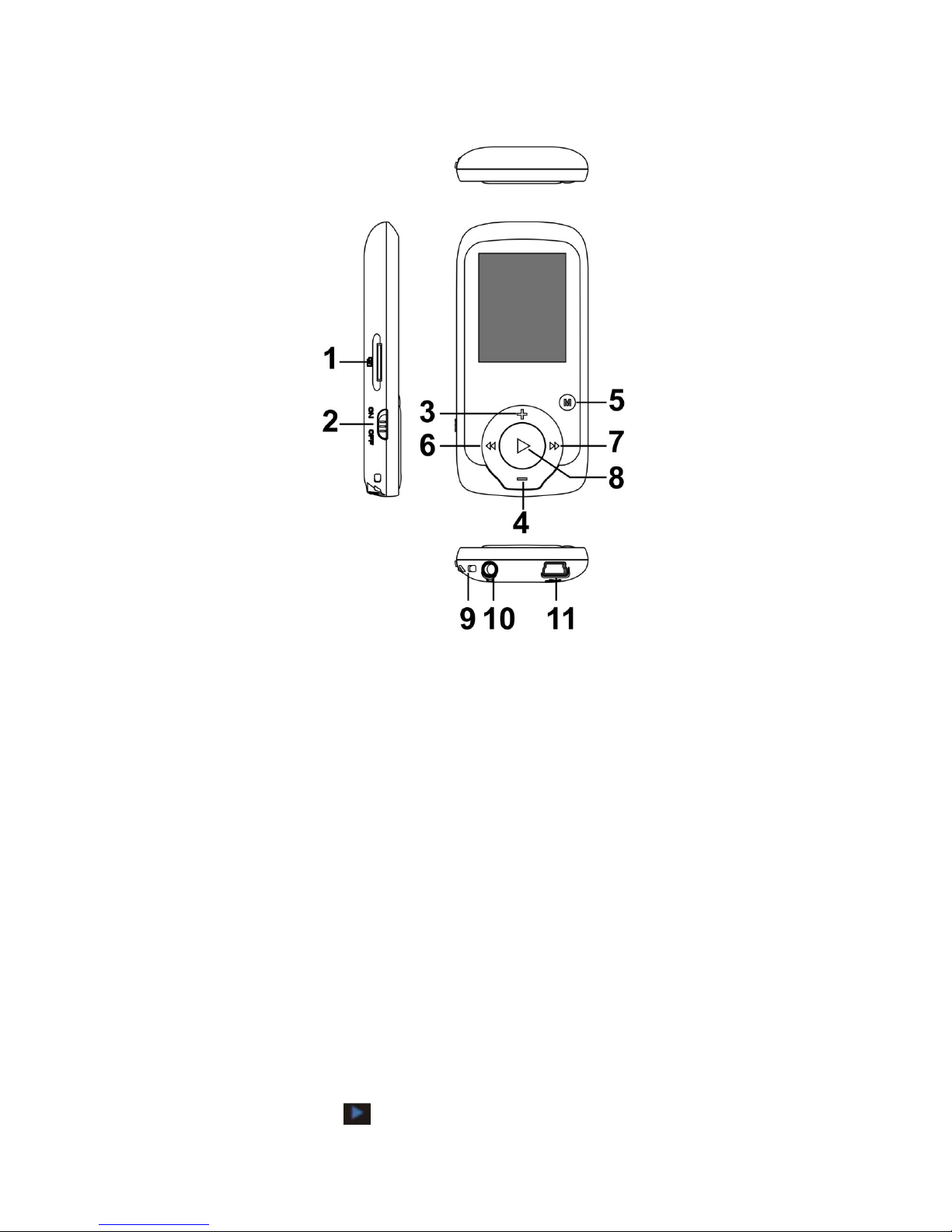
Button & function
•
1. TF Card slot
2. ON/OFF power switch
3. VOL+
4. VOL-
5.Enter menu and exit from sub-menu
6. Last/ Backward
. Next/Forward
8. Play/Pause、Power ON/ OFF the player, confirm selection (under any status,
hold [MENU] will enter main menu)
9. Hand strap Hole
10. Earphone socket
11. USB socket
Basic operation
Power On
Turn on the ON/OFF switch.
Then press and hold the button for 3 seconds to power on the device.
5
Power Off
Press and hold the button for 3 seconds to power off the device.
Then turn off the ON/OFF switch.
Charge / Connect / Disconnect from PC
Connect the device to PC via USB Cable to use it as a Removable Disk.
To charge the device or disconnect the device, press button when USB
connected.
If you use a Power Adaptor (Not included), Power Adaptor current is: 5V, 500mA.
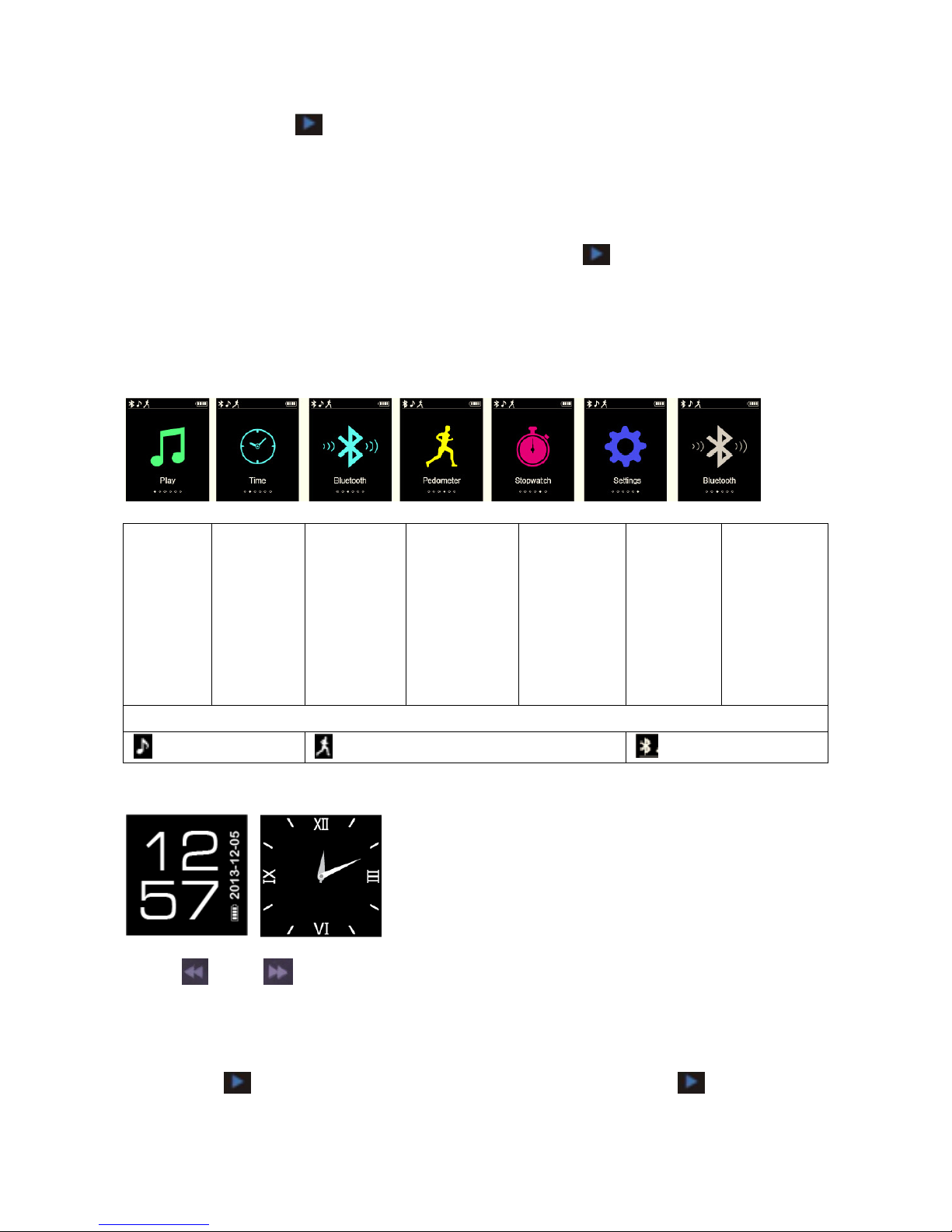
1.1 ain enu
Music /
Radio /
Photo /
Video /
Explorer
/
Record
Time Bluetooth
on
Pedometer
Stopwatch
Go to
setting
Bluetooth
off
Small icons on left top:
Music Playing Pedometer Bluetooth
1.2 Clock function
Press and key to choose the different clock interface, Press M to go to
Menu.
2 usic ode
2.1 Press entry into “Play” in the main menu; press to choose
the “ usic”

6
Tips: Long press M key to shift above 2 interfaces.
2.1.1 Volume
Press “ + ” and “ - ” to adjust the volume freely, the volume level is besides the
speaker icon for you reference.
2.1.2 Repeat function:
Pls go to setting mode, press go to Device, you can
choose repeat mode, play mode freely:
Repeat / Shuffle
songs
One once
All repeat Folder once Folder repeat
All once All repeat
: Repeat the current song/all songs in folder/all
songs over and over.
: Play once only the current song/all songs in
folder/all song.
Settings- device- play mode - : Shuffle songs
: Play songs in turn
2.1.3 Function of icons:
Playlists
Short press entry into Playlists Press or
to go to previous song or next song.
Play a paused song
press to phase a song and play a paused song (
means play; means pause a song)
Play the previous
song press
Play the next song press
3. F Radio
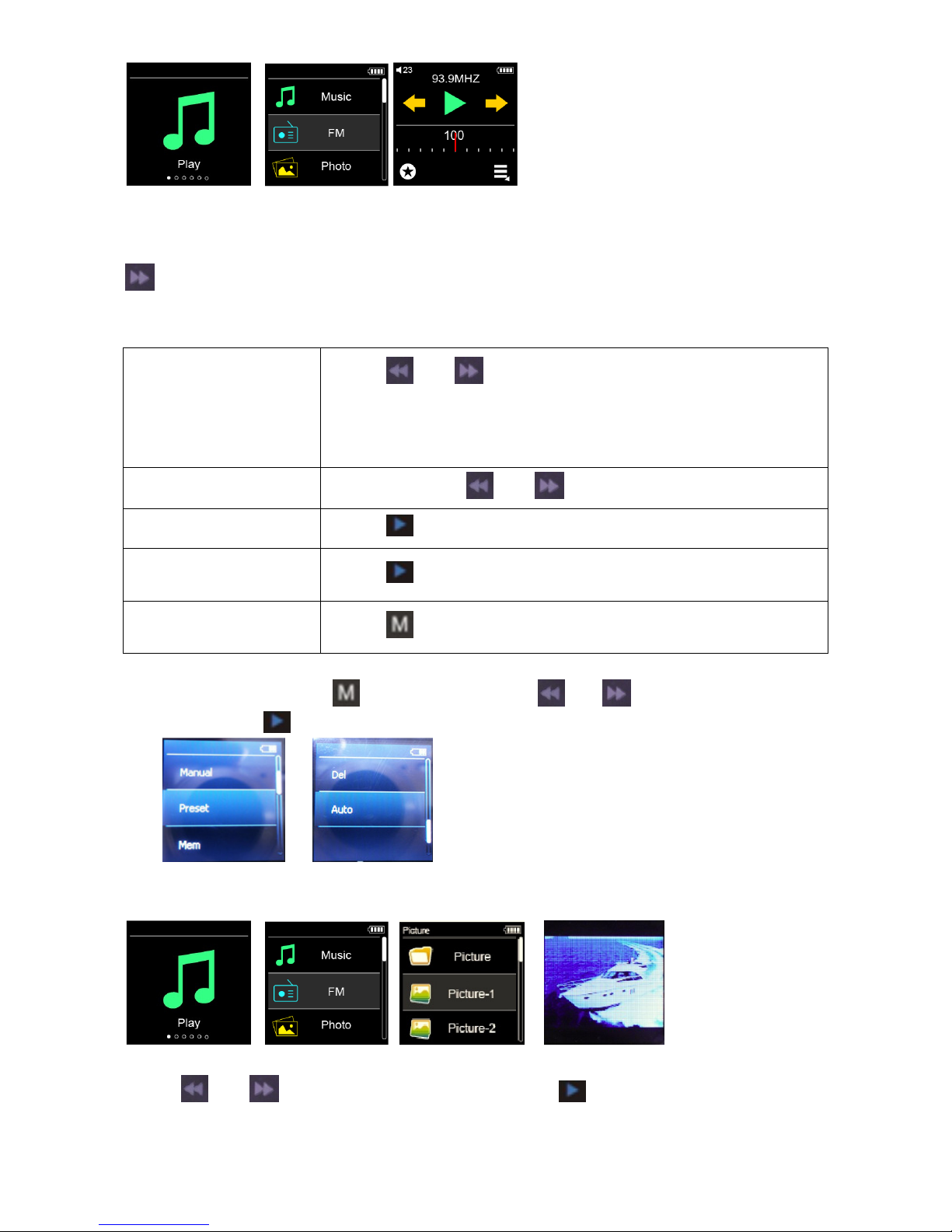
The Player uses the earphone cord as an antenna, so you must connect
earphones or headphones to the Player in order to receive a radio signal. Press
go to “Radio” on the Home screen to open it.
Here is what you can do with the FM Radio controls:
Tune to an FM
station
Press or to go to favorites (if you set any). If no
favorites are set, you hear the previous or next tunable
station. To tune to a particular station, drag the radio
tuner.
Auto Seeking Press and hold or
Pause the Radio Press
Resume the paused
Radio Press
Show the radio
menu Press
Under FM mode, Press go to menu, press & to choose the
function, press to confirm.
4. Picture
Press or to see all the function, press entry into Photo, first you
may get view all photos.
8
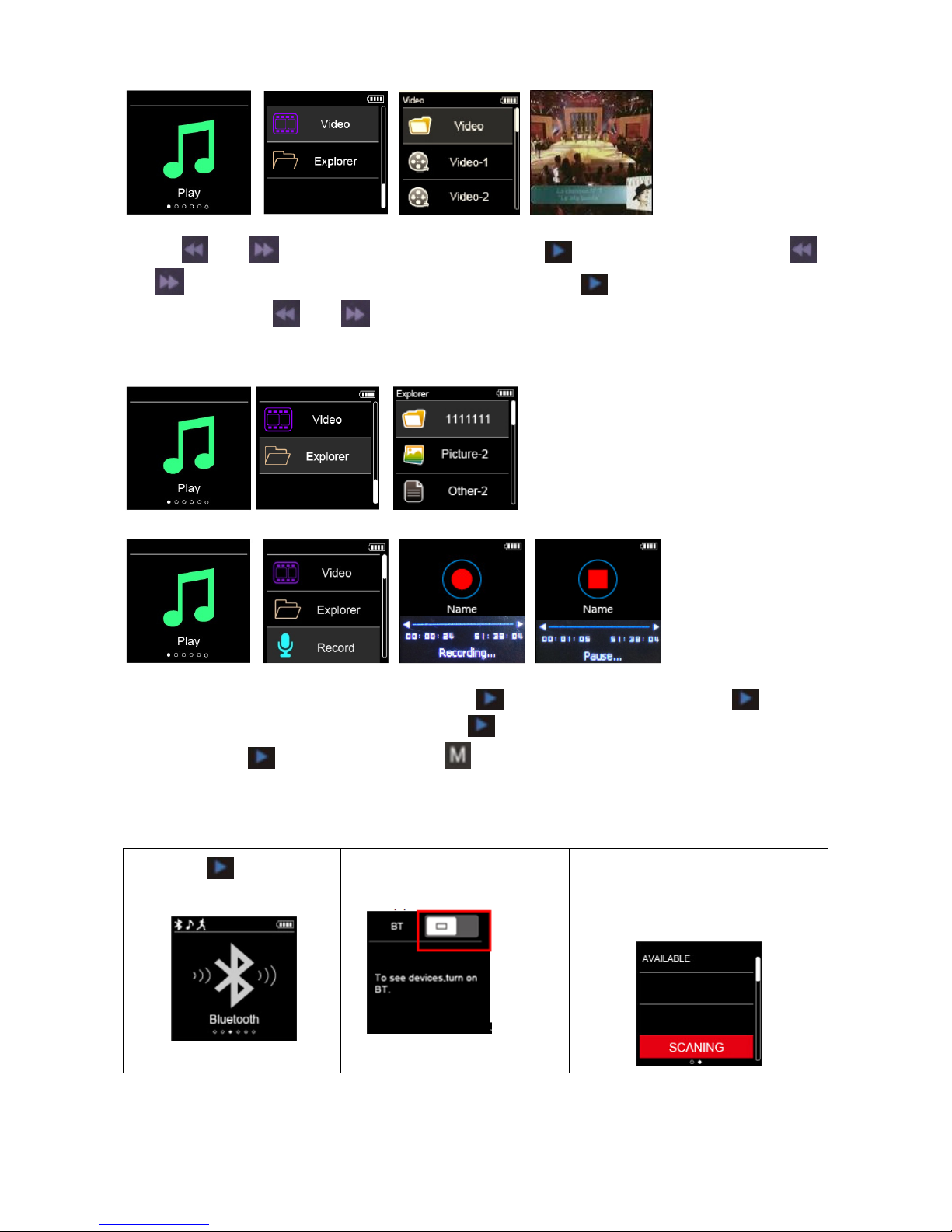
5. ovie
Press or to see all the function, press entry into Video, Press
or to choose the video you want to play. press to stop and continue
the video, Press or to see previous or next video.
6. Explorer
7. Record
The record function is under Play, press entry into Record, press start
to record the voide or pause. Press to start the second record and press
again the to pause it, Press to come back to main menu, the device
will be save the record file automaticlly.
8. Bluetooth
● Press key go to
Bluetooth function
● Long press“ –“ key to
turn on BT
● Long press “+” key to
start scanning the BT
device.

9
● Press or
to choose from BT
device list if scanned
for many BT devices,
then press to
start pair
● Paired successfully.
● Press to remind
whether cancel current
connection? Press
or
then Press to
confirm
9. Sport
This device measures steps, calculates distance, calorie.
9.1 Set user profile
Before starting using Sport, Please go to “Setting - > Move – User Profile “ to
set your user profile,press V to change from first number to the second one; the
red color of number means it can be adjust. Press or to adjust the
number.
9.1.1. Set user’s walk footsteps (walk step size)
9.1.2. Set user’s run footsteps (run step size)
Andere Nikkei Medienplayer Handbücher


