Nokia Lumia 1520 Bedienungsanleitung

User Guide
Nokia Lumia 1520
Issue 3.0 EN

Psst...
This guide isn't all there is...
There's a user guide in your phone – it's always with you, available when needed. On the start screen,
swipe left, and tap Lumia Help + Tips.
The instructions in this user guide are based on the latest available software version. If your device
has not been updated to the latest available software, there may be differences in the availability
and functionality of some features.
Check out the videos at www.youtube.com/lumiasupport.
For info on Microsoft Mobile Service terms and Privacy policy, go to www.microsoft.com/mobile/
privacypolicy.
© 2015 Microsoft Mobile. All rights reserved. 2

Contents
For your safety 5
Get started 6
Keys and parts 6
Insert the SIM card 6
Remove the SIM card 8
Insert the memory card 8
Switch the phone on 9
Lock the keys and screen 10
Charge your phone 11
Connect the headset 13
Antenna locations 13
Your first Lumia? 15
Set up your phone 15
Explore your tiles, apps, and settings 15
Navigate inside an app 17
Use the touch screen 18
Transfer content to your Lumia phone 20
Basics 24
What’s new in this release? 24
Get to know your phone 24
Accounts 29
Personalise your phone 32
Accessibility 37
Take a screenshot 38
Extend battery life 39
Save on data roaming costs 41
Write text 41
Scan codes or text 45
Clock and calendar 46
Browse your SIM apps 49
Store 49
People & messaging 52
Calls 52
Contacts 56
Social networks 61
Messages 62
Mail 66
Camera 72
Get to know Lumia Camera 72
Change the default camera 72
Camera basics 72
Advanced photography 74
Photos and videos 77
Maps & navigation 81
Switch location services on 81
Positioning methods 81
Internet 82
Define internet connections 82
Connect your computer to the web 82
Use your data plan efficiently 83
Web browser 83
Search the web 86
Close internet connections 86
Entertainment 87
Watch and listen 87
FM radio 90
MixRadio 91
Sync music and videos between your
phone and computer 91
Games 92
User Guide
Nokia Lumia 1520
© 2015 Microsoft Mobile. All rights reserved. 3

Office 94
Microsoft Office Mobile 94
Write a note 96
Continue with a document on another
device 97
Use the calculator 97
Use your work phone 97
Tips for business users 98
Phone management & connectivity 100
Update your phone software 100
Use a high speed connection 101
Use a secure VPN connection 101
WiFi 102
NFC 103
Bluetooth 105
Memory and storage 107
Copy content between your phone and
computer 109
Security 110
Wallet 112
Access codes 113
Troubleshooting and support 115
Find your model number and serial
number (IMEI) 116
Product and safety info 116
© 2015 Microsoft Mobile. All rights reserved. 4

For your safety
Read these simple guidelines. Not following them may be dangerous or illegal.
SWITCH OFF IN RESTRICTED AREAS
Switch the device off when mobile phone use is not allowed or when it may cause interference
or danger, for example, in aircraft, in hospitals or near medical equipment, fuel, chemicals, or
blasting areas. Obey all instructions in restricted areas.
ROAD SAFETY COMES FIRST
Obey all local laws. Always keep your hands free to operate the vehicle while driving. Your first
consideration while driving should be road safety.
INTERFERENCE
All wireless devices may be susceptible to interference, which could affect performance.
QUALIFIED SERVICE
Only qualified personnel may install or repair this product.
BATTERIES, CHARGERS, AND OTHER ACCESSORIES
Use only batteries, chargers, and other accessories approved by Microsoft Mobile for use with
this device. Third-party chargers that comply with the IEC/EN 62684 standard, and that can
connect to your device micro USB connector, may be compatible. Do not connect incompatible
products.
KEEP YOUR DEVICE DRY
Your device is not water-resistant. Keep it dry.
GLASS PARTS
The device screen is made of glass. This glass can break if the device is dropped on a hard
surface or receives a substantial impact. If the glass breaks, do not touch the glass parts of
the device or attempt to remove the broken glass from the device. Stop using the device until the
glass is replaced by qualified service personnel.
PROTECT YOUR HEARING
To prevent possible hearing damage, do not listen at high volume levels for long periods.
Exercise caution when holding your device near your ear while the loudspeaker is in use.
© 2015 Microsoft Mobile. All rights reserved. 5

Get started
Get to grips with the basics, and have your phone up and running in no time.
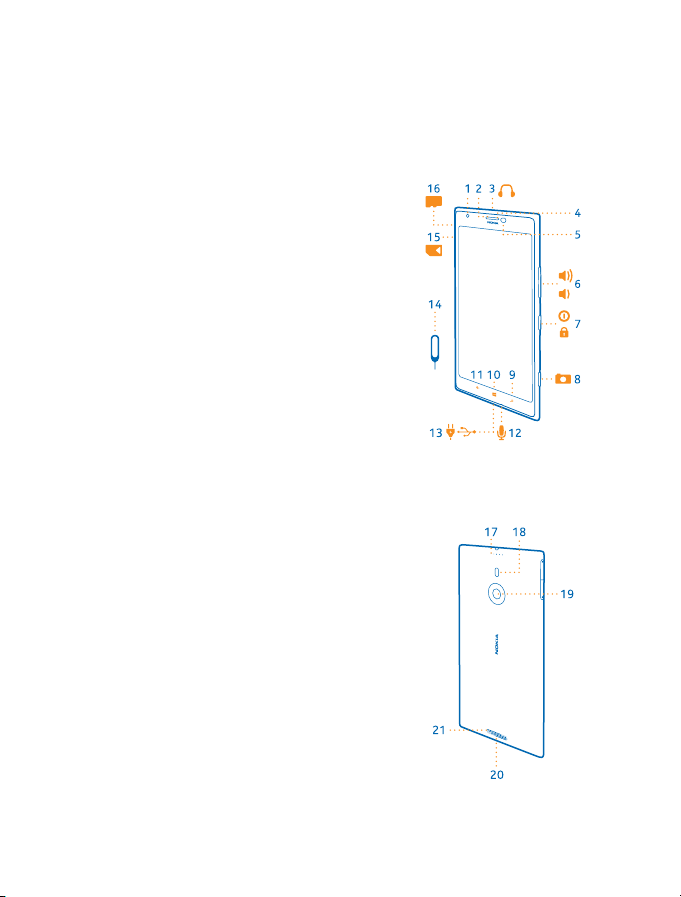
Keys and parts
Explore the keys and parts of your new phone.
1 Front camera
2 Earpiece
3 Connector for headphones and
loudspeakers (3.5 mm)
4 2nd microphone
5 Proximity sensor/Light sensor
6 Volume keys
7 Power/Lock key
8 Camera key
9 Search key
10 Start key
11 Back key
12 Microphone
13 Micro-USB connector
14 SIM and memory card holder tool, available
in the sales box.
15 Nano-SIM holder
16 Memory card holder
17 3rd microphone
18 Camera flash
19 Back camera
20 Loudspeaker
21 4th microphone
Some of the accessories mentioned in this user
guide, such as charger, headset, or data cable,
may be sold separately.
Insert the SIM card
Read on to learn how to insert a SIM card into your phone.
© 2015 Microsoft Mobile. All rights reserved. 6

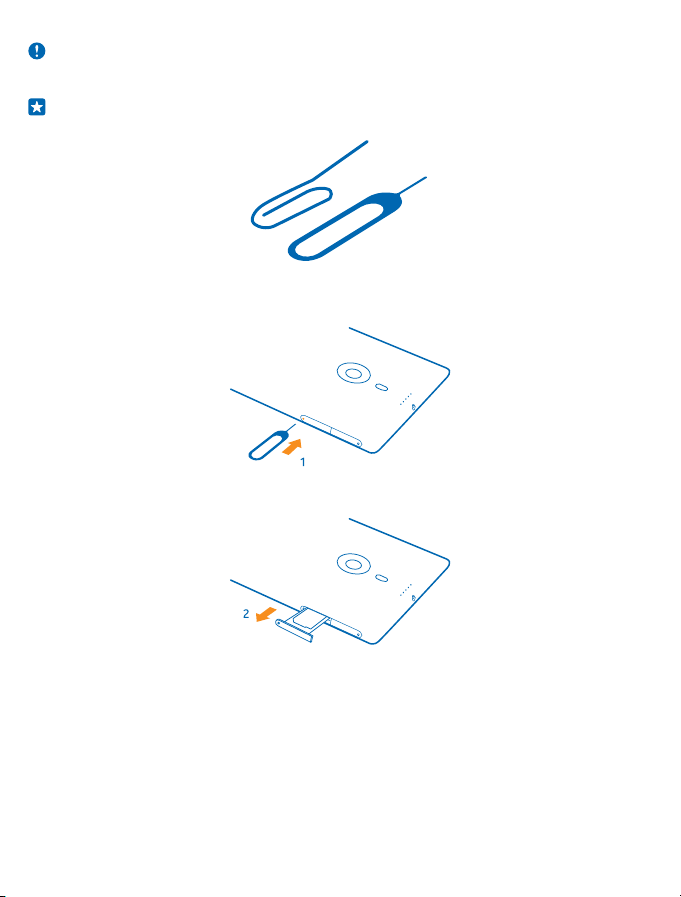
Important: Your device uses a nano-SIM card, also known as a nano-UICC card. Use of
incompatible SIM cards, or use of SIM card adapters, may damage the card or the device, and
may corrupt data stored on the card.
Tip: Use the SIM card holder tool to unlock the SIM holder. If you lose the tool, you can use a
thin paperclip.
Make sure your phone is switched off.
1. Hold your phone face down, and push the tool into the hole until the holder is released.
2. Pull out the holder, and remove the tool from the holder.
3. Put the card in the holder with the contact area face up, and push the holder back into your phone.
© 2015 Microsoft Mobile. All rights reserved. 7

Remove the SIM card
Got a new SIM card? Learn how to remove the previous card from your phone.
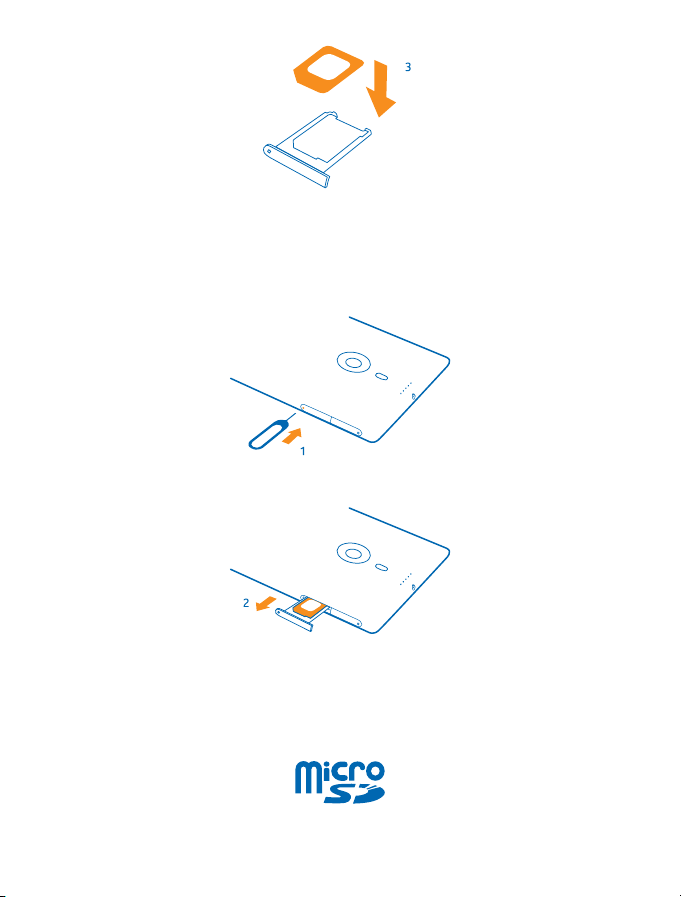
Make sure your phone is switched off.
1. Hold your phone face down, and push the tool into the hole until the holder is released.
2. Pull the holder out, and remove the card.
Insert the memory card
Read on to learn how to insert the memory card into your phone.
Use only compatible memory cards approved for use with this device. Incompatible cards may
damage the card and the device and corrupt data stored on the card.
© 2015 Microsoft Mobile. All rights reserved. 8

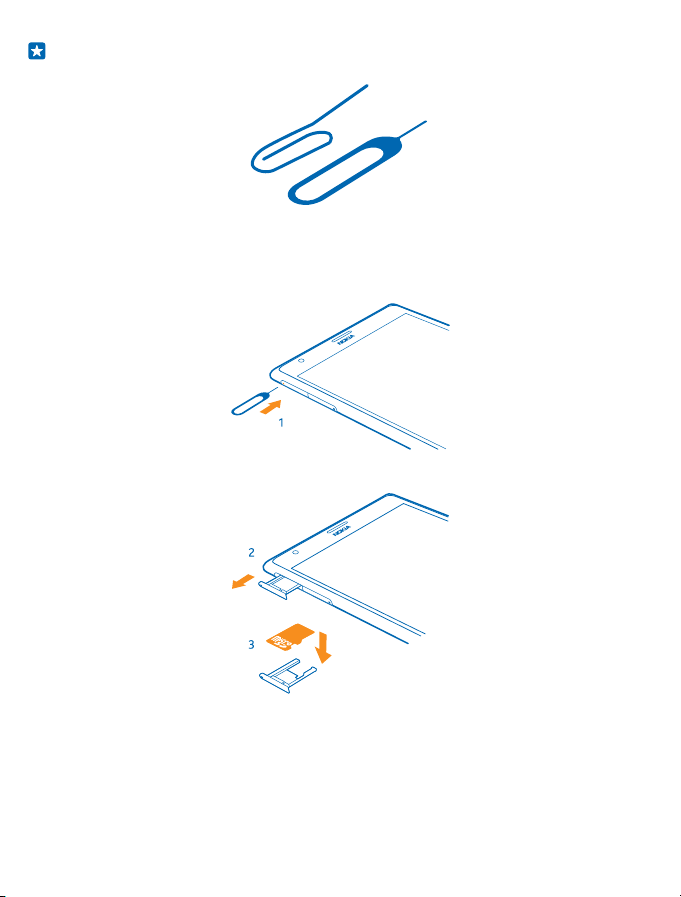
Tip: Use the memory card holder tool to unlock the memory card holder. If you lose the tool,
you can use a thin paperclip.
The phone must be switched off before inserting the memory card. Your phone supports memory
cards with a capacity of up to 64 GB. For best performance, use a card with a capacity of 4–32 GB.
1. Hold the phone face up and push the tool into the hole until the memory card holder is released,
and pull the holder open.
2. Put the card in the holder with the contact area face down, and push the holder back into the phone.
Switch the phone on
Are you ready? Switch your phone on, and start exploring it.
Press the power key until the phone vibrates.
© 2015 Microsoft Mobile. All rights reserved. 9

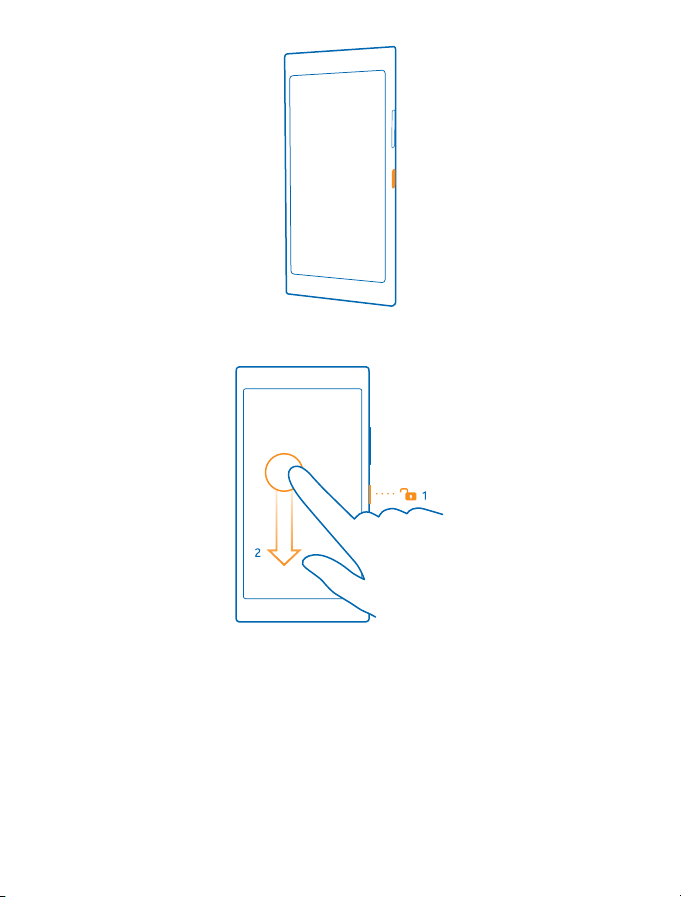
Switch the phone off
Press and hold the power key, and drag the lock screen down.
Lock the keys and screen
Want to avoid accidentally making a call when your phone is in your pocket or bag?
Press the power key.
© 2015 Microsoft Mobile. All rights reserved. 10
Andere Handbücher für Lumia 1520
6
Inhaltsverzeichnis