
Olive ONE Bedienungsanleitung

Olive >User Guide
1. Setting up your Olive ONE
You will find the following connectors on the backside of the ONE:
Audio connectivity
You can connect the ONE in two ways to your amplifier/receiver: !!
Analog: via 3.5 mm-to-RCA cable
The ONE comes with a standard 3.5mm-to-RCA cable for connection to the analog inputs on your
receiver/amplifier. You can use it also to connect a sub-woofer.
Please do not connect headphones to the analog output. Headphones have different impedance
and can damage the ONE’s digital-to-analog converter.
!
Digital: via S/PDIF coax cable
The digital out on the Olive ONE is bit-perfect, i.e. you will need to use the volume control on your
amplifier/receiver (adjusting volume via the Olive ONE’s user interface will not work).
Note: To play music via digital out please go to PREFERENCES > AUDIO and turn ON digital
!Alternatively, you can use the built-in dual HD amplifiers and connect ONE directly to your passive
speakers: You can use two unterminated speaker cables or standard banana plugs. The amplifier
has an output of 2x 32W, so we recommend speakers that have at least 40W RMS.
!Ethernet!
The ONE can connect to your network via Gigabit Ethernet or WiFi. More about this in section 2,
“Connecting to your network.”
USB!
The USB port currently supports backup, restore, update and recovery functionality.
!Power
Recently viewed articles
May 6, 2014: Manufacturing & Shipping
update
May 12, 2014: New software release available
for download.
May 8, 2014: How to install your own hard
disk drive.
How do I insert my own hard drive?
Related articles
3. Transferring music to the internal hard disk
drive (HDD)
2. Connecting to your network
May 8, 2014: How to install your own hard
disk drive.
May 6, 2014: Manufacturing & Shipping
update
How do I insert my own hard drive?
Olive ONE Support ▾
Search
Olive ONE Support
December 27, 2013 12:42 Unfollow
"

Facebook
Twitter
LinkedIn
Google+
Please only use the original Olive power supply included with the ONE.
!Service
Allows Olive to run detailed diagnostics without physically opening the unit.
Please do not connect any cables to this port.
Once all connections are established, touch the Power/Sleep button and the Olive ONE will boot
up.
Comments
Article is closed for comments.
Was this article helpful?
0 out of 0 found this helpful
' (

Olive >User Guide
2. Connecting to your network
You can integrate the ONE into your network via wired or wireless connection. Please go to
SETTINGS > CONNECTIVITY and choose one of the following options:
Wireless (WiFi)
For automatic connection via DHCP please touch the SETTINGS button and then select
CONNECTIVITY > WiFi. Turn ON WiFi and select your network. Enter the password and the ONE
will connect automatically to your network.
Note: It might take a few seconds until your network appears in the network list. You can click the
refresh button to load the network list again.
For a manual network connection please select the manual network setup and enter the required
information, such as network name (SSID), Key (Password), IP address etc.
Wired (Ethernet)
Connect the ONE via Ethernet cable to your router and choose DHCP for automatic connection:
Recently viewed articles
1. Setting up your Olive ONE
May 6, 2014: Manufacturing & Shipping
update
May 12, 2014: New software release available
for download.
May 8, 2014: How to install your own hard
disk drive.
Related articles
3. Transferring music to the internal hard disk
drive (HDD)
How do I insert my own hard drive?
Audio playback quality
1. Setting up your Olive ONE
Before setting up your Olive ONE
Olive ONE Support ▾
Search
Olive ONE Support
February 11, 2014 12:46 Unfollow
"

Facebook
Twitter
LinkedIn
Google+
Or choose STATIC for a manual connection with a fixed IP address. Enter the required information
of your router/network setup in the entry mask:
Comments
Article is closed for comments.
Was this article helpful?
0 out of 0 found this helpful
' (

Olive >User Guide
3. Transferring music to the internal hard disk
drive (HDD)
If your ONE has a built-in HDD, you can transfer the music from your Mac or PC. There are two
options:
Option 1: Using the Serial number
1. On your ONE go to ABOUT > YOUR SYSTEM
2. Write down the serial number (for example "1234567890"!)
3. On a PC press the WINDOWS + R keys on your keyboard!.
On a Mac choose GO > CONNECT TO SERVER (from the main menu on
your desktop)
4. Enter "\\ONE" (or "smb://ONE on a Mac) into to the pop-up window, followed
by the last 4 digits of the Olive ONE serial number (for example "\\ONE7890"!)
5. Click OK
Option 2: Using the IP address
1. On your ONE go to CONNECTIVTY > WIRED (or WIFI if you are connected
wirelessly). Or simply tap on the network status icon in the top left corner of
your music library screen.
2. Write down the IP address assigned to the ONE by your network.
3. On a PC press the WINDOWS + R keys on your keyboard!.
On a Mac choose GO > CONNECT TO SERVER (from the main menu on
your desktop)
4. Enter "\\IP Address" (or "smb://IP ADRESS on a Mac) into to the pop-up
window (for example \\192.168.1.100)
5. Click OK (On a Mac please connect as a "Guest")
An import folder named "Olive Music" will appear on your desktop / network environment. Drag and
drop your complete music folder from your Mac/PC into the import folder and the transfer will
begin. A pop-up window on your desktop will indicate the estimated time for the transfer.
As soon as the music transfer has started, the ONE will start importing the transferred
music automatically into its local database. Once the import is complete your music will appear in
the ONE’s local music library.
Recently viewed articles
2. Connecting to your network
1. Setting up your Olive ONE
May 6, 2014: Manufacturing & Shipping
update
May 12, 2014: New software release available
for download.
Related articles
4. Playing music
May 6, 2014: Manufacturing & Shipping
update
Playing & browsing music from the built-in
hard drive
How to configure presentation levels on your
UPnP DMS
Audio playback quality
Olive ONE Support ▾
Search
Olive ONE Support
March 11, 2014 18:24 Unfollow
"

Facebook
Twitter
LinkedIn
Google+
Useful Tips
We recommend using a wired Ethernet connection to transfer larger libraries.
Only supported audio formats (WAV, AIFF, FLAC, MP3, AAC, Apple Lossless, Ogg Vorbis)
will be imported and show up in the ONE’s local music library.
Music in WAV/AIFF format does not have metadata tags and will show up as Unknown
Artist/Album in the ONE’s music library. We recommend converting WAV files to FLAC on
your Mac/PC before you transfer it.
Comments
Article is closed for comments.
Was this article helpful?
0 out of 0 found this helpful
' (

Olive >User Guide
4. Playing music
The ONE allows you to play music from different sources:
Internal Hard Disk Drive
There are two key advantages of playing music from the local HDD:
Faster navigation and playback due to independence from network performance, external
hardware (PC/Mac/NAS), and UPnP software.
More flexibility in browsing and arranging your music library, since the ONE manages the
metadata directly.
Music Library Browse Screen
* Network connection status: White network icon confirms internet access. Red icon indicates no internet,
Crossed-through icon means no network access
Play Screen
Recently viewed articles
3. Transferring music to the internal hard disk
drive (HDD)
2. Connecting to your network
1. Setting up your Olive ONE
May 6, 2014: Manufacturing & Shipping
update
Related articles
5. Finding the right music quickly
6. Playlists
3. Transferring music to the internal hard disk
drive (HDD)
7. Editing Metadata
May 6, 2014: Manufacturing & Shipping
update
Olive ONE Support ▾
Search
Olive ONE Support
December 24, 2013 17:02 Unfollow
"
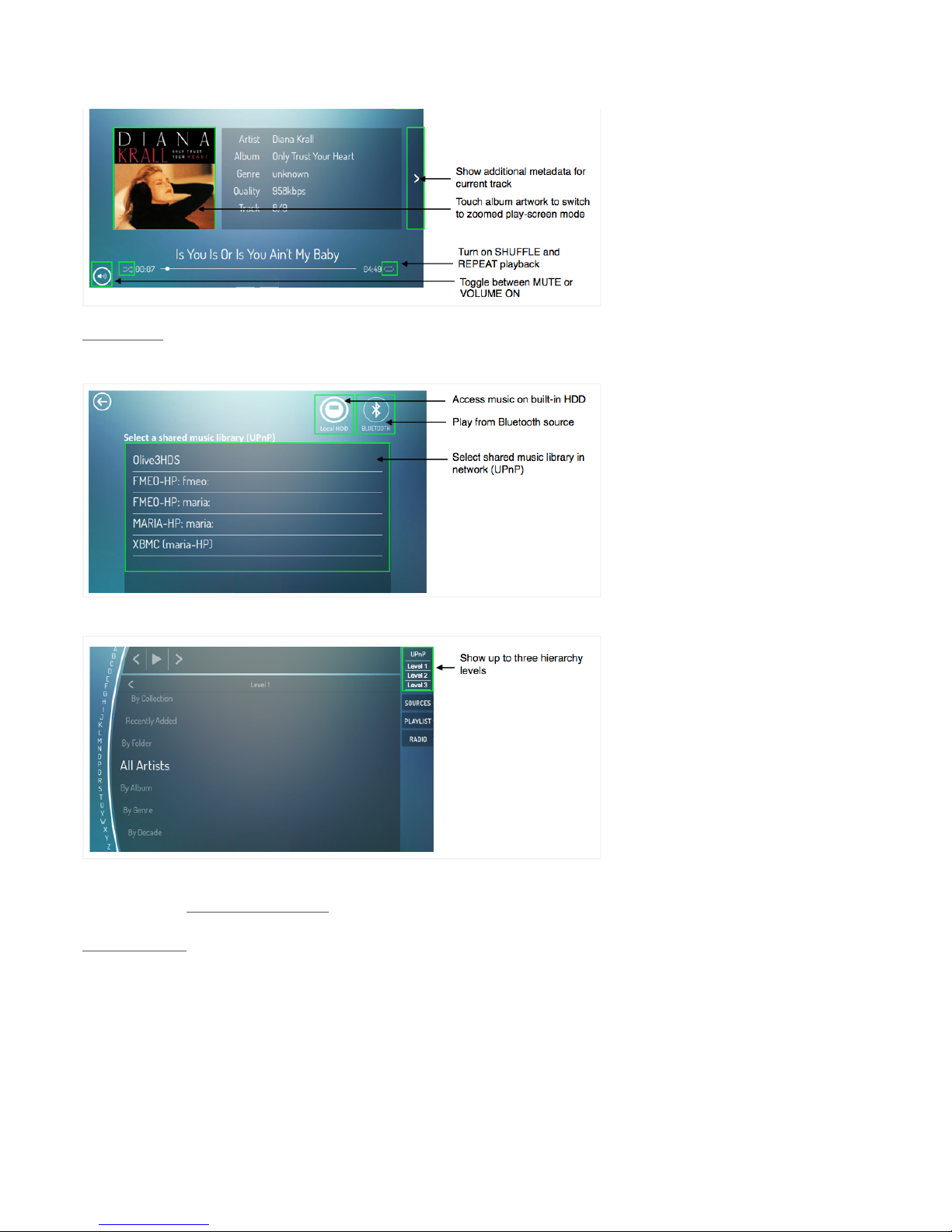
UPnP Sources
To stream music from your Mac/PC/NAS, you need to share your music library using UPnP DLNA
software in your network. Your UPnP library will then appear in the Sources screen:
Once you have selected your library the Olive ONE will display the music information in the UPnP
library screen:
Due to the many different ways UPnP software packages provide information about a shared
music library, the Olive ONE provides a standardized view to ensure maximum compatibility. You
can choose to view up to three hierarchy levels of your music library.
Bluetooth Sources
The ONE can also access and play music from your Bluetooth enabled smartphone:
1) Select SOURCES from the Launch Bar and click on the Bluetooth icon!(or go to
SETTINGS > CONNECTIVITY > BLUETOOTH).
2) Turn ON Bluetooth and wait until the status messages changes to “Initialized.”
3) Turn ON Bluetooth on your smartphone and select the ONE in the device list.

Facebook
Twitter
LinkedIn
Google+
The connection is established when the status on the ONE changes to “Connected.”
4) Start music playback from your phone. The ONE’s user interface will automatically change to the
play-screen and display the music currently playing. You can control playback (skip, pause/play,
volume) from the user interface of your phone or the ONE.
Internet Radio
The ONE comes with a hand-groomed internet radio service with stations from all around the
world. Our proprietary database allows you to conveniently arrange, browse and search stations
by combining key criteria such as country, genre, language, etc
Can’t find your favorite station? The ability to add your own internet radio stations is currently in the
works and will be added shortly.
Note: Internet radio station links must be http or mms. Currently only radio stations that use the
MP3 formats are supported, not the Windows Media Format.
Comments
Article is closed for comments.
Was this article helpful?
0 out of 0 found this helpful
' (

Olive >User Guide
Facebook
Twitter
LinkedIn
Google+
5. Finding the right music quickly
Access the search mask by tapping on the icon.
It allows you to search your music on the built-in HDD, UPnP shared libraries (supported software
packages only), and internet radio stations.
Simply tap on the column (metadata category) that you want to apply your search to, type in your
search term and press “Search”. The music library will dynamically update based on your search
term.
Comments
Article is closed for comments.
Recently viewed articles
4. Playing music
3. Transferring music to the internal hard disk
drive (HDD)
2. Connecting to your network
1. Setting up your Olive ONE
Related articles
6. Playlists
May 6, 2014: Manufacturing & Shipping
update
How to configure presentation levels on your
UPnP DMS
May 8, 2014: How to install your own hard
disk drive.
Olive ONE Support ▾
Search
Olive ONE Support
December 24, 2013 17:06 Unfollow
Was this article helpful?
0 out of 0 found this helpful
& '
(
Inhaltsverzeichnis
Beliebte MP3-Player Handbücher anderer Marken

Blaupunkt
Blaupunkt Compact Drive MP3 Bedienungsanleitung

Memorex
Memorex MMP9008 - 8GB USB 2.0 Bedienungsanleitung

Meizu Electronic Technology
Meizu Electronic Technology E5 Bedienungsanleitung

Naxa
Naxa NMV-173NX Bedienungsanleitung

Philips
Philips PSA250 Bedienungsanleitung

Zipy
Zipy go! Waving Bedienungsanleitung


