Pager Genius T9050W Bedienungsanleitung

Pager Genius
Paging System
USER MANUAL
Pager P2000
T9050/T9050W/P2000
Transmitter T9050 & T9050W
www.pagergenius.com
Pager Genius, INC.
9852 W Katella Ave, Suite #500, Anaheim, CA 92804
PagerGenius.com
1-800-289-3823

www.pagergenius.comUser manual 1
T9050/T9050W/P2000
Thank you for purchasing
the Pager Genius System
We provide an excellent paging product and USA based customer service.
Please familiarize yourself and sta with the contents of this manual
tooperate and maintain your system correctly. If you have any questions
orservice problems, please contact us.
Please keep this manual in a safe place for the sta and managers to
view in the future.
1-800-289-3823
9852 W Katella Ave, Suite #500,
Anaheim, CA 92804

www.pagergenius.comUser manual 2
T9050/T9050W/P2000
TABLE OF CONTENTS
Setting up Pager Genius Transmitter
Transmitter keypad operation
Making your transmitter silent with no beeping
How to page
Cancelling a page
Resetting a pager to the transmitter
How to make T9005/T9005W transmitters transmit same signal
Charging indicator lights T9050W
Battery life indicator T9005W
Group paging
Charging the pagers
Setting the pager alerts
Setting the time on the pager
Setting the alert time on the pagers
Cleaning the pagers and transmitters
FAQs and troubleshooting issues
Warranty
HOW TO SET-UP AND USE THE PAGER GENIUS SYSTEM
Your Pager Genius System is ready to use out of the retail box. Plug your
Pager Genius into a power outlet, it will take 60 minutes for them to charge
fully. The Pager Genius System is a self-contained paging system.
All that is required to use the Pager Genius System is power. The Pager Genius
System does not connect to the internet or any phone lines. Once the pagers
fully charge up, walk around the property and test the range of your system.
We oer Pager Genius range extenders to extend coverage to cover large areas.
3
3
4
4
4
5
6
6
6
7
7
8
9
9
9
10
11

www.pagergenius.comUser manual 3
T9050/T9050W/P2000
SETTING UP PAGER GENIUS
TRANSMITTER
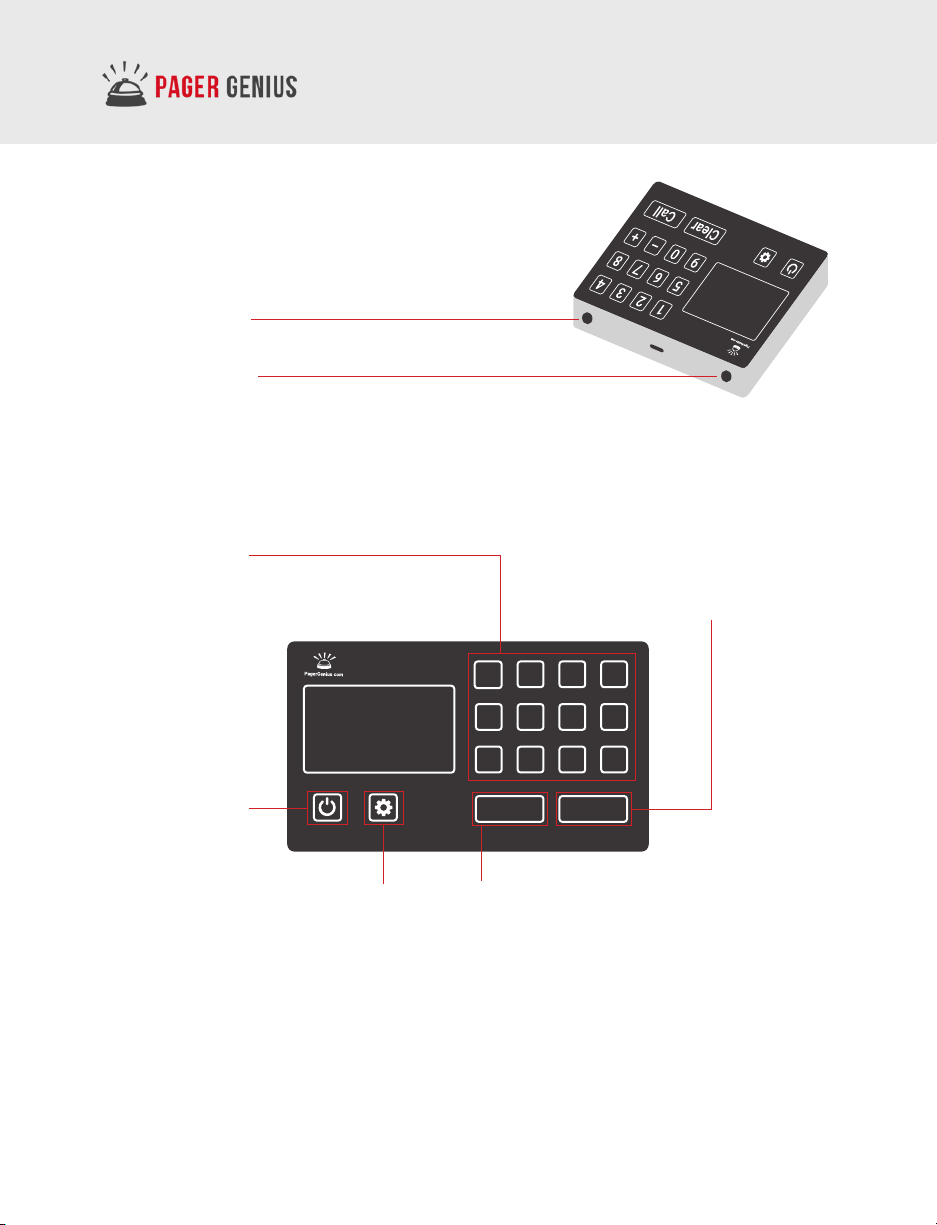
Charging port
Antenna input
TRANSMITTER KEYPAD OPERATION
Number Keys
Press the number of the pager
you wish to notify
Call
To send the
numeric page
1 2 3 4
5 6 7 8
9 0 – +
Clear Call
Clear Button
To cancel a page, press the number of
the pager followed by the Clear button
Power Button
Settings Button

www.pagergenius.comUser manual 4
T9050/T9050W/P2000
MAKING YOUR TRANSMITTER SILENT
WITH NO BEEPING T9050/T9050W
The Pager Genius transmitter beeps every time you press an input. If you
would like to remove the beeping feature, do the following steps:
1. Unplug the transmitter and plug it back into power from the rear input.
2. Let the transmitter power up and wait for [- - - -] to
come across the digital screen of the transmitter.
3. Within ve seconds, press the settings button and
the number 2 at the same time.
Note: The Transmitter T9050W will display PASS
on the screen, press the numbers 5008.
4. If you see bep0 come across the digital screen, the transmitter is now
silent. If you see bep1 come across the screen, the transmitter will beep.
5. To add or delete the beeping, press the one key
or the zero key to make your selection.
HOW TO PAGE
The Pager Genius Transmitter can page single pagers numbered 0 to 999.
To page a pager, press the number of the pager you wish to page, followed
by the call button. Example: To page pager #7, press the number 7 on the
keypad, followed by the call button.
CANCELLING A PAGE
There are two ways to cancel a page:
1. You can cancel a page by pressing the number of the pager you want
canceled, followed by the clear button on the transmitter.
2. You can place the pager back on it's charging stack and the page will
cancel automatically.

www.pagergenius.comUser manual 5
T9050/T9050W/P2000
RESETTING A PAGER TO THE TRANSMITTER
When you order more pagers, you will need to add the pagers to the
transmitter. Below are the following steps to add a pager to your system:
Step 1: Turn the pager around, and press the Learn button, the middle
button on the rear of the pager. The digital display of the pager will read [----].
Step 2: Press the number you would like the pager to display, followed by the
enter button. The pager will start alerting, and the pager number will have
changed to the number entered.
The pager will always display this number unless the settings are changed
manually by the end-user.
1 2 3 4
5 6 7 8
9 0 – +
Clear Call
Step 1:
Press the Learn button
to reset the Pager
Step 2:
Use Number Keys to
input anumber for
the selected Pager
Step 3:
Press the Call button
to conrm and save
the number

www.pagergenius.comUser manual 6
T9050/T9050W/P2000
HOW TO MAKE T9050/T9050W TRANSMITTERS
TRANSMIT SAME SIGNAL
You can use multiple transmitters to page the same group of pagers. Below
are directions on how to change these settings.
1. Unplug the transmitter and plug it back into power from the rear input.
2. Let the transmitter power up and wait for [- - - -] to come across the digital
screen of the transmitter.
3. Within ve seconds, press the settings button and the number 1 at the
same time. You will see C--0 appear on the digital screen of the transmitter.
Note: The Transmitter T9050W will display PASS on the screen, press the
numbers 5008
4. Now press any number 1 to 9; if you press number 1, you will see C- -1 come
up on the digital screen.
5. Once the selections are made, press the settings button to exit.
6. Make sure you do this with all the transmitters you plan to use, make sure
they are all in the same setting to transmit the same signal.
CHARGING INDICATOR LIGHTS T9050W
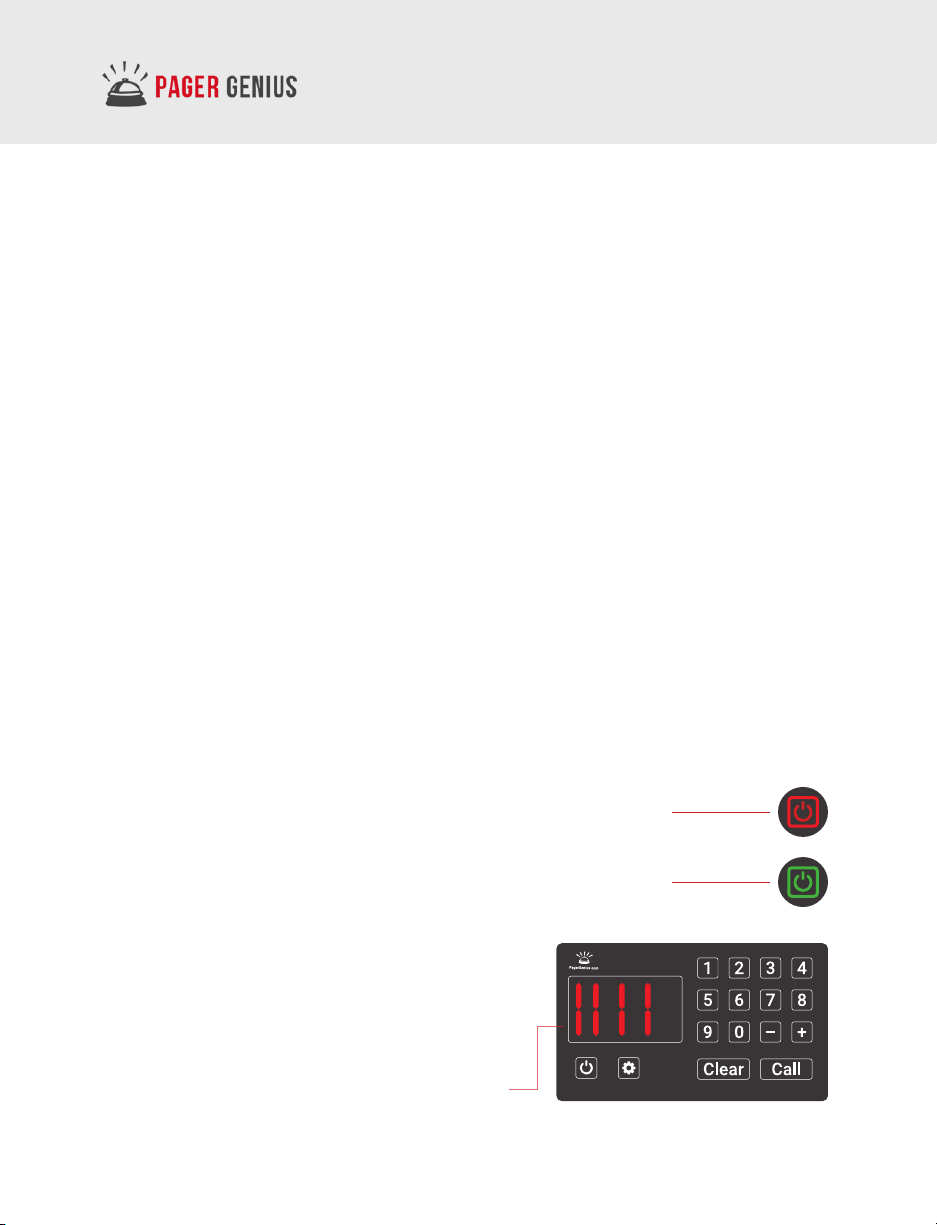
When charging and plugged into power, the power button
will display the color red when the unit is charging.
When the power indicator light shows the color green,
thetransmitter is fully charged and ready for operation.
BATTERY LIFE INDICATOR T9005W
To see how much battery life you have left on
the transmitter, press the power button.
More than 60% left

www.pagergenius.comUser manual 7
T9050/T9050W/P2000
GROUP PAGING
With your Pager Genius System, group paging is an option.
For example, you can group numbers together, you can have ten #1 pagers
and ten #2 pagers, when #1 is paged all ten #1 pagers go o all at the same
time. You can go from group paging back to individual paging in a matter
of minutes. All end users can make changes on the y, and have complete
control of how the pagers are numbered.
CHARGING THE PAGERS
The pagers sit on top of a charging base
part number CH-100. One charging base
can support up to 15 pagers.
Pager Genius provides a charging station
for every ten pagers ordered. There is
a charging light at the rear of the pager,
and when the pagers are charging
correctly, you can see the charging light
illuminate on the rear pager.
Encourage sta to always look
for the charging light illumination
when closing at night.
The pagers must always be charging even when they are out of
operation. It is vital for the long term use of the batteries.
Once the pagers fully charge, they take up very little electricity. Once fully
charged, the pagers can operate up to ve days without charging.
The pagers fully charge in just 60 minutes.
Charging Base

www.pagergenius.comUser manual 8
T9050/T9050W/P2000
SETTING THE PAGER ALERTS
You can have the pager do one, two, or all three of the following alerts:
Vibrate, Light-Up, and Beep.
Also, the pager has a clock option, where the pager can display the time of
day on its digital display. Below are directions on how to change alerts for
individual pagers:
Step 1: Turn the pager around and press the Mode button.
Step 2: Press the Learn button several times until you nd the setting you are
looking for: F(Flash), B(Beep), S(Vibrate), C(Clock).
If the pager digital screen is displaying FB, the pager will only Flash and beep. If
the pager is displaying FBS, the pager will ash, beep, and vibrate.
After you choose your setting press the Stop button.
Step 1:
Press the Mode button
to set up the Pager
Step 2:
Press the Learn button
several times to nd the
setting you are looking for
Step 3:
The pager digital
screen will display
the setting

www.pagergenius.comUser manual 9
T9050/T9050W/P2000
SETTING THE TIME ON THE PAGER
Pager Genius pagers keep military time, and is an
option if you would like your pagers to display time.
How to set-up the time display on a pager:
Step 1: Make sure the pager has the C(Clock) setting
option selected. .
Step 2: Press the Mode button several times until
you get the correct hour, and then press the Stop
button to move the time to the minutes area. You
use the Stop button to toggle between the hours
andminutes.
SETTING THE ALERT TIME ON THE PAGERS
You can have the pagers alerted 15, 30, 45, and 60
seconds. Usually, 15 seconds is a reasonable amount of
time to alert the person to the page.
If the person does not respond to the rst page, you can
keep paging that person repeatedly.
You can change the paging time by turning a pager over
and locating the time button. Press the time button and
select the time you would like the pager to go o when
paged. Set the time that is right for your environment.
CLEANING PAGER GENIUS EQUIPMENT
We recommend using isopropyl alcohol based cleaners to clean the pagers
and transmitter. This is the only approved cleaner that we recommend at this
time. It is recommended the paging system be wiped down once a week.
The pager digital
screen will display
C (Clock)
Time Button
Dieses Handbuch passt für folgende Modelle
2
Inhaltsverzeichnis
Andere Pager Genius Pager Handbücher
Beliebte Pager Handbücher anderer Marken

Motorola
Motorola Talkabout T900 Bedienungsanleitung

Motorola
Motorola Advisor Graphix CP1250 Bedienungsanleitung

Radio Shack
Radio Shack 17-7040 Bedienungsanleitung

PageOne
PageOne Advisor Graphix Bedienungsanleitung

Syscall
Syscall Nttworks GP-210RT Bedienungsanleitung

unication
unication G4 Bedienungsanleitung