PHICOMM FWR-614N Bedienungsanleitung

150Mbps Wireless N Router
FWR-614N
User Manual
User Manual / V2.0

2
Copyright Statement
PHICOMM is the registered trademark of Shanghai Feixun Communication Co., Ltd. Other
trademark or trade name mentioned herein are the trademark or registered trademark of the
company. Copyright of the whole product as integration, including its accessories and software,
belongs to Shanghai Feixun Communication Co., Ltd. Without the permission of Shanghai
Feixun Communication Co., Ltd., individual or party is not allowed to copy, plagiarize, imitate or
translate it into other languages.
All the photos and product specifications mentioned in this manual are for references only, as
the upgrading of software and hardware, there will be changes. And if there are changes,
PHICOMM is not responsible for informing in advance. If you want to know more information
about our products, please visit our website at www.phicomm.com.

i
Table of Contents
150Mbps Wireless N Router
www.phicomm.com
CONTENTS
Chapter 1: Introduction
..............................................1
Product Overview...............................................................................................1
Main Features.......................................................................................................4
Chapter 2: Installation
................................................5
Physical Connection..........................................................................................5
Configure the Computers IP Address .........................................................5
Setup Wizard ..................................................................................................... 11
Chapter 3: Router Configuration
................................. 15
Network Settings ............................................................................................. 15
WAN..........................................................................................................................................16
LAN............................................................................................................................................17
MAC Address Clone ............................................................................................................17
Dynamic DNS ........................................................................................................................17
Wireless Settings.............................................................................................. 18
Wireless Basic Settings.......................................................................................................18
Wireless Security Settings.................................................................................................19
Wireless MAC Address Filter............................................................................................20
Advanced Wireless Settings ............................................................................................21
Wireless Clients List.............................................................................................................22

ii
Table of Contents
150Mbps Wireless N Router
www.phicomm.com
WPS Settings..........................................................................................................................22
WDS Settings.........................................................................................................................23
DHCP Server....................................................................................................... 24
DHCP ........................................................................................................................................24
DHCP Clients list...................................................................................................................25
Address Reservation...........................................................................................................25
NAT........................................................................................................................ 26
Port Forwarding ...................................................................................................................26
Port Triggering......................................................................................................................27
DMZ Host................................................................................................................................28
UPnP.........................................................................................................................................28
Multicast Forwarding Settings........................................................................................29
Security Options............................................................................................... 29
Security Settings ..................................................................................................................29
Advanced Security Settings.............................................................................................30
Local Web Management...................................................................................................31
Remote Web Management..............................................................................................31
Access Control .................................................................................................. 31
MAC/IP/Port Filter................................................................................................................32
Web URL Filter ......................................................................................................................33
Routing Settings .............................................................................................. 33

iii
Table of Contents
150Mbps Wireless N Router
www.phicomm.com
Static Routing Table............................................................................................................33
Dynamic Routing Settings................................................................................................34
IP Bandwidth Control..................................................................................... 34
System Tools...................................................................................................... 35
Network Time Settings......................................................................................................35
Diagnostics.............................................................................................................................36
Wake On LAN ........................................................................................................................37
Factory Defaults ...................................................................................................................37
Backup and Restore ............................................................................................................38
Password.................................................................................................................................38
System Log.............................................................................................................................39
Traffic Statistics.....................................................................................................................39
Firmware Upgrade ..............................................................................................................40
Reboot .....................................................................................................................................40
Logout.................................................................................................................. 40
Chapter 4: Specification
............................................ 41
Appendix A: Troubleshooting
..................................... 42
Appendix B: Certification
.......................................... 44
FCC Statement.................................................................................................. 44
CE Mark Warning ............................................................................................. 45
Appendix C: Glossary
................................................ 46


150Mbps Wireless N Router
www.phicomm.com
1
Chapter 1: Introduction
Product Overview
Thank you for choosing FWR-614N Wireless N Router.
FWR-614N 150Mbps Wireless N Router is an all-in-one router, ideal for home and SOHO users to
share broadband Internet connection over the wired and wireless network. With the speed of up
to 150Mbps, it can provide users with extraordinary smooth internet surfing, internet phone
calling, and on-line gaming. Moreover, by adopting an external Omni-directional antenna,
FWR-614N could greatly increases the wireless range & sensitivity, which enables you to receive
wireless signals in the farthest corner of your home or office. And you can quickly setup the
security at a simple push of the WPS (WiFi Protected Setup) button on the fashionable designed
router, preventing your device from potential internet attacks.
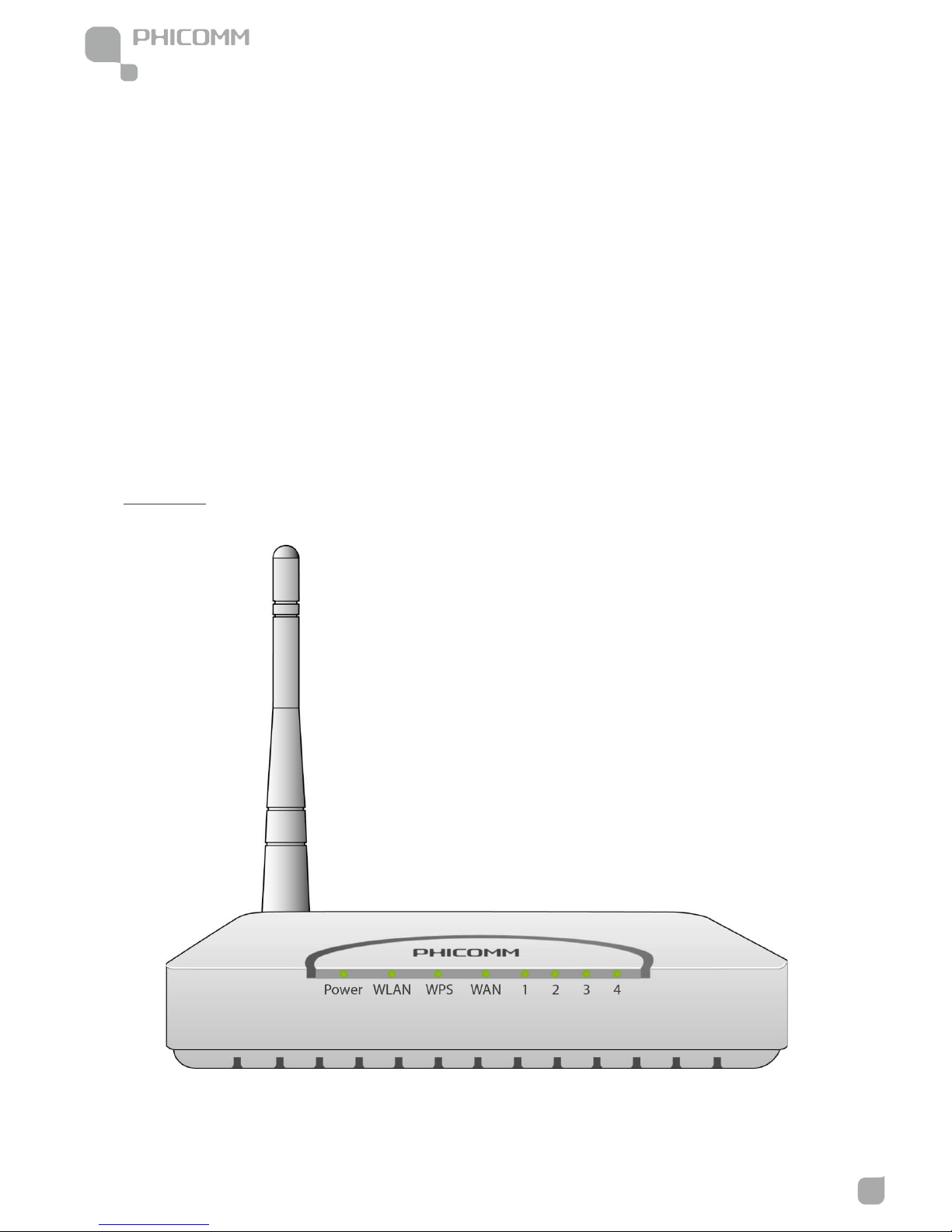
Front Panel
Power LED: The Power LED lights up when the Router is powered on. When the Router goes
through its self-diagnostic mode during every boot-up, the LED flashes. When the diagnostic is

150Mbps Wireless N Router
www.phicomm.com
2
Chapter 1: Introduction
complete, the LED is continuously lit.
WLAN LED: The Wireless LED lights up when the wireless feature is enabled. It flashes when the
Router sends or receives data over the wireless network.
Wi-Fi Protected Setup (WPS) LED: If you have client devices (such as wireless adapters) that
support Wi-Fi Protected Setup, then you can use the Wi-Fi Protected Setup button to
automatically configure wireless security for your wireless network. To use Wi-Fi Protected Setup,
refer to the section of Wi-Fi Protected Setup.
WAN:The WAN LED lights up when there is a connection made through the WAN port. It flashes
to indicate network activity over the WAN port.
LED (1~4): These LEDs are corresponding with the LAN ports on the rear panel. The LED is
continuously lit when the Router is connected to a device through that port. It flashes to indicate
network activity over that port.
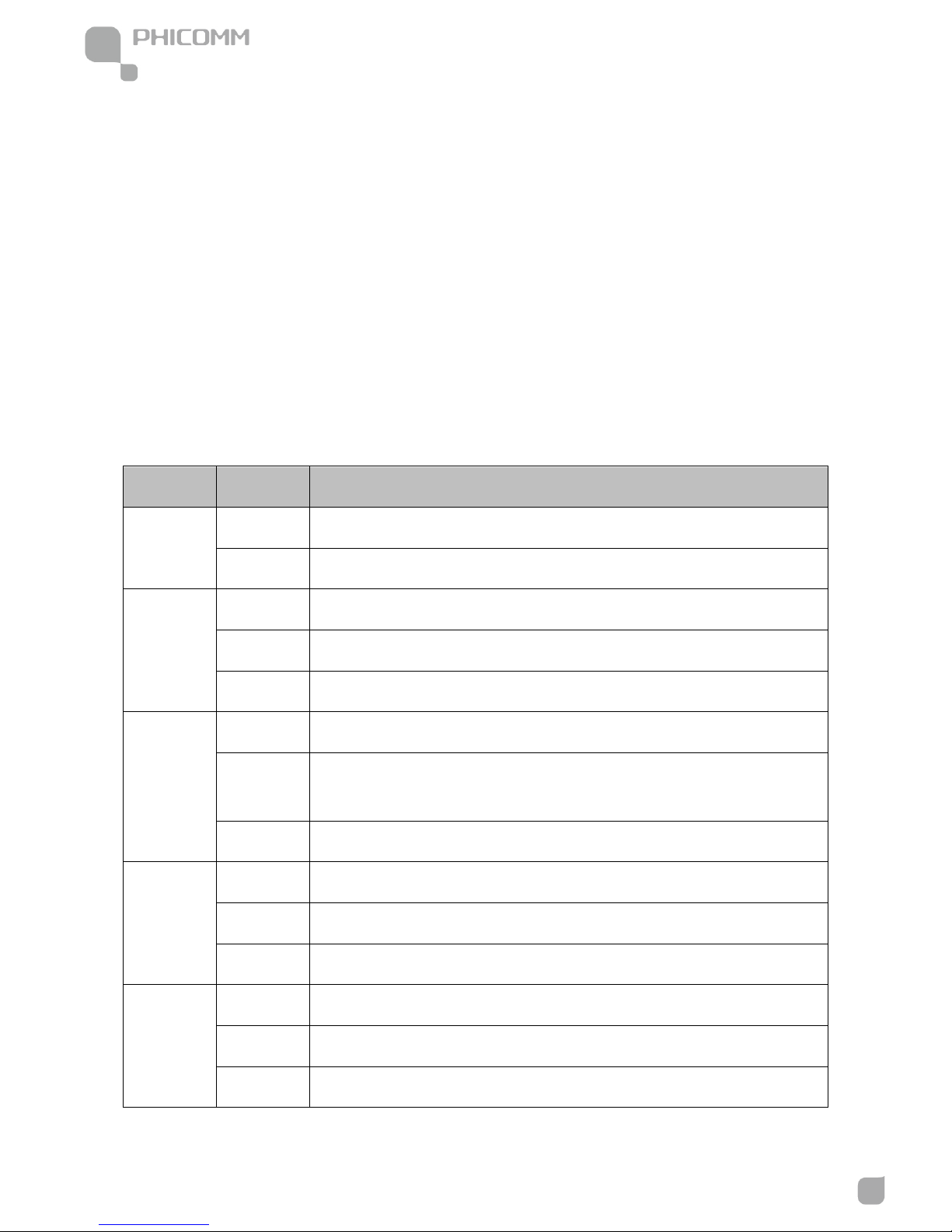
LED Status Description
POWER
On Power is on
Off Power is off
WLAN
On The wireless function is enabled
Off The wireless function is disabled
Blinking Sending or receiving data over wireless network
WPS
Off WPS function is disabled
Blinking A wireless device is connecting to the network by WPS function. This process will
last in the first 2 minutes
On A wireless device has been successfully connected to the network by WPS function
WAN
On WAN port is connected
Off WAN port is unconnected
Blinking Data is transmitting
LAN
(Port 1-4)
On LAN port is connected
Off LAN port is unconnected
Blinking Data is transmitting

150Mbps Wireless N Router
www.phicomm.com
3
Chapter 1: Introduction
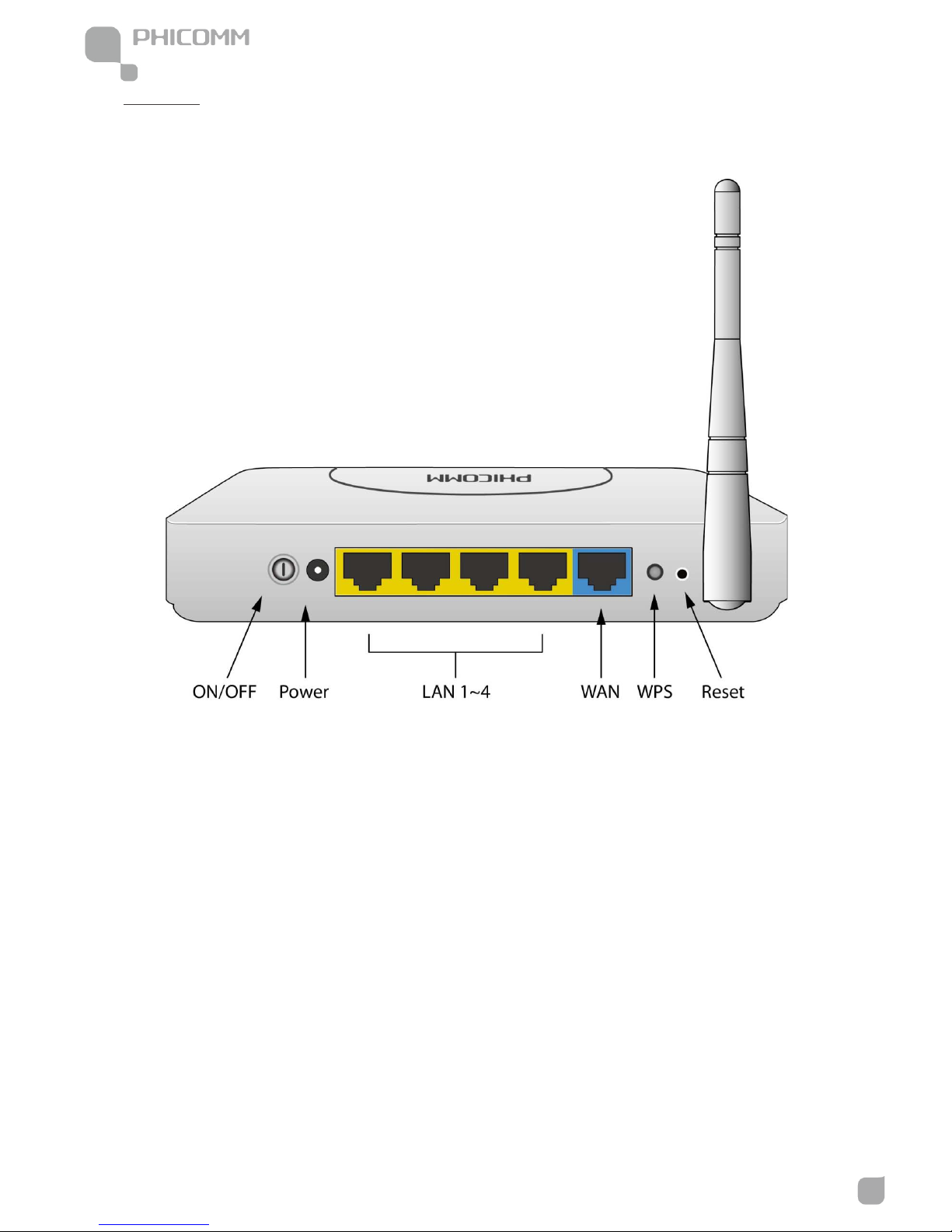
WPS: Press the button and the WPS LED in front panel flashing, WPS function is enabled.
Reset: Long press and hold the button for 8 seconds, the Router will reboot to its factory default
settings.
WAN: Using an Ethernet cable (also called a network or Internet cable), the Internet port
connects the Router to your Internet connection, which is typically a cable or Digital Subscriber
Line (DSL) modem.
LAN (1~4): Using Ethernet cables, these Ethernet ports (4, 3, 2, 1) connect the Router to
computers and other Ethernet network devices on your wired network.
Power: The Power port connects to the included power adapter.
ON/OFF: The power on/off button.
Rear Panel

150Mbps Wireless N Router
www.phicomm.com
4
Chapter 1: Introduction
Main Features
• 4 LAN ports and 1 WAN port
• Wireless N speed up to 150Mbps, ideal for internet surfing and on-line gaming
• Multi-SSID allows users to create multiple networks, and distributes access privilege of each
network
• QoS controls the reasonable allocation of bandwidth to achieve optimum utilization,
ensuring reliable Internet connection
• Quick wireless security setup by simply pressing the WPS button
• WDS wireless bridge provides seamless bridging to expand your wireless network
• Built-in firewall featured with IP, MAC, URL filtering and ARP attack prevention to protect
your PC
• Backward compatible with 802.11b/g product
• Setup wizard simplifies installation and configuration

150Mbps Wireless N Router
www.phicomm.com
5
Chapter 2: Installation
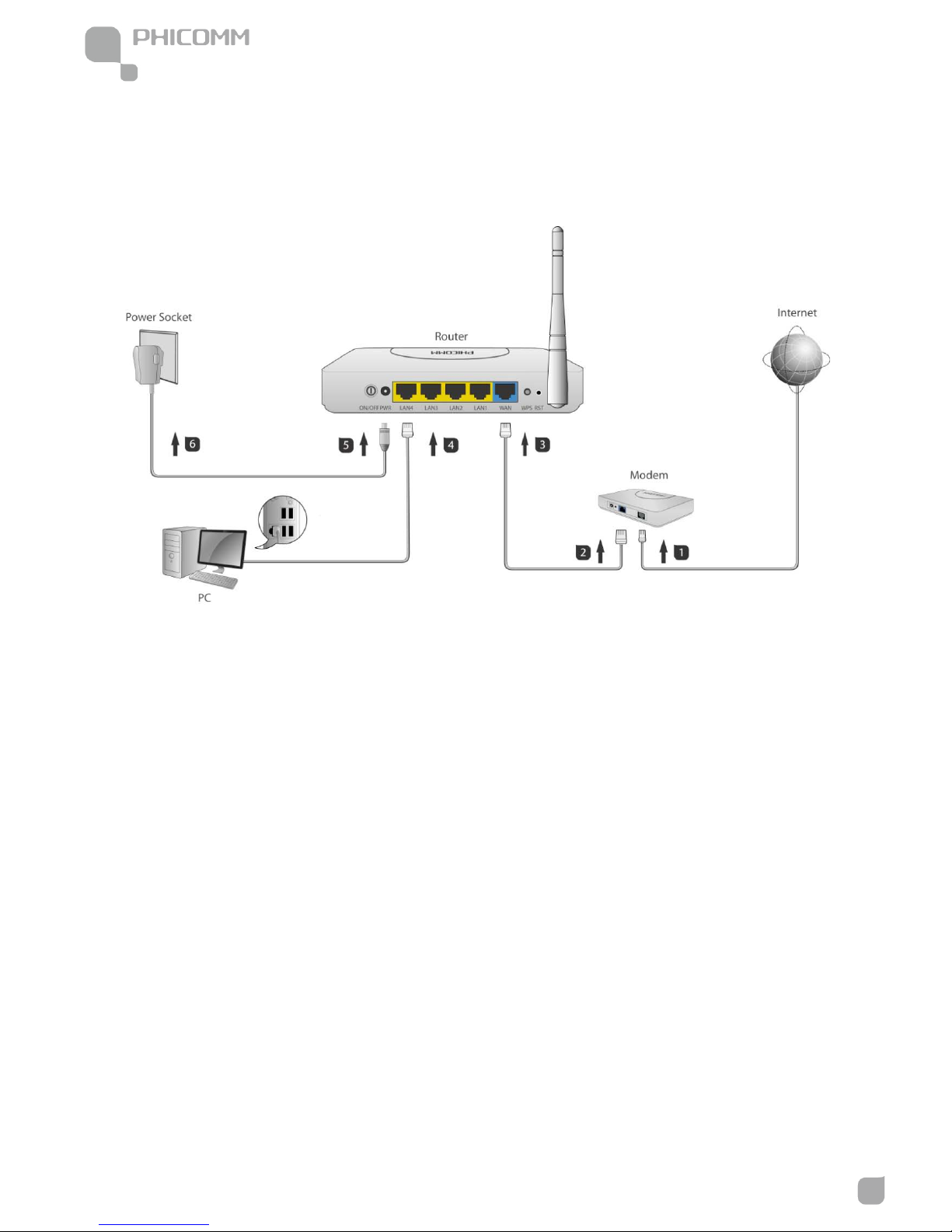
Physical Connection
Note:
• Actual product may be different as the picture, but the installation will be the same.
• Please use the included power adapter. Use of a different power adapter could cause
damage and void the warranty for this product.
• Please ensure the Power, LAN and WAN lights are ON when the installation finished
successfully.
Configure the Computers IP Address
After connecting your PC to the router, you need to configure your PCs IP address.
Inhaltsverzeichnis
Andere PHICOMM WLAN-Router Handbücher