
Polycom Pano Bedienungsanleitung

USER GUIDE 1.0 | June 2017 | 3725-42667-002A
Polycom Pano
® ™

Copyright© 2017, Polycom, Inc. All rights reserved. No part of this document may be reproduced,
translated into another language or format, or transmitted in any form or by any means, electronic or
mechanical, for any purpose, without the express written permission of Polycom, Inc.
6001 America Center Drive
San Jose, CA 95002
USA
Trademarks Polycom®, the Polycom logo and the names and marks associated with Polycom products
are trademarks and/or service marks of Polycom, Inc. and are registered and/or common law marks in the
United States and various other countries.
All other trademarks are property of their respective owners. No portion hereof may be reproduced or
transmitted in any form or by any means, for any purpose other than the recipient's personal use, without
the express written permission of Polycom.
Disclaimer While Polycom uses reasonable efforts to include accurate and up-to-date information in this
document, Polycom makes no warranties or representations as to its accuracy. Polycom assumes no
liability or responsibility for any typographical or other errors or omissions in the content of this document.
Limitation of Liability Polycom and/or its respective suppliers make no representations about the
suitability of the information contained in this document for any purpose. Information is provided "as is"
without warranty of any kind and is subject to change without notice. The entire risk arising out of its use
remains with the recipient. In no event shall Polycom and/or its respective suppliers be liable for any
direct, consequential, incidental, special, punitive or other damages whatsoever (including without
limitation, damages for loss of business profits, business interruption, or loss of business information),
even if Polycom has been advised of the possibility of such damages.
End User License Agreement BY USING THIS PRODUCT, YOU ARE AGREEING TO THE TERMS OF
THE END USER LICENSE AGREEMENT (EULA) . IF YOU DO NOT AGREE TO THE TERMS OF THE
EULA, DO NOT USE THE PRODUCT, AND YOU MAY RETURN IT IN THE ORIGINAL PACKAGING TO
THE SELLER FROM WHOM YOU PURCHASED THE PRODUCT.
Patent Information The accompanying product may be protected by one or more U.S. and foreign
patents and/or pending patent applications held by Polycom, Inc.
Open Source Software Used in this Product This product may contain open source software. You may
receive the open source software from Polycom up to three (3) years after the distribution date of the
applicable product or software at a charge not greater than the cost to Polycom of shipping or distributing
the software to you. To receive software information, as well as the open source software code used in
this product, contact Polycom by email at [email protected] (for video products) or
[email protected] (for voice products).
Customer Feedback We are striving to improve our documentation quality and we appreciate your
feedback. Email your opinions and comments to [email protected].
Polycom Support Visit the Polycom Support Center for End User License Agreements, software
downloads, product documents, product licenses, troubleshooting tips, service requests, and more.

Contents
Before You Begin............................................................................................... 3
Audience, Purpose, and Required Skills.............................................................................3
Get Help.............................................................................................................................. 3
Getting Started with Polycom® Pano™...............................................................4
Polycom Pano Setup...........................................................................................................4
Polycom Pano Home Screen.............................................................................................. 4
Home Screen Elements........................................................................................... 4
Content Sharing Animations.....................................................................................6
Sharing Content................................................................................................. 7
Share Content Using Polycom Pano App........................................................................... 7
Share Content Using Miracast............................................................................................ 7
Share Content Using AirPlay.............................................................................................. 8
Share Content Using an HDMI Connection........................................................................ 9
Stop Sharing Content........................................................................................................10
Content Sharing Limitations.............................................................................................. 10
Creating and Interacting with Content........................................................... 11
Interacting with the Polycom Pano System.......................................................................11
Access Content................................................................................................................. 11
Show an Item from the Content Tray..................................................................... 12
Toolbar Elements.............................................................................................................. 12
Annotate Content.............................................................................................................. 13
Highlight Content...............................................................................................................13
Erase an Annotation..........................................................................................................13
Use Pointer to Control Cloud Content...............................................................................13
Navigate Cloud Content......................................................................................... 13
Disable Pointer ...................................................................................................... 14
Undo an Annotation.......................................................................................................... 14
Snapshot Content or Current Screen................................................................................14
Take a Snapshot.................................................................................................... 14
Switch Between Live Content and Snapshot......................................................... 15
Add a Blackboard or Whiteboard...................................................................................... 15
Create an Infinite Blackboard or Whiteboard......................................................... 15
View Help Tips.................................................................................................................. 15
End a Session................................................................................................................... 16
Polycom, Inc. 1

Zoom and Move Shared Content...................................................................................... 16
Panel Bar Menu................................................................................................................ 16
Access Content Control Shortcuts......................................................................... 17
Polycom® Pano™ App........................................................................................18
Install Application Software............................................................................................... 18
Installation Package Formats................................................................................. 18
Check Application Version..................................................................................... 19
Getting Started with Polycom Pano App........................................................................... 19
Sharing Local Content Only.............................................................................................. 19
Start Screen Sharing.............................................................................................. 19
Connect to a Polycom Pano or Polycom Video System.........................................20
Share Local Content...............................................................................................20
Sharing Cloud and Local Content..................................................................................... 20
Polycom Cloud Service Content Sharing............................................................... 21
Sign in to the Polycom Cloud Service.................................................................... 21
Connect to a Polycom Pano or Polycom Video System.........................................21
Share Cloud and Local Content............................................................................. 22
Icons.......................................................................................................................23
Saving Content..................................................................................................................23
Save Content..........................................................................................................23
Troubleshooting................................................................................................................ 24
Send Application Log Files.....................................................................................24
Access the User Guide...........................................................................................24
Troubleshooting............................................................................................... 25
View System Information.................................................................................................. 25
Locate the System Serial Number..........................................................................25
Locate the IP Address............................................................................................ 25
Contents
Polycom, Inc. 2

Before You Begin
Topics:
▪Audience, Purpose, and Required Skills
▪Get Help
This guide is for users who want to operate Polycom® Pano™ systems.
Please read the Polycom Pano documentation before you operate the system. The following related
documents are available from Polycom Support at support.polycom.com.
▪Polycom Pano Administrator Guide, which describes how to configure, customize, manage, and
troubleshoot Polycom Pano systems.
▪Polycom Pano Safety and Regulatory Notices, which describes safety and legal considerations for
using Polycom Pano systems.
▪ Setup sheet
▪ Release notes
Polycom recommends that you record the serial number of your Polycom Pano system for future
reference. The serial number is printed on the system and shipping box labels, and listed on the
Dashboard of the Polycom Pano web interface.
Audience, Purpose, and Required Skills
This guide is for users who want to perform basic to intermediate tasks with the Polycom Pano system
using a smart device. computer system, or Polycom Pano App. These tasks include connecting to
Polycom Pano, systems, sharing and annotating content, and more.
Get Help
For more information about installing, configuring, and administering Polycom products, contact Polycom
Support at support.polycom.com.
Polycom, Inc. 3

Getting Started with Polycom® Pano™
Topics:
▪Polycom Pano Setup
▪Polycom Pano Home Screen
This guide introduces the Polycom Pano system, and provides step-by-step instructions for sharing and
interacting with content.
The Polycom Pano system allows you to collaborate using a personal device or system that supports
native Miracast or AirPlay® screen sharing technology, Polycom Pano™ App, or by connecting to the
Polycom Pano system using a wired HDMI connection. A brief summary of the technologies that work
with the Polycom Pano system is provided below.
Miracast® Show the screen of your mobile device using Miracast screen mirroring technology that is
part of your device hardware.
AirPlay Show the screen of your mobile device using AirPlay screen mirroring technology that is part of
your device hardware.
Polycom Pano App Content source that you install on a desktop system. You can then share your
screen, the window of a running application, or content from a Micrisoft OneDrive for Business account
(requires a Polycom Cloud Service account).
For detailed information on the most recent feature descriptions, refer to the Polycom Pano Release
Notes available at support.polycom.com.
Polycom Pano Setup
Your administrator should set up the Polycom Pano system and connect any necessary devices for you
to start collaborating. The system is designed to remain on and ready to use, so it does not have a power
button.
Polycom Pano Home Screen
You are presented with the Polycom Pano home screen when the system starts up or when you exit all
open sessions. A session is an instance of one of the following:
▪ A blackboard or whiteboard
▪ Wireless connection to the Polycom Pano system through , Miracast, or Polycom Pano App
▪ Wired connection to the Polycom Pano system through an HDMI cable
The home screen displays system information and reflects the capabilities of the system, based on the
setup. For example, it shows the "Start Writing" animation when connected to a touch-capable monitor.
Home Screen Elements
The following figure and table show the elements of the Polycom Pano home screen and provide a
description of each element.
Polycom, Inc. 4
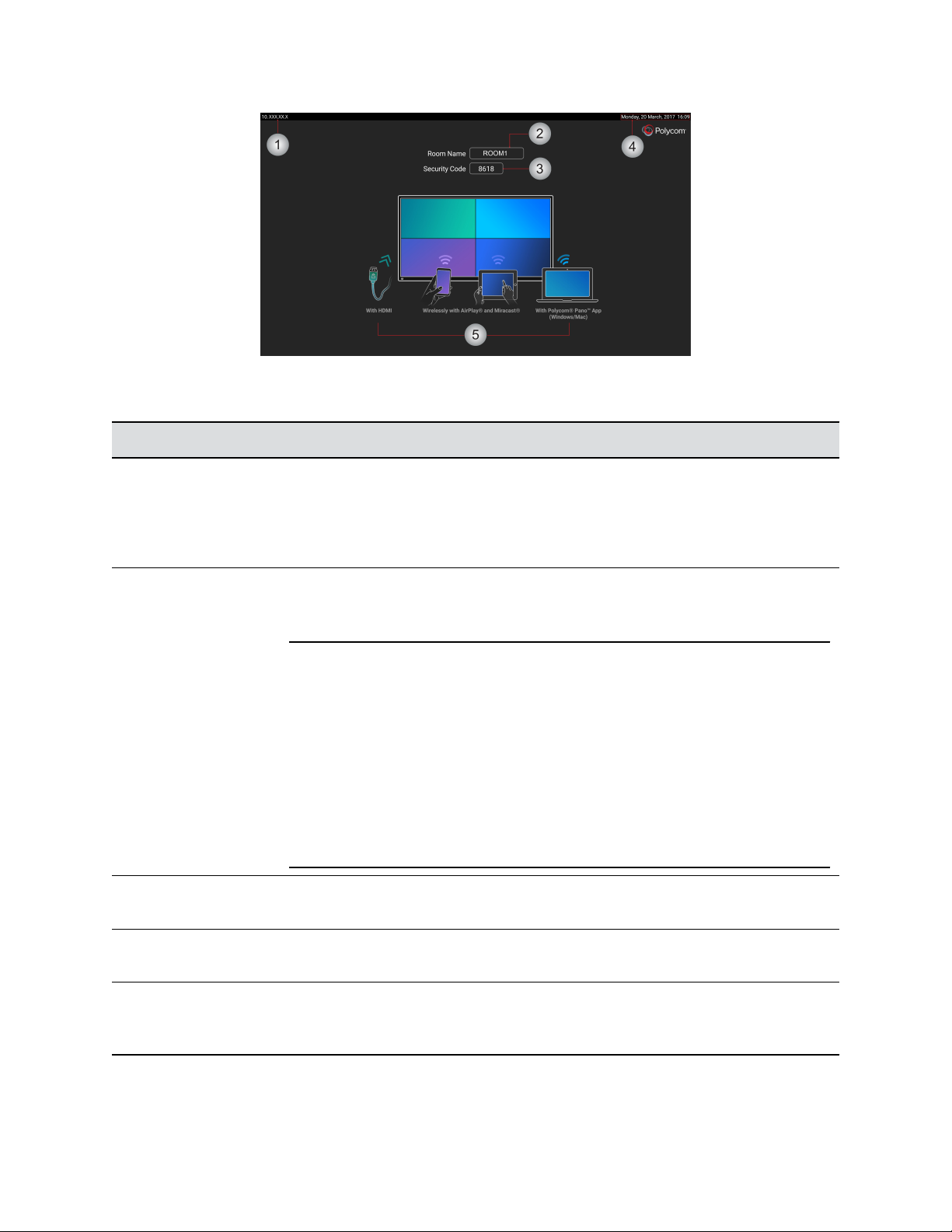
Home Screen Elements
Reference Number Description
1IP address Location identifier for the Polycom Pano system that you use to connect
Polycom® Pano™ App. Polycom Pano App is a content sharing application that you
install on your device of choice and use to share your screen or a running application
with Polycom Pano using a network or wireless connection. The IP address is also
used by administrators to access the web interface to configure the system.
2Room Name The name assigned to the room where the Polycom Pano system
resides that is broadcasted to nearby devices. You will see this name when you pair a
smart device or Polycom Pano App.
Note: Polycom® Pano™ App allows users to search for and see the Room Name
associated with any Polycom Pano that:
▪ Has Bluetooth enabled and is in range of the user's device on
which Polycom® Pano™ App is running, or
▪ Is registered with the customer's Polycom Cloud Service (for
users that are signed into the Polycom Cloud Service).
If the knowledge of room names is not something that all users
should know, consider using a different naming convention for
your Polycom Pano systems other than using actual room
names.
3Security Code A number that changes for every session to ensure that only users in
the same room are connecting to the system.
4Date and Time Current date and time associated with the system’s configured
location
5Connection Options Animations that indicate the methods you can use to create or
share content, which are dependent on how the administrator has configured the
system.
Getting Started with Polycom® Pano™
Polycom, Inc. 5

Content Sharing Animations
The content sharing animations that display on the home screen show the various ways that you can
create and share content.
Start Collaborating
You can start collaborating by opening a blackboard to create content or by casting content onto the
Polycom Pano collaboration area using a wired or wireless connection. Wired content sharing requires an
HDMI connection between a computer or other device and the Polycom Pano system. The icons located
at the bottom of the home screen correspond to the wireless methods that are enabled by your
administrator and available for you to connect your device or system: HDMI, AirPlay®, Miracast®, or
Polycom Pano App.
Procedure
1. Do one of the following:
▪ Tap anywhere on the screen to open a blackboard.
▪ Start casting content using HDMI.
▪ Start casting content using AirPlay.
▪ Start casting content using the Miracast-compatible feature.
▪ Start casting content using Polycom Pano App.
Related Links
Sharing Content on page 7
Getting Started with Polycom® Pano™
Polycom, Inc. 6

Sharing Content
Topics:
▪Share Content Using Polycom Pano App
▪Share Content Using Miracast
▪Share Content Using AirPlay
▪Share Content Using an HDMI Connection
▪Stop Sharing Content
▪Content Sharing Limitations
You can use a wireless or HDMI connection to the Polycom Pano system to share content. The following
is supported:
▪ Casting content from a device that supports AirPlay or Miracast-compatible wireless streaming.
▪ Sending content or sharing an application window from Polycom Pano App, which is installed on a
computer and wirelessly connected to the Polycom Pano system.
▪ Sharing information stored on a computer that is directly connected to a Polycom Pano system.
A Polycom Pano system can show up to four shared content sources at a time from one or more
participants at the same time.
Note: Prior to sharing content, make sure you take any necessary precautions to protect your privacy.
For example, disable the screen lock feature before you share your screen with meeting
participants.
Related Links
Polycom Pano App on page 18
Share Content Using Polycom Pano App
You can stream your screen, an application window, or a file from Microsoft® OneDrive® for Business
through the Polycom Cloud Service onto a Polycom Pano device.
Related Links
Polycom Pano App on page 18
Share Content Using Miracast
The Miracast wireless display standard enables computers and mobile devices to mirror their screen onto
Miracast-supported devices. You can share the screen and audio of a Microsoft Windows® or
Android™device with a Polycom Pano system.
Polycom cannot guarantee connectivity with all Miracast-compatible devices, but has tested and validated
that connectivity works with the following devices:
▪ Microsoft Surface® Book
Polycom, Inc. 7

▪ Microsoft Surface Pro 4
▪ Lumia® 650 and later
▪ Samsung® Galaxy® S5
▪ Samsung Galaxy S7®
▪ Samsung Galaxy Tab® S2
▪ Samsung Galaxy Tab 2
▪ Samsung Galaxy Tab 4
▪ Dell™ XPS™ 13 950-8005LV Signature Edition laptop
▪ Hewlett Packard™ Spectre x360 13-4195nr Signature Edition 2 in 1 P
▪ NuVision® TM800W560L Signature Edition Tablet
Keep the following in mind when sharing content using the Miracast-compatible feature:
▪ You control the audio by using the volume controls on your device.
▪ The Miracast-capable computer or mobile device must be within 10 meters (11 yards) of the
Polycom Pano system.
▪ The Polycom Pano system uses the orientation and aspect ratio of your device.
Procedure
1. On your device, access the Miracast or compatible screen mirroring feature. Miracast is supported
on a variety of devices that use different methods for accessing the feature. A few examples of
how to access the feature are provided below. Check your device documentation for up-to-date
steps.
Examples of how to access the Miracast-compatible feature:
Samsung Galaxy S7 Swipe down from the Notification Panel located at the top of the screen
and select the Smart View option.
Windows Surface Book Access the PC and devices settings screen, select Devices, and then
select the Add a device option.
2. On the device, select the name of the Polycom Pano system shown on the home screen.
3. When prompted, enter the security code shown on the Polycom Pano home screen.
Share Content Using AirPlay
AirPlay is a technology developed by Apple Inc. that enables content and audio streaming between
systems and devices. You can share the screen and audio of an iPhone®, iPad®, or Mac® computer that is
AirPlay-enabled.
Keep the following in mind when sharing content using AirPlay:
▪ You control the audio by using the volume controls on your device.
▪ The AirPlay-enabled device must be connected to the same network as the Polycom Pano system.
▪ The Polycom Pano system uses the orientation and aspect ratios of your device. The resolution of
some devices may require the Polycom Pano to display content that does not fill the whole screen.
▪ The Polycom Pano system does not support casting from direct streaming sources such as web
links, YouTube™, or Google Chromecast® when sharing content using an AirPlay-enabled device. If
you share content that streams by sending direct links to the Polycom Pano system, the content is
not shown.
Sharing Content
Polycom, Inc. 8
Andere Handbücher für Pano
7
Inhaltsverzeichnis
Andere Polycom Projektorzubehör Handbücher


