Postek IQ SERIES Bedienungsanleitung


iQ User’s Manual
i
FCC Notice
This device complies with Part 15 of the FCC Rules. Operation is subject to the following two conditions: (1) this device
may not cause harmful interference, and (2) this device must accept any interference received, including interference that
may cause undesired operation.
This equipment may generate, use and/or radiate radio frequency energy. If not installed and used in full accordance with
this User’s Manual, interference to radio communications may occur. This equipment complies with the limits for a Class A
Information Technology Equipment pursuant to Part 15 of the FCC Rules, which are designed to provide reasonable
protection against such interference when operated in a commercial environment. Operation of this equipment in a
residential area may also cause interference. In such case the user, at his/her expense, will be required to correct the
interference using whatever means necessary.
Trademarks
POSTEK is a registered trademark by POSTEK Electronics Co., Ltd.
ARM is a registered trademark ofAdvanced RISC Machines Ltd.
Microsoft, Windows are registered trademarks of Microsoft Corporation.
Copyright
© 2006-2015 by Postek Electronics Co., Ltd. All rights reserved. Under the copyright laws, this manual cannot be
reproduced in any form without the prior written permission of Postek. No patent liability is assumed, with respect to the use
of the information contained herein.
POSTEK iQ Label Printer User’s Manual
1st edition February 2015
Disclaimer
This manual has been validated and reviewed for accuracy. The instructions and descriptions it contains are accurate for the
Postek iQ label printer at the time of this manual’s distribution. However, succeeding printers and manuals are subject to
change without notice. Postek assumes no liability for damages incurred directly or indirectly from errors, omissions or
discrepancies between the printer and this manual.
Although this manual describes and details many issues which could possibly occur, the manufacturer cannot warrant against
unpredictable conditions during the printing process. For problems such as the printer not working, lost or unclear print
content, etc., the manufacturer and resellers are responsible for correcting these issues (according to Postek Printer Warranty
Clauses). In no event shall the manufacturer or the resellers involved be liable for any damages whatsoever (including,
without limitation, damages for loss of business profits, business interruption, loss of business information, or other
pecuniary loss) arising from the use of, the results of use or inability to use this product, even if the manufacturer has been
advised of the possibility of such damages.

iQ User’s Manual
ii
Important Safety Instructions
Only qualified and trained service technicians should attempt to repair the printer.
Do not place the printer on or near a heat source.
Be sure that the output of the power adapter is 24VDC and your power source matches the rating listed on the power
adapter. Be certain your power source is grounded.
To avoid getting an electric shock, do not use a worn or damaged power cord. If the power cord becomes damaged or
frayed, replace it immediately.
Do not insert anything into the ventilation slots or openings on the printer.
The printer and power adapter should never be operated in a location where either one can get wet. Personal injury may
result.
The printhead becomes hot while printing. To protect from damaging the printhead and risk of personal injury, avoid
touching the printhead.
To get increased printhead longevity and higher quality printouts, always use approved labels, tags and thermal transfer
ribbons. Approved supplies can be ordered from your Postek authorized reseller.
Static electricity that accumulates on the surface of the human body or other surfaces can damage or destroy the
printhead or electronic components in this device. DO NOT touch the printhead or the electronic components with bare
hands.
Place the printer on a flat, firm, solid surface.
Never operate in a high temperature environment.
Turn off the power when not in use for extended periods.
Follow all recommendations and setup instructions included in this manual.
Warnings:
This is a Class A product. In a domestic environment this product may cause radio interference in which case the user may
be required to take adequate measures (see FCC Notice).
Static electricity that accumulates on the surface of the human body or other objects can damage the print head or electronic
components in the iQ printer. Observe proper electrostatic safety precautions when handling.

iQ User’s Manual
iii
Table of Contents
Preface ...............................................................................................................................................................1
Important Notice, Read Me First....................................................................................................................1
Chapter 1: Introduction...................................................................................................................................2
Printer Specifications.......................................................................................................................................................... 2
Specifications for Power Adapter ....................................................................................................................................... 2
Contents of Box.................................................................................................................................................................. 2
Packing List ................................................................................................................................................................3
Chapter 2: Setup and Use................................................................................................................................ 5
Setting up the Printer ..........................................................................................................................................................5
Main Parts and Structures...........................................................................................................................................5
Connecting the Printer................................................................................................................................................7
Interface Connection...................................................................................................................................................8
Loading the Media.............................................................................................................................................................. 9
Standard Mode............................................................................................................................................................9
Cutting Mode............................................................................................................................................................14
Adjusting the Position of Media Sensor ...........................................................................................................................16
Chapter 3: Operations and Settings..............................................................................................................20
Basic Operations...............................................................................................................................................................20
Power Switch............................................................................................................................................................20
The Front Panel.........................................................................................................................................................20
Advanced Functions .................................................................................................................................................21
Windows Driver................................................................................................................................................................23
Label Software.................................................................................................................................................................. 23
Chapter 4: Maintenance ................................................................................................................................ 24
Cleaning the Printhead......................................................................................................................................................24
Cleaning the Platen Roller................................................................................................................................................24
Cleaning the Printer Interior .............................................................................................................................................25
Chapter 5: Troubleshooting...........................................................................................................................26
Error Indications............................................................................................................................................................... 26
Miscellaneous................................................................................................................................................................... 27
Vertical Blank Lines Appear.....................................................................................................................................27
Printer Timeout Error Message.................................................................................................................................27
Data Sent but Not Printing........................................................................................................................................27
Poor Printing Quality................................................................................................................................................27
Recovery...................................................................................................................................................................28
Appendix
A: Interface Specifications ...........................................................................................................29
Appendix B: ASCII Table ..............................................................................................................................31

Preface, Important Notice iQ User’s Manual
1
Preface
This manual explains how to set up and begin using your iQ printer. It also provides detailed information on configuring
your printer, basic operations, care and troubleshooting.
Please read this manual carefully before using the POSTEK iQ printer.
Important Notice, Read Me First
The thermal printhead can be easily damaged due to its precision construction. A printhead damaged by misuse is not
covered under the terms of the warranty. To ensure longevity of the printhead, please note the following:
1. DO NOT scrape or use tools that might damage the printhead surface.
2. To protect from corroding the printhead, DO NOT touch the printhead with bare hands.
3. DO NOT use thermal paper or thermal transfer ribbons which contain Na, K or Cl.
4. Keep printhead from any form of liquid or dampness.
5. Only use a cotton swab dipped in anhydrous isopropyl alcohol to clean the printhead.
6. Always use high-quality consumables:
When the printhead module is closed, pressure is placed directly onto the printhead; dirt such as paper scraps, sand,
dust and glue can scrape or damage the printhead.
Therefore, please always inspect consumables for high quality before purchasing. Any printhead damage caused by
poor quality consumables is not covered under warranty.

Chapter 1: Introduction iQ User’s Manual
2
Chapter 1: Introduction
Printer Specifications
Mode
iQ/200
Printing method
Direct Thermal
Printing resolution
203 dpi (8 dots/mm)
Max printing speed
5 ips (127 mm/s)
Max printing width
4.09″(104 mm)
Max printing length
40″(1016 mm)
Memory
8 MB FLASH ROM, 16 MB SDRAM
Media
Thermal paper
Width:4.72″(120 mm) max., 0.98” (25 mm) min.
Supply roll: OD 5″ (127 mm) max., ID 1″ (25.4 mm) min.
Thickness: 0.003″~0.006″(0.08~0.15 mm), including liner
Fonts
Five built-in dot matrix ASCII fonts, user-downloadable TrueType Fonts
Bar Code Types
1D Barcode: Code 39, Code 93, Code 128/subset A,B,C, Codabar, Interleave 2 of 5, UPC
A/E 2 and 5 add-on, EAN-13/8/128, UCC-128.
2D Barcode: MaxiCode, PDF417, Data Matrix, QR Code.
Media sensor
Reflective (Adjustable)/Transimissive (Adjustable)
Interfaces
WIFI , RS-232 Serial, USB 2.0,
Power rating*
24 VDC, 2.5 A
Weight
1.8 kgs
Dimensions
W 8.3 x D 10.0 x H 5.9 inches (W 210 x D 255 x H 150 mm)
Operation environment
Temperature: 32F ~ +104F (0C ~ 40C)
Relative humidity: 5% - 85% non condensing
Storage environment
Temperature: -40F ~ +140F (-40C ~ 60C)
Relative humidity: 5% - 85% non condensing
Optional items
Guillotine Cutter, External Rewinder, Media Guide Adaptor, Bluetooth
Specifications for Power Adapter
Input
AC 100~240 V, 50~60 Hz
Output
DC 24 V, 2.5 A
Environment
0C ~ 40C
Contents of Box
Inspect the shipping carton(s) for possible shipping damage, if damage is discovered, notify the shipping company to

Chapter 1: Introduction iQ User’s Manual
3
report the nature and extent of the damage.
Please check the items according to the Packing List. If there are any items missing, notify your authorized reseller.
Packing List
iQ Printer
1 pc
Power Adapter
1 pc
USB interface cable
1 pc
Media Spindle
1 pc
Media Roll Guides
2 pcs
Quick Start Guide
1 pc
*CD-ROM pack
1 pc
*Note: CD-ROM pack includes the printer driver, label software, iQ User’s Manual, “How to install” video and
Programming Manual.

Chapter 1: Introduction iQ User’s Manual
4
Figure 1: Printer and Accessories
iQ Printer
Media Spindle
Media Roll Guides
CD-Rom
Quick Start Guide
USB Cable
Power Adapter
External Media Stand

Chapter 2: Setup and Use iQ User’s Manual
5
Chapter 2: Setup and Use
Setting up the Printer
Before setting up the printer consider the following:
1. Make sure there is adequate space around the printer for loading consumables and proper ventilation.
2. Make sure the printer is close to the host so the interface cable is easily accessible at either end.
Main Parts and Structures
Figure 2
1. READY Indicator
4. FEED Button
7. Cover Handle
2. MEDIA Indicator
5. CANCEL Button
8. Observation Window
3. PAUSE Button
6. Media Exit
1
3
2
4
5
7
6
8

Chapter 2: Setup and Use iQ User’s Manual
6
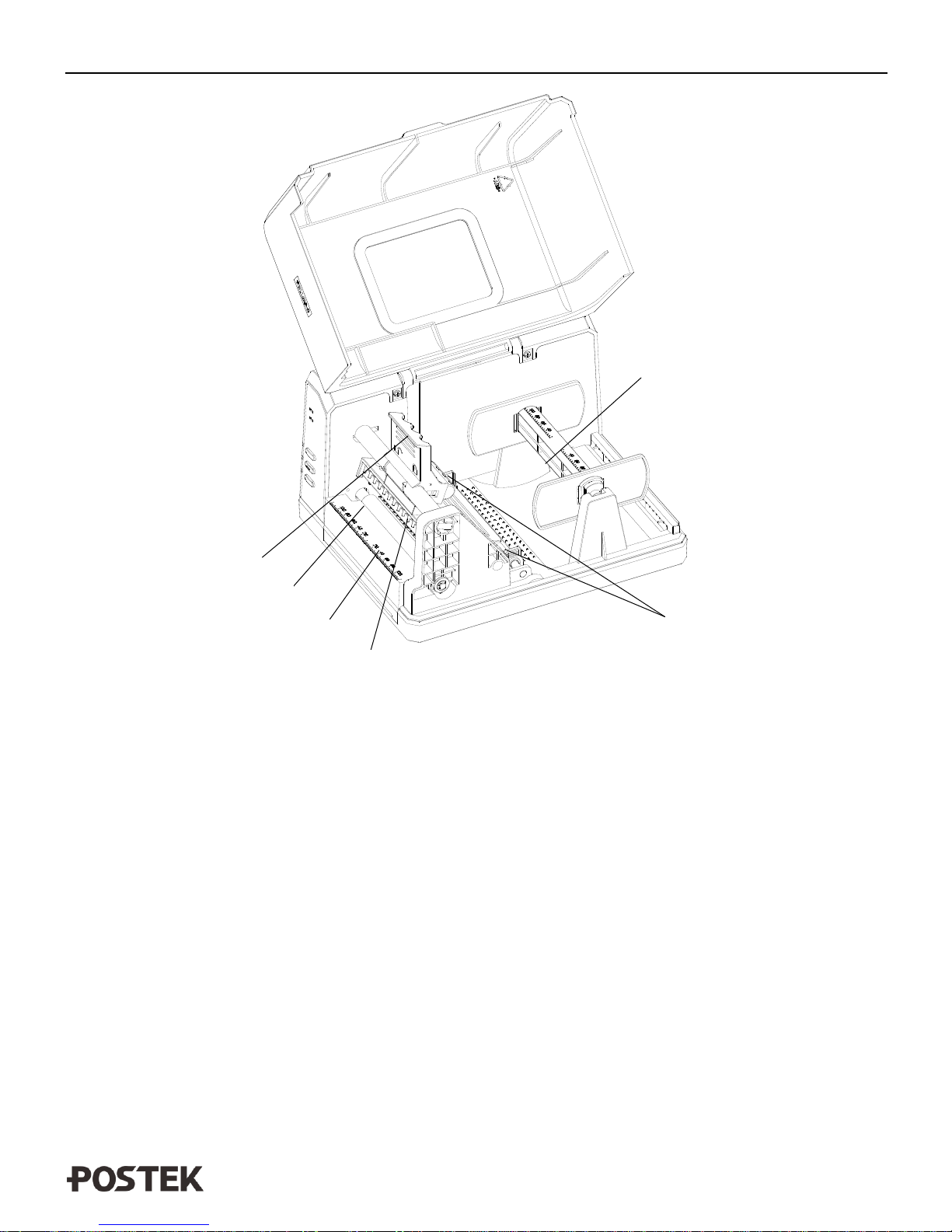
Figure 3
1. Handle
3. Tearbar
5. Media Guide
2. Platen Roller
4. Printhead Module
6. Media Compartment
1
2
3
4
5
5
6
4
Inhaltsverzeichnis
Andere Postek Etikettendrucker Handbücher

Postek
Postek TX SERIES Bedienungsanleitung

Postek
Postek I Series Bedienungsanleitung

Postek
Postek G-2108 Bedienungsanleitung

Postek
Postek G2000e Bedienungsanleitung

Postek
Postek Q8 Bedienungsanleitung

Postek
Postek C168 Bedienungsanleitung

Postek
Postek iQ200 Bedienungsanleitung

Postek
Postek I Series Bedienungsanleitung

Postek
Postek V8i Bedienungsanleitung

Postek
Postek Q8 Bedienungsanleitung