Prior Scientific PS3J100 Bedienungsanleitung

Visit Prior on the
p
r
io
r
.
c
o
m
web at
PS3J100 –User manual
Proscan III Interactive control Centre
Prior Scientific,
Ltd
Prior Scientific, Inc Prior Scientific, GmbH Prior Scientific KK
Cambridge, UK Rockland, MA. USA Jena, Germany Tokyo, Japan
T. +44 (0) 1223 881711 T. +1 781-878-8442 T. +49 (0) 3641 675 650 T. +81-3-5652-8831
E. uksales@prior
.com
Visit Prior on the web at
p
r
io
r
.
c
o
m
Worldwide distribution
Version Issue –1.2 (Jan 2013)


Table of Contents
Vi Table of Contents
SECTION 1 IMPORTANT SAFETY INFORMATION 3
1.1 Important Safety Information 3
SECTION 2 GETTING STARTED 4
2.1 Identifying The Parts Of The Control Centre 4
2.2 Connecting to the Proscan III 5
2.3 XY Control 6
2.4 Z Control 8
2.5 Filter Control 10
2.6 Shutter Control 12
2.7 Lumen Control 13
2.8 Fourth Axis Theta Control 14
SECTION 3 CHANGING SETTINGS 15
3.1 Entering Setting Menu 15
3.2 Speed and Direction Settings 16
3.3 Encoders 16
3.4 TTL 17
3.5 Joystick Units 17
3.6 Versions
SECTION 4 COMPATIBILITY 19
4.1 Prior Controllers Compatible with PS3J100 19
SECTION 5 SPECIFICATIONS 20
5.1 Dimensions 20
SECTION 6 TROUBLESHOOTING 21
6.1 Troubleshooting 21
e web at
p
r
io
r
.
c
o
m
SECTION 7 RETURNS AND REPAIRS 22
7.1 Returns and Repairs 22
Page 2
Page 2

Section 1 SAFETY INFORMATION
1.1 IMPORTANT SAFETY INFORMATION
Save this manual as it contains important safety information and operating instructions.
• Do not get the system wet.
Page 3
Page 6

Section 2 GETTING STARTED
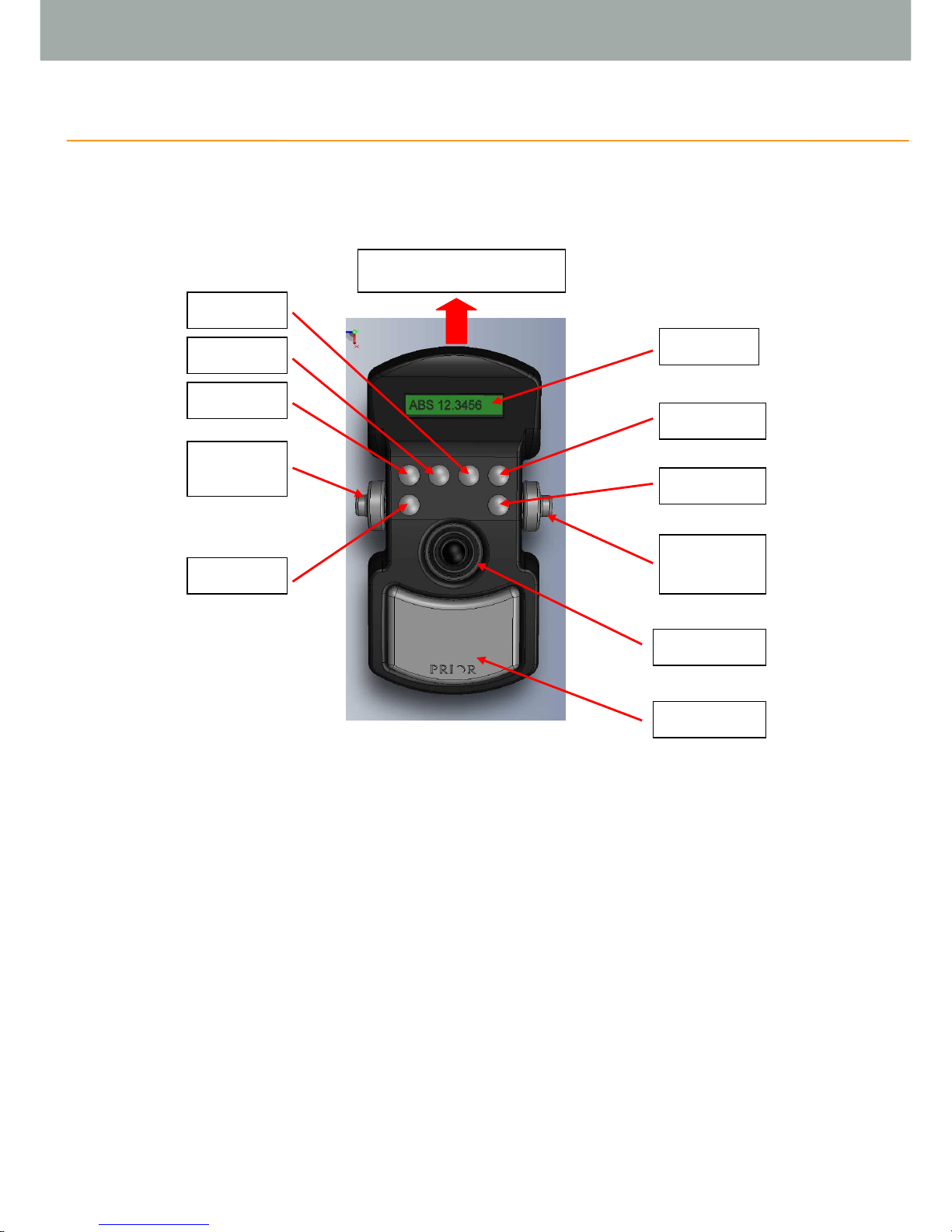
2.1 IDENTIFYING THE PARTS OF THE CONTROL CENTRE
Overview:
The Joystick always controls X and Y axis of the stage.
Button 1 is always the Menu button.
Button 5 is the speed control for the X and Y axis for the stage.
Button 6 is the speed control for the Z axis.
Buttons 1 –4 functions are determined by the messages on the lower portion of the display
screen.
Right hand wheel is normally used for focus
Left hand wheel is usually used for focus unless in filter wheel screen when it controls filters.
Menus scroll though available options before returning to the first option.
For settings menu hold down Menu button for 3 seconds.
Page 4
Page 5
Connection to ProScan III
Display
Button 4
Button 6
Right Hand
Wheel
Joystick
Hand pad
Button 3
Button 2
Button 1
(MENU)
Left Hand
Wheel
Button 5
Page 5

2.2 CONNECTING TO PROSCAN III
Switch off the ProScan III unit.
Plug the RS232 plug into one of the two RS232 sockets on the back of the ProScan III unit as
indicated below.
Switch on the ProScan III unit.
The Control Centre will power up and display “PRIOR” while starting up.
The Control Centre will now display one of the relevant accessory screens from the following
sections or the settings menu if no accessories are attached to the PS3.
The Control Centre is ready to use.
RS232
Sockets
on
ProScan
III
Page 5

2.3 XY CONTROL
2.3.1 Absolute position screen
The XY control screen is displayed on start-up if a stage is connected to the system.
The absolute position is displayed in um.
If an E is present before the X or Y then the stage is encoded.
Button Functionality:
Button 1: Menu
Button 2: None
Button 3: Toggle to relative positional display format.
Button 4: Change the function of the Left and Right Wheels to fine control of the X and Y axis.
(Joystick still active)

The Joystick controls XY motion.
If a focus is attached in this mode the right and left wheels control focus.
2.3.2 Relative position screen
Press Button 3 “REL” to toggle to this display.
The absolute position is replaced by the relative position.
A Delta sign before X and Y indicates that the control centre is in Relative mode.
Button Functionality:
Button 1: Menu
Button 2: Zero relative position (does not affect absolute position of system).
Button 3: Toggle to measurement positional display.
Button 4: Change the function of the Left and Right Wheels to fine control of the X and Y axis.
(Joystick still active)
Page 7
Page 6
Stage Joystick speed
indicator. Pressing
button 6 will toggle
speed between 25, 50,
and 100%.

2.3.3 Measurement position screen
Press Button 3 “Meas” to toggle to this display.
The relative position is replaced by the distance from 0, (0 abs 0, or position when zero button
was pressed).
Button Functionality:
Button 1: Menu
Button 2: Zero relative position (does not affect absolute position of system).
Button 3: Toggle to measurement positional display.
Button 4: Change the function of the Left and Right Wheels to fine control of the X and Y axis.
(Joystick still active)
2.3.4 Toggling between focus and XY wheel control
Press button 4 to toggle between using the Left and right wheels to control focus or the X and Y
axis individually.
Press Button 4 to move to XY control
Press Button 4 to move to focus control
Page 7

2.3.5 Toggling between joystick speeds.
Press Button 6 to toggle between 25, 50, and 100% joystick speed.
2.4 Z CONTROL
Press Button 1 (Menu) to scroll thought the available options until the focus is displayed.
2.4.1 Focus control
The absolute focus position is displayed.
Button Functionality:
Button 1: Menu
Button 2: None
Button 3: Toggle to relative positional display.
Button 4: None
Page 8
Stage Joystick speed
indicator. Pressing
button 6 will toggle
speed between 25, 50,
and 100%.
Page 8

2.4.2 Relative position screen
Press Button 3 “REL” to toggle to this display.
The absolute position is replaced by the relative position.
A Delta sign before Z indicates that the control centre is in Relative mode.
Button Functionality:
Button 1: Menu
Button 2: Zero relative position (does not affect absolute position of system).
Button 3: Toggle to absolute positional display.
Button 4: None
2.4.3 Toggling between joystick speeds.
Press Button 6 to toggle between 25, 50, and 100% joystick speed.
2.4.4 Setting Fast Up and Fast Down buttons.
Buttons 5 and 6 can be changed from toggling the focus and stage speed to be fast up and fast
down. Use the following command sent to the attached ProScan Controller.
Command
Arguments
Response
Description
ICC CS152Z
s
R
Sets the speed s (in microns/s) of button 5 and 6.
Set to 0 to return to the default us of buttons 5 and 6.
ICC CS152Z
s
Returns the speed s (in microns/s) of button 5 and 6.
Focus Speed Indicator.
Pressing button 6 will
toggle speed between
25, 50, and 100%.
Page 9
Inhaltsverzeichnis
Beliebte Steuereinheit Handbücher anderer Marken

Festo
Festo Compact Performance CP-FB6-E Stücklistenhandbuch

Elo TouchSystems
Elo TouchSystems DMS-SA19P-EXTME Bedienungsanleitung

JS Automation
JS Automation MPC3034A Bedienungsanleitung

JAUDT
JAUDT SW GII 6406 Series Kurzanleitung

Spektrum
Spektrum Air Module System Bedienungsanleitung

BOC Edwards
BOC Edwards Q Series Bedienungsanleitung