
Profile Mobile Call Bedienungsanleitung

GSM Alarm System
MOBILE CALL
USER’S MANUAL
For a better understanding of this product, please read this user
manual throughly before using it.
Profile
Power Set Signal Alarm
ARM
STAY
CALL
SOS
1 2 3
4 5 6
7 8 9
0
ESC ENTER
System disarmed
00/00/00 00:00

CONTENTS
Features
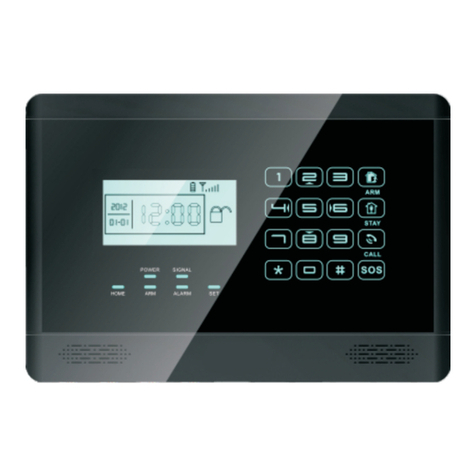
Alarm Host Introduction
Initialization
System Settings
Enter Settings
Add Remote Controller
Delete Remote Controller
Coding of Defense Zone
Delete Defense Zone
Defense Zone Place Setting
Defense Zone Mode Setting
Siren Setting for Alarm
Alarm Delay Setting
Alarm Number Setting
Delete Alarm Number
SMS Number Setting
Delete SMS Number
Network Center Setting
Voice Recording
Record Play
System Date Setting
System Time Setting
Timely Arm Setting
Timely Disarm Setting
Wireless Control Setting
Wireless Siren Coding
1
2
4
4
4
5
5
6
7
7
8
9
9
10
10
11
11
12
12
12
13
14
14
15
15
16

Wireless Siren Encryption
Wireless Control for Home Appliance
Change Operate Password
Change Program Password
Arm Delay Time Setting
Alarm Delay Time Setting
Voice Prompt Function
Siren Prompt for Remote Controller
Backlight Setting
Siren Setting in “Emergency Help” Mode
SMS Reply for Arm/ Disarm
Language Setting
Factory Reset
Forget Password
Operation Instructions
Out Arm
Home Arm
Disarm
Answer Alarm Call
Remote Control
Emergency Help
System Dialing Function
Alarming Record Checking
Technical Parameters
Components List
Care and Maintenance
16
17
17
18
18
19
20
20
21
22
22
23
24
24
25
25
26
26
27
27
28
28
29
29
30
31

1
Features
Elegant and advanced touch keypad for easy operation;
128x64 lattice LCD screen with clock display;
4 wired and 10 wireless defense zones; each wireless zone supports
maximum 10 sensors;
Support maximum 8 remote controllers;
Built-in high-volume speaker, and artificial intelligent digital voice
announcer;
Built-in artificial intelligent English message;
10-second automatic voice message recording;
Can preset 6 phone numbers: when alarming, system will make audio
call to these numbers automatically;
Can preset 3 SMS numbers: when alarming, system will send SMS;
Timely arm and disarm;
Can be used as a wireless telephone by using keypad to make calls;
One-key-control: out arm, home arm, arm by remote controller or
phone call;
SOS, fire, gas, door, hall, window, balcony, and boundary places
alarm;
Real-time, delay, 24 hours, bypass defense zones programming
function;
Wireless learning code: easy to add additional wireless accessories;
Remote control the device to arm, disarm, monitor, and intercom by
phone;
Record checking: the device can store 30 alarm records;
Built-in LI battery: automatically recharge.
Different arm status: out arm, home arm, delay arm and timely arm;
Arm by different ways: panel keypad, remote controller, remote call;
Alarm call has the priority: even when the number of the device is busy;
Chapter 1. Features

Power Set Signal Alarm
ARM
STAY
CALL
SOS
1 2 3
4 5 6
7 8 9
0
ESC ENTER
System disarmed
00/00/00 00:00
2
Chapter 2. Alarm Host Introduction
3.
Alarm Host Introduction
2. Status LED
POWER: power and working status indicator.
-flashing quickly (once per second) means the system is searching
GSM network;
-
SET: it will be on when the system enters setting status.
SIGNAL: signal indicator.
ALARM: it will be on when the system is under alarm status.
1.
LCD screen: Resolution: 128x64; support English and Chinese display.
Touch keypad:
SOS: emergency alarm
ESC: clear the input content or back to last operation
ENTER: confirm
used to make call. Enter the number you want to call, and then
press this button. Press it during the phone call will hang up the
call.
ARM: press it; the system will enter OUT ARM status.
STAY: press it; the system will enter HOME ARM status.
CALL:
this keypad is Resistive Touch Panel which requires
press with certain strength. But please do not push it
heavily.
1
2
3
flashing once per 3 seconds means the system is under standby status.

3
4. Wired ports
1
SIREN+
Positive of siren (red cable)
Negative of siren (black cable)2 SIREN-
3 T_VCC Invalid port (does not have any function)
4
CLK
Invalid port
5
DATA
Invalid port
6
T_GND
Invalid port
7
GND
GND
8
Zone 1
Wired sensor 1: support both NO and NC
9
GND
GND
10 Zone 2 Wired sensor 2: support both NO and NC
11
GND
GND
12
Zone 3
Wired sensor 3: support both NO and NC
13 GND GND
14 Zone 4 Wired sensor 4: support both NO and NC
15 GND GND
5. Switch for internal battery.
6. SIM card slot:
Alarm Host Introduction
SIREN+
SIREN-
T-Vcc
CLK
DATA
T-GND
GND
Zonel
GND
Zone2
GND
Zone3
GND
Zone4
GND
10
11
12
13
14
15
1
2
3
4
5
6
7
8
9
OFF ON POWER IN
4
56
SIREN+
SIREN-
T-Vcc
CLK
DATA
T-GND
GND
Zone l
GND
Zone 2
GND
Zone 3
GND
Zone 4
GND
RED BLACK
SIREN WIRED SENSOR
Please pay attention to the direction arrow marked
on the slot: “LOCK” “OPEN”. Do not insert or take
out the SIM card when the main unit is power on.

4
Initialization
Chapter 3. Initialization
Correct initiation of the main panel is important to its normal working
and lifespan.
1. Connect the wired accessories that you need.
2. Insert SIM card.
3.
Chapter 4. System Settings
All the settings have to be done in setting status. Press 2/8/4/6 to turn
up/ down/ left/ right.
1. Enter Settings
Fig 1: disarm status
System disarmed
888888
Enter:
System disarmed
11/12/12 11:49
Remote control
Exit Enter
Fig 2: please enter password Fig 3: press ENTER to set
4. There will be a shoot beep after searching GSM network successfully.
The signal icon will display on the screen and the power status LED
will flash every 3 seconds.
Connect the power adaptor. The main panel will start self-inspection
and the POWER indicator LED will flash once. If this LED does not
light on, you need to restart the panel. Please do it at least 10
seconds later as repeated power on and off in short time is bad to
the panel's service life.
5. Turn on the battery switch.
6. Check the GSM signal icon on the LCD screen. Signal less than 3
lattice will affect the normal performance. Please put the main panel
at the place with good GSM signal.
Enter setting status: in the state of disarm, input 6-digit password
(system default: 888888), and then press ENTER. The main panel
makes a “beep” and SET indicator lights on. The screen shows remote
controller setting.

5
2. Add Remote Controller
This device supports maximum 8 remote controllers. Extra remote
controllers have to be coded to the host in order to perform normally.
Their code cannot be empty or the same with the saved code in the
host.
Method: enter remote controller setting menu, press “4” or “6” to
choose remote controller serial number, press “8” to find “coding” and
then press ENTER to confirm. Trigger the remote controller you want to
add, the panel will make two beeps after receiving it. And then press
ENTER to confirm. If the remote controller has been saved before, after
triggering it, the main unit will make four beeps and LCD screen display
“Error, Repeated code”.
Fig 1: enter remote control menu Fig 2: choose remote control serial
number and coding menu
Fig 3: waiting to receive signal
Fig 4A: recognize successfully Fig 4B: the host has the same code
with remote controller code
Fig 5: press ENTER to save
Remote control
Exit Enter
Operation figures:
Remote control 1
Exit Enter
Coding
Delete
Remote control 1
Back Save
000000000
Trigger code
Remote control 1
Back Save
077015192
Normal code
Remote control 1
Back Save
Error
Repeat code
Remote control 1
Save completed
If the remote controller is lost or damaged, it should be deleted. After
deletion, it cannot control the main panel.
3. Delete Remote Controller
System Settings

6
System Settings
Fig 1: enter remote controller
setting
Fig 2: choose the controller you
want to delete
Fig 3: press ENTER to confirm
Method: enter remote controller setting menu, press “4” or “6” to
choose the remote controller you want to delete. Press “8” to find
“delete”, and then press ENTER.
Operation figures:
Remote control 1
Delete completed
Remote control 1
Exit Enter
Coding
Delete
Remote control
Exit Enter
This alarm system has 10 wireless defense zones, each of which
supports up to 10 wireless detectors. Extra sensors not in the standard
package have to be coded to the host in order to perform normally. Their
code cannot be empty or the same with the saved code in the host.
Method: enter defense zone setting menu, press “4” or “6” to choose
zone number, press “8” to find “coding” and then press ENTER to
confirm. Trigger the sensor you want to add, the panel will make two
beeps after receiving it. And then press ENTER to confirm. If the
sensor has been saved before, after triggering it, the main unit will
make four beeps and LCD screen display “Error, Repeated code”.
Operation figures:
Fig 1: enter defense zone setting Fig 2: choose zone number and
press ENTER
Fig 3: waiting signal from sensor
Back Save
000000000
Trigger sensor
Zone 1Zone 1
Exit Enter
Coding
Delete
Zone
Enter
Exit
4. Coding of Defense Zone

7
System Settings
Fig 4A: recognize successfully Fig 4B: the host has the same
code with sensor code
Fig 5: press ENTER to save
Back Save
Error
Repeat code
Zone 1
Back Save
241015162
Normal code
Zone 1
Save completed
Zone 1
5. Delete Defense Zone
The wireless detector can't control the main unit after it's deleted.
Method: enter defense zone setting menu, press “4” or “6” to choose
the sensor you want to delete. Press “8” to find “delete”, and then
press ENTER.
6. Defense Zone Place Setting
The location of defense zone can be set in the main panel, so that the
panel can send correspondent alarm message. There are 8 locations
for alarm: SOS, fire, gas, door, hall, window, balcony, and boundary.
Please refer to “Chapter 6. Technical Parameters” for system default
settings.
Operation figures:
Exit
Coding
Delete
Zone 1
Enter
Zone
Enter
Exit
Method: enter defense zone setting menu, press “4” or “6” to choose
the zone number, and then press “2” or “8” to enter zone place menu.
Press ENTER will shift the places.
Delete completed
Zone 1
Fig 1: enter defense zone setting Fig 2: choose zone number Fig 3: choose Delete and press
ENTER
Inhaltsverzeichnis
Andere Profile Sicherheitssystem Handbücher

Beliebte Sicherheitssystem Handbücher anderer Marken


EDM
EDM Solution 6+6 Wireless-AE Bedienungsanleitung

Highway Safety Group
Highway Safety Group EA401 Bedienungsanleitung

Siren
Siren LED GSM Bedienungsanleitung

Detection Systems
Detection Systems 7090i Montageanleitung

Se-Kure Controls
Se-Kure Controls MicroMini SK-4841 Bedienungsanleitung

Siemens
Siemens FDM273 Bedienungsanleitung