
Protoz PT 33012 Bedienungsanleitung

Guide
Tablet PC (7”)
Guide 3G-new edits-1:Layout 1 12/19/13 8:18 AM Page 1

Guide 3G-new edits-1:Layout 1 12/19/13 8:18 AM Page 2

Contents
Foreword 2
Specifications 3
Appearance and Buttons 4
Getting Started 6
Desktop 7
Main Menu Operation 9
Application Management 9
Connection to PC 16
SIM Management 17
Wireless & Internet 18
Bluetooth 19
Additional Features 22
Communications 27
GPS 28
TroubleShooting 29
1
Guide
Tablet PC (7”)
Guide 3G-new edits-1:Layout 1 12/19/13 8:18 AM Page 3

ANNOUNCEMENT
Maintenance
●Please keep the device dry. Do not let allow the device or charger to come into
contact with water or vapor. Do not use wet hands to operate the device or
charger.
●Do not subject the device or charger to strong impact or vibration.
●Do not keep the device or charger in places of extreme temperature.
●Do not throw or puncture the device and avoid dropping or bending it.
●Do not use unauthorized equipment and accessories in conjunction with the
device or charger as this will void the warranty.
SAFETY TIPS
Before using this Tablet, please read the information below:
●Do not use the device while driving.
●Please switch off the device when near to medical equipment and comply with
relevant provisions and regulations.
●Please switch off the device or set to airplane mode during flight.
●Please switch off the device when near to high precision electronic equipment.
●Do not allow unauthorized disassembly of the device. Only authorized
institutions can repair this device.
●Please keep the device away from magnetic equipment. The radiation of the
device may erase information which is on magnetic storage devices.
●Please do not use the device in places of high temperature or flammable areas
(such as near gas stations).
●Please do not let children use the device in an unsupervised manner.
●Please abide by the relevant laws and regulations when you use the device,
and respect others lawful rights and privacy.
●Please strictly abide by relevant specifications in this manual when you use
USB cables otherwise it may damage your device or PC.
●Please do not use the device in a damp environment (such as a bathroom
etc.) and keep the device away from any liquids.
2
Guide 3G-new edits-1:Layout 1 12/19/13 8:18 AM Page 4

3
SPECIFICATIONS (7” TABLET PC 3G/ GSM)
Product 7’’ Touch-Screen Internet Tablet with 3G /GSM
Operating System Latest Android 4.2 (Jelly Bean)
Memory 4GB (4GB Built-In)
Memory Expansion Micro SD Card Slot (Max.32GB Supported)
Display 7.0’’ Touchscreen LCD
Resolution 1024 X 600
Processor Cortex A7 (1.2 GHz) Speed CPU Dual Core
RAM Memory 512MB DDR3 Built-In
Screen Capacitive Multi Touch (5 point)
Internet Network Wireless 802.11 b/g/n (Wi-Fi)
G-Sensor 360°Gravity Induction For All Side Easy View
3G Inbuilt WCDMA + GSM
SIM card Dual SIM
Audio Output Jack 3.5mm Headphone Jack
Camera Dual Camera
Microphone Built-In Mic
Speaker Built-In Stereo Speaker
PC Interface Micro USB Hi Speed Port 2.0
Flash Player Support Flash Player 10.2 & Above
Power Adaptor Power Adaptor (DC 5V, 2A)
Battery Rechargeable Li-On Poly Battery 2800 mAh
Playback Time Music: Up to 8 Hrs (Depends on Vol Select)
Video: Up to 4 Hrs (Depends on Brightness
Select)
Web Browsing Up to 4 Hrs (Depends on Wi-Fi Signals)
Audio Files MP3, WMA, WAV, OGG, FLAC, APE, AAC, AC3
Video Files RMVB,WMA, ASF, MP4, 3GP, AVI, MKV, DIVX,
MPEG-2
Photo Files JPEG, BMP, GIF, PNG
E-book Reader ANSI/UNICODE TXT, PSD, PDF
Guide 3G-new edits-1:Layout 1 12/19/13 8:18 AM Page 5

APPEARANCE AND BUTTONS
4
Guide 3G-new edits-1:Layout 1 12/19/13 8:18 AM Page 6

1. Vol+: Press to increase the volume of headphones or speakers.
2. Vol-: Press to reduce the volume of headphones or speakers.
3. Power: If turned off, press for two seconds to start the system. If turned on,
short press to lock and unlock the screen, long press for two seconds to get
to “Power off” selection.
NOTE: In case of software crashes, long press “Power” for 8 seconds to
force the device to shut down. This function is suggested only if the system
has halted otherwise it is not recommended as it can damage the system.
4. Camera: Front camera can be used for video chat and taking pictures.
5. Mic: Recording or Internet phone calls.
6. Headphone jack: External 3.5mm high fidelity headphones can be used to
listen to music.
7. USB interface: Micro 5pin USB interface, through the USB cable or OTG
cable to connect the computer copy data or install applications through USB disk
8. DC charging interface: Can connect adapter for charging.
9. TF Card slot: External Micro SD card, up to 32GB.
10. Speaker: Turned on by default, will be turned off when headphones are
inserted.
5
Guide 3G-new edits-1:Layout 1 12/19/13 8:18 AM Page 7

GETTING STARTED
BATTERY MANAGEMENT AND CHARGING
●Please make sure that the device battery is fully charged upon first usage.
●Just plug the charger into DC interface for charging.
●Charge for about 6 hours during the first two times of use and then for around
4 hours thereafter.
NOTE: This item was featured with built-in polymer battery, the charger should
be comply with the specification of Input: AC100-240V, 50/60Hz, Max: 0.3A.
Output: DC5V/2A.
●The battery icon will scroll during charging.
●Screen battery icon will turn green and stop scrolling when charging is
completed.
●To extend the battery life, it is suggested to run the device out of power for the
first two times of use.
NOTE:If the device is not used for a long time, make sure it is charged once a
month to avoid excessive consumption.
●Upon low power shutdown, plug the charger to start charging, the device will
display the menu once there is enough power.
●It is better to charge in standby mode otherwise the charging time will be
longer as the screen consumes battery power during charging.
6
Guide 3G-new edits-1:Layout 1 12/19/13 8:18 AM Page 8
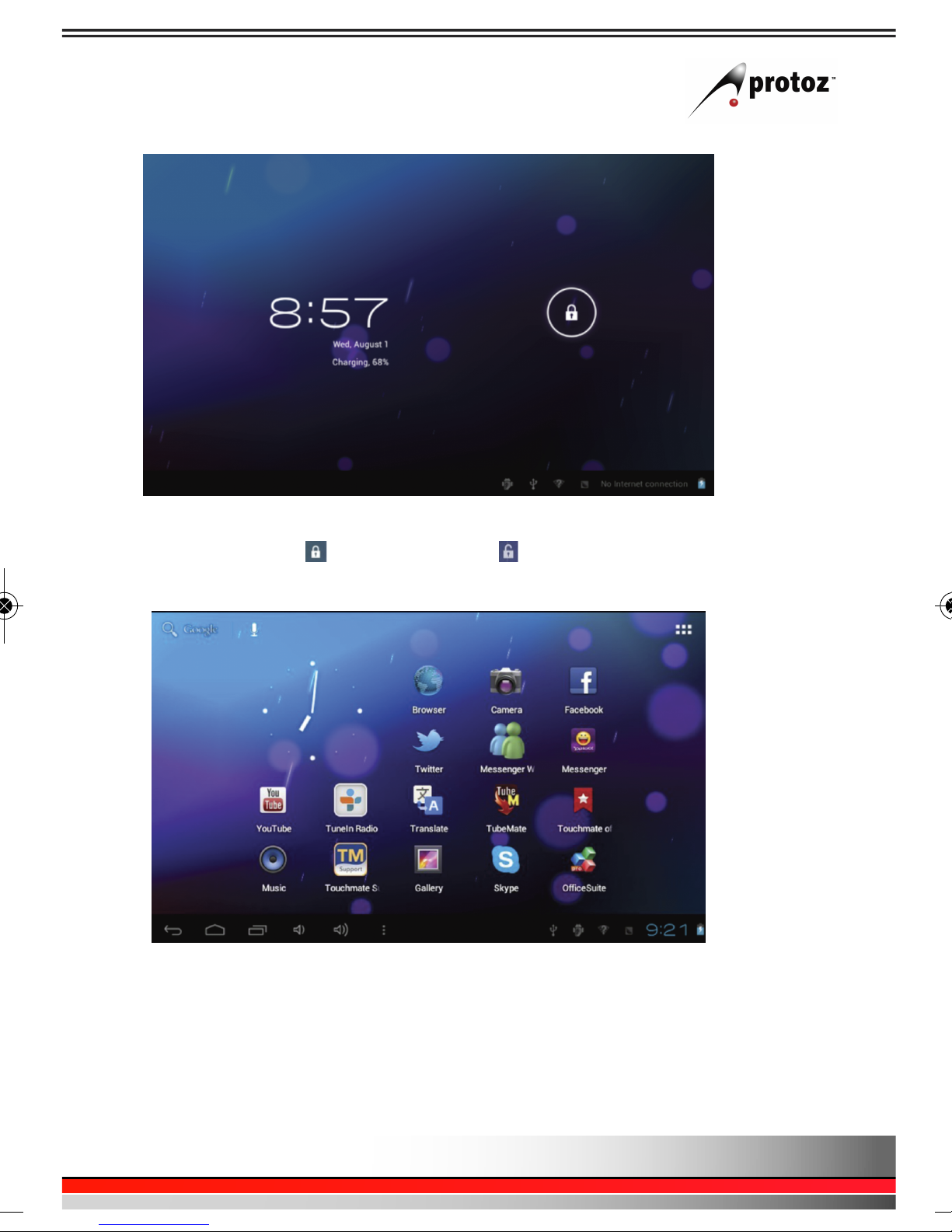
DESKTOP
Press the Power button, after ten seconds, the display for unlocking the screen
will appear. Hold the icon, slide it to the icon and the screen will unlock.
After the system starts up, you can see the Android system desktop (refer to the
picture above). The default system desktop includes: status bar, instant search
button, main menu icon and shortcut icon.
7
Guide 3G-new edits-1:Layout 1 12/19/13 8:18 AM Page 9

Icon Name Description
Opens the previous screen you were working in,
Back even if it was in a different app. Once you back up
to the Home screen, you cannot go back any
further.
Home Opens Home. If you are viewing a left or right
Home screen, opens the central Home screen.
Recent Opens a list of thumbnail images of apps you have
apps worked with recently. To open an app, just tap it.
To remove a thumbnail from the list, swipe it left
or right.
Vol- Reduce the volume of headphones or speakers.
Vol+ Increase the volume of headphones or speakers.
Others You can choose a picture to set as Wallpaper,
enter the interfaces of Manage apps and System
settings.
Apps Opens the list of apps, the main menu will be
from right to left.
Search Quick search icon for web search by typing
keywords.
Status The status bar displays the current network status,
battery charge and time.
8
Guide 3G-new edits-1:Layout 1 12/19/13 8:18 AM Page 10
Inhaltsverzeichnis


