
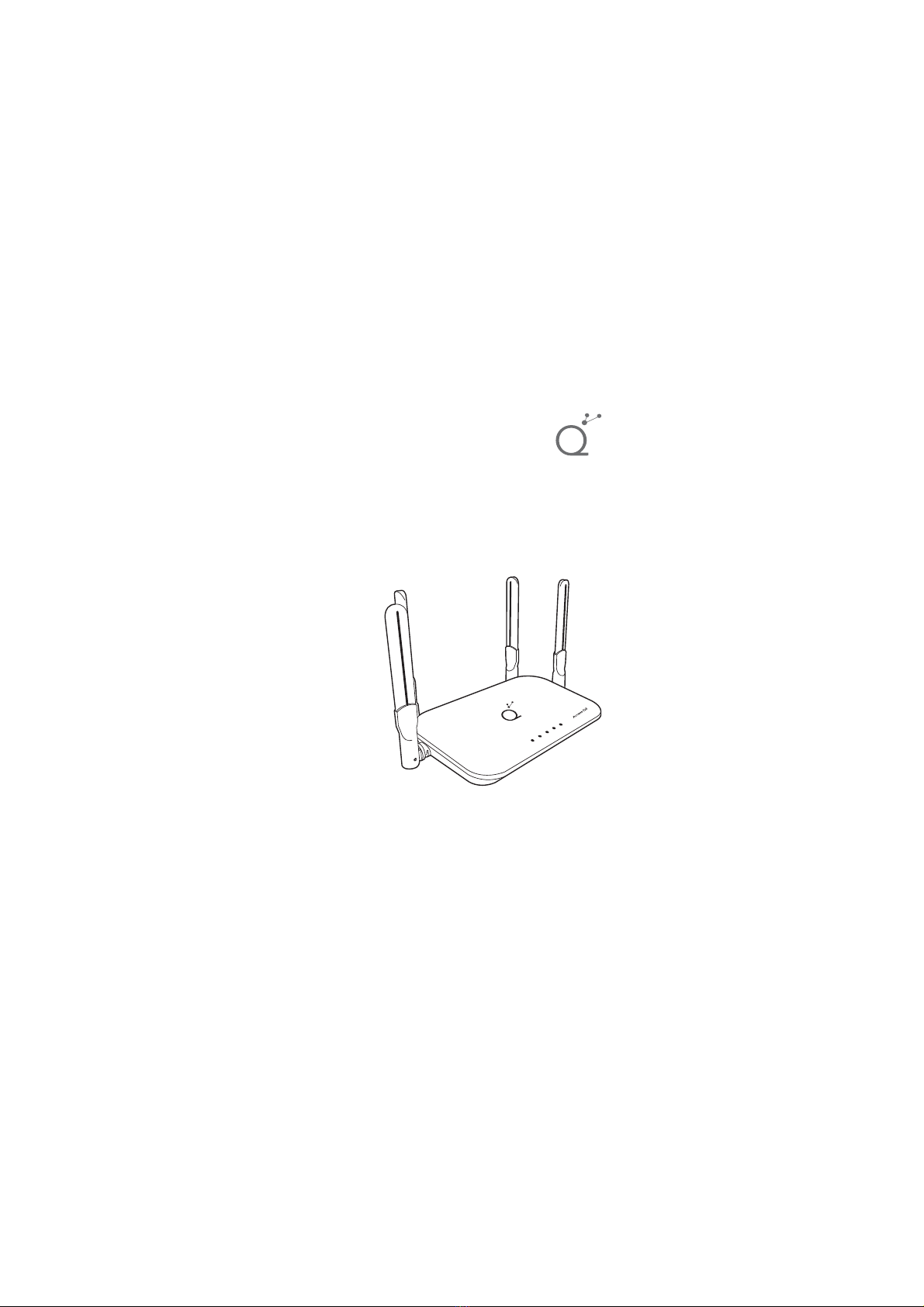
QUAMTUM CONNECTIVITY Access Q3 Bedienungsanleitung
We invite you to read this manual carefully before using
this device. Please keep it for future reference.
User manual
ROUTER
(LTE)(CUSTOMER PREMISES EQUIPMENT)
Access Q3

We appreciate your trust and preference for
acquiring one of our devices, we are sure you will
get great benefits.
If you have any questions about the purchased
product, please contact us to provide
personalized attention.
Legal Information
Copyright® 2021. All rights reserved.
No part of this manual may be copied, reproduced, or transmitted by any means, for
any purpose without prior written permission of Quamtum Connectivity de Mexico,
prior notice and without any liability.
Limitation of Liability
Due to the nature of wireless communications, the transmission and reception of data
can never be guaranteed. Data can be delayed, corrupted (i.e., buggy), or lost entirely.
Quamtum Connectivity de México, S.A. de CV, will not be responsible for any loss of
from or in connection with the use of this product, whether or not they have been
informed, known or should have known of the possibility of such damages, including,
facilities or products, or any downtime costs.
All images shown below are for informational purposes.

Index
12. Set Up
12.1. SNTP (Simple Network Time Protocol)
12.2. PIN Set Up
12.3. Device information
12.4. Statistics
12.5. System Log
12.6. System Management
12.7. Update
12.8. Reboot and Reset
13. Troubleshooting and Frequently Asked Questions
14. Warning and notice
9
9
10
10
11
11
11
12
13
13
15
15
15
16
16
17
17
18
18
18
19
19
20
20
21
21
22
23
24
5. Access the internet through the WAN port
5.1.
6. User interface
7. Status
8. Internet
8.1. Ethernet
8.2. Mobile Network
9. Wireless (WLAN Settings)
9.1. How to change the Wi-Fi network name (SSID)
and Password
10. Network (DHCP)
11. Features
11.1. Firewall
11.2. MAC address Filter
11.3. IP Filter
11.4. Port Forwarding
11.5. DMZ (De-Militarized Zone) Settings
1. Know your (LTE) (CUSTOMER PREMISES EQUIPMENT)
Access Q3 ROUTER
2. Set up your (LTE) (CUSTOMER PREMISES EQUIPMENT)
Access Q3 ROUTER
3. Customize the password of your (LTE) (CUSTOMER PREMISES
EQUIPMENT) Access Q3 ROUTER
11.6 NAT Settings
4
7
8
4. Connect to the Wi-Fi network
Accessories

1. Know your (LTE) (CUSTOMER PREMISES EQUIPMENT)
Access Q3 ROUTER
User: admin, Password: admin
Application scenarios:
Scenario 1: 3G / 4G mobile network service using a SIM card
To enter the Web UI it is necessary to follow these steps:
•
Access Q3 located at the bottom:
You can view all the data, such as: Password and Network Name,
Gateway, MAC and DNS. On the main screen of your Web UI.
•
Your (LTE) (CUSTOMER PREMISES EQUIPMENT) Access Q3 ROUTER is
for indoor use only and can be connected to multiple devices such as
computers, mobile phones, or Wi-Fi devices to access the Internet,
After unpacking the box, please follow the steps outlined here below:
To connect and for better wireless performance, please put the device
in the center of the wireless coverage area.
• The information to access your (LTE) (CUSTOMER PREMISES
EQUIPMENT) Access Q3 ROUTER is at the bottom.
Find them as, SSID: Access Q3; WiFi Password: Access Q3_XXXX
(where XXXX symbolizes the last 4 digits of the MAC address).
• Open a WEB browser.
• Enter the address http://192.168.8.1 in the address bar.
• Enter the access credentials, which are:
IMEI: 358689372000008
MARCA: QUAMTUM CONNECTIVITY DE MEXICO S.A. DE C.V.
SSID: Access Q3
Contraseña:
Access Q3_XXXX
Dirección IP: 192.168.8.1
Usuario Web: admin
Contraseña Web: admin
Access Q3
Ruteador (LTE) (CUSTOMER PREMISES EQUIPMENT)
Entrada: 12V
1A
MAC: XX:XX:XX:XX:XX:XX

Scenario 2: Connecting to the Internet through data service from
the WAN cable (WAN port).
Scenario 3: Data service over Ethernet cable and Wi-Fi using SIM card.

1.1. Appearance
Warning: Use a standard 3FF SIM card size which is suitable for the Access Q3 model.
Using cards of other sizes could damage the device and invalidate the Warranty Policy.
1. Power Adapter Input
2. Reset button and WPS
3. Micro USB
4. Phone port (not enabled)
5. WAN port
6. LAN port
7. SIM card slot
8. External antenna 4G and Wi-Fi
9. Ethernet indicator
10. Power Indicator
11. Wi-Fi / WPS indicator
12. 4G / LTE indicator
13. Internet connection indicator
1
2
7
3 4 5 6
8
9
10
11
12
13

Please insert your SIM card as follows:
Note: If you want to remove the SIM card, move it slightly and it will come out.
2. Set up your (LTE) (CUSTOMER PREMISES EQUIPMENT) Access Q3 ROUTER
Make sure your (LTE) (CUSTOMER PREMISES EQUIPMENT) Access
Q3 ROUTER is turned off, before inserting or removing the SIM card.
Turn on the (LTE) (CUSTOMER PREMISES EQUIPMENT)
Access Q3 ROUTER.
Do not insert or remove the SIM card when the (LTE)
(CUSTOMER PREMISES EQUIPMENT) Access Q3 ROUTER is in use as it
may affect the performance or damage the SIM card.
Power On and Off: Connect to electrical power to turn it on.
Disconnect from electrical power to turn it off.

Default user: admin
Default password: admin
3. Customize the password of your (LTE) (CUSTOMER
PREMISES EQUIPMENT) Access Q3 ROUTER
Blue: Device on
Off: Device off
Blue: Connection via WAN / LAN port
Flashing: Data transfer
Off: No device connected to the WAN / LAN port
Blue: Wi-Fi available and active for connection
Off: Wi-Fi disabled
Flashing: WPS connection process
Blue: Connection to the 4G network
Off: No data connection or 3G connection
Flashing: Data transfer
Off: No network connection
Indicator
SYS
ETH
Wi-Fi / WPS
4G
NET
LED Indicator Lights
Indicators automatically show (LTE) (CUSTOMER PREMISES EQUIPMENT)
Access Q3 ROUTER status.
You can set up the (LTE) (CUSTOMER PREMISES EQUIPMENT) Access
Q3 ROUTER using the settings page of the WebUI.
1. Open your browser and input http://192.168.8.1 in the address bar.
following rules:
It is recommended that you change the access of the WebUI to avoid
not authorized access to (LTE) (CUSTOMER PREMISES EQUIPMENT)
Access Q3 ROUTER, you can set this up by entering the setting menu
and selecting the System Admin option.

4. Connect to the Wi-Fi network
5. Access the internet through the WAN port
You can connect your computer or mobile phone to the Wi-Fi network of
the (LTE) (CUSTOMER PREMISES EQUIPMENT) Access Q3 ROUTER:
• Default SSID: Access Q3.
• Default password: Access Q3-XXXX (where XXXX symbolizes the last 4
digits of the MAC address).
• It is recommended to change the name of your Wi-Fi network (SSID) as
well as your password to avoid unauthorized users to access your
network; this can be referred in section 9.1
• You must reconnect the (LTE) (CUSTOMER PREMISES EQUIPMENT)
Access Q3 ROUTER to the network after changing the SSID and
Wi-Fi password.
Your (LTE) (CUSTOMER PREMISES EQUIPMENT) Access Q3 ROUTER
is for indoor use only.
If you want better performance from your device, please mount it in
the center of the area for better coverage.
You can connect the WAN port of the (LTE) (CUSTOMER PREMISES
EQUIPMENT) Access Q3 ROUTER to the wall mounted Ethernet port by
an ethernet cable, and then choose the working mode to be broadband
and set up the PPPoE / Static / DHCP parameters to access the Internet.

Package Contents:
Use only authorized accessories and devices, where applicable. Otherwise,
you put your health at risk, and may cause electrical damage in the facilities
of your property. When using foreign or non-authorized, accessories you
invalidate the Warranty Policy. We recommend to go to an Authorized
Service Center to purchase the products.
6. User interface
Access to the WEB Administrator
1) Start your Internet browser and enter the page
https://192.168.8.1
2) Enter the following credentials
User: admin
Password: admin
NOTE: At any time you can change the Username and Password.
5.1. Accessories
• One (LTE) (CUSTOMER PREMISES EQUIPMENT) Access Q3 ROUTER.
• One User Manual and Quick Setup Guide.
• One AC / DC power adapter.
• One RJ45 Ethernet cable.
• Warranty Policy.
Inhaltsverzeichnis


