
RAK RAK12005 Bedienungsanleitung

Documentation Center
RAK12005 Quick Start Guide
Prerequisite
What Do You Need?
Before going through each and every step on using the RAK12005 WisBlock module, make sure to prepare the
necessary items listed below:
Hardware
RAK12005 & RAK12030 WisBlock Rain Sensor Module
Your choice of WisBlock Base with IO slot
Your choice of WisBlock Core
USB Cable
RAK19008 WisBlock IO Extension Cable (optional)
Li-Ion/LiPo battery (optional)
Solar charger (optional)
Software
Arduino
You need to download and install Arduino IDE .
To add the RAKwireless Core boards on your Arduino Boards Manager, install the RAKwireless Arduino BSP
.
Product Configuration
Hardware Setup
The RAK12005 is an electroconductive-liquid detect module used for detecting water and other electroconductive
liquids. WisBlock can integrate this module, which makes it easy to build up a data acquisition system to help
protect your assets from rain or fog damage.
For more information about RAK12005, refer to the Datasheet.
The RAK12005 module gives information about:
Rain/Water Detect - measures resistance changes caused by water or condensed fog.

Documentation Center
Figure 1: Rain Sensor mounting connection to WisBlock Base module
RAK12030 Sensing Pad
The sensor contains a sensing pad that you can place the sensor exposed under the open sky where it can be
affected by rainfall and keep your WisBlock solution in a dry place or inside a waterproof enclosure.
Figure 2: RAK12030 Module
RAK12005 Sensor Module
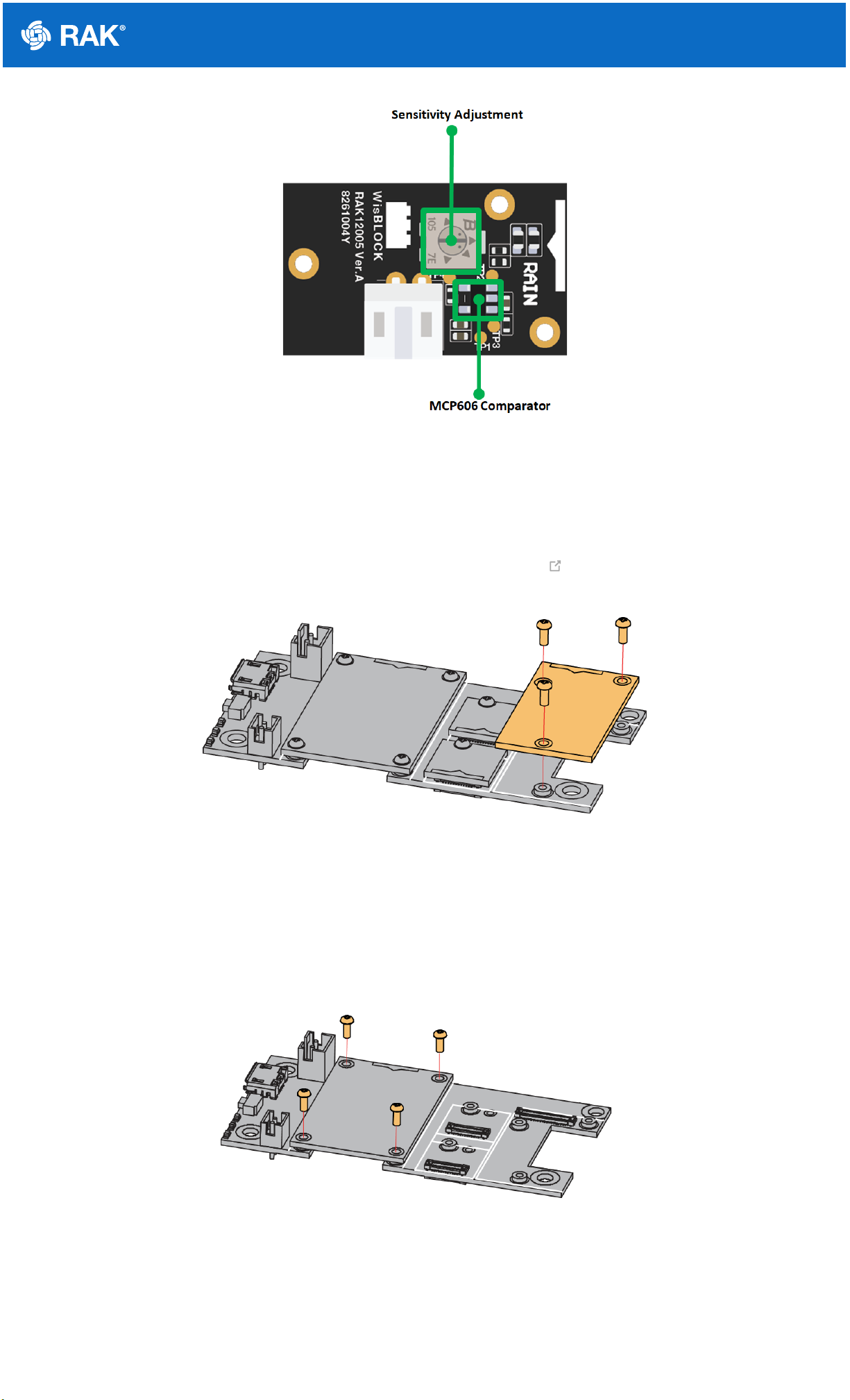
The RAK12005 module produces an output voltage depending on the resistance of the sensing pad. The signal
from the sensing pad is fed to an MCP606 Comparator to digitize it then the comparator output is tied to the IO pin
on the WisConnector. The module also has a built-in potentiometer for sensitivity adjustment of the digital output.
Keep the RAK12005 in a dry place or inside a waterproof enclosure, just make sure not to wet this part of the
module.
Documentation Center
Figure 3: RAK12005 Module
Installation
Mounting Mechanism
The RAK12005 module can be mounted on the IO slot of the WisBlock Base board, as shown in Figure 4. Also,
always secure the connection of the WisBlock module by using compatible screws.
Figure 4: RAK12005 mounting connection to WisBlock Base module
Disassembling Procedure
The procedure in disassembling any type of WisBlock modules is the same.
1. First, remove the screws.
Figure 5: Removing screws from the WisBlock module
2. Once the screws are removed, check the silkscreen of the module to find the correct location where force can
be applied.

Documentation Center
Figure 6: Detaching silkscreen on the WisBlock module
3. Apply force to the module at the position of the connector, as shown in Figure 7, to detach the module from the
baseboard.
Figure 7: Applying even forces on the proper location of a WisBlock module
📝
NOTE
If you will connect other modules to the remaining WisBlock Base slots, check on the WisBlock Pin
Mapper tool for possible conflicts.
Now, you can connect the battery (optional) and USB cable to start programming your WisBlock Core.

Documentation Center
⚠
WARNING
Batteries can cause harm if not handled properly.
Only 3.7-4.2 V Rechargeable LiPo batteries are supported. It is highly recommended not to use other
types of batteries with the system unless you know what you are doing.
If a non-rechargeable battery is used, it has to be unplugged first before connecting the USB cable to
the USB port of the board to configure the device. Not doing so might damage the battery or cause a
fire.
Only 5 V solar panels are supported. Do not use 12 V solar panels. It will destroy the charging unit and
eventually other electronic parts.
Make sure the battery wires match the polarity on the WisBlock Base board. Not all batteries have the
same wiring.
Software Configuration and Example
In our example, you will be using the RAK12005 and RAK12030 sensors for detecting water or rain.
For RAK12005, the accessible pin assignments are defined as follows in the Arduino IDE:
WB_IO6 for Water Sensor Input pin
Initial Test of the RAK12005 WisBlock Module
1. Install the RAKwireless Arduino BSP for WisBlock by using the package_rakwireless_index.json board
installation package. The WisBlock Core should now be available on the Arduino IDE.
2. You need to select first the WisBlock Core you have.
RAK4631 Board
Figure 8: Selecting RAK4631 as WisBlock Core
RAK11200 Board

Documentation Center
Figure 9: Selecting RAK11200 as WisBlock Core
RAK11310 Board
Figure 10: Selecting RAK11310 as WisBlock Core
3. Next, copy the following sample code into your Arduino IDE.

Documentation Center
📝
NOTE
If you experience any error in compiling the example sketch, check the updated code for your WisBlock
Core Module that can be found on the RAK12005 WisBlock Example Code Repository . This sample
code in Github will work on all WisBlock Core.
4. Then you can now select the right port and upload the code, as shown in Figure 11 and Figure 12.
📝
NOTE
If you are using the RAK11200 as your WisBlock Core, the RAK11200 requires the Boot0 pin to be
configured properly first before uploading. If not done properly, uploading the source code to RAK11200
will fail. Check the full details on the RAK11200 Quick Start Guide .
Figure 11: Selecting the correct Serial Port
Click Here to View Example Code

Documentation Center
Figure 12: Uploading the RAK12005 Sample code
5. When you successfully uploaded the example sketch, you'll now be able to test the RAK12005 Rain Sensor
module. Try pouring water on the copper traces of the RAK12030 and you'll be able to see that the blue and
green LED of the WisBlock solution lights up when there is a presence of water, and then switched off when
there is no presence of water or dry.
Last Updated: 3/18/2023, 12:43:08 PM
Dieses Handbuch passt für folgende Modelle
1
Inhaltsverzeichnis


