
Rare Waves Grendel 2TAC Bedienungsanleitung

2-Track Analog Control
For CV-Gate Music Synthesizers
Rare Waves LLC
RAREWAVES.NET

General Information
The Grendel 2TAC is a controller for music synthesizers that use the 1V/octave CV-Gate standard. It
requires patch cables with 3.5mm mono phone plugs, commonly used for Eurorack type systems.
Sequencer Standards
2TAC uses the pulse-per-step clock standard. One clock pulse advances the sequencer by one grid step.
Each clock pulse typically represents a 16th note or 8th note.
The sequencer has patchable Reset In / Reset Out connections to maintain a common reference point
when other sequencers are synchronized to it. A Reset Out pulse is transmitted when Stop is pressed.
While Reset In is activated, such as by patching a Gate signal to it, the transport is paused.
2TAC can serve as the master clock for other compatible sequencers, or it can be a slave unit to expand
your production setup when you’ve “maxed out” your other sequencers.
Pattern Data
2TAC’s patterns are limited to 4 different pitches. The 4 keys on the keypad can be considered as a 4-
note mini keyboard. You can tune the keys independently with the rotary encoders above each key.
The restriction of only having 4 pitches per pattern lends itself to a minimal compositional style.
However, it is possible to layer several patterns during playback with the Sticky Patterns feature. In this
case, you can produce sequences that contain more than 4 pitches.
Sequencing
You can easily create chains of patterns that play as a loop, allowing simple song structures.
But, 2TAC does not have extensive memory for lots of patterns, multiple song programming, or other
advanced DAW-like features. It is intended more as a scratch pad for developing musical ideas, and
performing minimal compositions which don’t involve a lot of pattern changes.
Controls One or Two Synthesizers
You can use 2TAC’s Track 1 and Track 2 outputs to play two different analog synthesizers, or use Track 2 as
an auxillary CV channel to control a single synth’s sound parameters like Filter CV, Velocity CV, etc. 2TAC
is not explicitly designed with the ACC GATE function, but you could use Track 2’s Gate Out for that
purpose.
Power Supply
Standard power supply is 9VDC, tip
positive.
It is OK to use a daisy-chain cable
to share power with other gear
from a single AC adapter.
It is safe to connect any DC power
source from 7.5 volts to 12 volts.
Polarity of the power source is
irrelevant. This unit accommodates
both tip-positive and tip-negative
AC adapters.
The unit is protected against over-
voltage with a built-in fuse (self-
resetting fuse).
Made by Rare Waves LLC
(Texas, USA)
RAREWAVES.NET
Design and Support:
Eric Archer
Manufacturer
Connections
V/OCT & Gate Out : 2 each
Clock In, Clock Out (5V pulse per step)
Reset In, Reset Out (5V pulse)
DIN Sync: Not supported
MIDI: Not supported
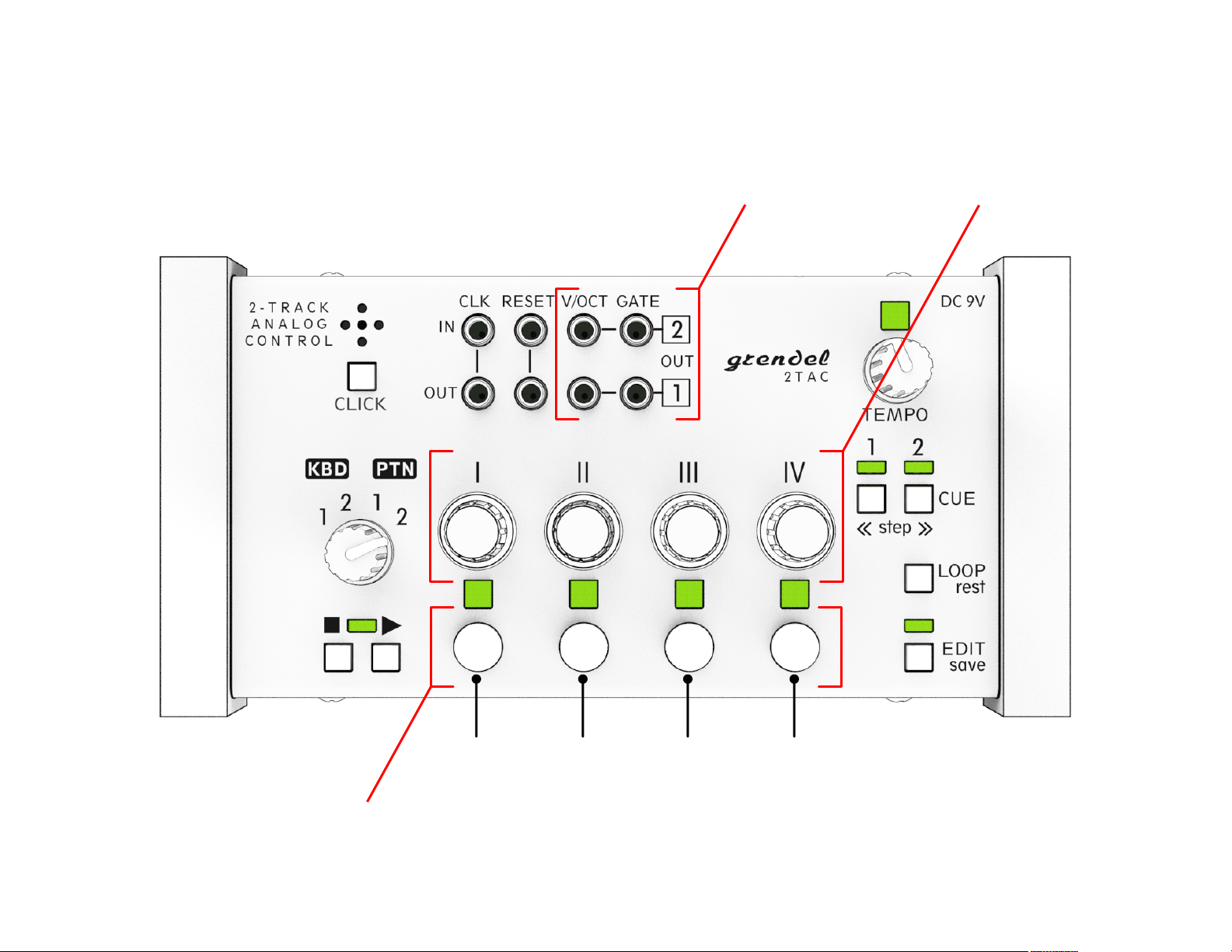
Keypad
Key I Key II Key III Key IV
CV-Gate Outputs Tuners
0V : Gate Off
+5V : Gate On
1V / octave
0 .. +5V Range
Gate OutV/Oct Out

Transport
Stop Play
Sync I/O Internal
Clock
1 pulse per step (+5V, rising edge triggered)
CLK OUT
CLK IN
Only when Transport is Playing. Also acts as Clock Thru.
+5V Gate or Pulse. Pauses transport and resets sequencer
RESET OUT
RESET IN
Transmitted when Stop is pressed
Active unless
CLK IN is patched

Mode Switch
Metronome
(Click Track)
Function Buttons

Mode Switch
The Mode Switch is the master control. Use it to choose what the Keypad and Tuners do.
The Mode Switch also works as an Undo for edits. While the EDIT LED is ashing, simply turn the Mode Switch to any other position,
and any edits in progress will be discarded. This also restores the tuning settings of all patterns to their last saved values.
The Keypad and Tuners control CV-Gate output on Track 1.
The Key LEDs light up with the sequenced notes on Track 1.
Press the Keys to play Track 1’s CV-Gate outputs in real time.
Use the Tuners to adjust the pitches of Track 1’s Keys
The Keypad and Tuners control CV-Gate output on Track 2.
The Key LEDs light up with the sequenced notes on Track 2.
Press the Keys to play Track 2’s CV-Gate outputs in real time.
Use the Tuners to adjust the pitches of Track 2’s Keys
1
The Keypad and Tuners control patterns for Track 1.
The Key LED lights up above Track 1’s actively selected pattern.
Press the Keys to switch between patterns on Track 1.
Use the Tuners to pitch transpose the the patterns on Track 1.
The Keypad and Tuners control patterns for Track 2.
The Key LED lights up above Track 2’s actively selected pattern.
Press the Keys to switch between patterns on Track 2.
Use the Tuners to pitch transpose the patterns on Track 2.
2
1
2

In mode, the tuners change the pitches of the Keys
Reset a key’s pitch to mid-range
(~ 2.5 volts)
Restore saved tuning settings
Change a key’s pitch by semitones
(0.083 volt per click)
Turn the tuner 1 click.
If you’ve reached the limit, the audible indicator sound changes.
Change a key’s pitch by octaves
(1.00 volt per click)
Hold the tuner down while turning it 1 click.
If you’ve hit the limit, the audible indicator sound changes.
Copy a key’s pitch to another key Press and hold the tuner of the source key while double-tapping
the tuner of the destination key
Save tuning changes to memory
Press and hold the tuner while tapping STOP
Tuning the Keys
2TAC’s V/OCT outputs are quantized in steps of 1 semitone equal temperament, or 0.083
volts. The pitches of the notes in your sequenced patterns can be adjusted with the Tuners
(rotary encoders) above the Keys.
2TAC has a tuning range of about 5 octaves. The voltages at its V/OCT outputs can cover
the range of 0 to +5 volts.
2TAC does not have provision for fine-tuning its V/OCT outputs. To make small
corrections to pitch, use the Fine Tune knob on the synthesizer you’re controlling.
Keys
Tuners
Hold EDIT so its LED ashes. Then hold EDIT again so the LED goes
dark. All tuning settings are saved to memory.
Hold EDIT so its LED ashes. Then turn the Mode Switch to any
different position. Previously saved tuning settings will be restored.
After you’ve made some tuning changes, and you’re happy with the results, remember to save them to memory by holding EDIT twice.
Otherwise, next time you undo any edits, the tuning changes will be lost also.

In mode, the Tuners change all notes in a pattern by an equal amount.
Transpose a pattern by 1 semitone Turn the tuner 1 click
Transpose a pattern by 1 octave Hold the tuner down while turning it 1 click.
Copy a pattern’s Key tunings
to another pattern
Press and hold the tuner of the source pattern, while double-tapping
the tuner of the destination.
Reset a pattern’s transpose
amount to zero Hold the tuner down while tapping STOP
Transposing Patterns
To make melodic composition more facile, you can easily transpose patterns.
Each pattern key has its own tuner, so you can transpose patterns in the
background while another pattern is playing.
2TAC’s transpose function can’t make its V/OCT outputs go beyond the range of
0 to +5 volts, so if you apply large transpositions to a pattern, the melodic
relationship between its notes will be affected. Normally, its suggested to keep
the transpose amount within +/- 1 octave.
Use the Coarse Tuning adjustment on the synthesizer you’re controlling to
optimize its pitch range.
Keys
Tuners
Restore last saved tuning
Save tuning changes to memory Hold EDIT so its LED ashes. Then hold EDIT again so the LED goes
dark. All tuning settings are saved to memory.
Hold EDIT so its LED ashes. Then turn the Mode Switch to any
different position. Previously saved tuning settings will be restored.
After you’ve made some transpositions, and you’re happy with the results, remember to save it to memory by holding EDIT twice.
Otherwise, next time you undo any edits, the transposed patterns will revert to their last saved values also.

Pattern Playback
Each track has memory for 4 patterns of 32 steps maximum. There are 3 memory banks - read on to learn how to switch memory banks.
Track Cue
The CUE buttons are used to mute / un-mute the tracks during playback.
When a track is muted, its CUE LED is dark. But its patterns continue to count in the
background, preserving the position of the downbeat.
Use the CUE buttons to insert drop-outs, fills, or to add white space or silent sections to your
compositions.
While a track is muted, you can hold the Keys to make its patterns play momentarily.
Jump cut Tap a Key while the sequencer is playing. It immediately switches to the newly selected
pattern.
In mode, the Keys switch between stored patterns, with options:
Cued transition Hold LOOP while tapping a Key. The sequencer will play to the end of the currently
active pattern, then switch automatically at the end of the bar.
Sticky patterns
(Pattern layering)
Hold PLAY while tapping a Key. The LED above it ickers while it is Sticky.
You can toggle Sticky status On/Off for each Key.
Notes of Sticky patterns are sounded in the blank steps of the active pattern.
Sticky patterns remain selected even if you switch active patterns or use Pattern Chain.
Momentary play Mute a track by pressing its CUE button so its CUE LED goes dark. Now you can tap
the Keys to play the patterns, but playback will only be heard while a Key is held down.
You can use the Tuners to transpose the pitch of a pattern at any time, even if the pattern is not actively playing.
All of the patterns are counting in the background, so you can jump cut between them without losing the position of the down beat.
Sticky patterns cancel All Sticky patterns are cancelled when you press STOP.
To cancel them without stopping the transport, hold PLAY and tap STOP.

Hold
To adjust the Metronome’s clock divider factor, hold CLICK while tapping Key I - Key IV
+ Tap:
1 2 3 4
Click Track (Metronome)
2TAC has a built-in audible metronome function. Tap CLICK to toggle the metronome On and Off.
The metronome automatically shuts off when you press the Stop button.
The metronome’s rate can be set to divide the clock by 1, 2, 3, or 4. The default on power-up is divide-by-4, or
quarter note beats if the clock input is considered 16th-notes.
Audible Indicator
The unit’s built-in speaker makes a variety of click sounds as confirmation of user input.
The tone of the click changes to indicate context.
* There is no way to turn off the audible indicator.
Inhaltsverzeichnis


