
RC-Timing RCM Signal Bedienungsanleitung

User Manual
RCM Signal
RCM Signal User Manual
(Version 2.0.1.1)
Page 2
User Manual
RCM Signal Version 2.0.1.1
The software and the manual are protected by the copyright law. The use is limited to the
licence contract and it’s determination. It is not allowed to copy or use the software without
permission of RC-Timing, Switzerland. All rights reserved. It is not allowed to reproduce
or to use the software, this document or parts of it for other purposes without a written
permission of RC-Timing.
Copyright 2005 - 2014
RC-Timing
Oberhasli, Switzerland
Content
1 Introduction............................................................................................. 3
2 RCM Signal Converter/Hardware ............................................................ 3
3 Installation of RCM Signal ....................................................................... 4
3.1 Registration.................................................................................. 7
4 First steps................................................................................................. 8
4.1 Configuration of the network ....................................................... 8
4.2 Configuration of the Signal-Port ................................................. 10
5 File ........................................................................................................ 10
5.1 Close ......................................................................................... 10
6 Configuration......................................................................................... 11
6.1 Language ................................................................................... 11
6.2 Options ..................................................................................... 12
6.2.1 RCM/General............................................................................. 12
6.2.2 Interface/Network ...................................................................... 12
6.2.3 Signal/Relay Module .................................................................. 13
6.2.4 Settings/Channels....................................................................... 14
6.2.5 Settings/Startpreparation............................................................. 14
6.2.6 Settings/Startsequence................................................................ 15
6.2.7 Settings/Loop passed.................................................................. 15
6.2.8 Settings/Race finished ................................................................ 16
6.2.9 Settings/Idle Mode ..................................................................... 16
7 Tools ...................................................................................................... 17
7.1 Language Editor ......................................................................... 17
7.1.1 Create a new language .............................................................. 17
7.1.2 Delete a Language ..................................................................... 18
7.1.3 Language editor ......................................................................... 18
8 Windows................................................................................................ 20
8.1 Normal/On Top.......................................................................... 20
9 Help....................................................................................................... 20
9.1 Release history........................................................................... 20
9.2 Info............................................................................................ 21
10 Concluding remarks............................................................................... 21

RCM Signal User Manual
(Version 2.0.1.1)
Page 3
1 Introduction
RCM Signal controls traffic lights and a audible horn. You can use RCM Signal when
you have bought an RCM Signal Controller from RC-Timing.
RCM Signal needs the timekeeping software RCM Ultimate or other programs from
RC-Timing like RCM Advanced or RCM Professional.
This User manual describes the installation of RCM Signal with RCM Ultimate.
RCM Signal can be connected to other programs from RC-Timing, which support
RCM Signal, in a similar way.
2 RCM Signal Converter/Hardware
RCM Signal is used either with the 8-way relay board from Conrad Electronic
(order-no. 19 77 30 - 62. The connection to the computer is described in the
manual for the board. Please note, that the jumpers JP2 and JP3 are set in RS232-
mode. JP1 must be set to 1-2 cause RCM Signal only communicates with one
board.
Further on, RCM Signal can be used with the the 8-way relay board from Devantech
(order-no. ETH-RLY16). Regarding the settings of this board please refer to the
manual you get with the relay board.

RCM Signal User Manual
(Version 2.0.1.1)
Page 4
3 Installation of RCM Signal
RCM Signal is delivered as executable setup-file. Installing RCM Signal the first time
you have to use the full version. Otherwise you can use the update-version. To start
the installation you have to run the setup file (double click in the Windows Explorer
on the filename like “RCM.Signal(v1.0.0.10-F)” or use start/run of the main menu of
Windows).
Before you run an update we recommend to you to make a complete backup of the
RCM Signal folders. Please do not delete these folders or delete files in it.
Please note, that the update version is mostly newer than the full version. If
you install RCM Signal the first time you should run an update directly after the
installation.

RCM Signal User Manual
(Version 2.0.1.1)
Page 5
After the welcome screen (please click here on Next), the next windows shows you
the destination folder. Preferable this is “C:\program files\RCM Signal” or “C:\RC-
Timing\RCM Signal”. You should never use the folder “program files” when using
Windows Vista, Windows 7 or higher. Install the program in a different folder like
C:\RC-Timing\RCM Signal”. Due to the handling of the user rights in these versions
of Windows The program will not work correctly if it is installed in C:\program
files”.
Again you click on next and in the following window you can determine whether
setup creates an icon on the desktop for starting RCM Signal.
The next window shows you a summary of the actions setup will execute.

RCM Signal User Manual
(Version 2.0.1.1)
Page 6
With clicking on Install you will start the setup process.

RCM Signal User Manual
(Version 2.0.1.1)
Page 7
3.1 Registration
To activate the program you need the contract number, the serial code and the
access code. You have received these information with your order from RCM.
Launching the application the first time you have to type in these information before
you can use the program.
The application language is set to English by default. For changing this language
please refer to Configuration/Language later in the manual.

RCM Signal User Manual
(Version 2.0.1.1)
Page 8
4 First steps
4.1 Configuration of the network
The timekeeping software of RC-Timing (RCM Ultimate, RCM Professional, RCM
Advanced, RCM Beginners and RCM Kart) is equipped with a Service-Discovery-
Manager, which enables an automatic connection to the clients like RCM Signal,
RCM Voice and all the others.
But first of all, the interface in the timekeeping software has to be enabled. Please
run RCM Ultimate (or another application RCM Signal is cooperating) and go to
Settings/Interfaces. The checkbox “Signal Interface activated” must be activated. If
not, please do it and confirm this change with Save. Depending on the number of
Signal programs you have installed in your network, the number of connections
must be set high enough.
Now you start RCM Signal and the program find the connection automatically,
shown by the hint in the footline „Connected to RCM Signal Interface“.
If this is not the case and in the footline “Connection Timeout!!!” is written,
RCM Signal is not connected to RCM Ultimate. In addition the bar just below
the displayed clocks is colored red. You have to set the IP-address of the server
manually.
Please run again RCM Ultimate (or another application RCM Signal is cooperating)
and go to Settings/Interfaces.
In the left column of the window you mark Signal.
In the right column you now see the Server-IP-Address which must be set in RCM
Signal.

RCM Signal User Manual
(Version 2.0.1.1)
Page 9
In RCM Signal you choose Configuration/Options.
In this windows you mark on the left column Network and type the IP-Address you
have found in RCM Ultimate into the field TCP/IP-Address.
Please leave the number of the TCP/IP Port at 30002. Only with this port RCM
Signal is able to receive the necessary information from RCM Ultimate. Confirm
your settings by clicking Ok. Now the footer line changes to “Connected to RCM-
Signal Interface” and the color of the bar will change to white. Please consider,
that it can take several seconds until RCM Signal has found the connection to RCM
Ultimate. In the footer line of RCM Ultimate you will find the information “Signal:
1”.
If RCM Signal can not establish a connection your network may be does not work
properly. To check this, please open a Command Shell and type in PING <ip-
adresse> (for example PING 255.255.255.158). If you got an error message (time
limit exceeded), your network is not working properly and you have first to check
the connections.
RCM Signal User Manual
(Version 2.0.1.1)
Page 10
4.2 Configuration of the Signal-Port
Depending on the Relay Converter you are using, RCM Signal needs also a RS232
Port configuration, where the Signal Converter is connected to. If there is one free
RS232 port on the computer RCM Ultimate is running, you can install RCM Signal
on the same computer where RCM Ultimate is running on. You can connect the
RCM Signal Converter to this port. But you can also use an additional PC connected
to the network to use the ports of this PC.
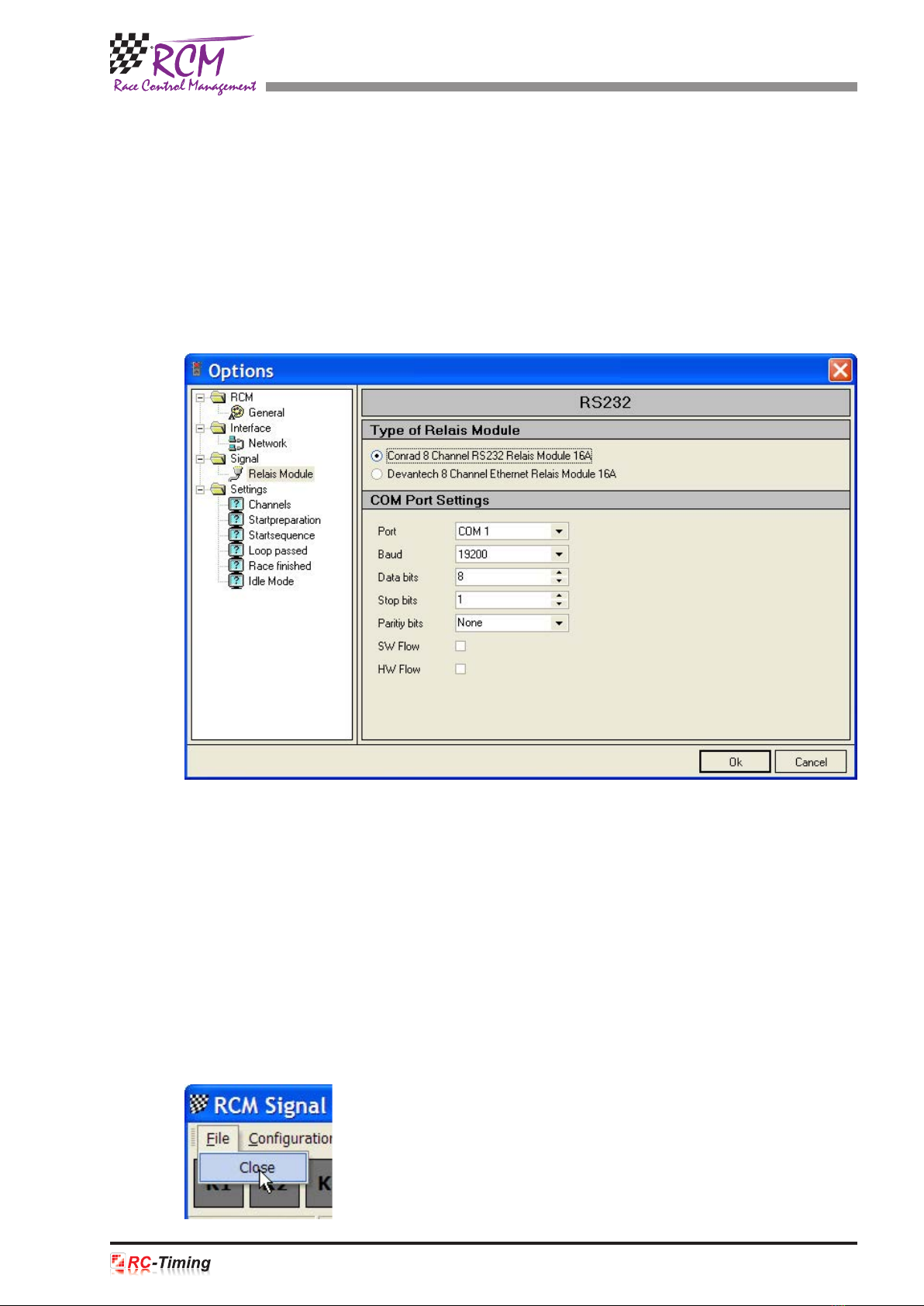
The settings of the port where the RCM Signal Converter is connected to, can be
changed in Configuration/Options. Left click in the left column on Signal/Relay
Module. In the right column you can choose the module and below the number of
the port.
All other settings should not be changed. They have to be set to
Baud 19200
Data bits 8
Stop bits 1
Paritiy bits None
SW Flow None
HW Flow None
5 File
5.1 Close
RCM Signal will be closed.
Inhaltsverzeichnis
Beliebte Steuereinheit Handbücher anderer Marken

Festo
Festo Compact Performance CP-FB6-E Stücklistenhandbuch

Elo TouchSystems
Elo TouchSystems DMS-SA19P-EXTME Bedienungsanleitung

JS Automation
JS Automation MPC3034A Bedienungsanleitung

JAUDT
JAUDT SW GII 6406 Series Kurzanleitung

Spektrum
Spektrum Air Module System Bedienungsanleitung

BOC Edwards
BOC Edwards Q Series Bedienungsanleitung


