
RM Education Slate Bedienungsanleitung

Quick Start Guide
© RM Education Plc 2011. Right is reserved to change technical details.
This product is an original design by RM Education, with trademark and patent rights.
310 Barnstable Rd
Suite 101 A&B
Hyannis, MA 02601
866-728-6758
www.rmeducation.com

Quick Start Guide
www.rmeducation.com

Table of Contents
Notice (Information to user):
You are cautioned that changes or modifications not expressly approved by the party responsible for
compliance could void your authority to operate the equipment.
Notice
This device complies with Part 15 of the FCC Rules. Operation is subject to the following two conditions: (1)
this device may not cause harmful interference and (2) this device must accept any interference received,
including interference that may cause undesired operation. For P15B equipment This equipment has
been tested and found to comply with the limits for a Class B digital device, pursuant to part 15 of the
FCC rules. These limits are designed to provide reasonable protection against harmful interference
in a residential installation. This equipment generates, uses and can radiate radio frequency energy
and, if not installed and used in accordance with the instructions, may cause harmful interference to
radio communications. However, there is no guarantee that interference will not occur in a particular
installation. If this equipment does cause harmful interference to radio or television reception, which
can be determined by turning the equipment off and on, the user is encouraged to try to correct the
interference by one or more of the following measures:
• Reorient or relocate the receiving antenna.
• Increase the separation between the equipment and receiver.
• Connect the equipment into an outlet on a circuit different from that to which the
receiver is connected.
• Consult the dealer or an experienced radio/TV technician for help.
For portable devices
FCC RF Radiation Exposure Statement:
1. This Transmitter must not be co-located or operating in conjunction with any other
antenna or transmitter.
2. This equipment complies with FCC RF radiation exposure limits set forth for an
uncontrolled environment. This device was tested for typical hand held operations with
the device contacted directly to the human body to the sides of the device. To maintain
compliance with FCC RF exposure compliance requirements, avoid direct contact to the
transmitting antenna during transmitting.
FCC Notice
Package List ......................................1
Exploring the RM Slate . . . . . . . . . . . . . . . . . . . . . . . . . . . . 2-3
Charging the RM Slate ..............................4
Starting up the RM Slate .............................4
Using the Touchscreen ............................5-6
Taking Care of your RM Slate . . . . . . . . . . . . . . . . . . . . . . . . . 7
Technical Support ..................................7
RM Slate FAQs .....................................8
RM Slate Accessories ...............................9

1
Quick Start Guide
Package List
Support Disc
(depending on SKU)
Power Adapter
Screen cleaning cloth
Quick Start GuideRM Slate

2
Touch hotkey¹
Status indicator
Light sensor²
Microphone
Webcam
Power button
Stereo speakers
Exploring the RM Slate

3
Exploring the RM Slate
Fan (do not block)
DC input
Mini-HDMI
USB 2.0 ports
Audio input and output for OMTP headset
SD card reader
SIM card reader
Stereo speakers
¹The touch hotkey performs the following functions:
In DOS:
• In the case of an abnormal shut down and subsequent DOS startup the
touch hotkey performs the following keyboard-based functions:
• Short press = “Down arrow” key
• Long press = “Enter” key
In Windows:
• Opens/Minimizes the Launcher
²The Light Sensor performs the following functions:
• Automatically adjusts the brightness of the screen based on ambient light.
• Allows the user to adjust the baseline light level.
Power Button LED
LED Color Power On Power Off Sleep Mode
Blue On Off Blinking
Status Indicator
LED Color Wi-Fi/BT/3G/GPS Enabled Wi-Fi/BT/3G/GPS Disabled
Blue On Off
4
Administrator
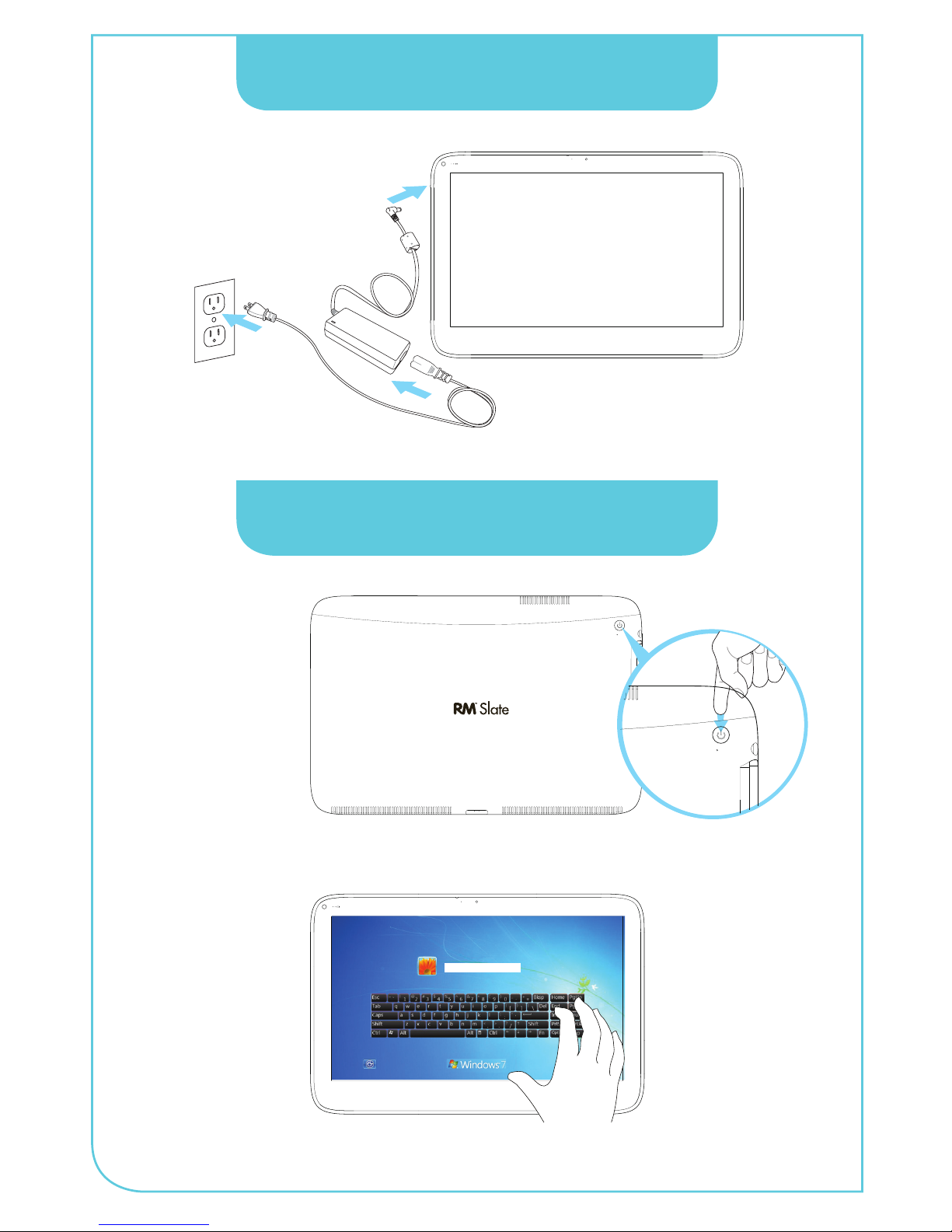
Charging the RM Slate
Starting up the RM Slate
Note: Hold the power button down for 5 seconds to start up the Slate.
Note: Windows login requires user setup and will vary by region.

5
Using the Touchscreen
Gesture Windows
Usage
Action Diagram
Tapping Click Lightly tapping on an
object in the screen
performs the same
function as a mouse
click. A double tap is the
same as a double click.
Flicking Default:
Pan Up/
Down/
Left/Right
Flicking the screen in
either an up, down, left,
or right allows you to
quickly navigate or scroll
through various screens.
Dragging Mouse
Drag
Holding your finger on
an item on the screen
while moving your finger
around allows you to
drag items to different
locations on the screen.
The same motion also
allows you to slowly
scroll through screens.
Pinching Zoom
Out
Touching the screen with
two fingers apart and
pinching together allows
for you to zoom out.
Expanding Zoom In Touching the screen with
two fingers close together
and spreading them out
allows for you to zoom in.

6
Gesture Windows
Usage
Action Diagram
Rotating Rotation Touching two points on
an image and moving
your fingers in a twisting
motion allows you to
rotate images.
Press and
Tap
Right-
Click
Pressing the screen with
one finger and then
tapping with a second
finger nearby brings up
the right-click menu.
Press and
Hold
Right-
Click
Pressing, holding, and
releasing on the screen
with a finger brings up
the right-click menu.
Using the Touchscreen
How to optimize Windows for using the Slate
In order to adjust the interface to a more touch friendly user experience for larger
fingers,the following can be changed:
1. Click Start>Control Panel>Appearance and Personalization>Personalization>
Change window glass colors. Then click Advanced appearance settings.
2. Fromthe Item drop-down menu, change the following attributes:
• Select Menu and increase size to24.
• Select Caption Buttons and increase size to 32.
• Select Active Title Bar and increase font size to 15.
• Select Inactive Title Bar and increase font size to 15.
• Select Scrollbars and increase size to 30.
3. To load the keyboard during the login screen, click the ‘Ease of Access’ button
in the lower-left corner. Select the ‘Type without keyboard (On-Screen
Keyboard)’ check box.

7
Keeping the RM Slate Clean
Use the microfiber cloth that came in your package to clean the touchscreen.
Avoid getting moisture in openings. Do not use aerosol, sprays, solvents,
alcohol or abrasives to clean the device.
Using Connectors and Ports
Never force a connector into a port. Check for any obstructions on the port.
Ensure that the connector matches the port and that you have positioned the
connector correctly in relation to the port.
Glass Parts
The glass touchscreen could break if the device is dropped on a hard surface
or suffers a substantial impact. Glass cracked due to abuse or misuse is not
covered under warranty.
Handling the RM Slate
Failure to follow the handling information could result in damage to the device.
Taking Care of your RM Slate
Technical Support
If you require technical support go to www.rmeducation.com and click Help Desk
in the left column and select RM Slate for the latest information.
If you still experience problems, telephone support is available in English at
866-728-6758 between 9am and 5pm EST Monday to Friday. Outside of office
hours you can use the Easiteach website or email [email protected].
Inhaltsverzeichnis


