Roline ATS Bedienungsanleitung

ATS User Manual
1
ATS USER MANUAL
ATS (Automatic Transfer Switch) User Manual
19.07.3415

ATS User Manual
2
Content
I ATS Overview ............................................................................................................................................... 4
II Function Description .................................................................................................................................... 4
III Application ............................................................................................................................................... 5
IV Product Schematic ........................................................................................................................................ 5
V Installation ..................................................................................................................................................... 7
VI Hardware Introduction ................................................................................................................................ 7
1. Power on self check..................................................................................................................................... 7
2. Operation status viewing............................................................................................................................ 7
3. Select the preferred power source ............................................................................................................. 7
4. Reset operation ........................................................................................................................................... 7
5. Restore to factory settings .......................................................................................................................... 7
6. Serial connection ......................................................................................................................................... 7
7. External audible and visual alarm ............................................................................................................ 8
8. Network connection(only intelligent type) ................................................................................................ 8
9. Intelligent ATS firmware upgrade ............................................................................................................ 8
VII Hyper Terminal user guide ................................................................................................................... 10
VIII Software user guide ............................................................................................................................... 19
1. Software Introduction .............................................................................................................................. 19
2. Software configuration ............................................................................................................................. 20
2.1. Device default settings ............................................................................................................................. 20
2.2. Device configuration when first log in.................................................................................................... 20
3. Access method ........................................................................................................................................... 21
3.1.1 Device Status ............................................................................................................................. 22
3.1.2 Device Config ............................................................................................................................. 23
3.1.3 Threshold Setting ...................................................................................................................... 23
3.1.4 Event logs ................................................................................................................................... 24
3.1.5 User Management ..................................................................................................................... 26
3.1.6 Network Config ......................................................................................................................... 27
3.1.7 HTTP/SMTP ............................................................................................................................. 27
3.1.8 SNMP/Telnet.............................................................................................................................. 29
3.1.9 Restart ........................................................................................................................................ 30

ATS User Manual
3
3.1 SNMP ......................................................................................................................................... 30
3.2 Telnet access............................................................................................................................... 32
IX Performance parameters ............................................................................................................................ 33
X Quality guarantee ....................................................................................................................................... 34

ATS User Manual
4
I ATS Overview
Automatic Transfer Switch; ATS for short;
Automatic Transfer Switch is a high reliable switch that provides redundant power to connected
equipments. If the primary power source becomes unavailable, the ATS will seamlessly switch to the
secondary power source automatically. ATS are divided to basic and intelligent two types, user can
upgrade the basic ATS to an intelligent one easily by inserting a hot-swappable Network Management
Card, which enable user to monitor and manage the ATS with web interface or SNMP platform.
II Function Description
1. Switching: Switch over between Source A and Source B automatically, transfer time 10~16ms
2. Monitoring: total load current; input and output voltage;
Source A and Source B power input; ATS operation status
3. Remote controlling: switch over between Source A and Source B
Set the threshold for the total load current and input voltage
4. Automatic alarming: automatically alarm when threshold is exceeded
5. System default alarming: When total load current/voltage exceed the threshold
When there is only one power source available
When automatical switching occur
6. Alarming method: Buzzer beeping and display flashing
E-mail alarming (only intelligent type)
7. Log recording: record and save the log of the device running and alarming information
User can view and export the logs
8. System support: support single user only, support remote firmware upgrade (intelligent type only)
9. User management: set the authorization of the account. User create, modify, delete operation.
10. Access method: Ethernet connection, web interface through IE browser
SNMP(V1/V2c/V3), access and control through standard simple network management protocol
Serial Connection RS232 (Hyper-terminal Protocol by defaulted)
11. System setting: system time setting.
Lock controller panel
Voltage/current threshold setting
Automatic reverse-switch time setting.

ATS User Manual
5
Buzzer switch setting;
III Application
1. ATS products are applicable for all kinds of server racks and network cabinets.
2. ATS products are in accordance with the regulation of RoHS.
IV Product Schematic

ATS User Manual
6

ATS User Manual
7
V Installation
Horizontal rack mounting
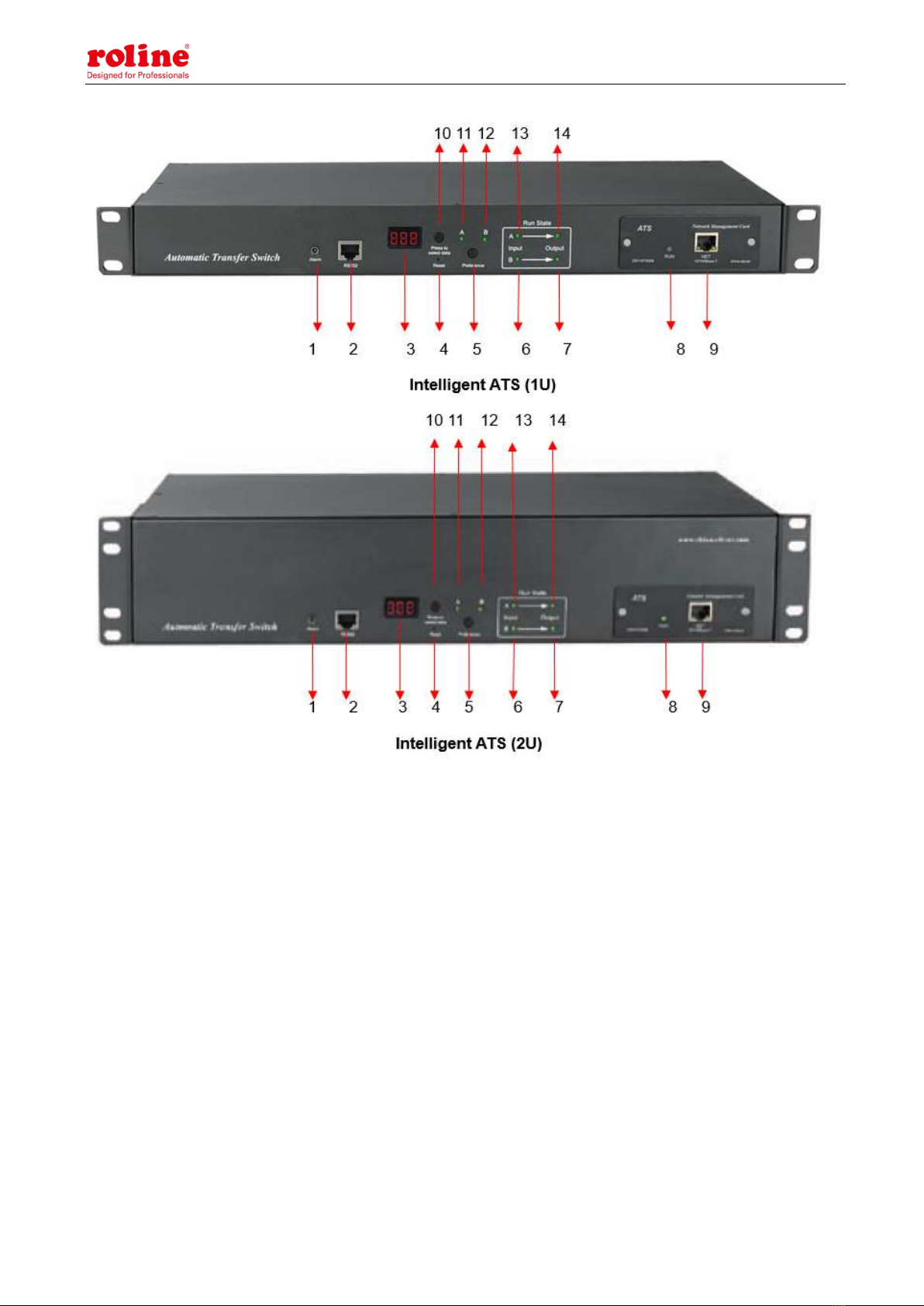
VI Hardware Introduction
1. Power on self check
The buzzer beeps once when power is on, the LED indicator is always on, digital screen display
load current after self-checking
2. Operation status viewing
Through "press to select data" button, user can view the voltage; IP address (only intelligent type) ,
device version number and load current.
3. Select the preferred power source
Use “Preference” button to select the primary power source, three options user can have: set the
source A as the preferred power source; set the source B as the preferred power source; or user can
leave this open. The corresponding indicator will always light on if a choice was made. If not, the two
indicators will stay the off status. Please be noted that the intelligent ATS has the Lock function, if
user can not do the setting above, it is probably because the controller panel is locked in the
firmware and please log on to the Web interface to unlock.
4. Reset operation
If you want to manually reset the ATS, Single press the Reset button to reset the ATS without
affecting the outlet power status.
5. Restore to factory settings
After long pressing the 'press to select data' key, the digital screen displays "Po" after releasing the
key, and the device IP is restored to the system default IP: 192.168.1.163. Enter the web page to
reset the account password, which includes uppercase letters and lowercase letters plus numbers.
Onnotation: Press and hold the 'press to select data' key for more than 6 seconds, and the value displayed on
the LED screen is subject to the third digit of the current LED screen.

ATS User Manual
8
For example, 1: press the 'press to select data' key to switch to voltage, and the value displayed is 226. Then
press and hold the 'press to select data' key for more than 6 seconds, and the LED screen displays p6
For example, 2: press the 'press to select data' key to switch to the MCU version number, which displays V9,
and then long press the 'press to select data' key for more than 6 seconds, and the LED screen displays P9
The P6 and P9 shown above display is to restore factory operation
Note: The operation of restoring factory settings does not affect the output and power supply of the
ATS, but the network configuration and device IP are restored to the system default configuration.
6. Serial connection
Use the supplied serial cable, insert the RJ45 connector to RS232 communication port and connect
the other end to the serial port of local PC or serial server.
7. External audible and visual alarm
Use the supplied 3.5mm port to connect the alarm, the port allows maximum voltage of 50VDC and
load current of 5A
8. Network connection (only intelligent type)
Use supplied network cable, connect one side to the NET port of device and the other end to
network switch.
9. Intelligent ATS firmware upgrade
9.1 Save the software update file provided by supplier to the local PC.
9.2. Open the the software upgrade tool , double-click the setup.exe file to
install
9.3. Running the software as below when installation finished

ATS User Manual
9
9.4. Insert the RJ45 connector of the supplied serial cable into the RS232 port of the ATS front
panel, connect the other end to the port COM1 of local PC
9.5. Select the serial port from this column , other items please refer to the above
screenshot
9.6. Click the button from this column and load the ATS
firmware file to the frame
9.7. Power on the ATS.
9.8. Click the button , this will be displayed on the interface if read
success, if not, please double-check the cable connection and communication port.
9.9. Click button , this will be displayed on the
interface if erase success, if not, please double-check the cable connection and communication port
9.10. Click button , this will be displayed on the interface if
loading success, if not, please double check the cable and communication port
9.11. Power off the ATS.
9.1. Power on on the ATS, local digital screen will display the new hardware version number, it can

ATS User Manual
10
perform normal communication after successful software update.
VII Hyper Terminal user guide
1. Use the supplied serial cable, connect one end to the RS232 port and the other end to serial port
of local PC. Running the Hyper terminal program (like Windows Hyper terminal), Here we take the
Windows Hyper Terminal for example. Click Start→ Programs→ accessories→ communication→
Hyper terminal
2. Dialog box as below will pop up if it is the first time that the PC runs the Hyper Terminal
3. Enter one or several numbers at random when it require your area code, for instance 0755 and
click OK
4. Click OK, it pop-up the link description window as below:
Inhaltsverzeichnis
Andere Roline Schalten Handbücher