
Samsung EO-MN910 Bedienungsanleitung


2
About this manual
This user manual is specially designed to detail the device’s functions and features.
•
Please read this manual before using the device to ensure safe and proper use.
•
Images may differ in appearance from the actual product.
•
Some content may differ from your device depending on the region, and is subject to
change without prior notice.
•
For the latest version of the manual, refer to the Samsung website,
www.samsung.com
.
Instructional icons
Warning: situations that could cause injury to yourself or others
Caution: situations that could cause damage to your device or other equipment
Note: notes, usage tips, or additional information
Copyright
Copyright © 2015 Samsung Electronics America, Inc.
This user manual is protected under international copyright laws.
No part of this user manual may be reproduced, distributed, translated, or transmitted in
any form or by any means, electronic or mechanical, including photocopying, recording, or
storing in any information storage and retrieval system, without the prior written permission
of Samsung Electronics.
Trademarks
•
SAMSUNG and the SAMSUNG logo are registered trademarks of Samsung Electronics Co.,
Ltd.
•
Bluetooth®is a registered trademark of Bluetooth SIG, Inc. worldwide.
•
All other trademarks and copyrights are the property of their respective owners.

3
Table of Contents
Getting started
4 Headset layout
4 Buttons
5 Package contents
5 Charging the headset
6 Turning the headset on and off
7 Turning the indicator light on and off
7 Wearing the headset
Using the headset
8 About Bluetooth
9 Optimal usage conditions
9 Pairing and connecting the headset
11 Connecting to multiple devices
13 Reconnecting and disconnecting
14 Call functions
16 Using voice prompts
17 Resetting the headset
Appendix
18 Specifications
19 Frequently asked questions

4
Getting started
Headset layout
Talk button
Volume button
Charging socket
Microphone
Earpiece
Ear hook
Power switch
Indicator light
Buttons
Button Function
Power
switch
•
Slide to turn the headset on or off.
Talk
•
Press and hold for 3 seconds to enter Pairing mode.
•
Press to answer or end a call.
•
Press and hold to reject an incoming call.
•
Press and hold to put a call on hold.
•
Press and hold to switch between calls.
Volume
•
Press to adjust the volume.
•
Press and hold to turn the microphone on or off during a call.

Getting started
5
Package contents
Check the product box for the following items:
•
Headset
•
Car charger
•
Charging cable
•
Ear tips
•
Ear hook
•
NFC sticker
•
Quick Start Guide
The items supplied with the headset and any available accessories may vary
depending on the region.
Charging the headset
Charge the headset before using it for the first time or when the headset has been unused for
an extended period.
Use only Samsung-approved chargers. Unapproved chargers can cause the battery to
explode or damage the headset.
When the battery level is low, the indicator light flashes red and the headset beeps.
If the headset turns off during a call, the call is automatically transferred to the
connected mobile device.
Plug the small end of the charger into the charging socket on the headset, and plug the large
end of the charger into an electric socket.
Charging time Approximately 2 hours
Indicator light color
Red: Charging in progress
Blue: Charging complete
Connecting the charger improperly may cause serious damage to the headset. Any
damage caused by misuse is not covered by the warranty.

Getting started
6
•
Repeatedly charging and discharging of the headset over time cause the battery
performance to diminish. This is normal for all rechargeable batteries.
•
If the headset is not charging properly, take the headset and the charger to a
Samsung Service Center.
After fully charging, disconnect the headset from the charger. First unplug the charger from
the headset, and then unplug it from the electric socket.
Checking the battery level
Press and hold the Volume down button and the Talk button at the same time to check the
battery level. The indicator light flashes three times in one of the following colors, depending
on the battery level:
Color Battery level
Green Above 60%
Yellow 60-30%
Red 30-10%
Red blinking Below 10%
Turning the headset on and off
When turning on the headset for the first time, it automatically enters Pairing mode for
approximately 3 minutes.
Slide the Power switch on to turn on the headset. The indicator light flashes blue three times.
Follow all posted warnings and directions from authorized personnel in areas where
the use of wireless devices is restricted, such as aeroplanes and hospitals.
To turn off the headset, slide the Power switch off. The indicator light flashes red three times
then turns off.
Getting started
7
Turning the indicator light on and off
The indicator light shows the current status of the headset. If the light becomes annoying at
night, you can turn it off.
Press and hold both Volume buttons at the same time to turn the indicator light on and off.
•
The indicator light cannot be turned off in Pairing mode.
•
The indicator light is always activated when the headset is turned on or off, when a
call is received, when in Pairing mode, and when the battery level is low.
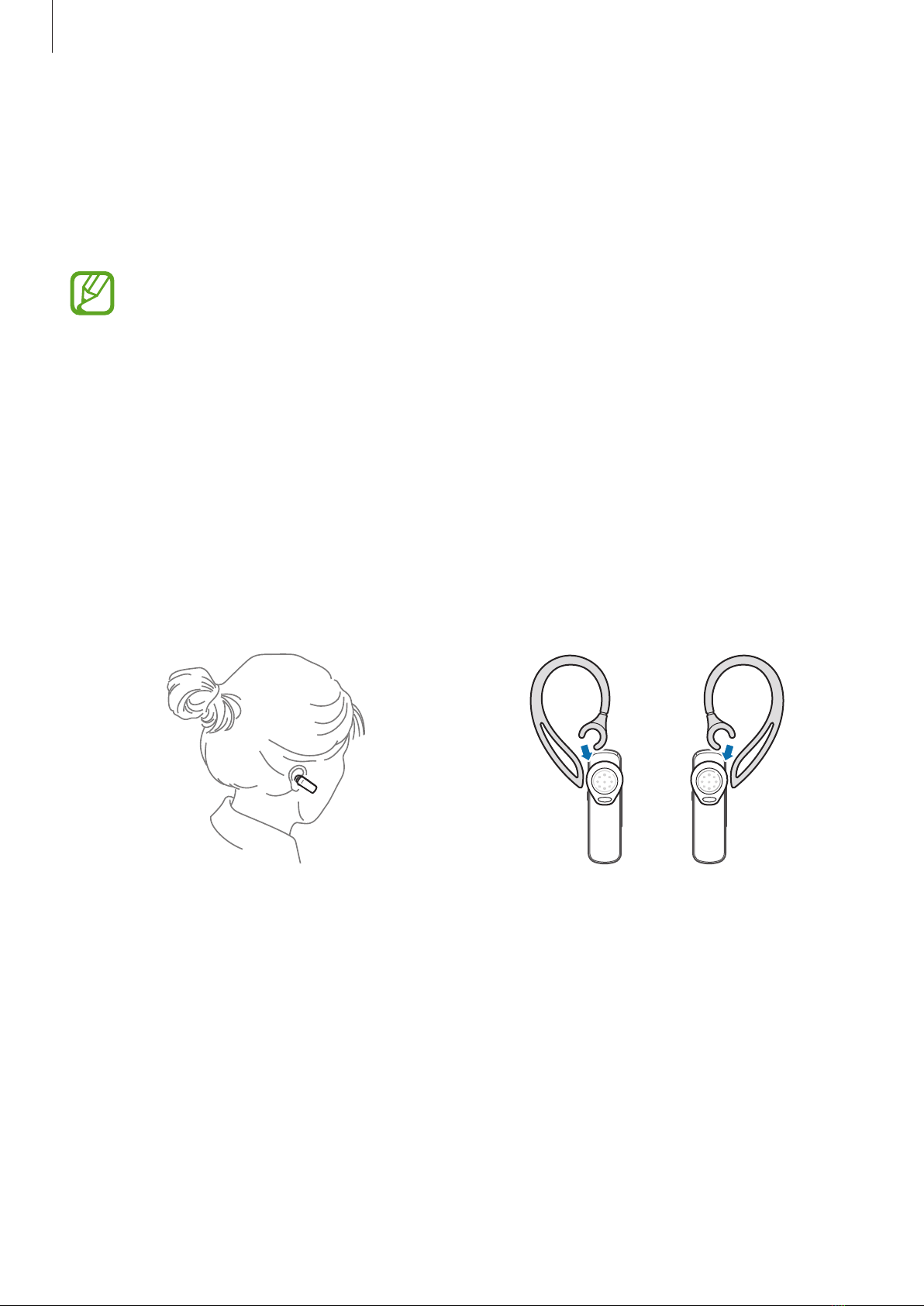
Wearing the headset
Wear the headset as shown in the image below.
Use one of the provided ear tips that fit your ear. Rotate the ear tip left or right slightly
depending on which ear the headset will be worn on.
Attach the provided ear hook to the headset for comfortable and secure fit when using the
headset for active use.
<Left> <Right>

8
Using the headset
About Bluetooth
Bluetooth is a wireless technology standard that uses a frequency of 2.4 GHz to connect
to various devices over short distances. It can connect and exchange data with Bluetooth
devices, such as mobile devices, computers, printers, personal digital assistants (PDAs), and
other digital home appliances, without connecting via cables.
Bluetooth profiles
The Bluetooth profile sets the available features and communication requirements for
Bluetooth devices. Below are the types of Bluetooth profiles for the headset.
•
Headset Profile (HSP): Allows basic communication between a headset and connected
mobile device, including receiving/ending calls and adjusting volume.
•
Hands-Free Profile (HFP): Allows extra communication between a headset and
connected mobile device, including last number redial, call waiting or voice dialing.
•
Advanced Audio Distribution Profile (A2DP): Allows music streaming from a connected
Bluetooth device to a headset.
•
Audio/Video Remote Control Profile (AVRCP): Allows remote control of playback
functions for a connected Bluetooth device from a headset.
Available functions may vary depending on the profile. For supported Bluetooth
profiles, see “Specifications”.
Bluetooth profile support
Profile Call answering
/ ending Call reject Voice dialing Music
streaming
Wireless audio
remote control
HSP O − − − −
HFP O O O − −
A2DP − − − O −
AVRCP − − − − O

Using the headset
9
Optimal usage conditions
To ensure you get the best performance from the headset:
•
Do not block or create a barrier between the devices. Human body can interfere with the
Bluetooth signal.
•
Do not touch the transmitting/receiving part of the connected device.
•
When pairing the headset with other devices, place the devices close together.
Depending on the user environment, noise problem or malfunction might occur.
•
Bluetooth uses the same frequency as low power devices, such as industrial, scientific,
medical devices, electronic devices or wireless LANs. Move the headset away from these
devices, as they may interfere with each other.
•
To improve range, use the headset in places without intervening obstacles. Obstacles
such as walls, corners or furniture weaken the signal.
•
When calling through the headset, sound quality might drop, as the distance from
the connected mobile device increases. If two devices are too far from each other, the
connection is lost and the call is transferred to the mobile device.
•
Conversation might be interrupted when calling in a loud environment, such as outside
or where there is a lot of background noise.
Some devices, especially those that are not tested or approved by Bluetooth SIG, may
not be compatible with the headset.
Pairing and connecting the headset
When using a new mobile device, you need to pair it with the headset. Once pairing is
complete, the headset attempts to reconnect each time you turn it on. For Pairing and while
in use, the two devices must be placed close together.
Option 1: Manual pairing
1 With the headset turned on, press and hold the Talk button for 3 seconds to enter Pairing
mode. The indicator light flashes blue and red for 3 minutes.
2 Activate Bluetooth on the mobile device, scan for the device, and then select the headset
name “EO-MN910” from the list of available devices. For more details, refer to the mobile
device’s user manual.

Using the headset
10
Option 2: Pairing via Active Pairing
With Active Pairing, the headset automatically searches for a mobile device within range and
tries to make a connection with it.
In Pairing mode, press and hold the Talk button. The indicator light color changes from blue
to violet. The headset attempts Active Pairing for up to 20 seconds.
Make sure to set the mobile device’s Bluetooth visibility option to on. The headset might be
paired with other devices, if the two devices are not placed close together.
•
If the mobile device is already connected to another device, end the connection
and restart Active Pairing.
•
This feature may not be supported on some mobile devices.
Option 3: Pairing with the NFC sticker
Simple pairing is available using the provided NFC sticker.
1 Activate NFC on the mobile device. Make sure the mobile device is in Unlock mode.
Pairing is not available when the device is locked.
2 With the headset turned on, press and hold the Talk button for 3 seconds to enter Pairing
mode.
3 Touch the NFC sticker to the mobile device’s NFC antenna until NFC pairing completes.
For more details, refer to the mobile device’s user manual.
•
Some NFC-enabled devices may not support this feature.
•
To locate the mobile device’s NFC antenna and activate NFC, refer to the mobile
device’s user manual.
Andere Handbücher für EO-MN910
1
Inhaltsverzeichnis
Andere Samsung Bluetooth-Headset Handbücher


