
Shot-Scope V3 Bedienungsanleitung

support.shotscope.com
User Guide

Contents
Inside your box 01
Setting up your Shot Scope V3 02
Before you play for the rst time 07
At the course 10
Post-round 15
Editing / Signing off 16
Leaderboards / Medals 18
Get the most out of your Shot Scope V3 19
Terms and Conditions 20
Inside your box
Thank you for buying a Shot Scope V3. Before turning
on the device, please read our full user guide to ensure
the correct set up.
01
1 x Shot Scope V3
16 x Lightweight tags
1 x Charging cable

App registration screen
Step 1: Download and install the mobile app
Shot Scope provides both an Android and iOS app, these can be
downloaded onto any compatible mobile or tablet.
To download or install the Shot Scope app, simply search for
Shot Scope on either the App Store or the Google Play Store.
Setting up your
Shot Scope V3
Register
To register an account, open the app and then click on the
‘Register’ button. Complete all sections and then press the
‘Continue’ button.
Your password must be at least 6 characters long and include
at least one number.
02
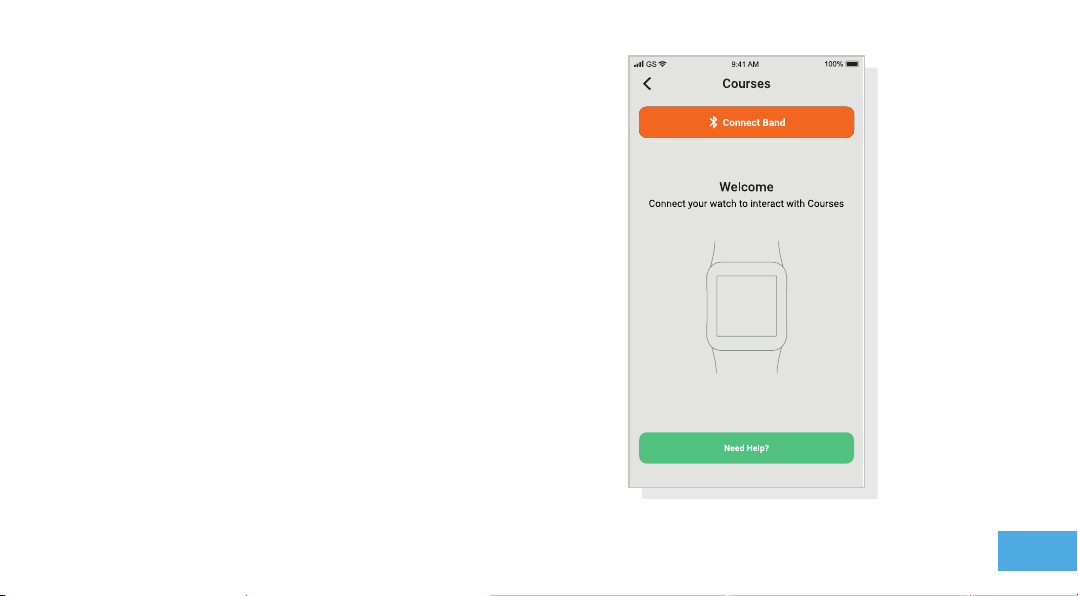
Step 3: Connecting to Shot Scope
If you have just completed the tutorial you won’t need to connect
the watch again. If you do need to connect the watch to the
mobile app, turn Bluetooth on in your phone settings, log into your
app and then press the ‘Connect’ button at the top of the screen.
The watch screen will then change to show the connection has
been made successfully.
03
Step 2: Complete the tutorial on the app
The rst time you enter the Shot Scope app after registering, you
will be taken through a tutorial showing you how to use the watch
and the app. During this process, you will choose the settings
for your watch and sync the watch to ensure it has the latest
rmware installed. You must complete this process before using
the watch.
Set up tutorial

View course maps
Step 4: Check course maps
We suggest that you check the mapping status of any courses
you intend to play 48 hours before your tee off time. This is to
make sure the course is in the system and has been mapped.
Most courses will be mapped and on the watch, but there could
be the occasional new course that isn’t on the system or your
course may have an update pending.
To view the list of mapped courses on the Shot Scope system,
navigate to the ‘Courses’ section in the app. This is present on the
tab bar of the iOS app and the main menu of the Android app.
04

Step 5: Searching for, subscribing and adding a course
You can search our course database by entering the name of the
course or using your location to nd nearby courses. Either use
the search bar or use the lter at the top right of screen to lter
courses by proximity to your current location.
To make sure you always have the most up to date course maps,
subscribe to any course that you play a lot to get notications
when the course map has been updated. To subscribe, tap on the
course and it will be highlighted blue to conrm this action. If any
of the courses you selected are due an update then they will be
automatically added to the sync list.
If your course is mapped but not yet on the watch, the course
will have an ‘add’ button beside it, tap this and the course will be
automatically added to your sync list.
We may have your course in the database but it has not yet been
mapped. In this situation the course will have a ‘request’ button
beside it, tap this to request the course be mapped. This will
notify the mapping team who will endeavour to get the course
mapped in 48 hours.
If you can’t nd the name of the course, press the ‘Request’ button
at the bottom of the screen. This will bring up a form that can be
lled out and sent to our mapping team. Again, we will aim for this
to be mapped in 48 hours. 05
View course maps

Step 6: Syncing
If you have any course maps that need to be uploaded to the
watch, or any updates that need to be transferred to the watch
you, should see a red notication at the top of the courses
screen. If you wish to perform a sync then tap on the ‘Ready to
Sync’ button at the top of the screen.
On the resulting screen, you will see the list of courses that
require a sync. Press the ‘Sync All’ button near the top of the
screen to start the process.
06
View course maps

Step 1: Charging your Shot Scope V3
Your Shot Scope can be charged from any USB port or USB
compliant wall charger. Please use the charger provided with
the product.
Hold the charger with the Shot Scope logo facing the sky,
then apply some pressure to the lever and carefully place the
4 prongs into the back of the watch. The watch screen will
change to show the charging screen if successfully done.
Before you play for
the rst time
07

Step 2: Installing tags
Your Shot Scope comes with 16 tags, each labelled with an
initial to identify the club. It is best practice to match the
appropriate tags with the corresponding club. For example,
the D tag would screw into your driver.
Tags must be inserted securely into the grip of the club you
wish to track. Do this by rotating the tag clockwise whilst
applying a slight downward force.
There are 2 ‘spare’ tags marked X1 and X2, these should be
used for clubs such as a 7 wood or an extra driver.
Only the P tag can be used with a putter.
08

Step 3: Setting up My Bag
The ‘My Bag’ feature can be found in the ‘Account’ tab
within the ‘More/Settings’ section of the app.
To compliment the Shot Scope app we also a have an
online web dashboard https://dashboard.shotscope.com.
This webpage has more detailed stats throughout it and
has the same admin features like ‘My Bag’. You can log
into this dashboard using the same email and password as
your mobile app. The ‘My Bag’ feature can be found in the
‘Account’ tab at the top right corner of the dashboard.
Once you have screwed your tags into their respective
clubs, you should then enter the My Bag feature on either
the mobile app or the online dashboard and create your set
of clubs, then assign these clubs to the tag slots so that it
matches your physical tag set up.
Please visit the support site for detailed instructions on
how the My Bag feature works:
09
My Bag Dashboard
Inhaltsverzeichnis
Andere Shot-Scope Betrachten Handbücher


